A menu category with a Minimum Age Verification stops the order until the guest’s age is checked — the register’s side of responsible service.
What is restricted
The minimum age is set on the category, under Back Office › Menu › Menu Setup › Menu Categories: Not Required, or an age from 12 to 30. Every item in the category is covered; there is no age setting on a single item.
At the register
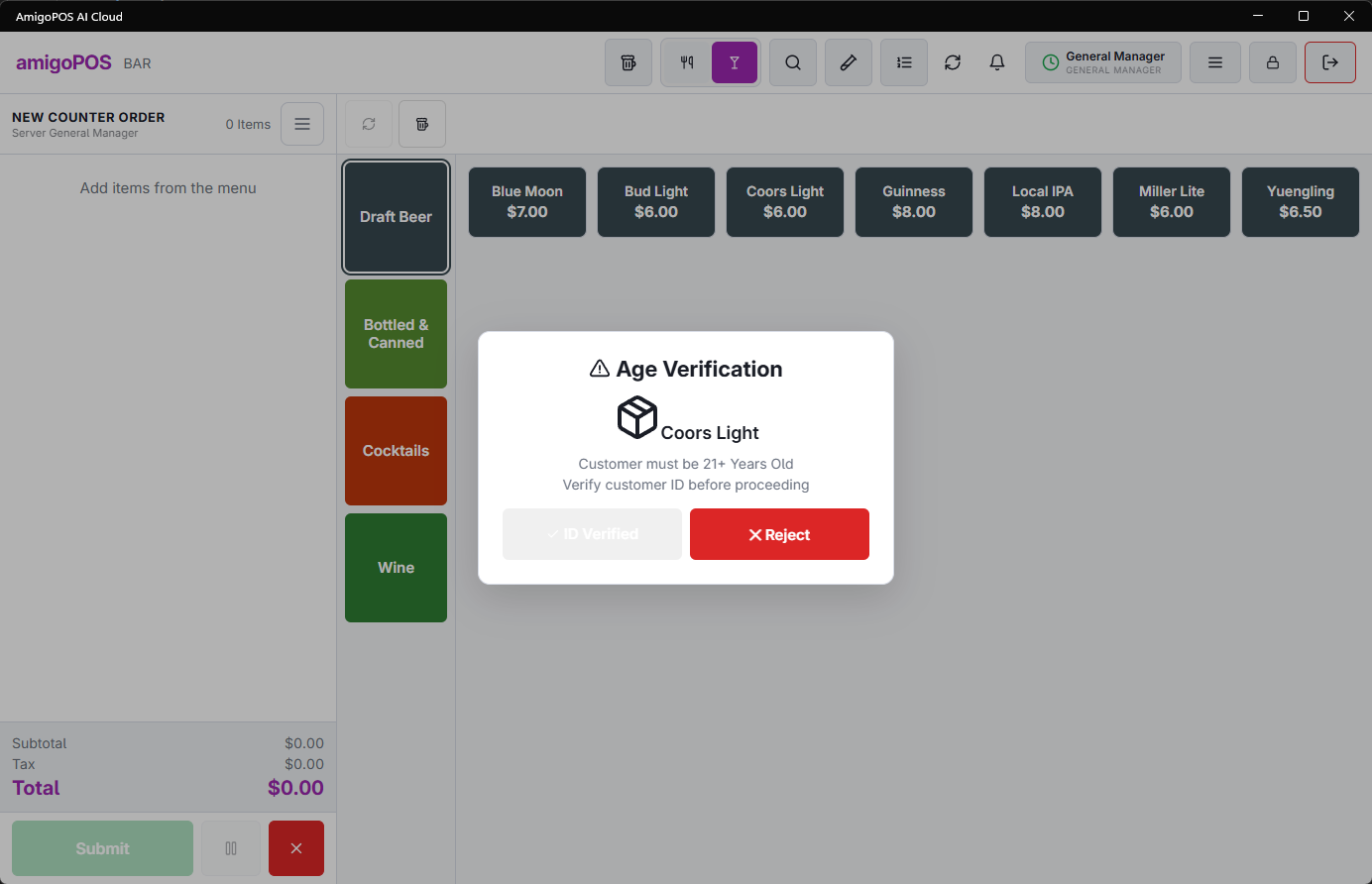
Adding an item from a restricted category to an order that has not been verified opens the age check. It shows one button per verification method, in their button order. Once an order is verified, other restricted items on the same order do not ask again.
- A method with Show keyboard asks the cashier to type something — its Keyboard prompt is shown, or “Enter birthdate”. When a date is typed, the guest’s age is worked out: an underage guest is refused with “Customer must be 21 or older” (the category’s age), and nothing is recorded. Anything else typed, such as an ID number, is stored as it is.
- A method without the keyboard is recorded with one tap.
- With no methods set up, a single Visual check button is offered.
- Rejecting the check shows “Sale Rejected — Age Verification Failed” and the item is not added.
Verification methods
The methods are on the Age Verification tab of Back Office › Store Setup › Order Entry Screen, in an editable grid (an entry saves when you leave the cell). Columns: Description (the button text, up to 25 characters), Button position, Show keyboard (on for a new method) and Keyboard prompt (up to 35 characters). Typical methods: ID checked, Date of birth with the keyboard, Passport number with the keyboard.