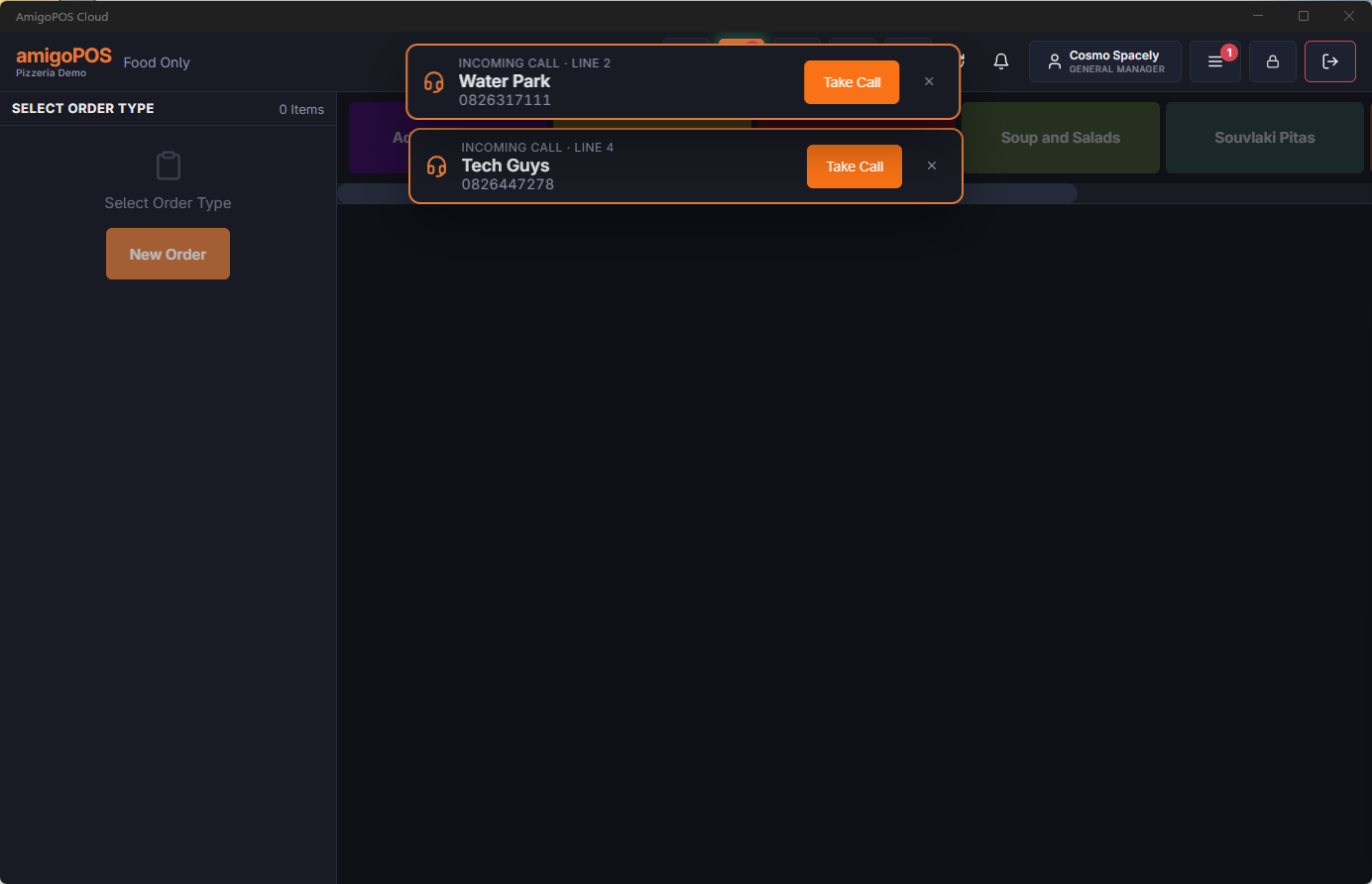
With caller ID connected, every incoming phone call appears on the registers while the phone is still ringing: the caller’s number, and their name when they are already a customer. One tap on Take Call opens the customer screen with the number already searched, so a phone order starts without typing a single digit.
Where the calls come from
- FreePBX (free, open-source phone system) — the phone system asks CloudPos who is calling each time a call comes in. See Connecting FreePBX.
- 3CX (Pro or AI edition) — the same idea through 3CX’s CRM integration. See Connecting 3CX.
- A CallerID.com box (Whozz Calling) on ordinary analog phone lines — the box sends each call over the store network and the registers pick it up. See Using a CallerID.com box on analog lines.
What staff see
- A banner at the top of the register for each ringing call. A green border means the number belongs to a customer; an orange border means an unknown caller.
- Take Call opens Customer Information on that number. The other stations drop the call as soon as one of them takes it.
- Recent Calls in Customer Information lists the latest calls, so a missed caller can be called back or looked up later.
- A small caller line in the Back Office header when someone is working in Back Office on that station.
Call-center stations see the calls for every store of the business; a store’s registers see that store’s calls.
Caller ID never blocks anything. If the phone system or the connection is down, the phones still ring and orders are taken the usual way, with the number typed in.
Getting started
- Turn caller ID on in Back Office — Setting up caller ID in Back Office.
- Connect your phone system or box using its own topic.
- Use Send Test Call on the Caller ID page to check the registers before the first real call.