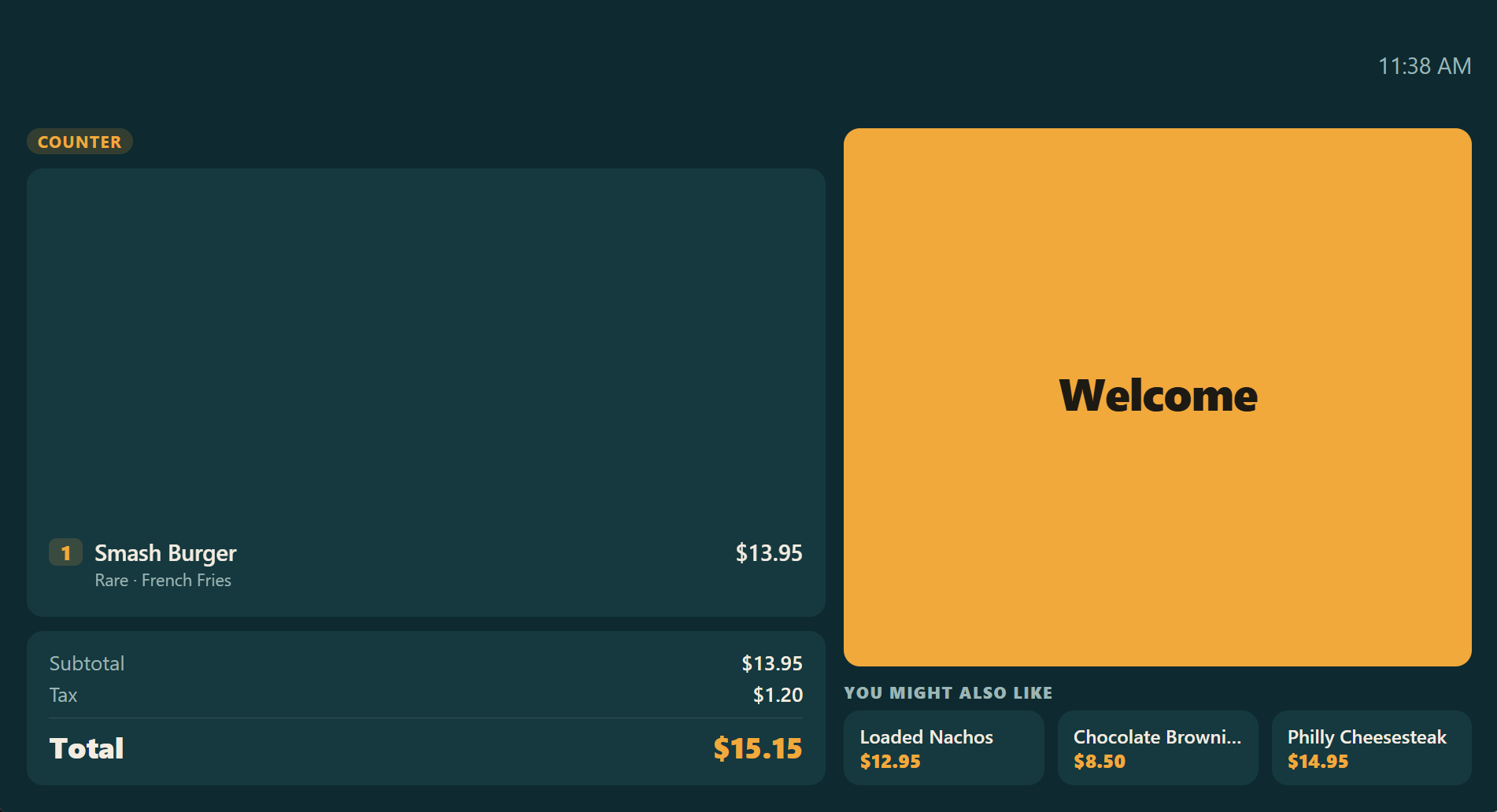
- Idle — promotions between sales.
- Order — items appear as they are rung in, and new ones flash in. Discounts show on the line and in the totals.
- Suggestions — when suggestive selling offers an item, it can appear under "You Might Also Like" (if the design has the Suggestions widget). Accepted offers drop off.
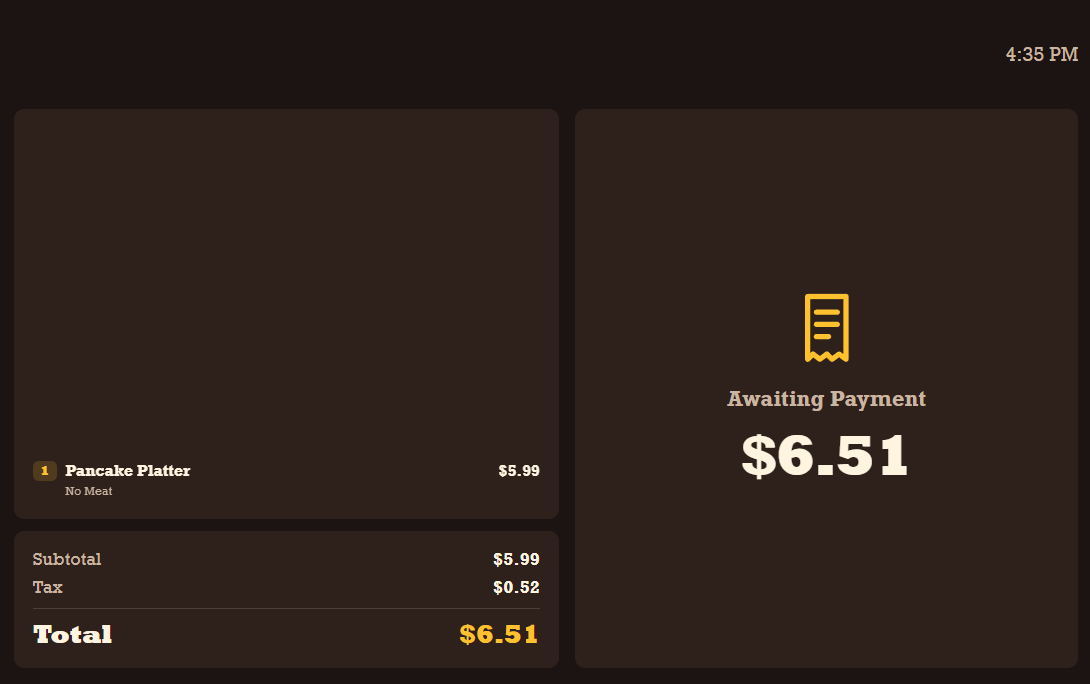
- Payment — opening payment shows the amount due. A card payment shows Insert, Tap Or Swipe Your Card; if the card attempt ends without a payment, the display goes back to the amount due. Part payments show what is paid and what is left.
- Tip — for card payments that allow tips, the guest picks a tip or no tip on a touch display, then the card terminal charges the total.
- Loyalty — when the store asks for loyalty on the customer display and the order has no loyalty card, the guest types a phone number or skips.
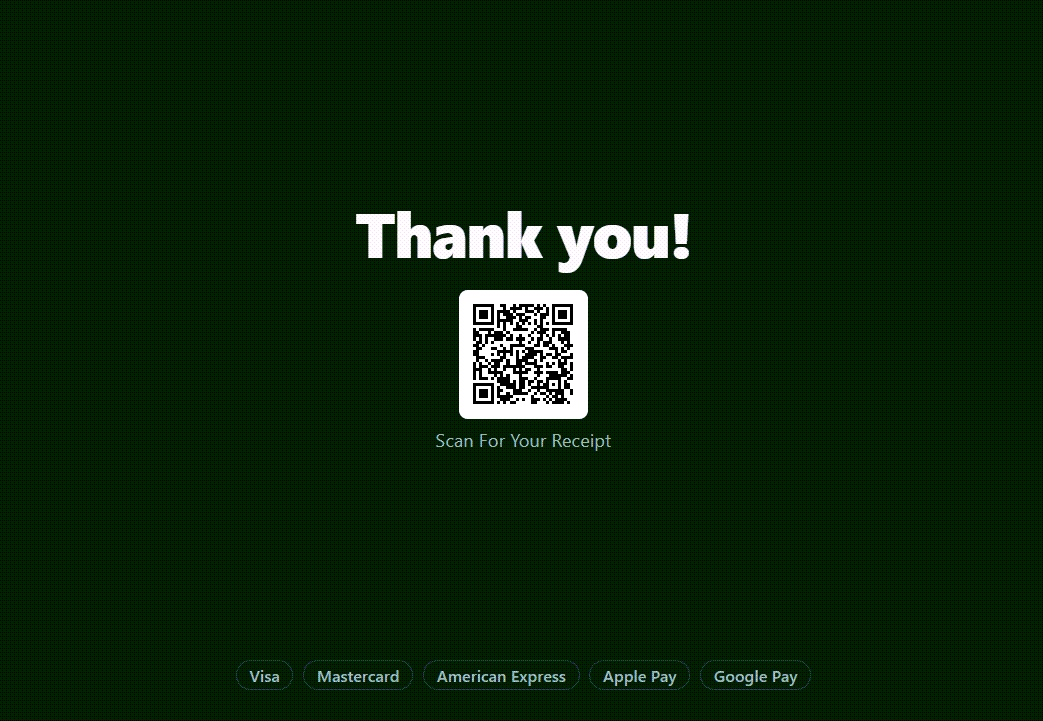
- Thank You — the change due after cash and a QR code for the digital receipt, then back to Idle.
The digital receipt QR
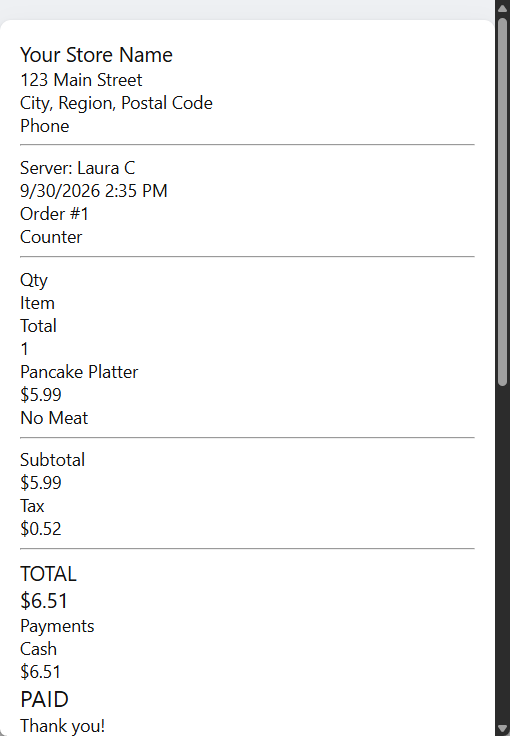
When a sale is fully paid, the station makes a digital copy of the receipt — your receipt template, exactly as it prints — and shows its QR code. Guests open it on their phone with no app and no sign-in. Links work for 90 days. To turn it off, untick Receipt QR Code on the design's Thank You Message widget.
The display only shows what the cashier does; it never takes a payment itself.
Pairings from the order screen
The items the order screen suggests as you ring (what guests most often add, tonight's push items) also show under You Might Also Like, after any Suggestive Selling offers. Turn it off with Show The Instant Suggestions On The Customer Display (Store Setup › Order Entry Screen › Guests).