DC Direct is set up on a card payment method: the method holds the Datacap credentials, the list of terminals and every terminal option. Staff then take card payments by choosing that method on the settle screen.
1. The payment method
- Open Back Office › Payments › Payment Methods and add a method (for example “Credit Card”), or open your existing card method.
- Set Kind to Card. The Credit Card Processing section appears only for card methods.
- Leave Availability on the store. DC Direct needs the card at a terminal, so it is not for call-center or web orders.
- Turn on Allows tips if tips are taken on cards — tip prompts on the terminal depend on it.
2. Credentials
- In Credit Card Processing, set the processor to DC Direct.
- Enter the Merchant ID, API User and API Password from Datacap or your reseller.
- Set Environment: Test (Certification) with test credentials, Production (Live) with production credentials. The two never mix: test credentials fail in production and the other way round.
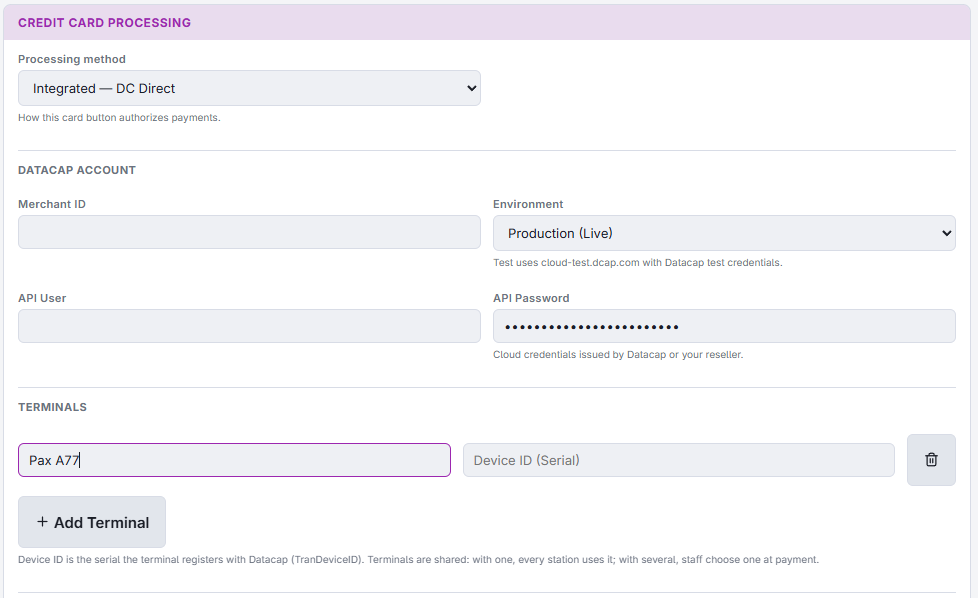
3. Terminals
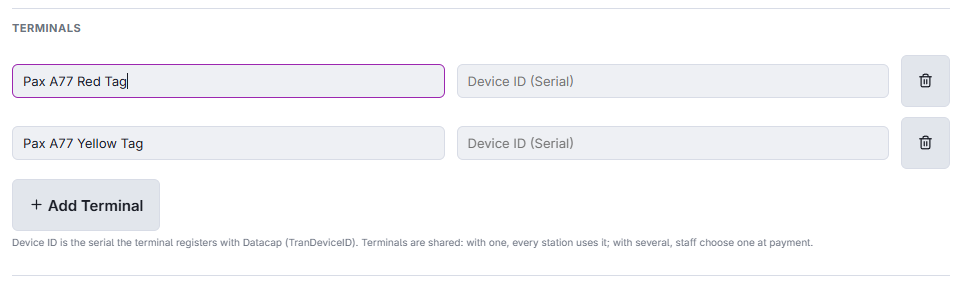
Under Terminals, press Add Terminal once per terminal and fill in:
- Name (e.g. Bar) — what staff see when they choose a terminal. Match the label on the terminal.
- Device ID (Serial) — the terminal’s serial number, exactly as printed.
Remove Terminal takes one out of the list. Terminals are shared by every station: with one terminal every station uses it; with several, staff choose at payment.
4. Terminal options
- Amount Confirmation On Terminal — Customer Confirms Amount shows the amount for the guest to accept before presenting the card; Skip Confirmation goes straight to the card prompt.
- Cardholder Name — Request From Card reads the name from the card when the card provides it; it prints on the card receipt.
- Card Receipts — Merchant And Cardholder Copies, Merchant Copy Only or Don’t Print. Copies print on the station’s receipt printer after each approval.
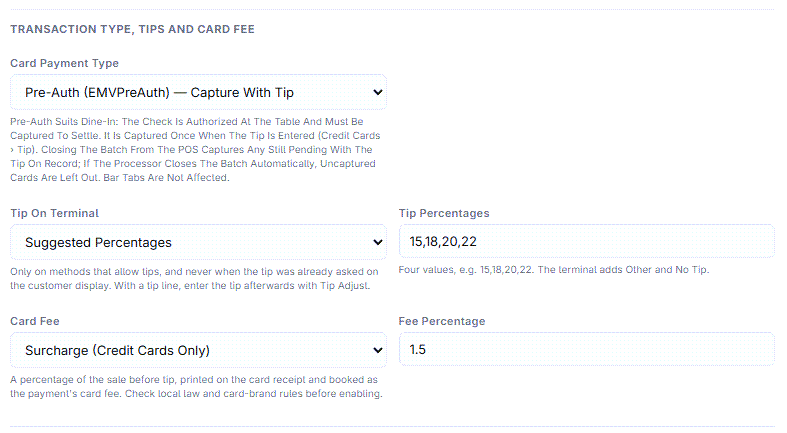
- Card Payment Type (in the Transaction Type, Tips And Card Fee group) — Sale (EMVSale) — Charge At Once, the default, charges the card when it is presented; Pre-Auth (EMVPreAuth) — Capture With Tip authorizes it and charges it later, once, with the tip. Each store sets its own. See Table service: authorize, then capture with the tip.
- Tip On Terminal — see Tips on the terminal.
- Card Fee — see Card fees: surcharge and non-cash adjustment.
- Signature On Terminal and Receipt Question On Terminal — see Signatures and card receipts.
5. Save and check
- Save the method.
- On each register, sign out and back in (or restart the app) so it picks up the new method.
- On a register open More › Credit Cards, choose the method and press Test Terminal for each terminal.
One DC Direct method is enough for a store. Several methods only make sense for separate merchant accounts; each keeps its own terminal list.