A bar tab can be held on the guest’s card. When the tab opens, the terminal pre-authorizes the card for the tab limit: the money is held, not charged. When the guest is done, the tab is closed on the same card with the final amount and the tip — the card does not need to be presented again.
Turning it on
In Back Office › Menu › Menu Setup › Bar Settings, turn on the setting that shows the pre-auth button. A DC Direct card payment method must also be set up.
Opening a tab with a card
- Start the tab as usual. On Start Tab, enter the name and, if you like, a Limit.
- Press Open Tab With Card. The tab opens and the terminal asks for the card.
- The guest presents the card. The POS confirms Tab Opened — Card Pre-Authorized For the amount.
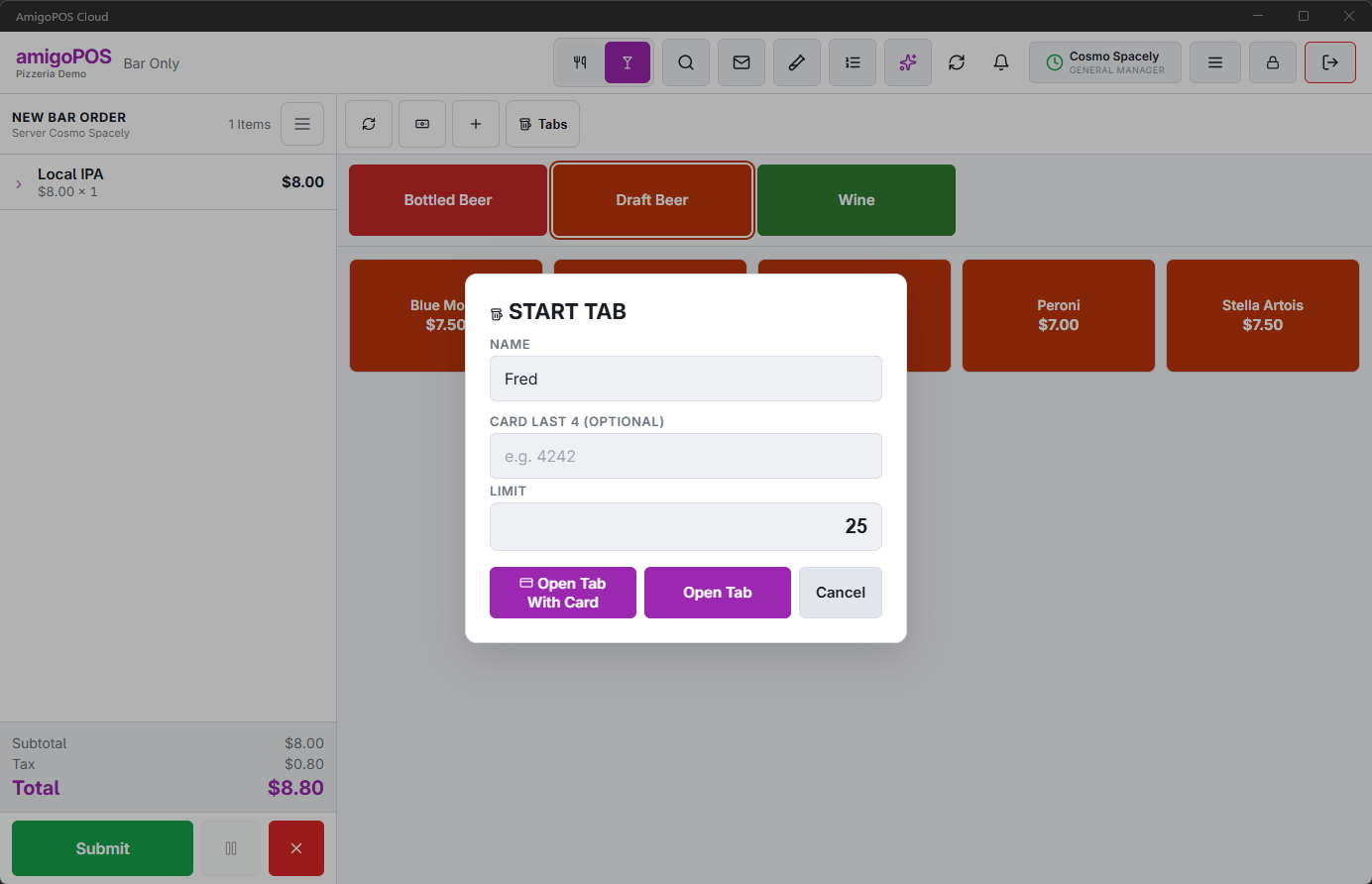
The pre-authorized amount is the tab’s limit, or the store’s default tab amount when no limit is entered. The terminal does not ask for a tip at this point. If the guest cancels on the terminal, the tab stays open without a card (Tab Opened Without A Card).
While the tab is open, the pre-authorization shows in the order’s payment list as an open pre-auth. It is not counted as paid: the balance still shows everything on the tab.
Closing the tab on the card
- Recall the tab, open the settle screen and choose the DC Direct card method.
- Close Tab On Card opens instead of a new card payment. It shows the card, the amount Pre-Authorized, the Charge (the balance, or the current share when splitting), a Tip field with 15/18/20/25% shortcuts, and the Total.
- Enter the tip from the signed slip or as the guest tells you, and press Charge Card.
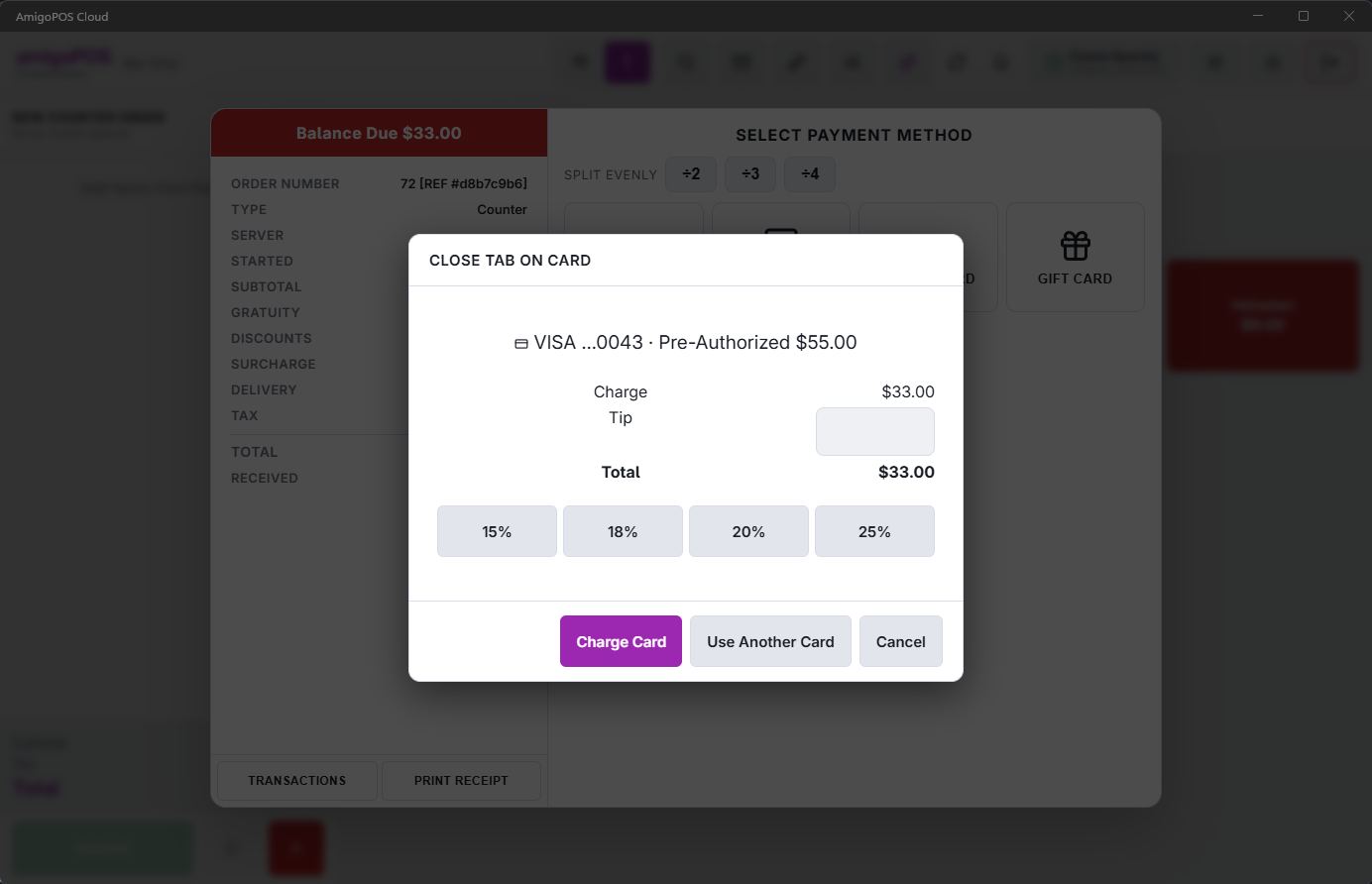
- Total above the pre-authorization: the card is first asked to approve the difference. If it refuses, nothing is charged and the reason is shown — lower the tip, or charge part to this card and take the rest another way.
- Total below it: the unused part of the hold is released, so the guest is only held for what they spent.
- Use Another Card runs a normal card payment on a terminal instead (the guest wants to pay with a different card). The original pre-authorization stays open until you void it.
The payment is recorded like any card payment, so voids, tip adjustments and refunds work on it.
Walk-outs and abandoned tabs
- Close the tab on the card as above, if the store’s policy allows charging a walked tab; or
- Release the hold: void the pre-authorization from More › Credit Cards (the row shows as Pre-Auth), or void the order — voiding an order voids its open pre-authorization too.
Cancelling a tab releases the hold
When a tab opened with a card is cancelled — Cancel Order before it was saved, or the order is voided — its pre-authorization is voided automatically, so the guest’s money is no longer held.
- If another open check is still on the same tab, the hold is kept and the tab stays with the other checks: only the cancelled check leaves it, and cancelling the last check releases the hold. If the hold was taken on the check you cancelled, the remaining checks can’t close on it: take their payment another way and void the hold under More › Credit Cards (Open Pre-Auths filter).
- A card sale on the order is never touched; only the open pre-authorization is released.
- If the release does not go through, the order is still cancelled and the hold stays under More › Credit Cards (Open Pre-Auths filter) and on the Open Preauth Report. Void it there.
- When the hold disappears from the guest’s statement is up to their bank.