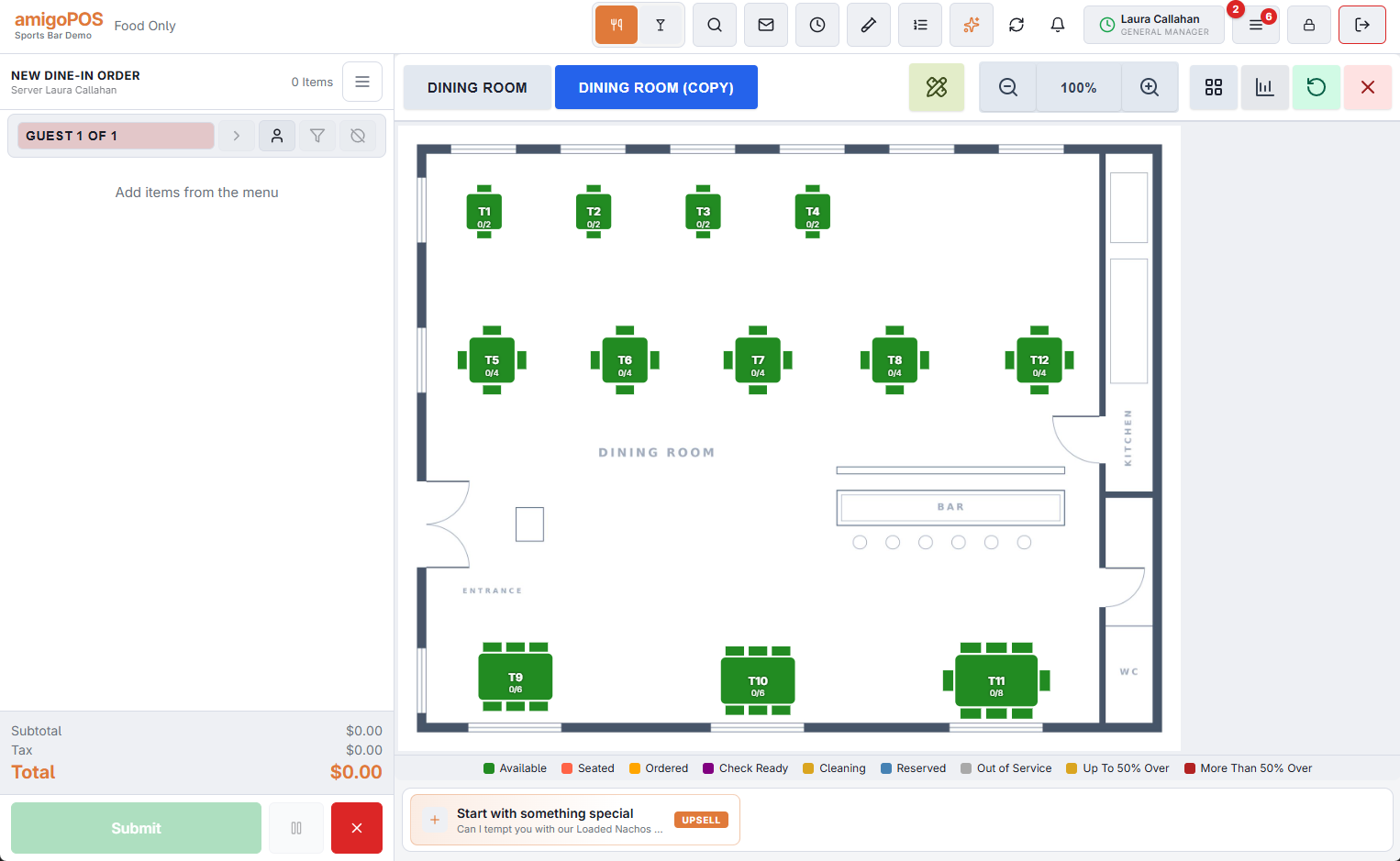
Two toolbar controls make a room look like the real one: BG, the background colour, and Floor Image, a picture placed behind every shape. Both are saved with the room and both show on the registers, not only in the designer.
Background colour
Tap the BG swatch and pick a colour. It fills the room on the register’s Tables screen and in the reservation floor plan, so a dark bar and a bright patio look different at a glance. Rooms drawn before the colour was added keep the register’s own background until they are saved with a colour of their own.
Floor Image
Tap Floor Image (the picture button beside BG) and choose a file: a photo, an architect’s drawing, a sketch, in JPG or PNG. The picture is fitted to the room’s page (W / H) and placed behind every shape; the tables sit on top of it. It is stored inside the room, reduced to a sensible size, so a phone photo is fine. Remove Floor Image clears it again; the colour stays.
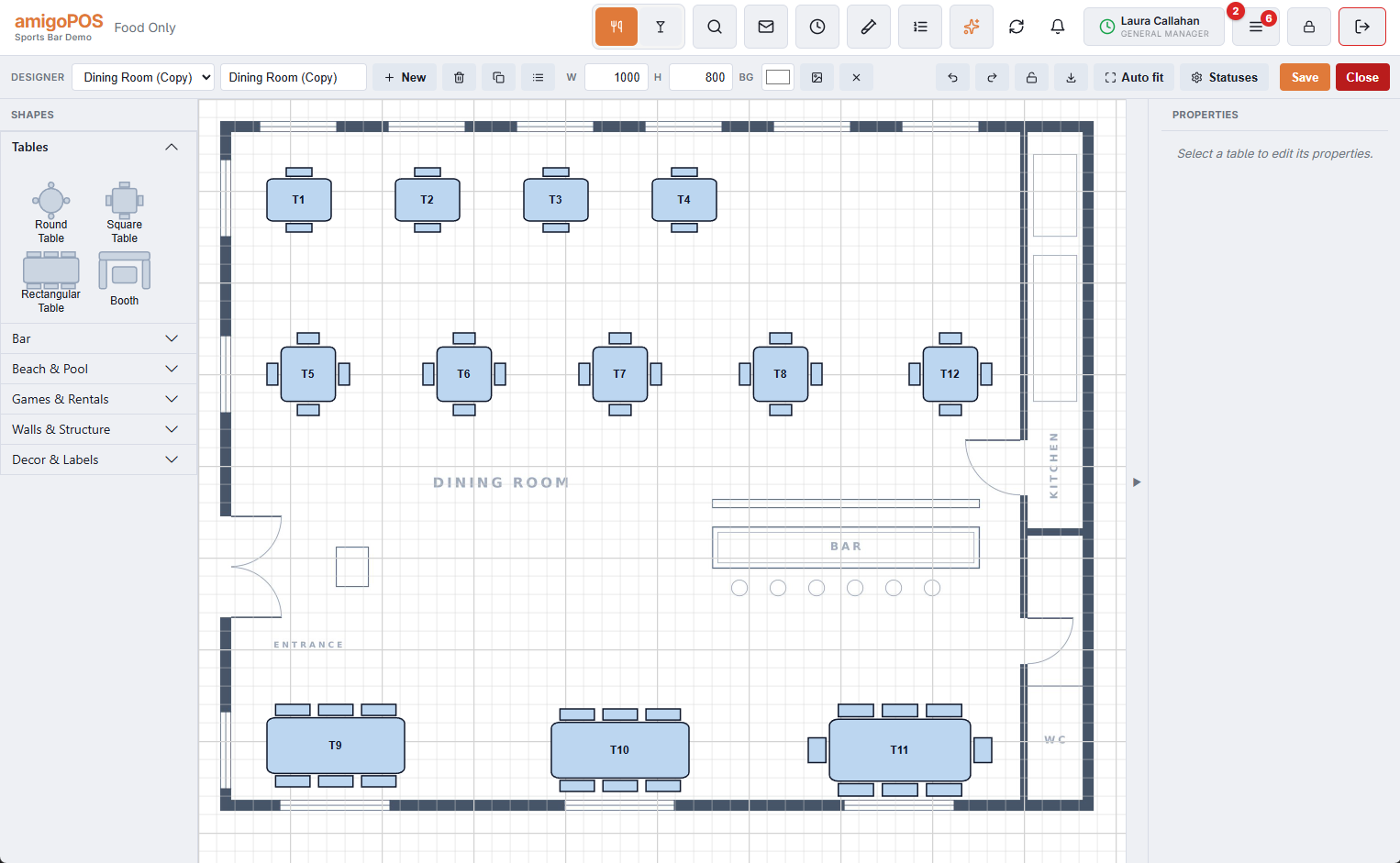
- Set the page size first: the image is fitted to the page, so change W / H before choosing the picture, and crop the picture to the room’s own proportions.
- A top-down drawing works better than a photo taken from the door; staff read it like a map.
- The image is part of the room: Duplicate Room copies it, and Export Image includes it.