Undo and Redo
The two arrows on the toolbar step back and forward through what you did to the room: shapes moved, resized, rotated, added or deleted. Tap Undo as many times as needed; Redo puts a step back. The history belongs to the room while it is open in the designer: switching room, closing the designer or saving starts afresh. There is no undo for a Save; to go back after saving, make the change and save again.

Lock Layout
On a touch register the designer is one stray finger away from moving a table. Lock Layout (the padlock) fixes every shape in place: nothing can be dragged, resized, rotated or deleted, not even with the Delete key. You can still select a table and change its settings in the Properties panel — a name, the guest counts, a section — which is most of what a quick edit needs. Tap the padlock again to unlock. The lock lasts while the designer is open; it is not saved with the room.
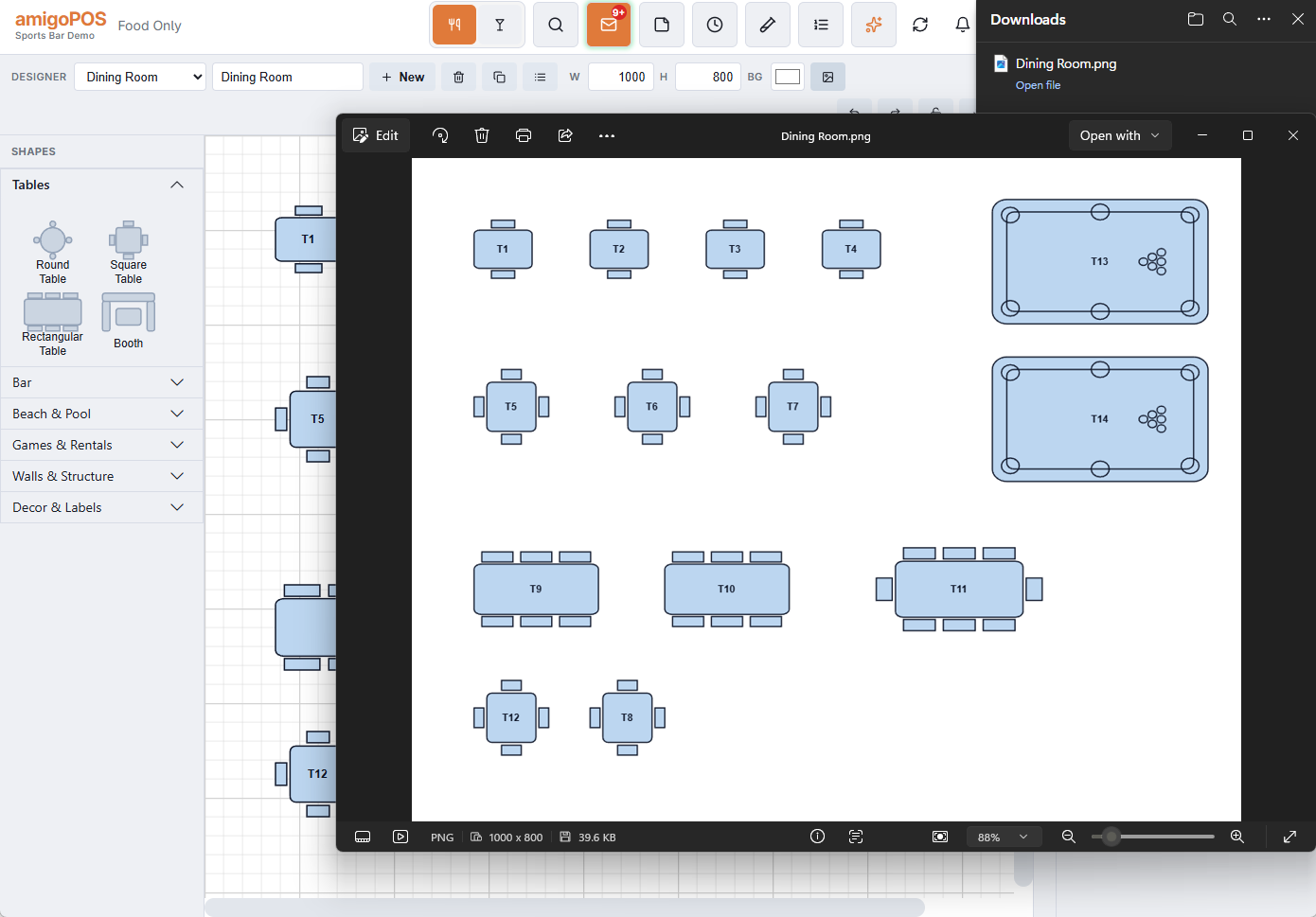
Export Image
Export Image saves the room as a PNG picture named after the room, the whole page as drawn: shapes, captions, background colour and floor image. It is downloaded like any other file from the register (on Windows, the Downloads folder). Print it for the host stand, hand it to a new hire, or mark it up to plan a change. The picture shows the designer’s colours, not the live table statuses.