With Entreo switched on, the delivery board gains an Entreo tab between Unassigned and Out For Delivery, and every card on the Unassigned tab has a Send To Entreo button.
Sending an order
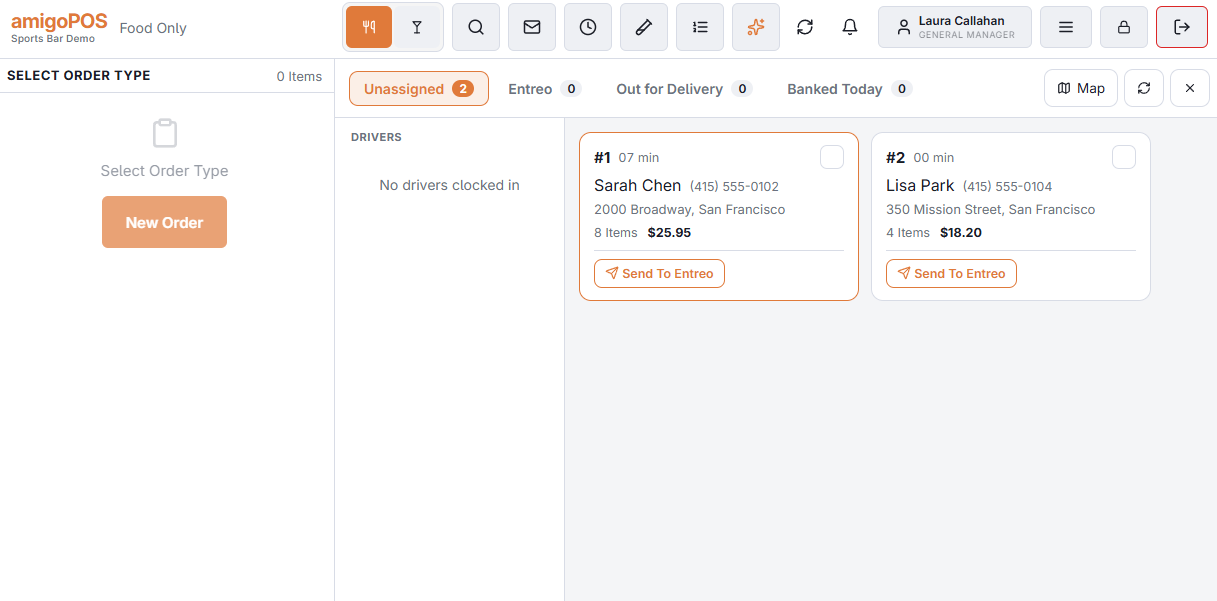
- Send To Entreo on a card sends that order. The card leaves Unassigned and appears on the Entreo tab.
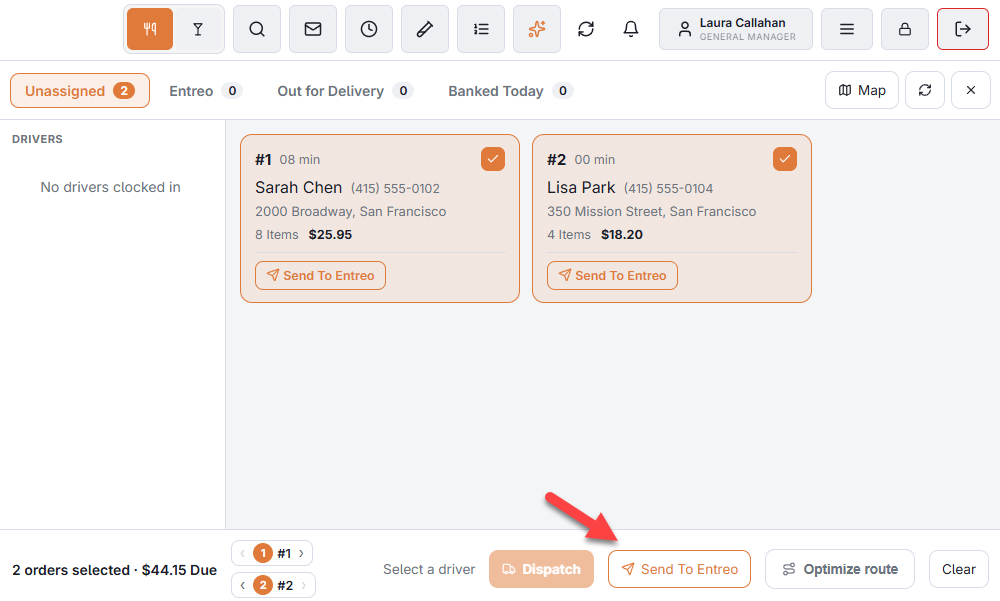
- To send several at once, select them as for a run and press Send To Entreo in the dispatch bar. Each order is its own Entreo delivery; the stop order does not matter.
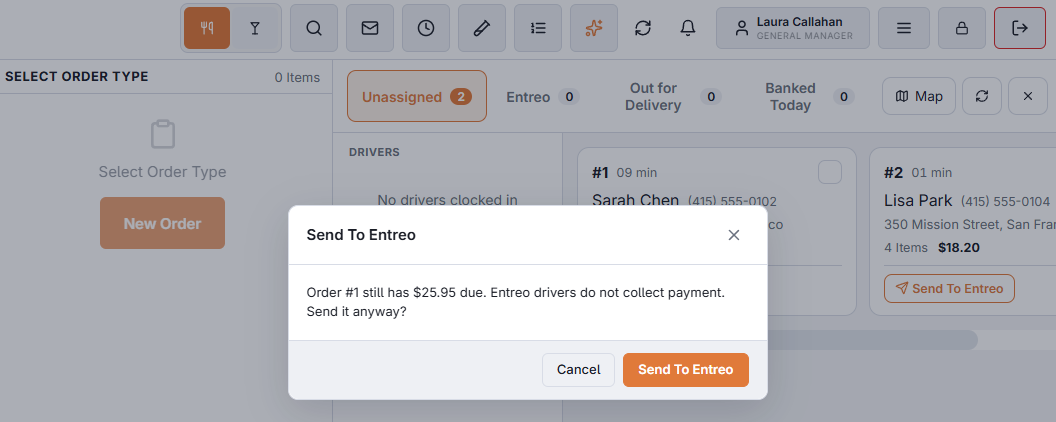
- An order with a balance due asks first, because Entreo drivers do not collect money. Send it if the customer will pay by pay link or has paid another way.
- With Send Automatically on, paid delivery orders reach the Entreo tab by themselves; the button is for the rest.
Following an order on the Entreo tab
The Entreo tab lists every order Entreo is working on, and the ones it delivered today at the bottom. Each card shows:
- The status in a pill: Sending To Entreo, Scheduled, Finding A Driver, Driver Assigned, Driver Coming, Driver At Store, Picked Up, Driver At Door, Delivered. See Entreo delivery statuses.
- The driver and, when Entreo passes it on, a phone number the store can call (it may be a forwarding number rather than the driver’s own). While Entreo keeps the driver’s contact details private, the card shows the name and the tracking link only, with no number to call.
- Ready with the time Entreo was given, while the order is scheduled; Pickup with the time the driver is expected at the store; ETA with the time expected at the customer. Once a driver is on the job, Entreo refreshes both times from the driver’s position about once a minute, so the card keeps up on its own.
- Ready Sent once Entreo has been told the food is ready, and Test on a test order.
- Photo after delivery: opens the photo the driver took at the door. The link expires after a while.
The buttons on an Entreo card
| Button | When it shows | What it does |
|---|---|---|
| Ready | Until Entreo has been told | Tells Entreo the food is ready, so it looks for a driver now. Used where the kitchen display does not do it. |
| Settle / Pay Link | The order still has a balance due | Take the payment, or text the customer a pay link. The driver will not collect. |
| Text Tracking Link | Entreo has given a tracking link | Texts the customer Entreo’s live tracking page from the store’s own number. |
| Refresh | While Entreo is working on it | Asks Entreo for the latest straight away. The board normally updates by itself. |
| Cancel | Up to Driver Assigned | Withdraws the order from Entreo; it returns to Unassigned. See Ready time, changes and cancelling. |
Tapping the card itself opens the order, as on the other tabs.
When an order comes back
If Entreo cannot deliver an order — no driver accepted it, Entreo refused it, Entreo never received it, or it was cancelled — the order returns to the Unassigned tab with a red pill saying why, for example Entreo: No Driver Found. From there:
- Send To Entreo Again makes a new request to Entreo, or
- dispatch it to one of your own drivers as usual.
Out For Delivery and Banked Today are for your own drivers only: an Entreo order is never banked, because the driver carries no money for the store.
When a send does not go through
Two things can stop an order on its way to Entreo, and the board says so both times:
- No delivery address. An order without a street, a city and a ZIP code is never sent: Send To Entreo answers at once with a red message, and Send Automatically leaves the order on Unassigned. Add the address to the customer and send again.
- Entreo refused it. Sending only queues the order; Entreo’s answer arrives a few seconds later. If it is a refusal, a red message names the order and the reason as soon as the answer is in, and the card returns to Unassigned with the red pill and Send To Entreo Again. The pill stays until the order leaves the board, even across a business-day change.
What each refusal code means is in Entreo troubleshooting.