A scale lets the register price bulk items by what they actually weigh. The cashier taps the item, the weight appears, and the line is priced at the item price multiplied by the weight. Deli counters, produce, coffee beans, pick-and-mix and anything else sold loose work this way.
Set up the item first
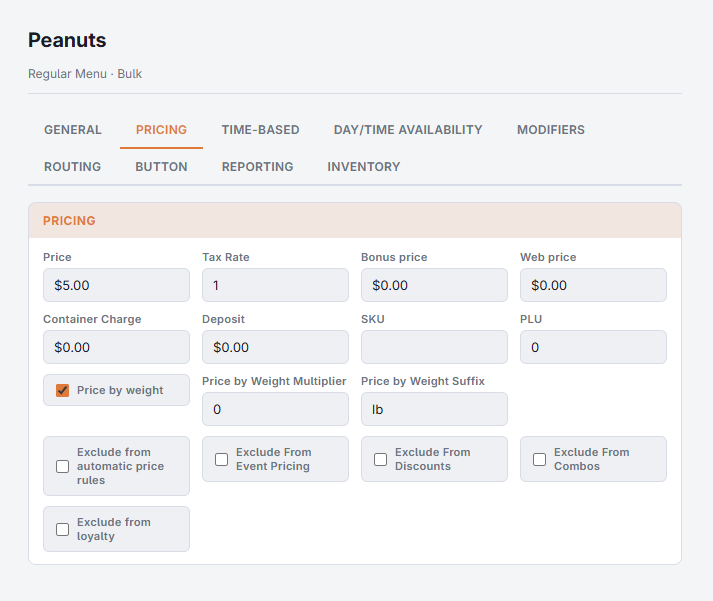
An item only asks for a weight when it is configured to be priced by weight. In Back Office, open Menu › Menu Setup › Menu Items, pick the item and go to the Pricing tab.
- Tick Price by weight.
- Set Suffix to the unit the price is quoted in, such as lb or kg. This is what prints beside the weight.
- Leave Multiplier at 0 unless the price is quoted in a different unit from the one the scale reports. A price per 100 g read from a scale that reports kilograms needs a multiplier of 10.
- Set the item Price to the price for one unit of weight, not the price of a package.
Connect the scale
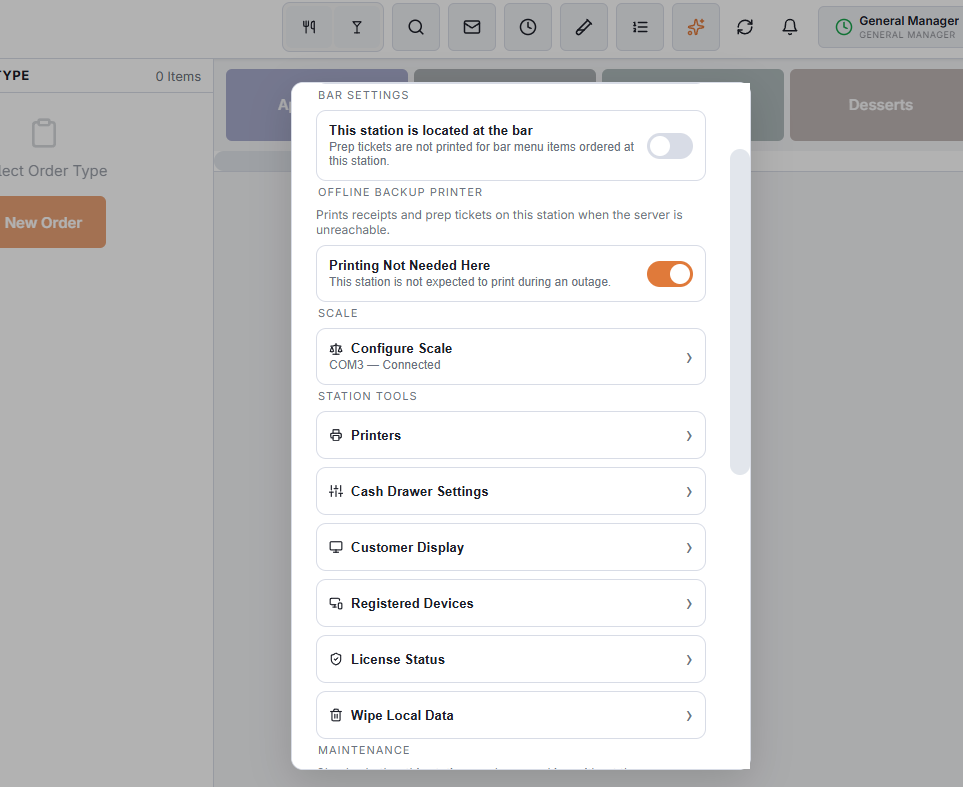
The scale is set up per station, like a printer, because it is plugged into one till. Open the More menu, choose Settings, then scroll to Scale and tap Configure Scale.
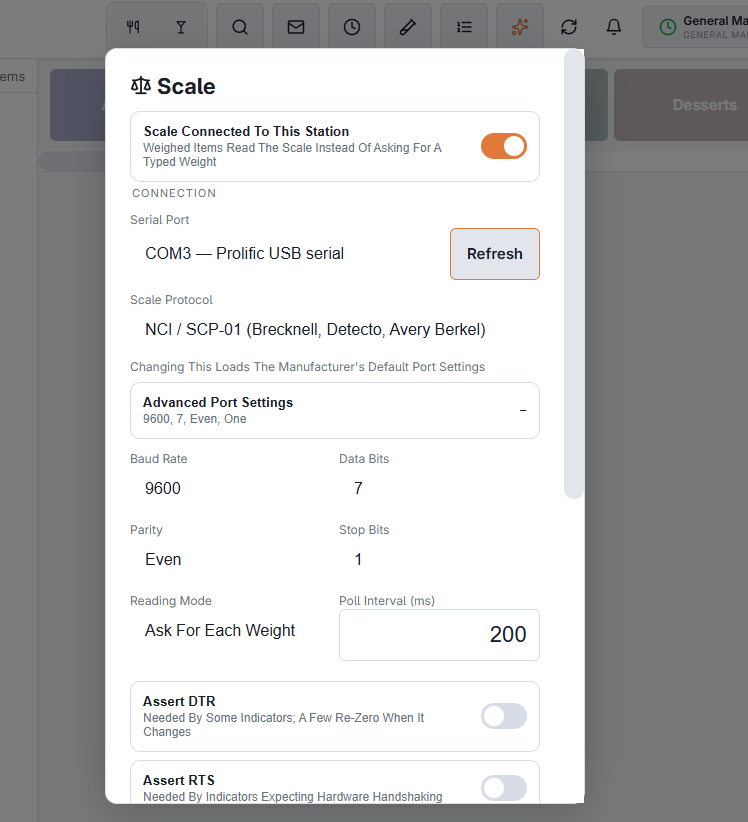
- Turn on Scale connected to this station.
- Choose the Serial port the scale is on. USB scales appear here once their driver is installed, usually described as a USB serial port.
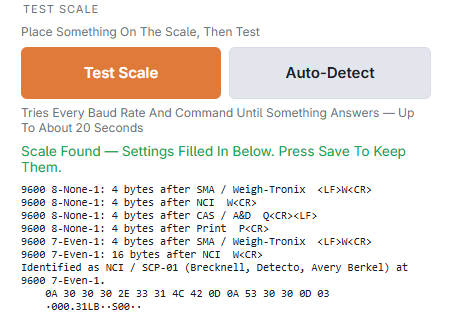
- Tap Auto-Detect. It tries every speed and every supported protocol until the scale answers, which takes up to about twenty seconds, then fills in everything it found.
- Tap Save.
Weighing an item
Tap the item as normal. The weight window opens with a live reading already on screen, because the station reads the scale continuously rather than waking it up on demand.
- Ready with a green dot means the weight has settled and can be charged for.
- A dash instead of a number means the platter is still moving. Many scales refuse to report a weight at all while it is, which is deliberate on their part.
- Tare subtracts the weight of a container. It applies to this line only, so the next item starts from a clean slate.
- Zero resets the scale itself. Use it when an empty platter does not read zero.
- Key in weight switches to typing the weight by hand, so a scale problem can never stop a sale. It needs the Manual Weight Entry permission: without it, a manager approves, and the scale stops reading while they are asked. While the register is offline it is not asked.
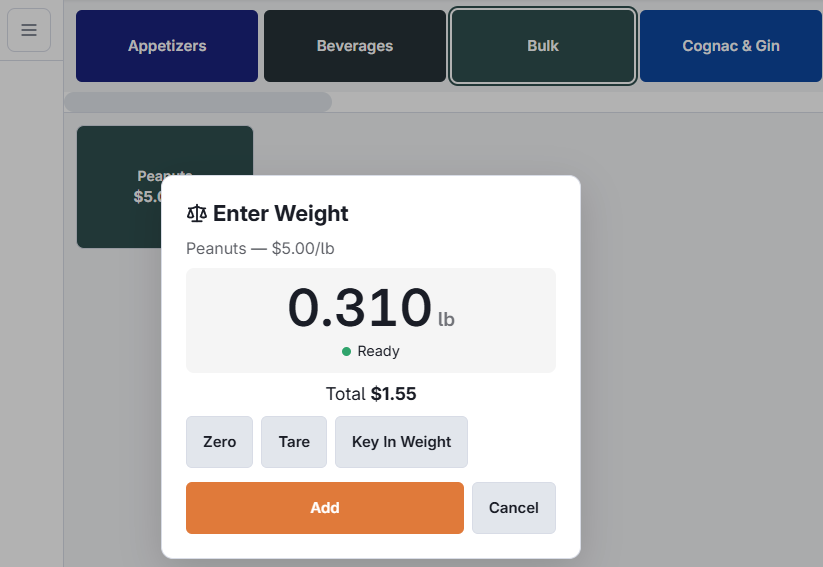
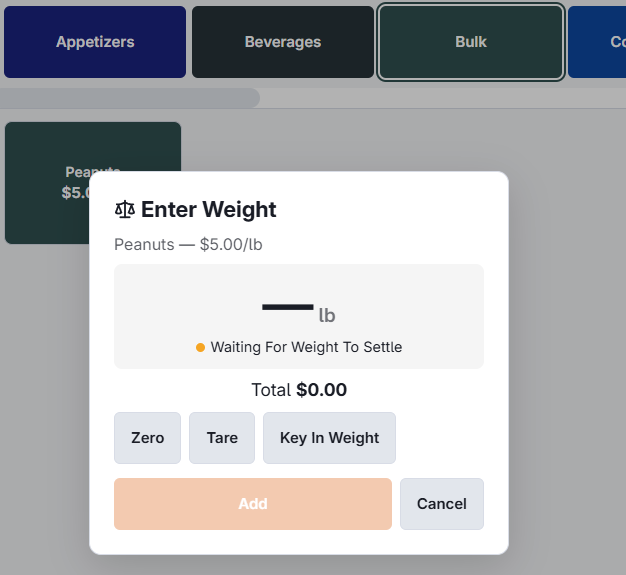
When Add automatically is on, the line is added as soon as the weight settles, with no extra tap. If staff are still filling a container when it fires, raise Settle time in the scale settings, or turn the option off for that station.
What the customer sees
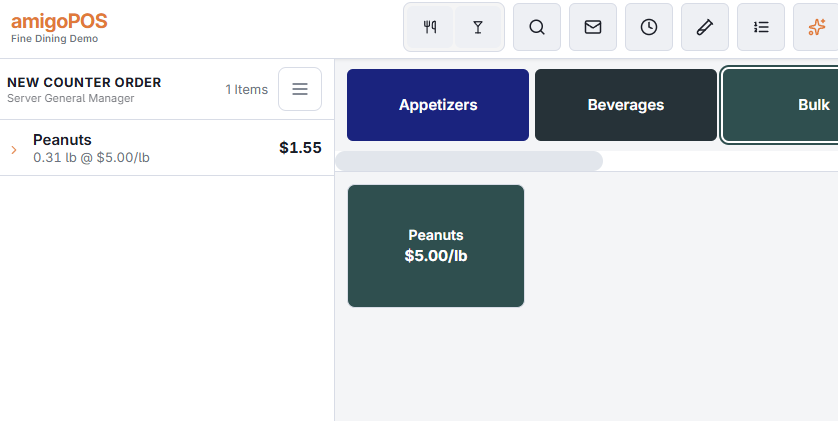
The check line shows the weight and the price per unit underneath the item name, and the customer receipt prints the same detail under the item. Both come from the weight recorded at the moment of weighing, so a reprinted or recalled order shows exactly what was charged.
Supported scales
Auto-Detect recognises the protocols below. If the scale is not on the list it can still be used: choose Other (custom pattern) and describe its output.
- NCI / SCP-01 — the retail standard, used by most counter scales.
- SMA Level 1 — common on industrial indicators.
- Mettler Toledo 8213 continuous output.
- CAS / A&D line output, shared by several makes.
- Avery Weigh-Tronix indicator output.
If something is wrong
Auto-Detect finds nothing. Run Test Scale. It reports whether any bytes arrived at all, which separates three different faults: a scale waiting to be asked, a scale on the wrong settings, and a cable that is not carrying anything.
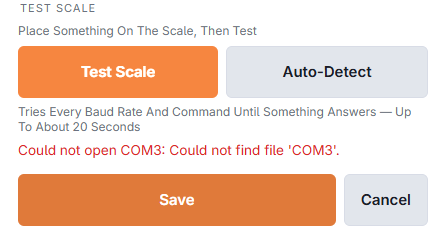
- Nothing arrived, asked or unasked. The cable or the scale itself. Check that the scale is switched on, that its serial output is enabled in its own menu, and that the cable suits it — some scales need a null-modem adapter rather than a straight-through lead.
- Bytes arrived but nothing could read them. The test shows what came back. That output is enough to build a custom pattern from.
- The port cannot be opened. Another program has it. Close anything else that talks to the scale.
- The weight never settles. Something is touching the platter, or the station is on a surface that carries vibration. Raising Settle time helps once the cause is dealt with, not instead of it.
- The weight looks wrong. Check the item’s multiplier and suffix. A price quoted per 100 g against a scale reporting kilograms is the usual cause.