Credomatic (BAC) card-not-present processing lets the call center charge a card the customer reads over the phone. The card number never touches the station: it is sent once to the server, which talks to Credomatic and keeps only the masked number and the bank’s reference codes. A separate card-present (terminal) integration may be added later; this topic covers keyed, card-not-present payments only.
Setup
- Open Back Office › Payments › Payment Methods and add a Card method (for example “Credomatic Call Center”).
- Set Availability to Call Center & Web Orders Only so it is not offered on the in-store settle screen.
- Under Credit Card Processing choose Credomatic (Card Not Present) and enter the values BAC support provides for your country: the authorization service URL, web-service user and password, and the 8-character terminal id.
- Turn on Show on quick-pay overlay so the method appears on the call-center Submit Order screen.
- Save.
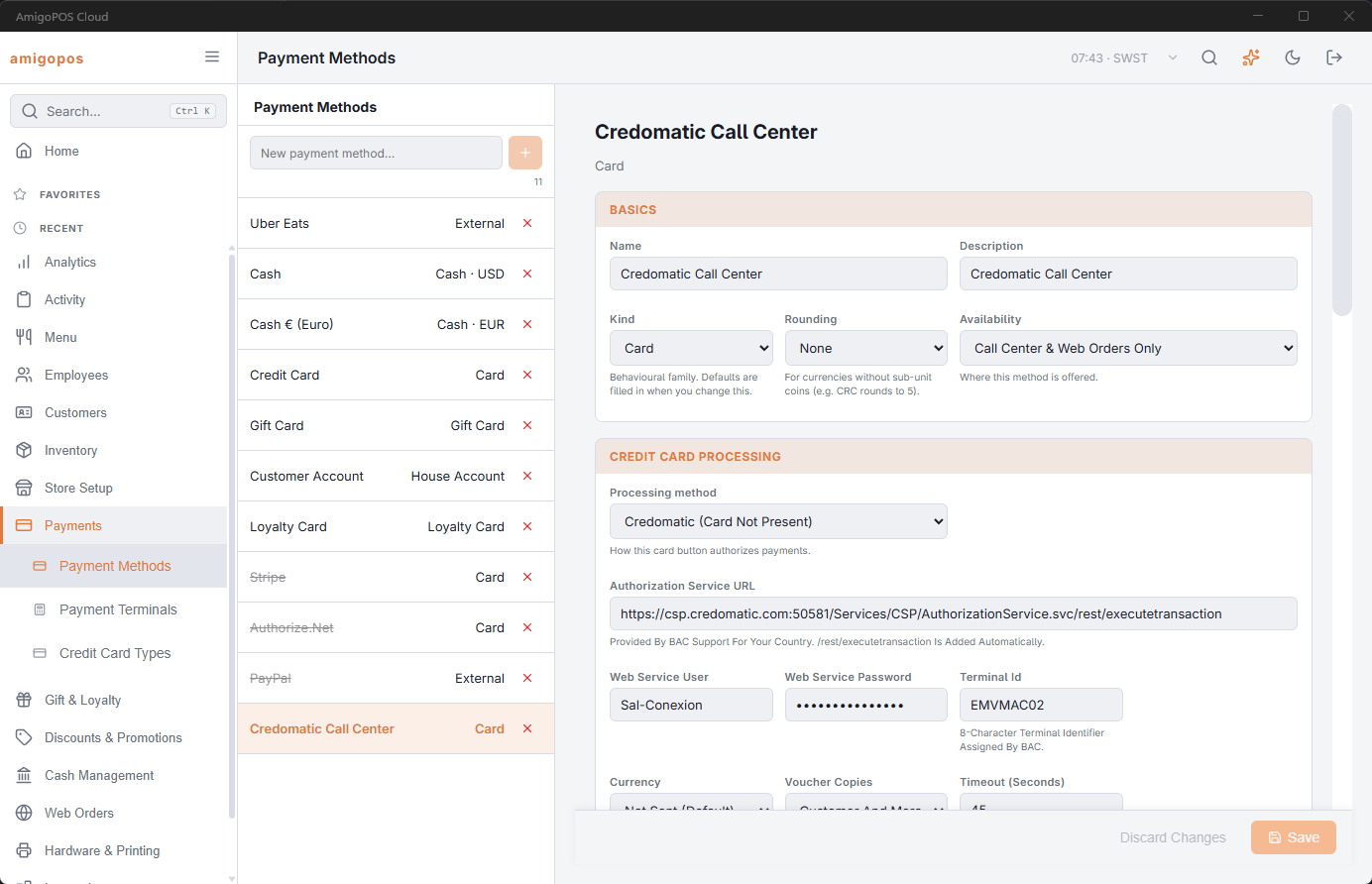
Leave Currency on Not Sent and Send Tax Amount off unless BAC asks for them; some hosts reject a sale that carries either field. Fetch Voucher After Approval retrieves the printable voucher for every approved payment. Reverse On Timeout sends a reversal when the bank does not answer, so an unconfirmed sale cannot stay on the customer’s card.
Taking a payment from the call center
Enter the order as usual and press Submit. The Submit Order screen shows the Credomatic method next to Pay at Store and Send Pay Link.
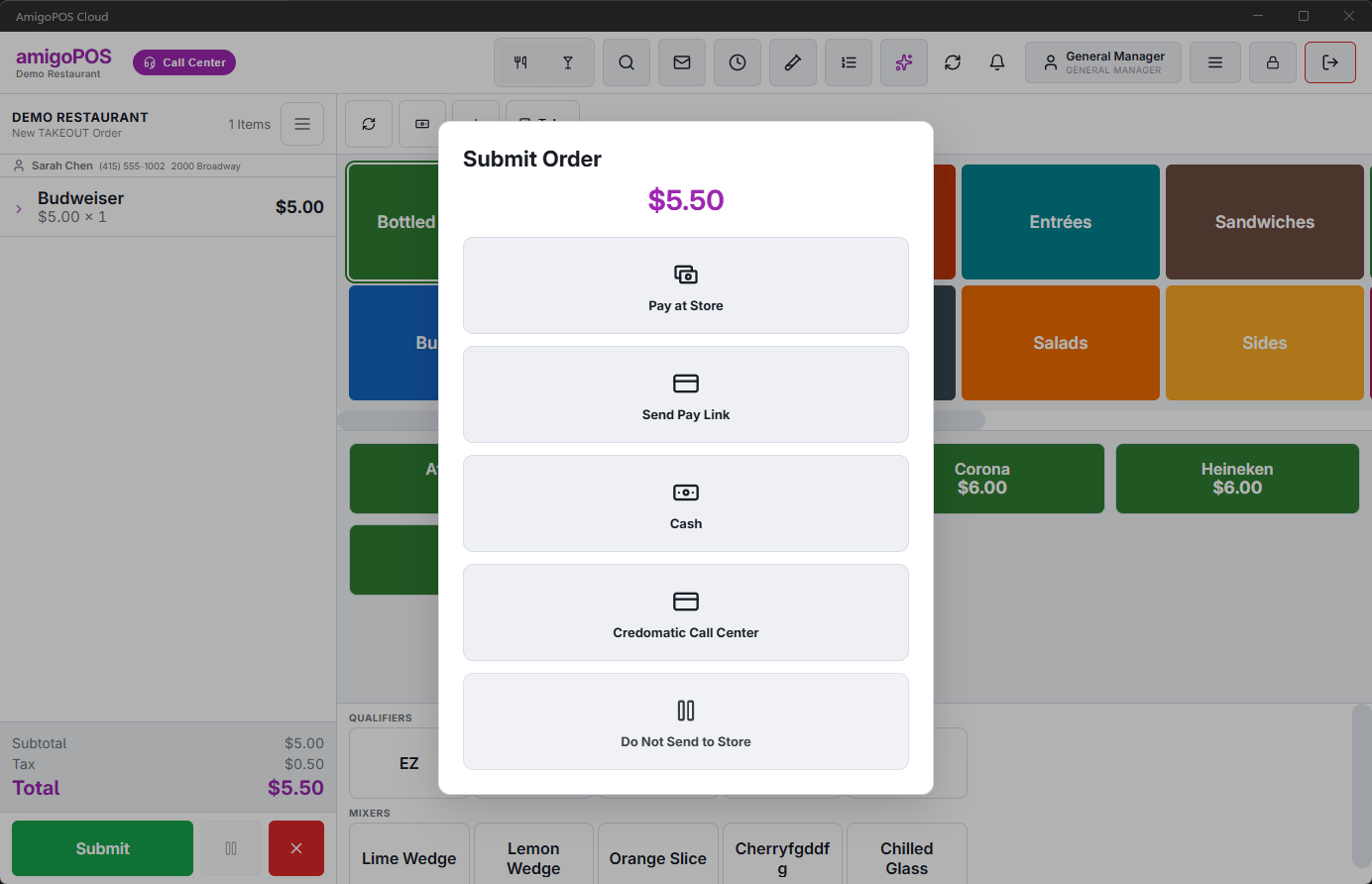
- Tap the Credomatic button. The order is saved on hold — nothing reaches the kitchen yet.
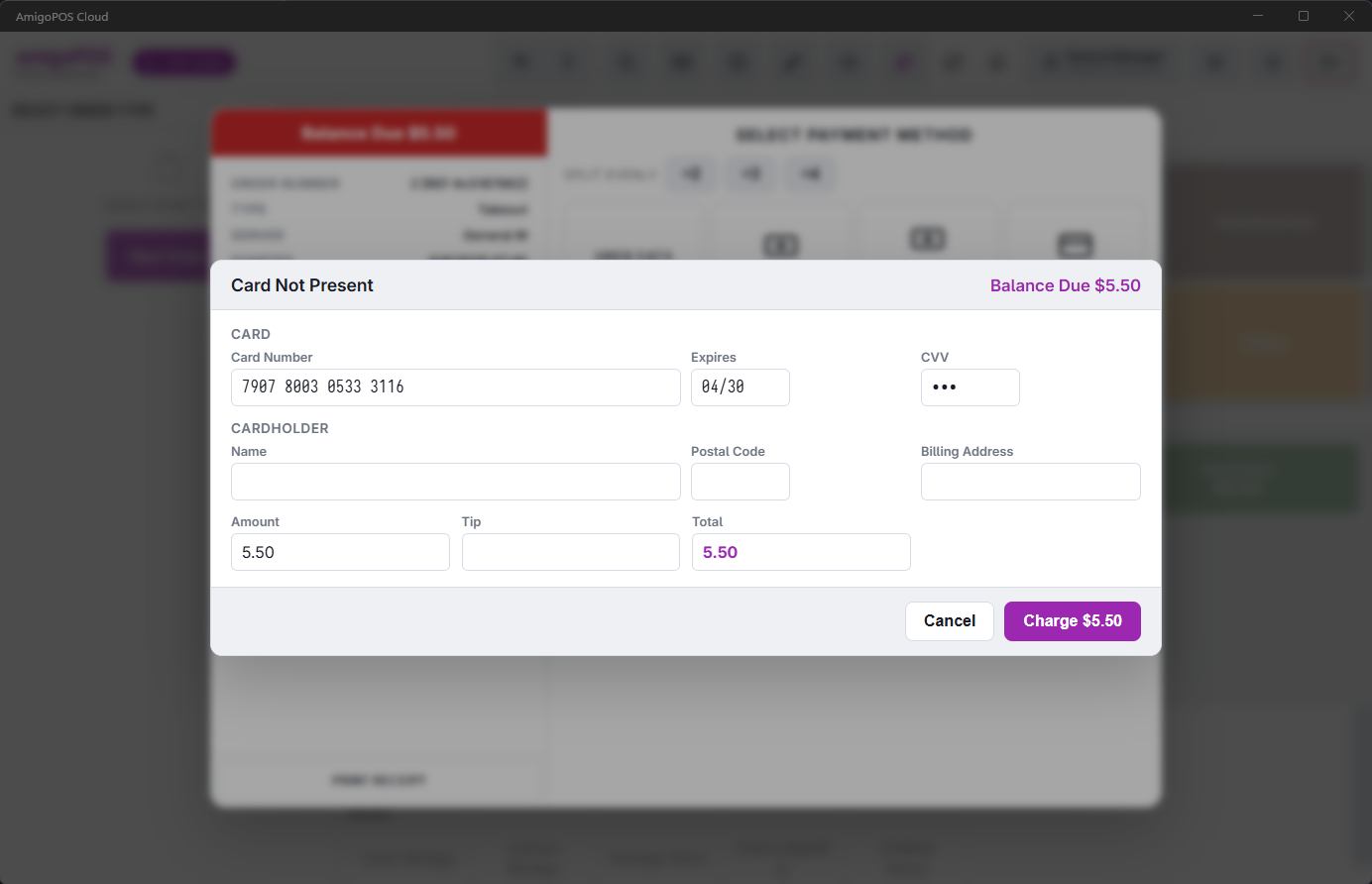
- Key the card number, expiry (MM/YY), security code, cardholder name and, if you have them, postal code and billing address. If the method allows tips, enter the gratuity; the total updates as you type.
- Press Charge. The screen shows Contacting Credomatic… until the bank answers.
Reading the result
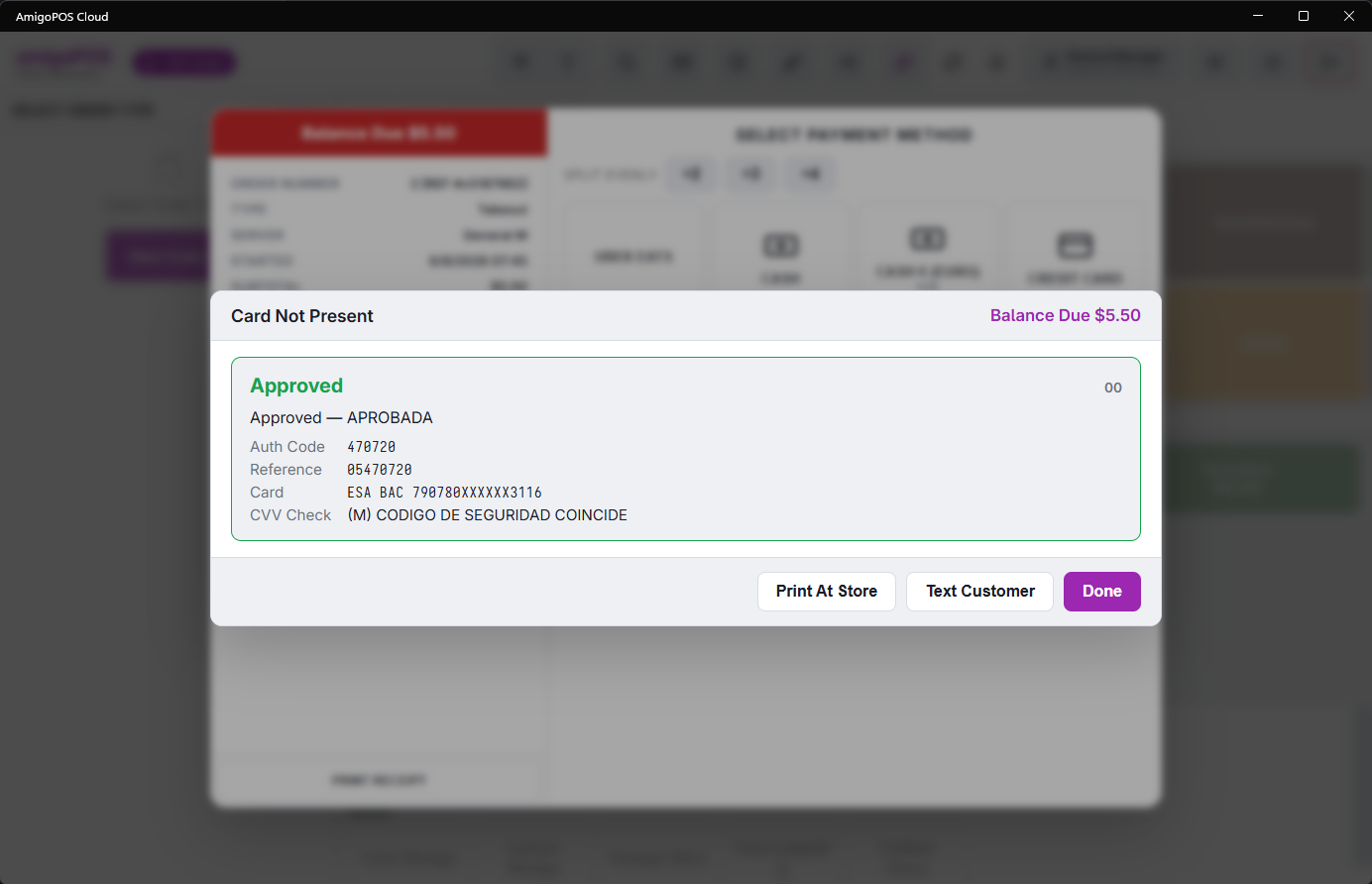
- Approved — the auth code, reference and masked card are shown, plus the bank’s security-code and address checks when they were sent. Tap Done: the payment is recorded, the order is released to the store and its prep tickets print there.
- Ask For Identification — the bank approved the payment but wants the cardholder’s identity verified. Ask the customer for identifying details; if anything is doubtful, void the payment from the Credit Cards screen.
- Partial approval — the bank approved less than the total. The approved amount is recorded and the remaining balance stays on the order for another tender.
- Declined — the bank’s reason is shown. Try Again returns to the card fields; Cancel leaves the order in the held list so nothing was sent to the kitchen.
Vouchers
The merchant copy of the voucher prints automatically on the store’s receipt printer when the order is released. From the approved screen, Print At Store prints it again and Text Customer sends a short approval message (amount, card, auth code) to the customer’s mobile through the store’s text-message service. Leave the number blank to use the one on the customer’s record.
Credit Cards screen
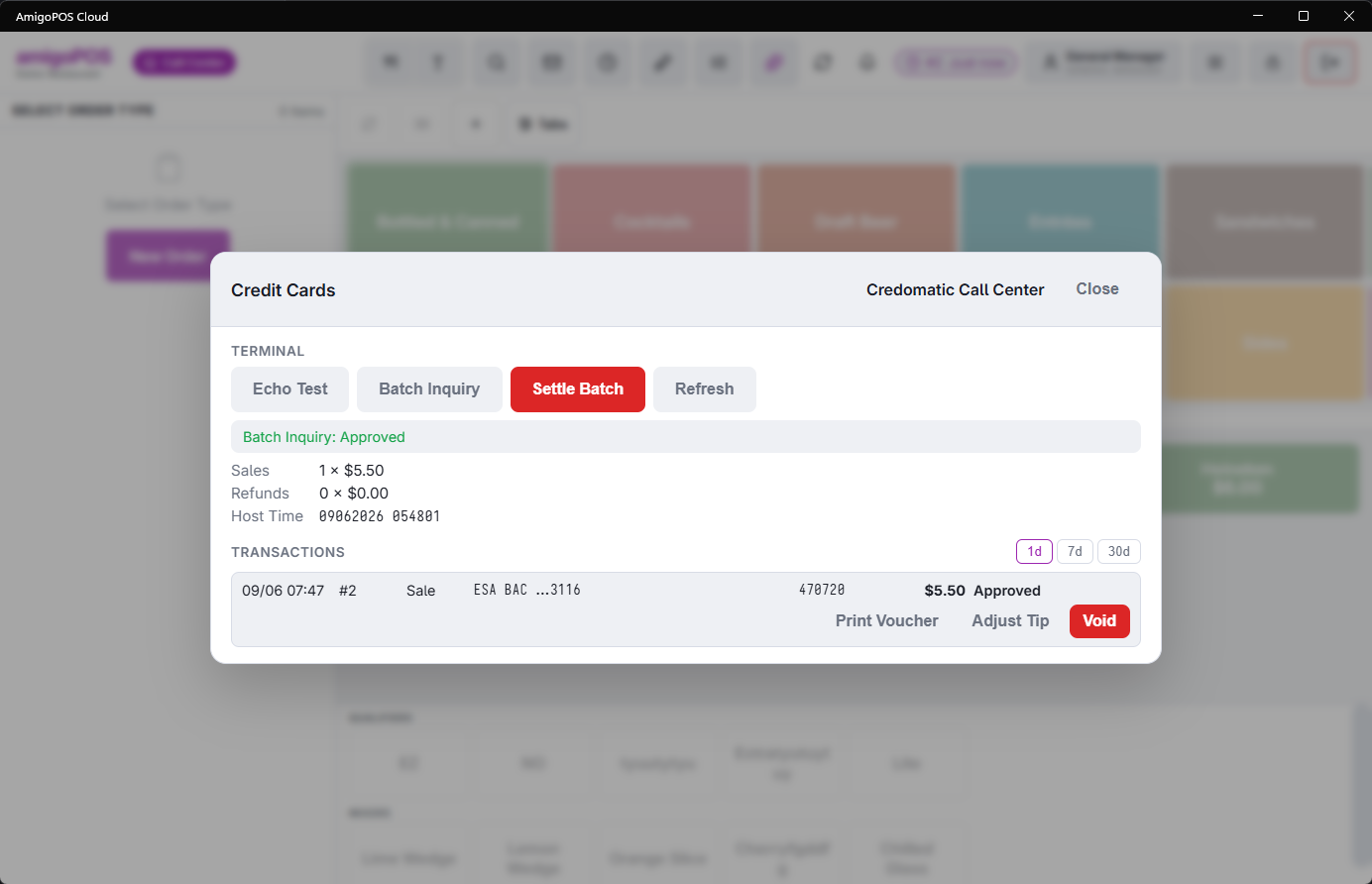
On the POS, open More › Credit Cards. It works on a store station and on a call-center station.
- Echo Test — confirms the terminal can reach the bank.
- Batch Inquiry — the open batch totals (count and amount of sales and refunds).
- Settle Batch — closes the batch and submits it for deposit. Ask BAC whether your terminal settles automatically before using this. It needs the Credit Card Batch permission, or a manager’s approval.
- The transaction list shows each card payment with Print Voucher, Adjust Tip (only for methods that allow tips) and Void. Void requires the Void Transactions permission, voids the payment at the bank first and then on the order; if the bank refuses, nothing changes.
- Adjust Tip needs Adjust Credit Card Tip, and voiding or changing the tip on a payment another employee took also needs Other Users’ Credit Cards. Without them, a manager approves; a refused tip change shows Permission required.
A card payment can also be voided from the settle screen’s transaction list; the same bank-first rule applies.