Last Call turns the chosen lights off for a moment and back on — the signal every regular in a bar knows.
Setting it up
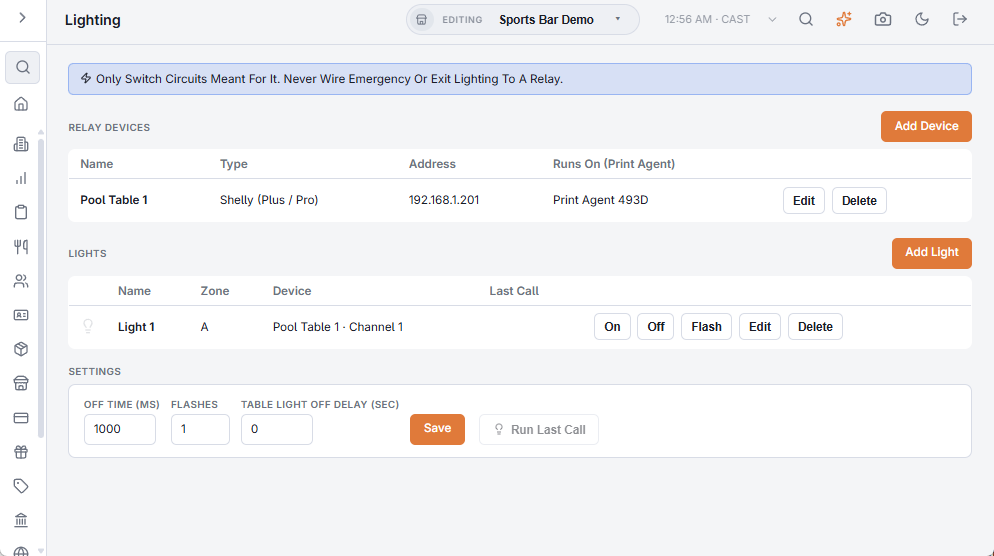
- In Back Office › Hardware & Printing › Lighting, edit each light that should flash and tick Last Call.
- Under Settings, set Off Time (Ms) — how long the lights stay off in each flash, 200 to 5000 milliseconds (1000 is one second) — and Flashes, 1 to 5.
- Save, then tap Run Last Call to see it.
Running it during service
- On the POS, open More › Lights.
- Tap the orange Last Call button.
- Confirm Flash The Last Call Lights Now?
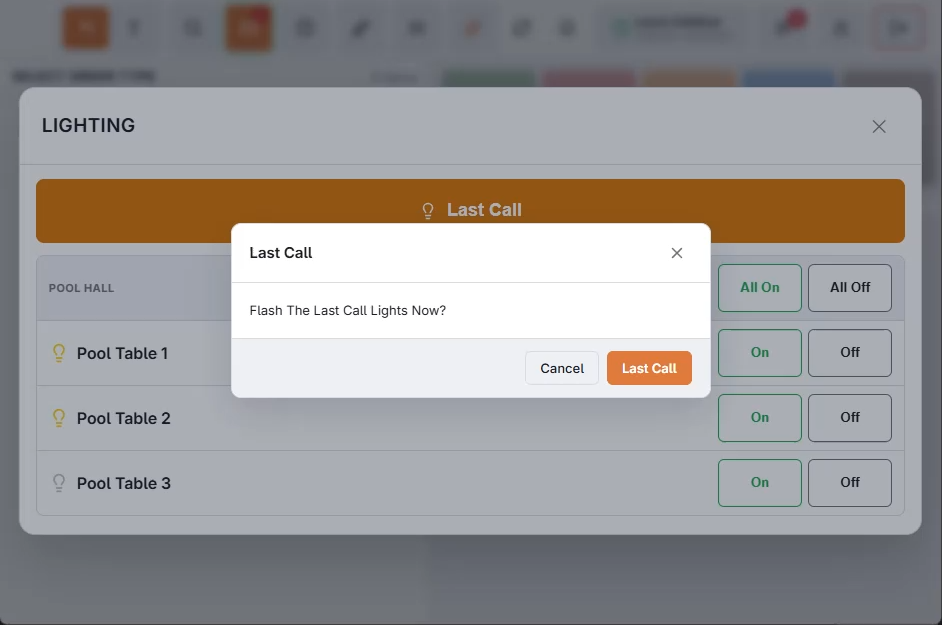
The confirmation is there so a stray tap never flashes a full room.
The room is never left dark
- Shelly and Tasmota get one command per flash: “off, then back on by yourself after the off time”. The relay does the timing, so the lights come back even if the network drops in the middle.
- Shelly (Gen 1) can only count whole seconds; a shorter off time is rounded up to one second.
- Custom devices get “off”, a wait, then “on”; the “on” is retried up to three times.
- With several flashes, the lights stay on for the same time between flashes.
- Every flash ends with the light on — including a light that was off before.
Put only lights on Last Call that are safe to turn off with a full room. Never emergency or exit lighting.