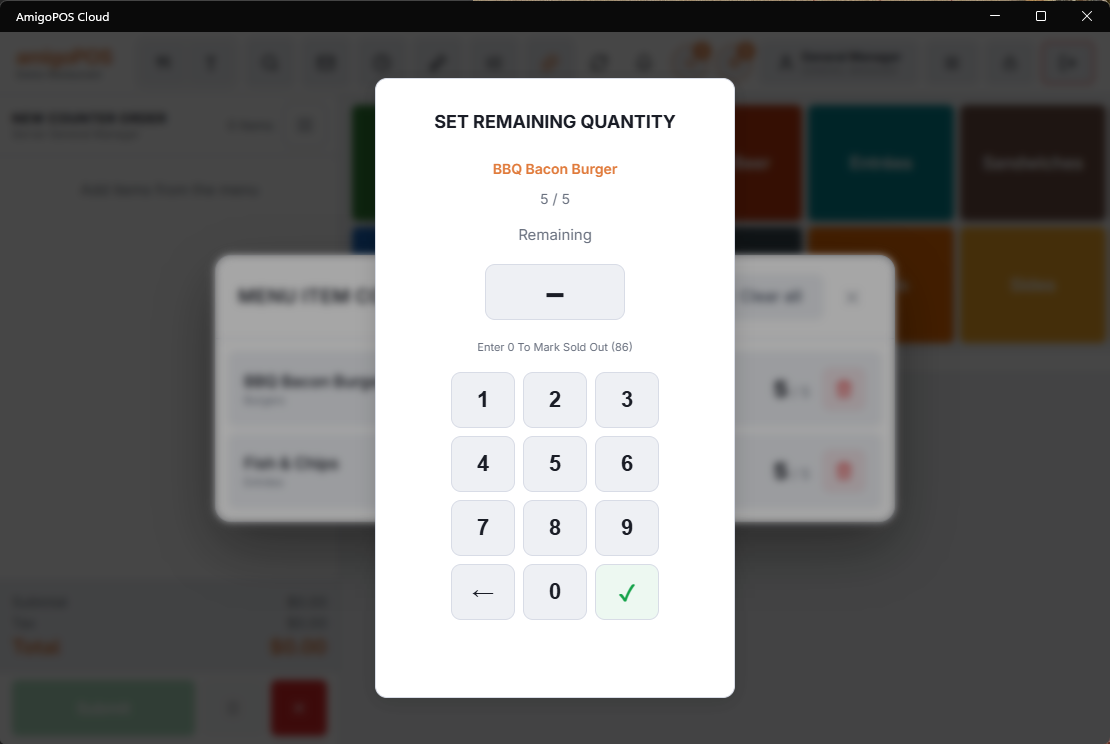
A counter is a countdown on a menu item: twelve specials, and the register keeps track as they go out. When the count reaches zero the item stops being sellable, so nobody rings the thirteenth.
Setting one
- Open the counters overlay from the manager section of More.
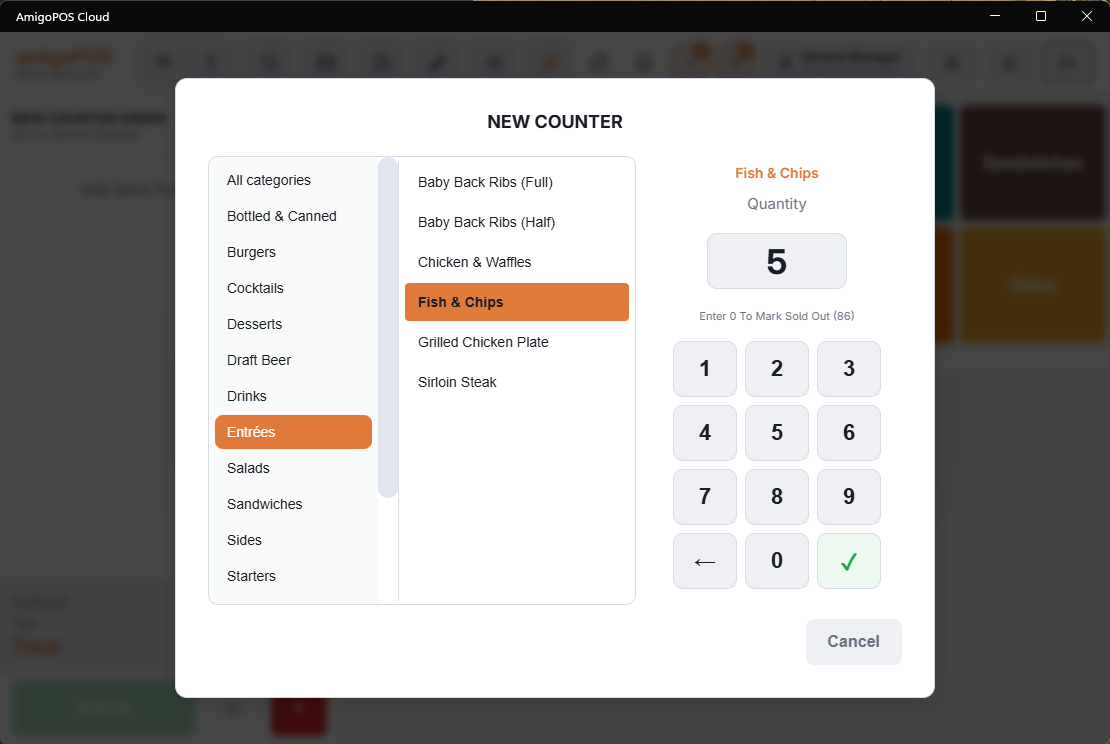
- New, then filter by category or search for the item.
- Enter the quantity available and confirm.
The overlay lists everything currently counted, so it doubles as the answer to "what are we running low on?" mid-service. Tap a counter to change its remaining quantity; enter 0 to mark it sold out (86).
Clearing them
Clear all removes every counter at once, which is the normal end-of-service action — tomorrow starts with everything available. It asks for confirmation because there is no undo. With Delete menu item counters at end of day on (Store Setup › Order Entry Screen › Settings), End of Day clears them for you.
Sold out, and the counters switch
Zero is a valid quantity. Entering 0 on a new counter creates it already sold out; entering 0 on an existing one 86s the item on the spot. Restocking above the original start raises the start too, so the button shows the new total.
Counters only take effect on the order screen while Menu item counters enabled is on in Back Office › Store Setup › Order Entry Screen. Counters created while it is off are kept but ignored: no badge on the button, no 86. The overlay shows a banner in that case with an Enable button, so a manager can switch it on from the register.