Besides the QR code on the receipt, the survey can print on its own slip and show on the customer display.
A separate survey slip
Use the slip when you want the survey to stand out, or when the receipt is crowded. It is set per order type:
- Go to Back Office › Store Setup › Order Types and open the order type.
- On its Workflow tab, add Print Guest Survey Slip to the Settle stage.
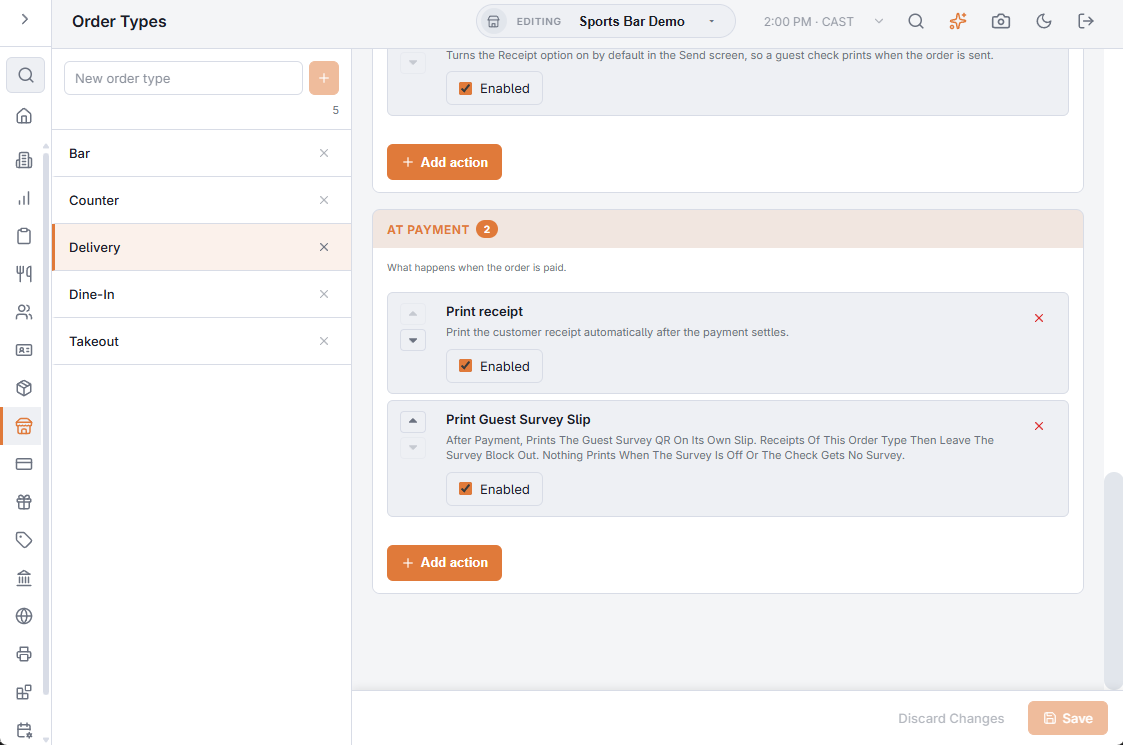
After payment the slip prints on the receipt printer, after the receipt and any coupons. Receipts of that order type then leave the survey block out, so the guest gets one code. Nothing prints when the survey is off or the check doesn’t get one, so the action is safe to leave on.
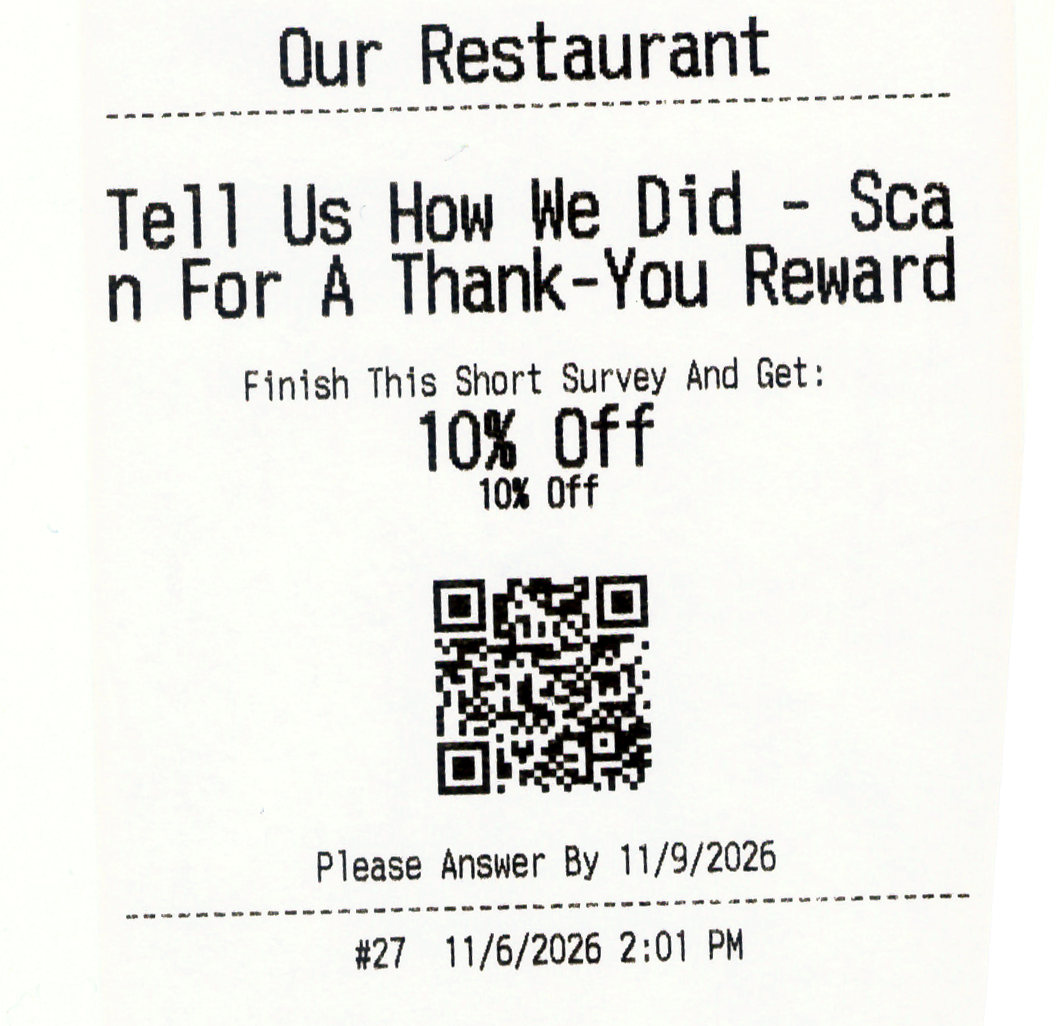
The slip has its own template, Guest Survey Slip, in the template editor. Your store name prints at the top, from Store Setup › General (a slip template saved earlier keeps the name typed into it); the survey line, reward and “Please Answer By” date print in the store’s language.
On the customer display
After payment, the customer display’s Thank You screen shows the survey QR next to the receipt QR, and stays up at least 30 seconds so the guest has time to scan. It shows whenever the survey’s main switch is on (Show The Survey QR Code On Paid Receipts And The Customer Display, on the Guest Survey Settings tab); to hide it on the display only, turn off Show Survey QR Code on the Thank You widget in the customer display designer.
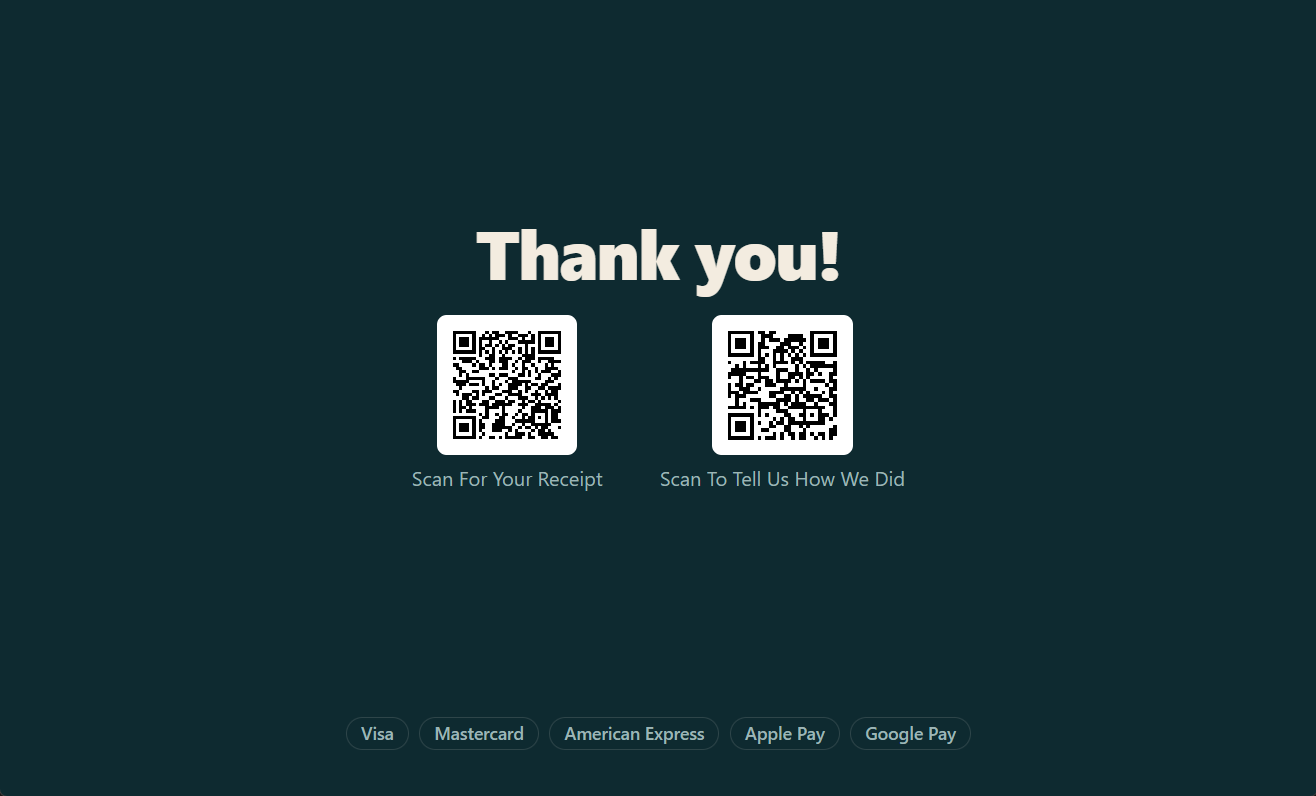
The display shows the same link as the receipt or slip, so the guest can answer from either.
Related: Guest survey