Open a printer with Edit on the agent’s Printers screen. Everything about the printer is set here; nothing about the printer itself is set in Back Office.
Connection
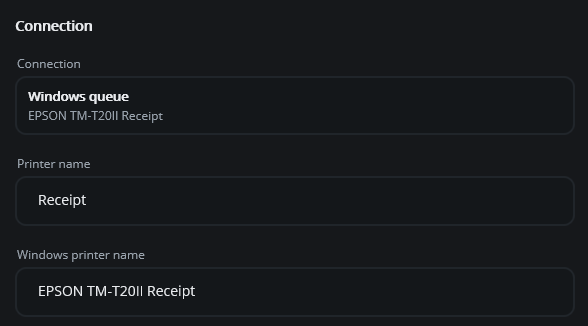
The top of the page shows how the printer is connected. The connection type cannot change after the printer is added, but its details can: the Host / IP and Port of a network printer, or the Windows printer name. Change them when a printer gets a new address or is replaced by another of the same kind; routing is kept. Printer name is the name shown in Back Office.
Paper
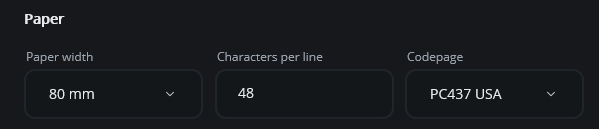
- Paper width — 80 mm for almost every receipt and kitchen printer, 58 mm for small portable ones.
- Characters per line — how many characters fit across the slip. Changing the paper width suggests the usual value: 48 for 80 mm, 32 for 58 mm, 33 for impact printers. Change it only when lines wrap too early or run off the edge.
- Codepage — the character set. PC437 USA suits English; PC850 Multilingual or PC858 Euro for Spanish and other accented text (PC858 adds the euro sign); CP1252 Windows for printers set to that table. If accented letters come out as other symbols, try another codepage and test print again.
Command language
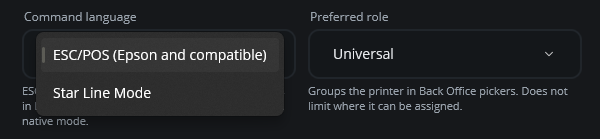
The language the printer understands:
- ESC/POS (Epson and compatible) — Epson printers and the great majority of other thermal printers, including Star printers switched to ESC/POS emulation. The default.
- Star Line Mode — Star printers running in their native mode. Text sizes, bold and the drawer pulse are translated automatically.
The wrong language shows up at once: the test slip prints strange characters, or nothing at all.
Preferred role
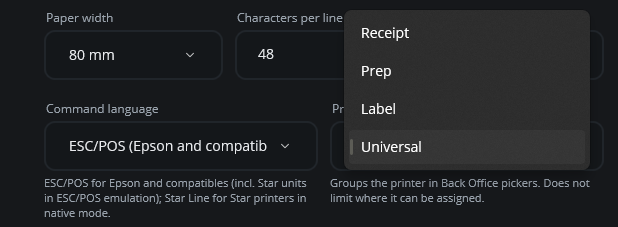
Receipt, Prep, Label or Universal. It only groups the printer in Back Office lists; it does not limit where the printer can be used. Routing is what decides that.
Options
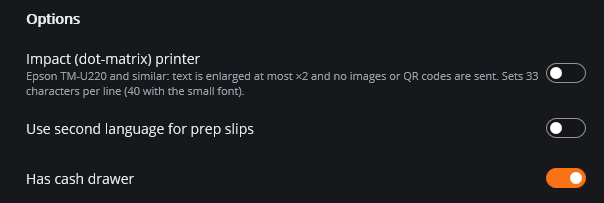
- Impact (dot-matrix) printer — for the Epson TM-U220 and similar noisy kitchen printers. Text is enlarged at most double size and images and QR codes are left out, because these printers cannot print them. Switching it on sets 33 characters per line (40 with the small font).
- Use second language for prep slips — kitchen tickets on this printer use each item’s second-language prep text where the menu has one. Useful when the kitchen reads a different language from the menu.
- Has cash drawer — a cash drawer is plugged into this printer’s drawer (DK) port. The drawer settings and test buttons appear as soon as it is switched on.
Cash drawer
Drawer brand chooses the pulse the printer sends:
- Epson / ESC-POS — Epson and most other printers.
- Star — Star printers.
- Custom — type the exact bytes from the drawer or printer manual, as comma-separated numbers, in Drawer 1 codes and Drawer 2 codes (for example
27,112,0,50,250).
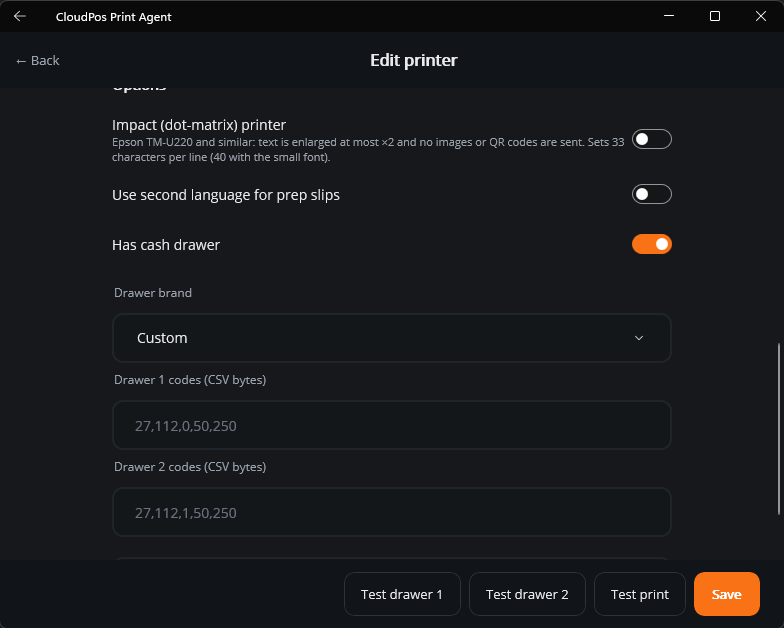
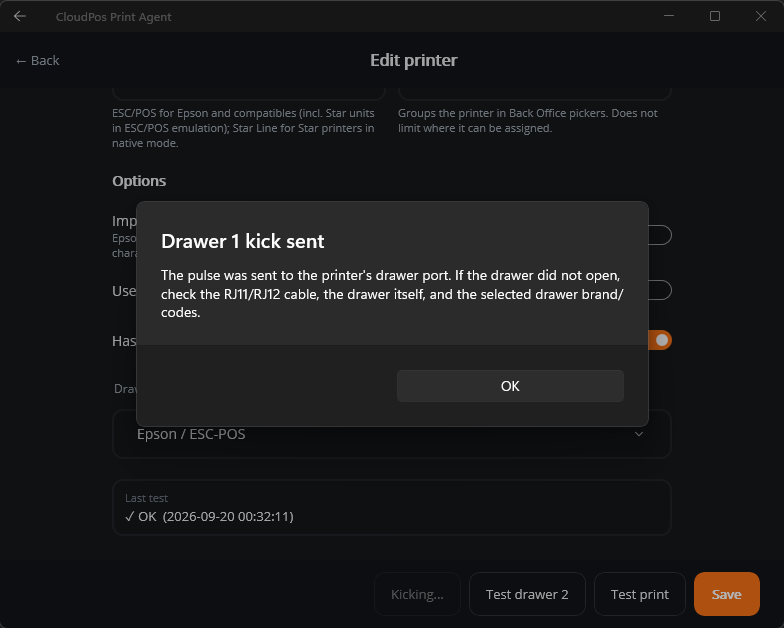
Test drawer 1 and Test drawer 2, at the bottom, send only the drawer pulse, using what is on the screen even before saving. Use them to separate the two halves of a drawer problem: if the test opens the drawer but a cash sale does not, the printer is fine and the problem is in Back Office (Print Routing’s Receipt Printer row, the drawer record or the Cash payment method). If the test does not open it either, check the cable, the drawer’s key and the brand.

Two drawers on one printer use a Y-cable in the DK port; drawer 1 and drawer 2 are chosen by the drawer number in each drawer record. See Cash Drawer Quick Setup & Troubleshooting.
Last test, Test print, Save
Last test shows the result and time of the printer’s last test. Test print prints a slip with the settings on screen, saved or not; Save stores them. Nothing changes for real printing until you save.
