The Windows agent is the right choice when the receipt printer is plugged into a PC by USB, or when there is a PC near the printers that stays on anyway. It drives network printers and every printer installed in Windows.
Install
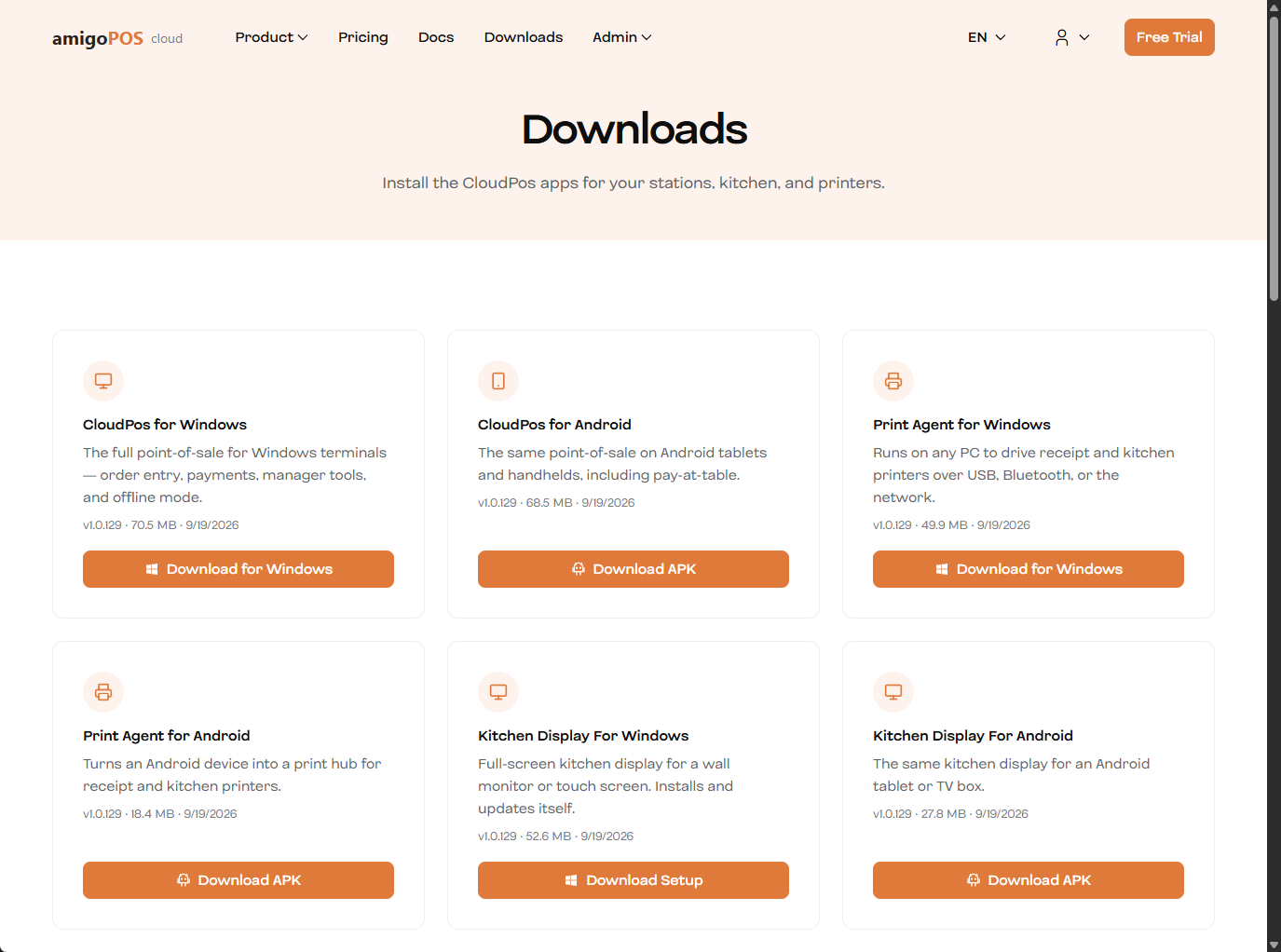
- On the PC, open the Downloads page of the AmigoPOS Cloud web site and download Print Agent for Windows.
- Run the installer. It installs for the current Windows user, needs no administrator rights, and opens the agent when it finishes.
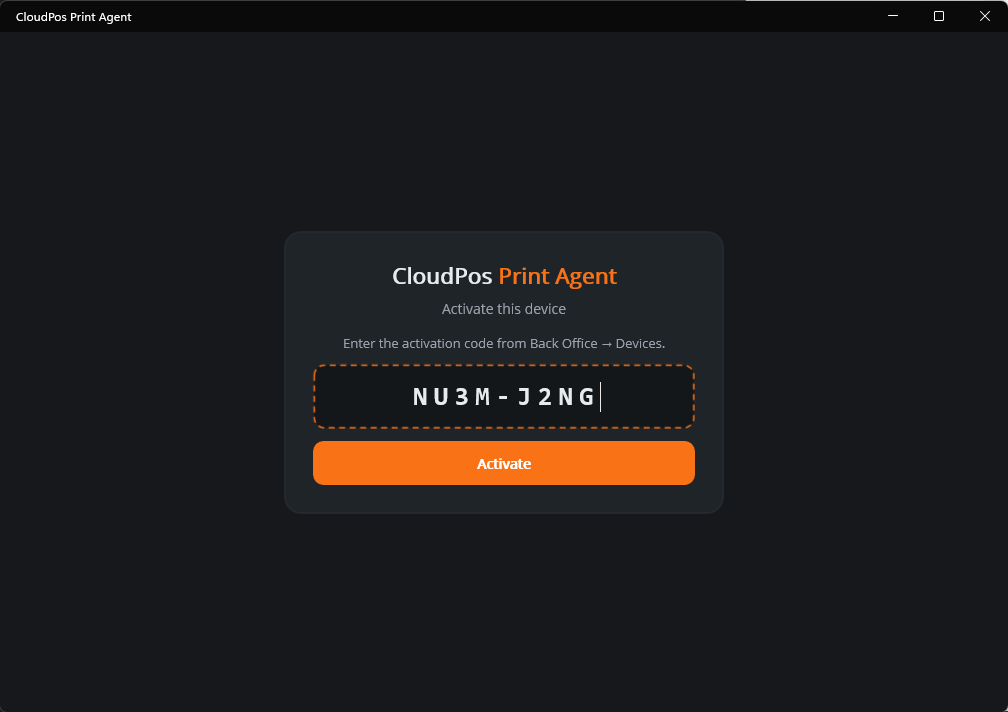
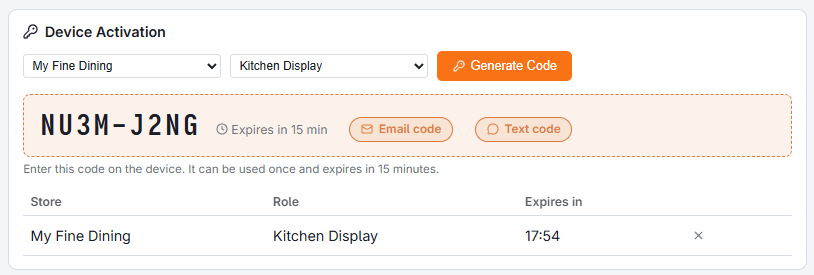
- The agent asks for an activation code. Generate one in Back Office › Hardware & Printing › Registered Devices for the Print Agent role and the right store, type it in and press Activate. See Activating an agent for the right store.
- Add the printers — Adding printers to the agent.
USB printers: set them up in Windows first
The agent prints to USB printers through Windows’ own list of printers, sending the printer’s commands straight through. So a USB printer must first work as a Windows printer:
- Install the maker’s driver (for example Epson Advanced Printer Driver, or the Star Windows driver) and plug the printer in.
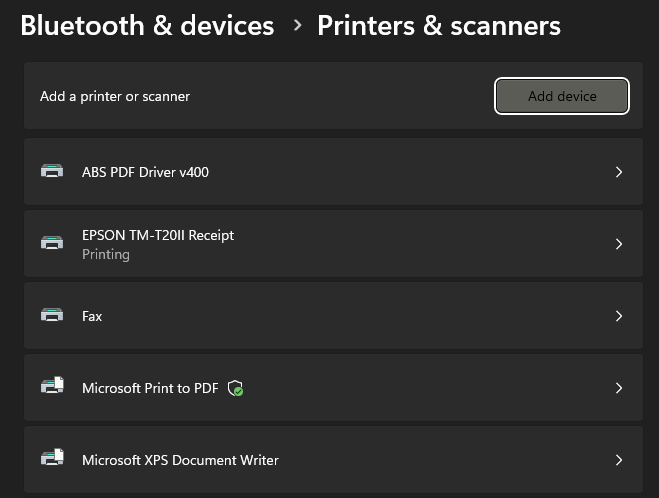
- Check it appears in Windows Settings › Bluetooth & devices › Printers & scanners. The name shown there is the one the agent needs; Scan in the agent lists these names so you do not have to type them.
- Printing a Windows test page is not needed; use the agent’s Test print instead.
If the maker has no driver for your Windows version, the built-in Generic / Text Only driver works for printing, because the agent sends the printer’s own commands. Logos and QR codes then depend on the printer understanding them, which ESC/POS printers do.
Afterwards
- The agent starts with Windows, next to the clock and without opening its window, and keeps printing in the background. Closing its window only hides it — see Next to the clock below.
- It updates itself — see Updates and the About screen.
- Failed jobs, unreachable printers and a lost server connection appear as Windows notifications, even while the agent is minimised.
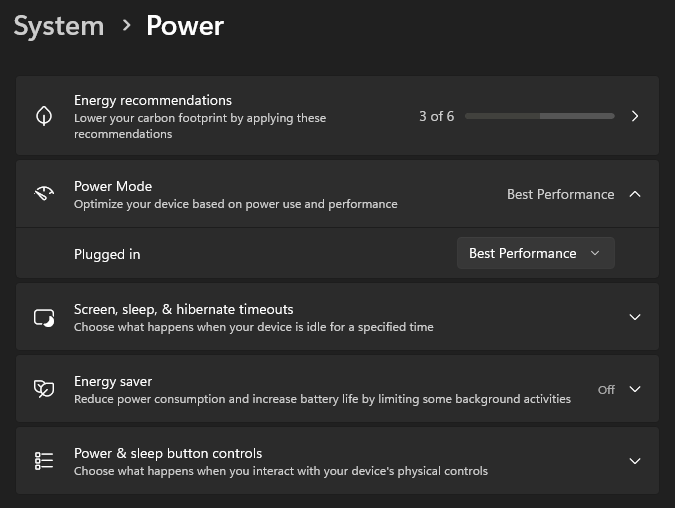
Sleep stops printing. A PC that goes to sleep stops its agent exactly like a PC that is switched off. In Windows Settings › System › Power, set sleep to Never when plugged in. The screen may still turn off.
Next to the clock
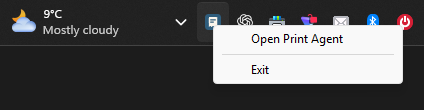
On Windows the agent lives in the notification area next to the clock (it may be under the ^ arrow).
- Click the icon to open the agent’s window.
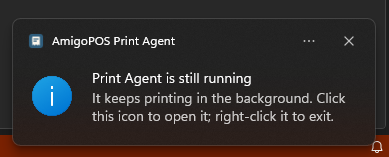
- The window’s X hides the window. The agent stays next to the clock and keeps printing. The first time, Windows shows Print Agent is still running.
- To stop it, right-click the icon and choose Exit, or open About and press Exit Print Agent. It asks Close Print Agent? first: Close anyway stops it, and nothing prints on this computer until it is started again; Keep running leaves it as it is.
- When someone signs in to Windows, the agent starts next to the clock without opening its window.
- Only one copy runs for each Windows user. Starting it again from the Start menu just brings up the copy that is already running.
- After an update the agent comes back the same way, next to the clock.
Where Windows cannot show the icon, the X closes the agent as it did before, so keep its window open there.