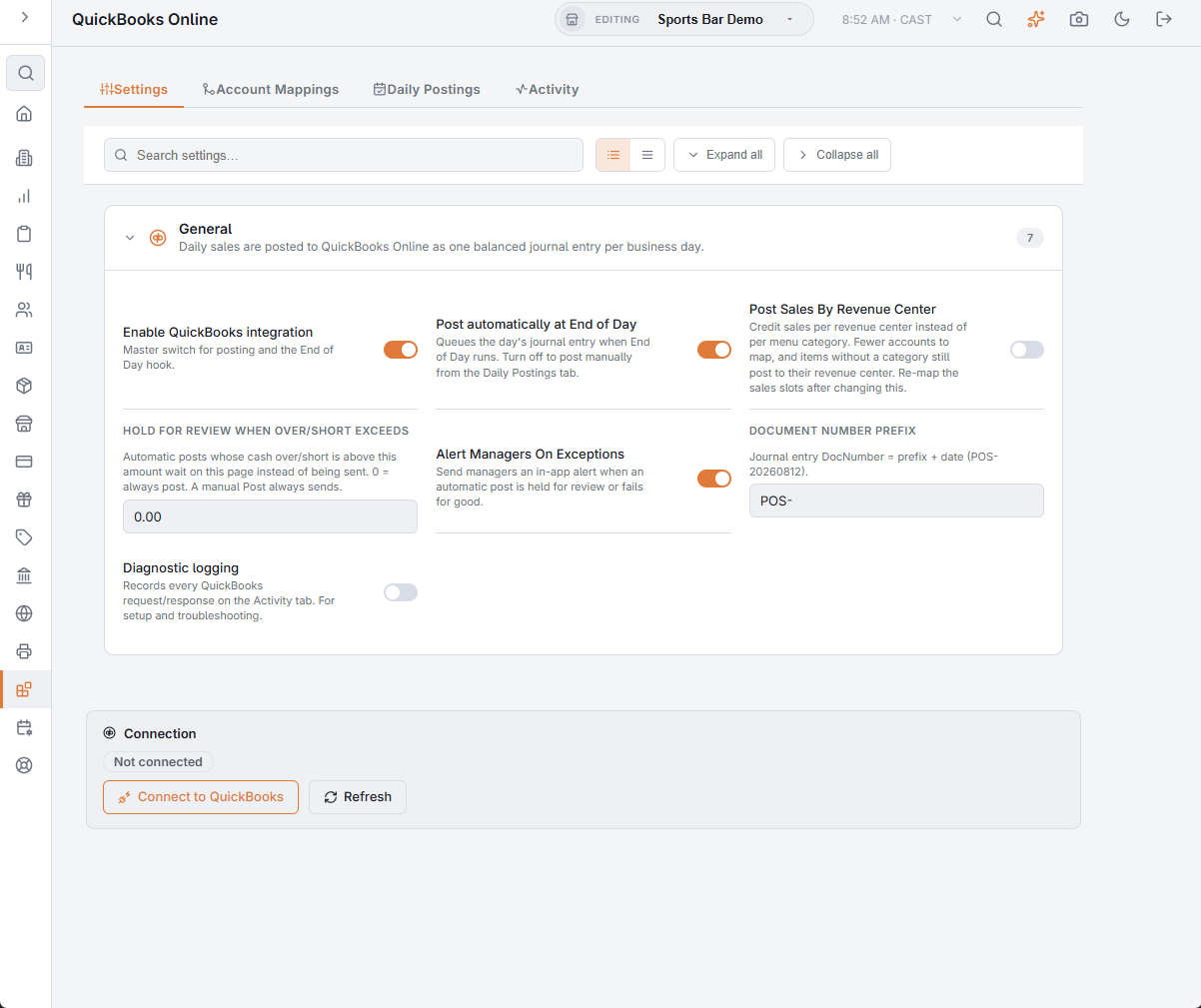
The connection is made on the Settings tab of Back Office › Integrations › QuickBooks Online, in the Connection panel below the settings. Someone who can sign in to the QuickBooks company needs to be at the keyboard, because Intuit asks them to approve it. Each store connects on its own.
Connect
- Press Connect to QuickBooks. Intuit’s sign-in page opens in a new browser tab.
- Sign in, choose the company the store should post to, and approve access.
- Come back to Back Office and press Refresh. The panel shows Connected with the company name and its country.
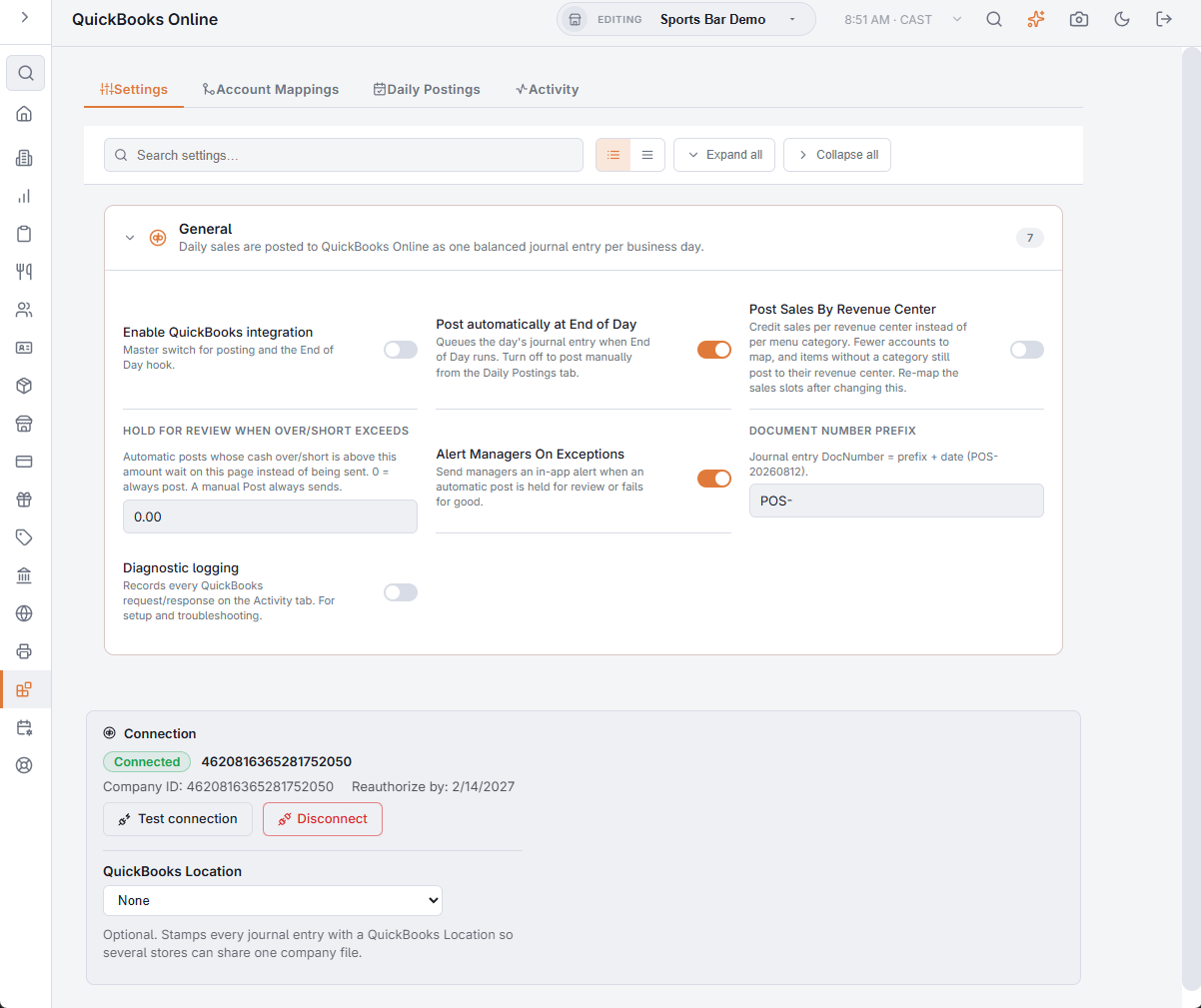
Check the company name: it is the company every journal entry will go to. The panel also shows the Company ID and a Reauthorize by date, the last day the current sign-in is valid.
Turn it on
Connecting does not start posting. The General section above the panel holds the switches; each one saves as soon as it is changed.
- Enable QuickBooks integration — the master switch for posting and for the End of Day hook.
- Post automatically at End of Day — queues the day’s journal entry when End of Day runs. Turn it off to post by hand from the Daily Postings tab.
- Post Sales By Revenue Center — credits sales by revenue center instead of by menu category: fewer accounts to map, and items without a category still post. Map the sales lines again after changing it.
- Hold For Review When Over/Short Exceeds — an automatic post whose cash over/short is larger than this amount waits on the Daily Postings tab instead of being sent. 0 always posts. A post made by hand is always sent.
- Alert Managers On Exceptions — managers get an in-app alert when an automatic post is held for review or fails for good.
- Document number prefix — the start of each entry’s document number;
POS-gives POS-20260812. - Diagnostic logging — records each request to QuickBooks and its answer on the Activity tab. For setup and troubleshooting.
Checking the connection
Test connection asks QuickBooks which company it is talking to and shows the answer under the buttons. If QuickBooks has refused the connection, the panel shows the error it returned; press Connect to QuickBooks again to sign in afresh. Mappings and posting history are kept.
Several stores in one company
Once connected, the QuickBooks Location list shows the company’s locations. Choose one and every journal entry from this store is stamped with it, so several stores can share one company and still report separately. Leave it on None for a store with its own company.
Disconnecting
Disconnect asks for confirmation, then ends the connection and revokes it with Intuit. Automatic posting stops until the store connects again. Entries already in QuickBooks are not touched.