The Daily Postings tab of Back Office › Integrations › QuickBooks Online shows what was sent to QuickBooks, day by day, and lets you preview and post any dates by hand — during setup, after a mapping correction, or for days closed before the connection existed or while automatic posting was off.
Automatic posting
With Post automatically at End of Day on (Settings tab), End of Day queues the business day it closes, and the background service sends it within a minute or two. The date is the business day being closed, even when End of Day runs after midnight or the next morning. If the send fails, the request stays in the queue and is retried; End of Day itself never fails because of QuickBooks.
Days are not caught up later on their own: a day closed while automatic posting was off, or before QuickBooks was connected, stays unposted until you post it here.
Days waiting for review
When Hold For Review When Over/Short Exceeds is set, an automatic post whose cash over/short is larger than that amount is not sent. It is listed at the top of the tab under Day(s) Waiting For Review, together with any day that failed, each with its message and Preview and Post to QuickBooks buttons. Managers get an alert when Alert Managers On Exceptions is on. Check the day, then post it: a post you make yourself is always sent.
Preview, then post
The preview shows the entry as it will be posted: each line with its description, its QuickBooks account, and its debit or credit, then the totals and the number of tickets. Nothing leaves the POS until you post.
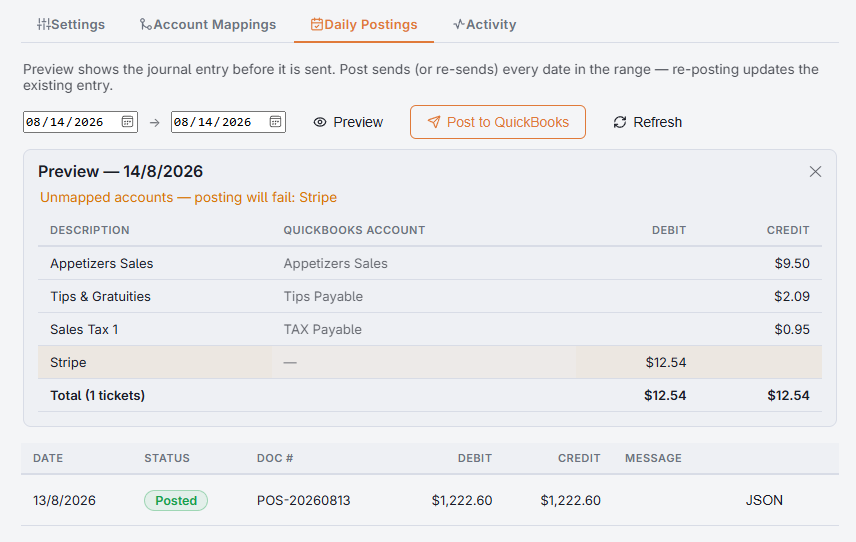
- Set the start and end dates. Both start on yesterday.
- Press Preview. It shows the start date only. Check the totals against the End of Day report. A warning above the lines names any line that has no account — posting would fail.
- Press Post to QuickBooks. Every date in the range is sent, one entry each, so set both dates the same to post a single day. The result for each date is shown under the buttons.
The list
Below the buttons each posted date is listed with its Status — Posted, No sales, Needs Review, Failed or Pending — its Doc #, debit and credit totals and the Message. Days that need review or failed have their own Preview and Post to QuickBooks buttons. JSON shows exactly what was sent and what came back. Refresh reloads the list.
Posting a date again
Posting a date that was already posted updates that same entry in QuickBooks rather than creating a second one, so correcting a day is a matter of posting it again — after a mapping fix, or when a day was reopened and closed again. If the entry was deleted in QuickBooks, posting again creates it afresh.
Anything recorded after End of Day belongs to the next business day.
Finding the entry in QuickBooks
Journal entries do not appear on the QuickBooks dashboard. Search for the document number, run the Journal report for the date, or open the register of any mapped account.
Posting by hand and the queue
When you post a day by hand, that day's automatic post still waiting in the queue is closed, so the day is not posted again later. The integration pages and their actions need the Back Office configuration right.