Every flow depends on knowing which 7shifts role a POS job is, and which 7shifts user a POS employee is. The Roles and Employees tabs of Back Office › Integrations › 7shifts make those links. A time punch is sent only for a linked employee, clocked in on a mapped job.
Roles: map each job
The Roles tab lists the store’s jobs with the 7shifts role each one is mapped to.
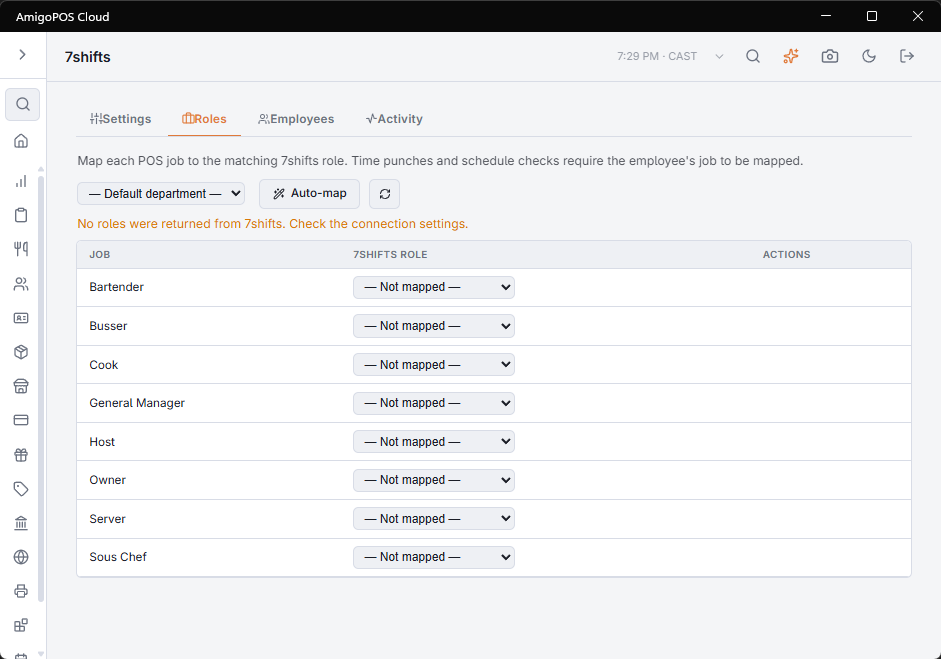
- Pick a role in a job’s list to map it; the choice saves at once. Not mapped clears it.
- For an unmapped job, choose a Department and press Create in 7shifts to create a role with the job’s name and map it.
- Auto-map maps every unmapped job: a 7shifts role with exactly the same name is used; the rest are created in 7shifts. Kitchen jobs go to a back-of-house department when 7shifts has one; everything else goes to the department chosen in Default department, which must be picked first.
Employees: link each person
The Employees tab lists the store’s employees with their Email, Jobs and 7shifts user. The name opens the employee in the employee editor.
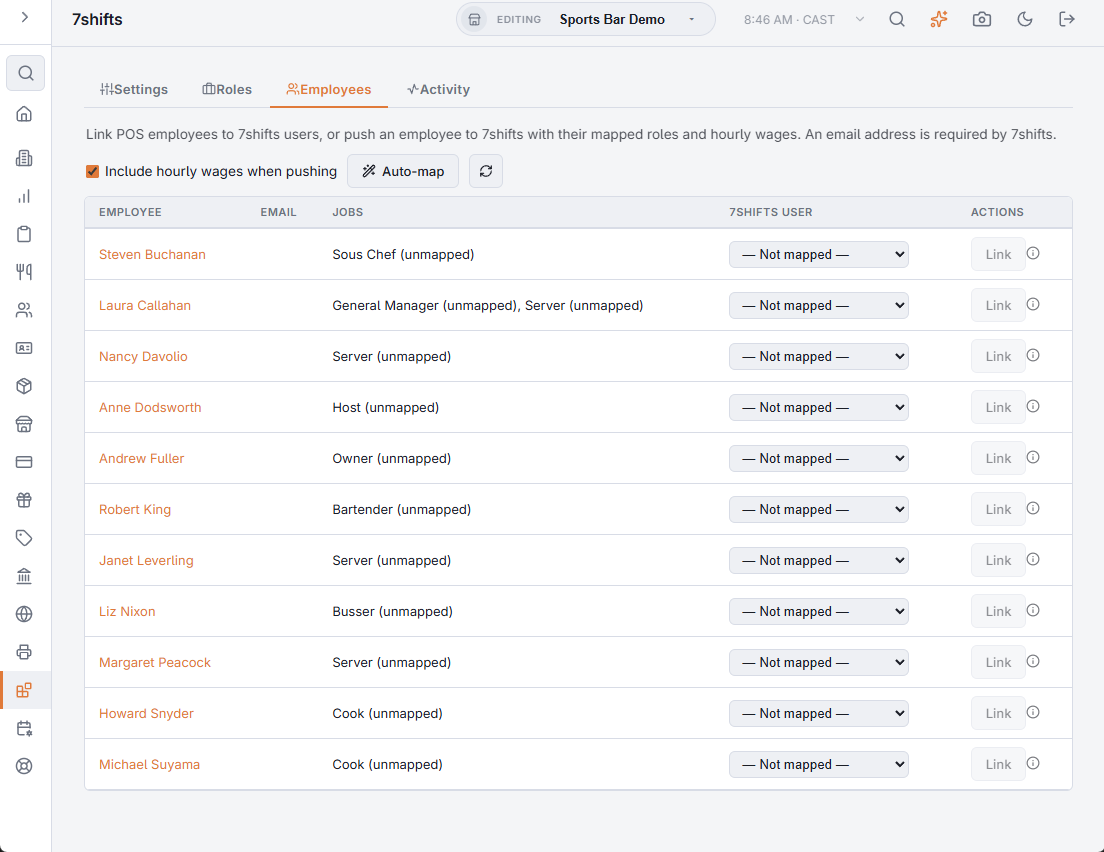
- A linked employee shows the 7shifts user’s name. Unlink breaks the link, for example when someone was linked to the wrong user.
- An unlinked employee has a list of 7shifts users, with the best match by email, then by name, already chosen. Link links them.
- Push to 7shifts creates the employee in 7shifts, assigned to this location with the roles of their mapped jobs, and links them. With Include hourly wages when pushing ticked, their hourly wages go too; wages of salaried jobs are not sent. When an employee cannot be pushed, an information icon says why: 7shifts needs an email address, and at least one of the employee’s jobs must be mapped.
- Auto-map links every unlinked employee who has an email or name match in 7shifts, then pushes every remaining employee who can be pushed. The message under the buttons counts what was matched, created, linked, pushed and skipped, with the reason for each skip.
Keeping it current
While the integration is on, the POS keeps these links up to date by itself:
- Saving a job maps it to a matching role, or creates one in the default department.
- Saving an employee links them to a matching 7shifts user, or pushes them once they have an email address and a mapped job.
- An employee made inactive or released in the POS is deactivated in 7shifts.
These run through the queue on the Activity tab. One that cannot complete — an employee with no email, say — shows there with its reason. Add what is missing and save the employee again, or press Retry on the row.