Each guest on an order (Guest 1, Guest 2…) can be linked to a customer record. The guest's items then count toward that customer's history, visits and reports, even when someone else at the table pays or the check carries another loyalty card.
Link a guest
- On the order, select the guest on the guest bar and tap its person button.
- Type a phone number, name, email or loyalty card number in the search box (Phone, Name, Email Or Loyalty Card). On Android you can also scan the card with the camera; a card reader that types the number works too.
- Tap the customer in the results.
- Tap OK. The guest takes the customer's name if it had none.
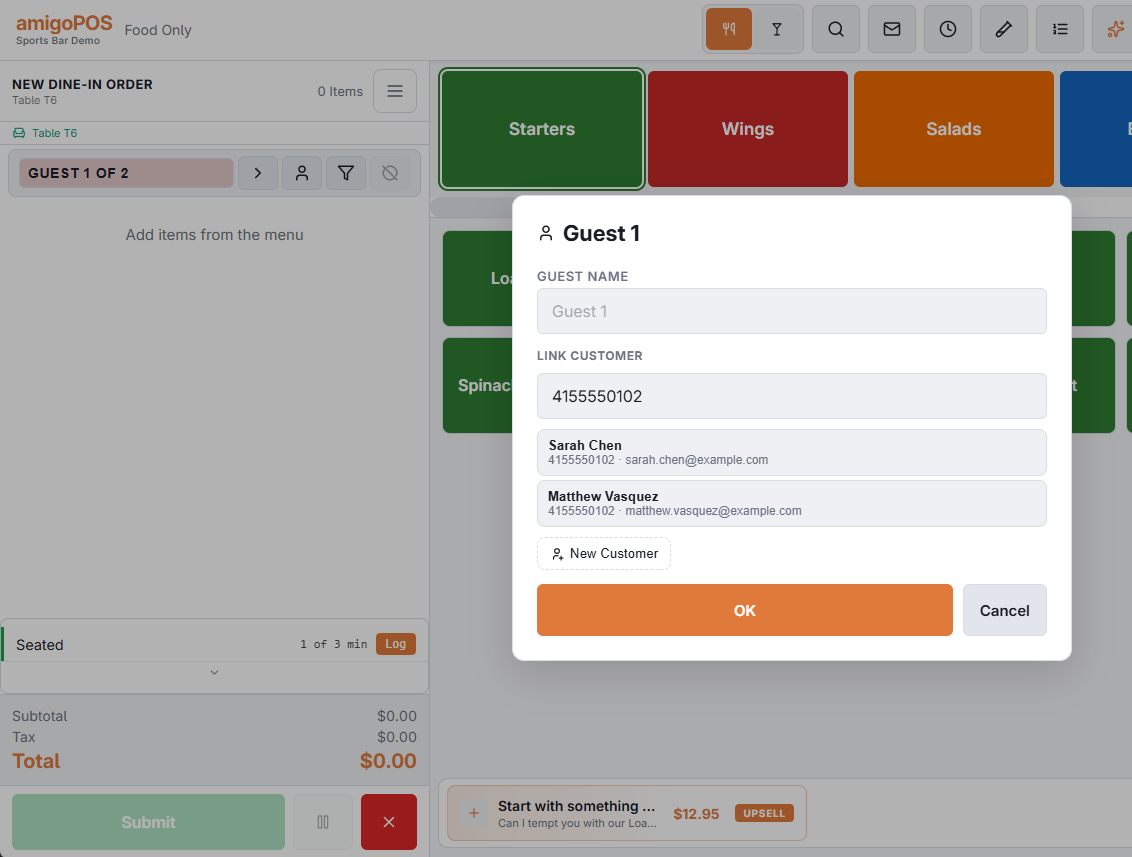
Nobody on file? Tap Add And Link, enter a first or last name (phone and email are optional) and the new customer is linked at once. If the number belongs to someone already on file, that customer is linked instead of creating a duplicate. A loyalty card that no customer carries yet becomes a new customer the same way, and the card stays on the record.
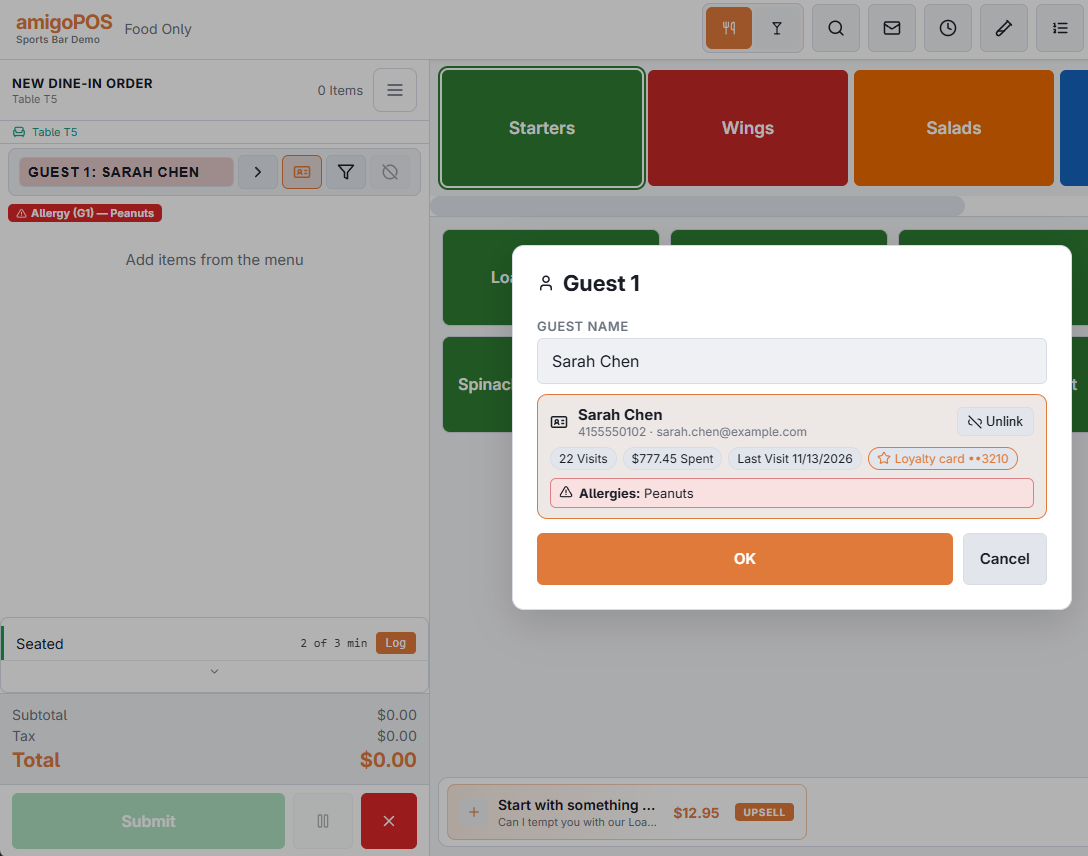
Once a guest is linked, the dialog shows the customer's details: name, phone and email, then visits, total spend, last visit, loyalty card, allergies and, when the customer is blocked, the reason.
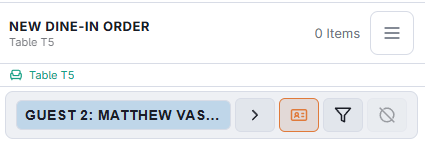
What a link does
- Allergies: the customer's saved allergies are added to that guest's allergen declarations when you link them, so they print on prep tickets and show on the kitchen display. Remove one with the Allergens button if it no longer applies.
- Loyalty: when the order is paid, a linked guest whose customer has a loyalty card earns on their own items, and the order's card earns on the rest. The receipt lists the points each guest's car