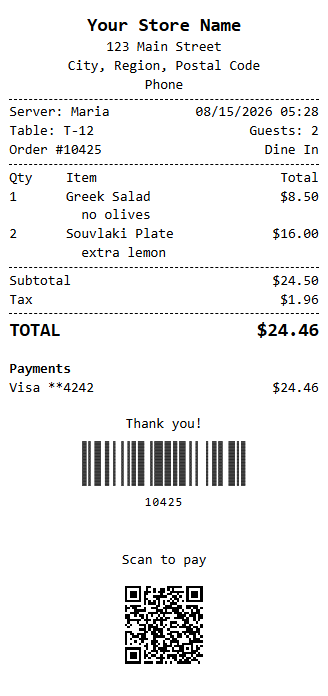
QR pay-at-table lets a dine-in guest settle their own check: the printed receipt carries a QR code, the guest scans it with their phone, reviews the check, adds a tip, and pays on a secure Stripe checkout page. The payment lands on the ticket automatically — no card ever changes hands and the server never returns to the table with a terminal.
One-time setup
1. Stripe account and API keys
In Back Office, open Integrations › Stripe.
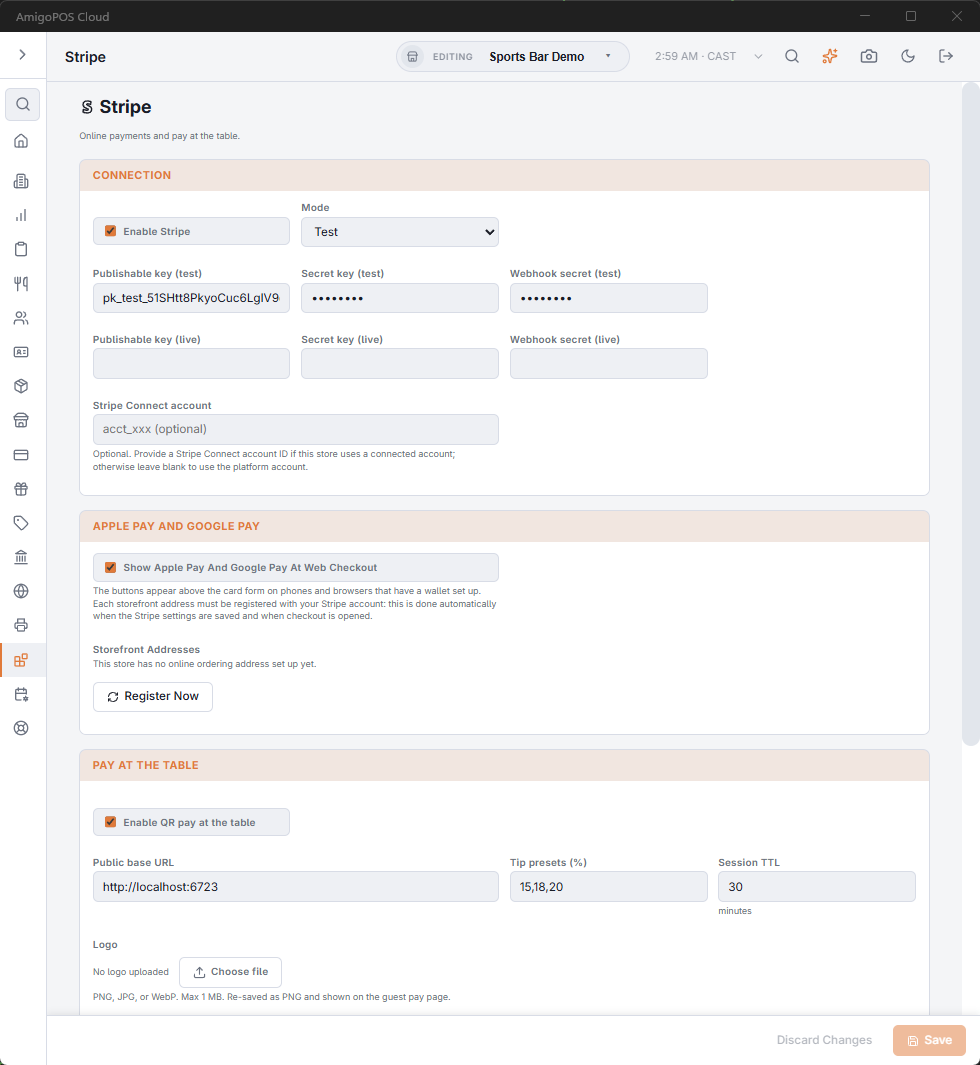
- Enabled — master switch for the Stripe integration.
- Mode — Test or Live. Each mode keeps its own set of keys, so you can trial the flow with Stripe test cards and flip to Live without re-entering anything.
- Publishable key / Secret key — copy these from the Stripe Dashboard under Developers → API keys.
- Webhook signing secret — created in the next step.
- Connect account — optional; only fill this if your payments run through a Stripe Connect platform account.
2. Register the webhook
Stripe confirms payments by calling your cloud endpoint. In the Stripe Dashboard under Developers → Webhooks, add an endpoint pointing to your API address followed by /webhooks/stripe, subscribed to at least checkout.session.completed, checkout.session.expired, and charge.refunded. Copy the endpoint’s signing secret into the Webhook signing secret field for the matching mode. Every incoming event is signature-checked and logged, and each event is processed exactly once even if Stripe retries it.
Without the webhook, guests can pay but the ticket is never marked paid. If payments show in the Stripe Dashboard and not on tickets, check the webhook first.
3. Pay-at-table options
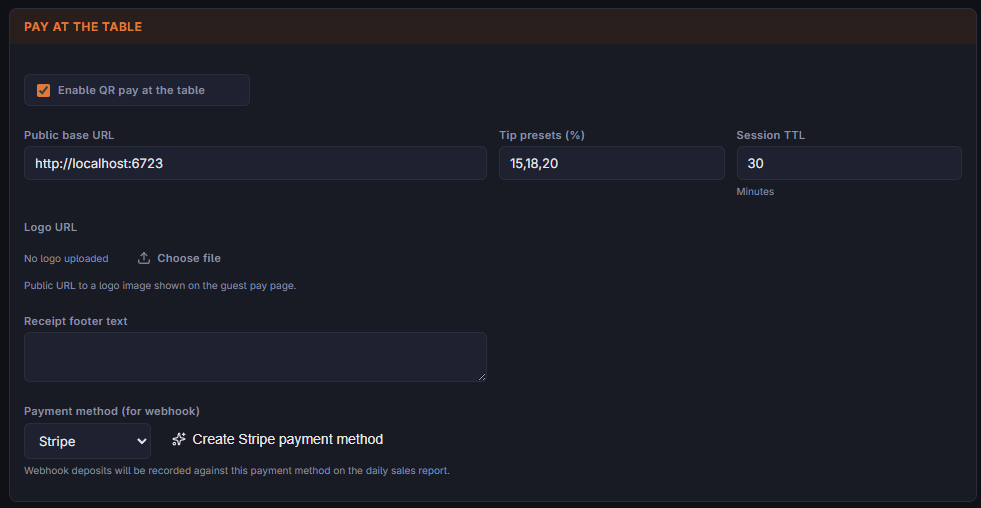
- Pay at table enabled — turns QR printing on receipts on or off independently of the rest of the Stripe integration.
- Base URL — the public address the QR code points to (your cloud API address). The receipt QR resolves to
<base>/pay/<merchant>/<store>/<order>. - Tip presets — comma-separated percentages (default 15,18,20) offered as one-tap buttons on the guest page; the guest can also enter a custom amount or skip the tip.
- Session lifetime (minutes) — how long a started checkout stays valid. If the guest abandons the page, the session expires and the check remains open for any other payment path.
- Logo and footer — optional branding shown on the guest payment page.
4. Payment method mapping
Successful payments are recorded under a dedicated Stripe payment method so they appear correctly in end-of-day totals and reports. This method is created and linked automatically the first time the integration is saved — no drawer is involved, since the money settles to your Stripe balance rather than a cash drawer.
What the guest sees
- The server prints the customer receipt as usual; the QR is added automatically to every receipt for an unpaid check while pay-at-table is enabled.
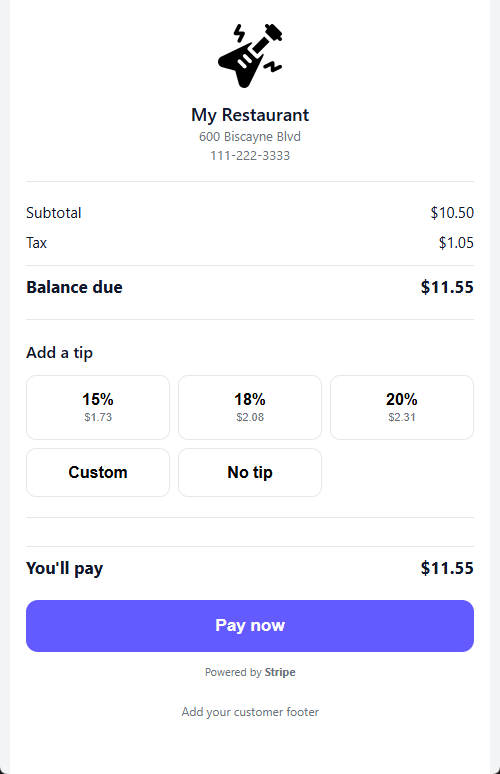
- The guest scans the code and lands on a mobile page showing the business name, itemized check, subtotal, tax, and the live balance due — partial payments already made at the register are reflected.
- The guest picks a tip and taps pay. A payment session is reserved for the check and the guest is redirected to a Stripe-hosted checkout page (card, Apple Pay, Google Pay — whatever your Stripe account offers).
On a successful payment
- Stripe calls the webhook; the signature is verified and the payment session is marked paid, storing the Stripe payment reference for reconciliation.
- A payment transaction is written to the ticket for the paid amount, with the tip recorded as gratuity. It is attributed to the ticket’s original cashier and station, with no cash drawer.
- If the payment covers the remaining balance, the ticket is settled and closed automatically; a partial payment simply reduces the balance due.
- The guest sees a branded success page; the payment shows on the ticket at the POS just like any other tender.
Refunds issued from the Stripe Dashboard flow back through the webhook and flag the payment session as refunded for reconciliation; adjust the ticket at the POS as your policy requires. An expired checkout releases the reserved session without touching the check.
To test end to end without charging a card: switch Mode to Test, scan a QR from a test check, and pay with Stripe’s test card number 4242 4242 4242 4242 with any future expiry and any CVC.