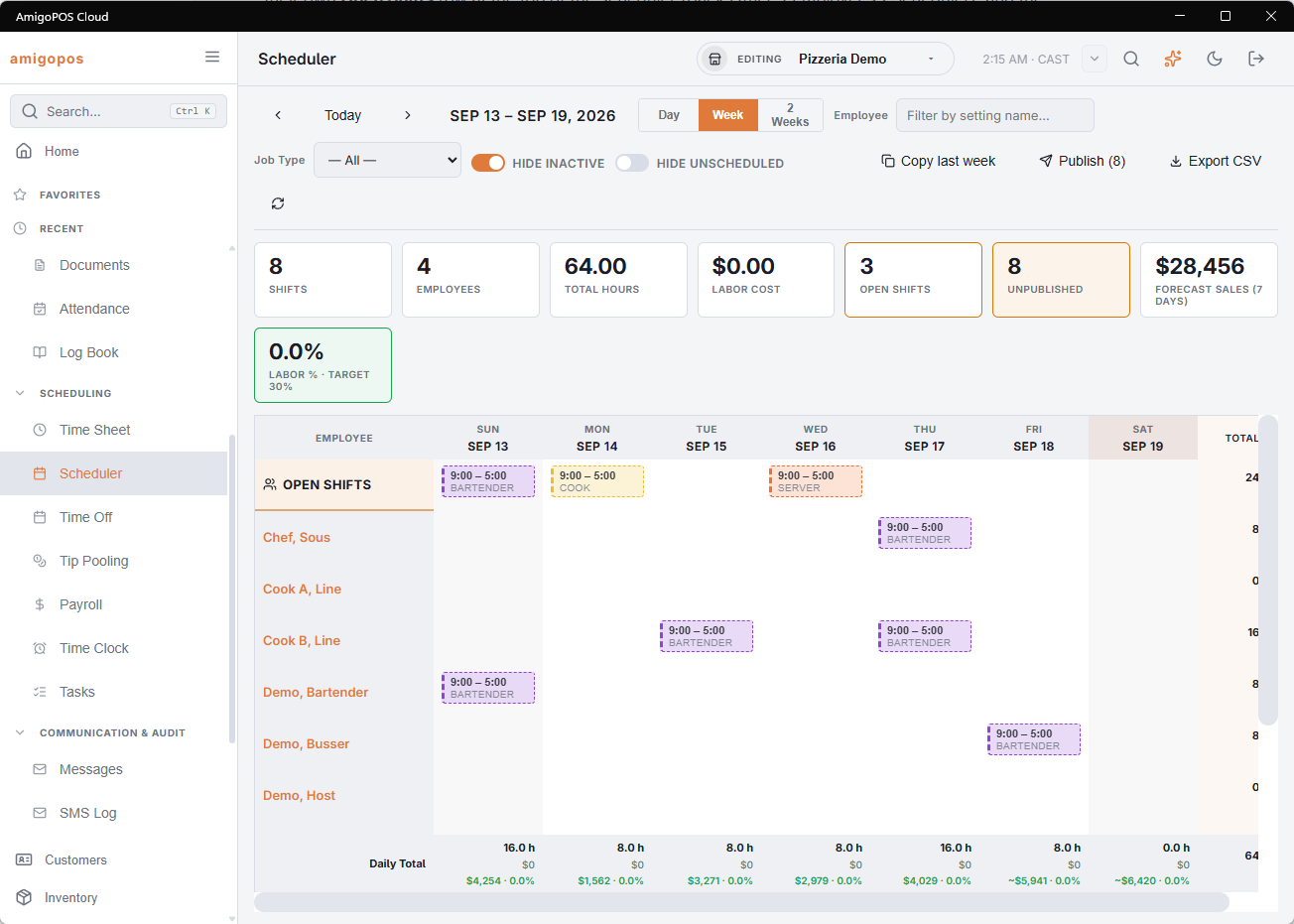
An open shift is a shift for a job with nobody on it yet — “a cook, 15:00 to 22:00”. Open shifts sit in their own Open Shifts row at the top of the scheduler (Back Office › Employees › Scheduling › Scheduler), and the summary strip counts them.
Creating one
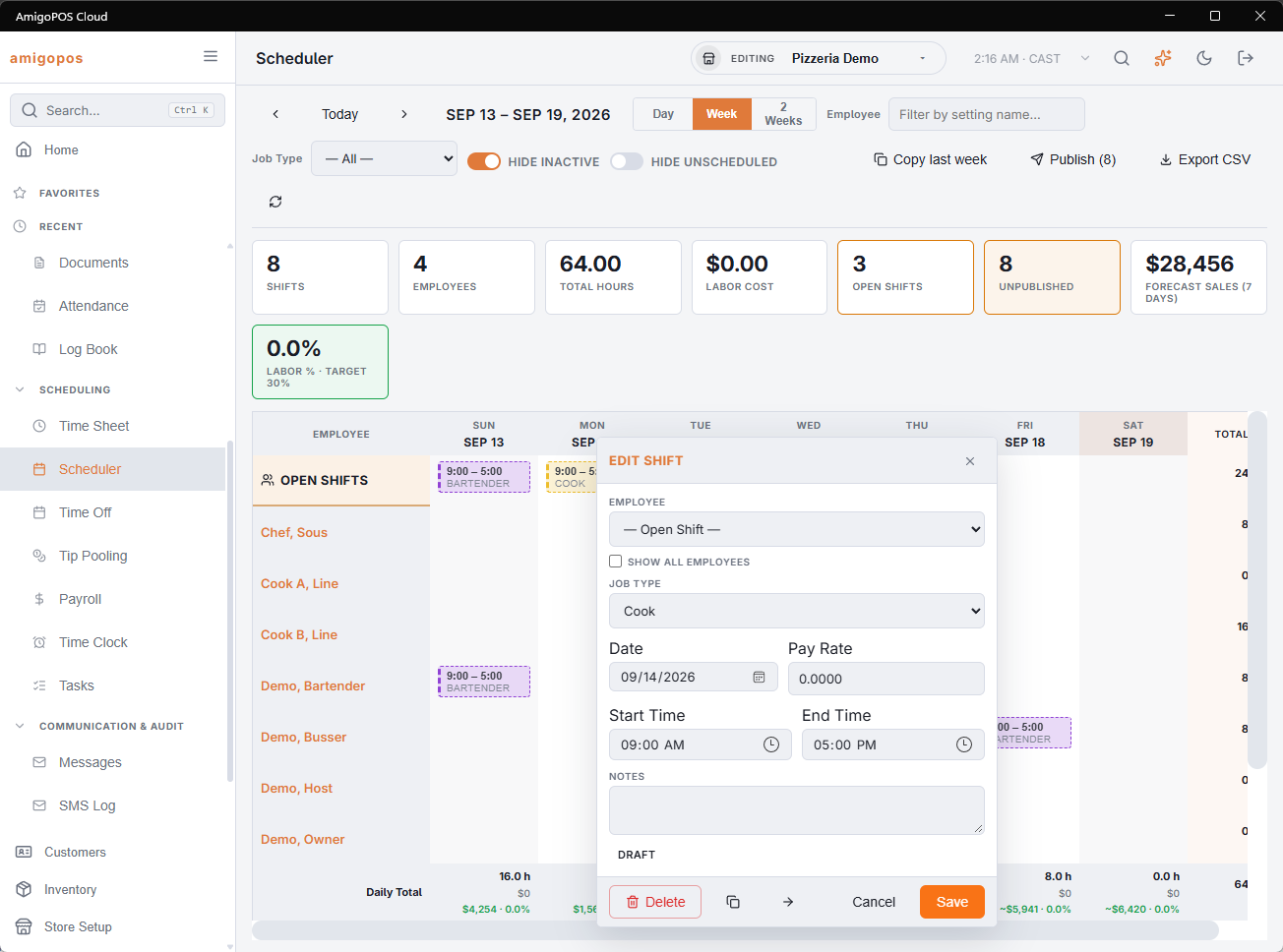
Click the + in the Open Shifts row on the day you need covered. The editor opens with Employee set to — Open Shift —; choose the job, the date and the times, and save. Any shift can also be turned into an open shift by picking — Open Shift — in its editor.
Assigning it
- From the editor — open the shift and pick an employee. The list shows only people who hold the shift’s job (their job assignments in Jobs & Permissions); tick Show All Employees to see everyone. Choosing someone without the job asks you to confirm.
- By moving it — use Move on the open shift and click the employee’s day (see Scheduler › Copying and moving shifts). The same job check applies.
- Taking someone off — move their shift onto the Open Shifts row and it becomes open again.
Build the week by role, then add names
Most kitchens and bars run the same pattern every week: 6:30–15:00 dishwasher, 7:00–15:00 chef, 15:00–22:00 cook, and so on. Build that pattern once as open shifts; Copy Last Week brings it forward each week, and you only fill in names — or let staff pick the shifts up themselves.
Publishing
Open shifts are published with the rest of the week. Once published, everyone who holds the job sees them on the Open Shifts tab of My Schedule (on the register or on their phone) and can pick them up — see Picking up, giving up and swapping shifts. Nobody is texted about an open shift at publish time, because nobody is on it.