Staff handle their own coverage from My Schedule — on the register (tap your name in the top bar) or on their phone through the staff site. Everything here works on published shifts only.
Picking up a shift
The Open Shifts tab lists what the employee can take, from today to four weeks ahead:
- Open — open shifts for any job they hold.
- … is giving this up — a coworker with the same job wants rid of a shift.
- … offered this to you — a coworker offered a shift to them by name; it can be accepted or declined.
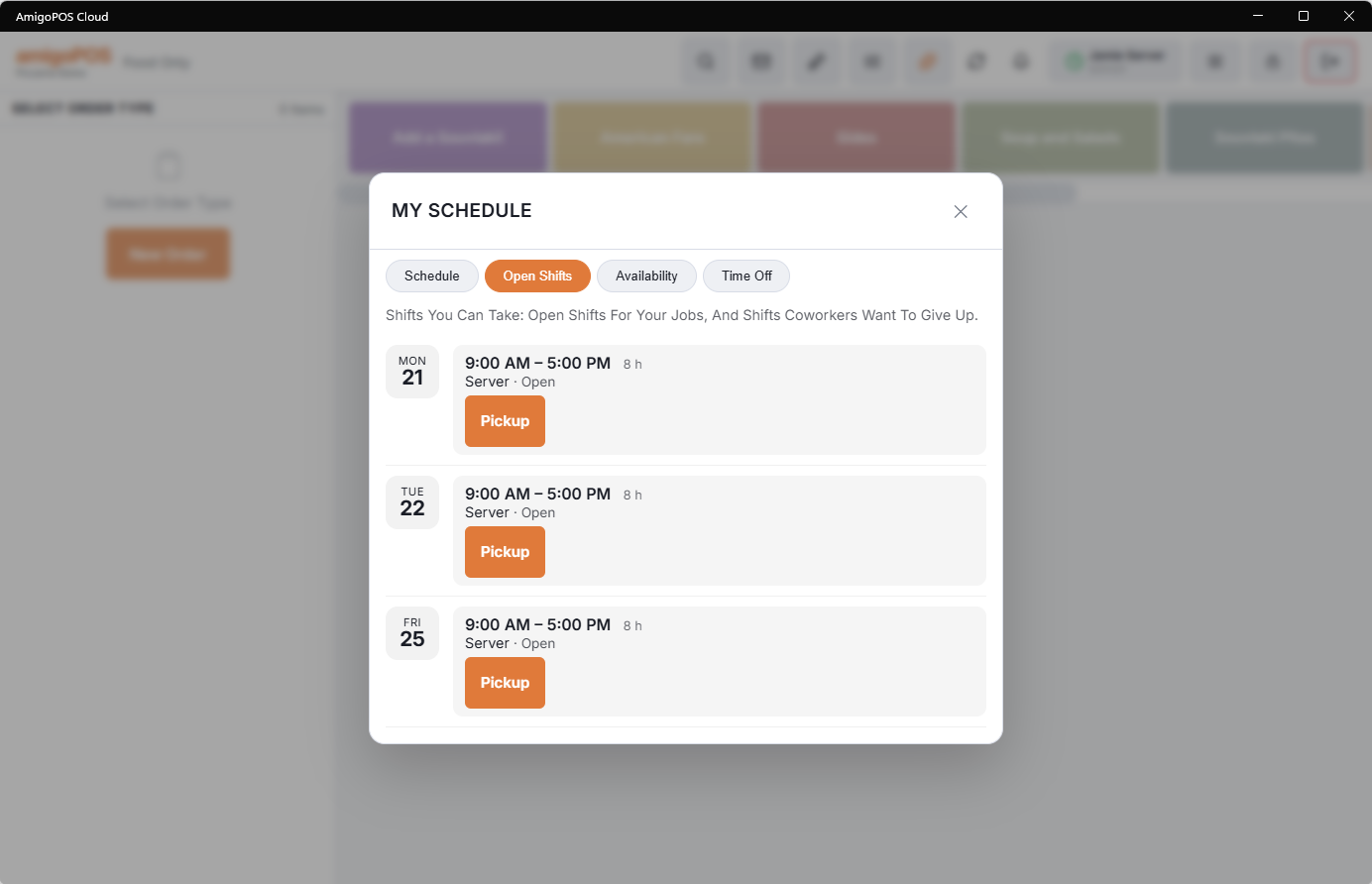
Pick Up (or Accept) takes the shift, after four checks: the employee holds the job, it doesn’t overlap one of their own shifts, it isn’t in the past, and nobody got there first — if two people tap at once, only the first gets it.
Giving up a shift
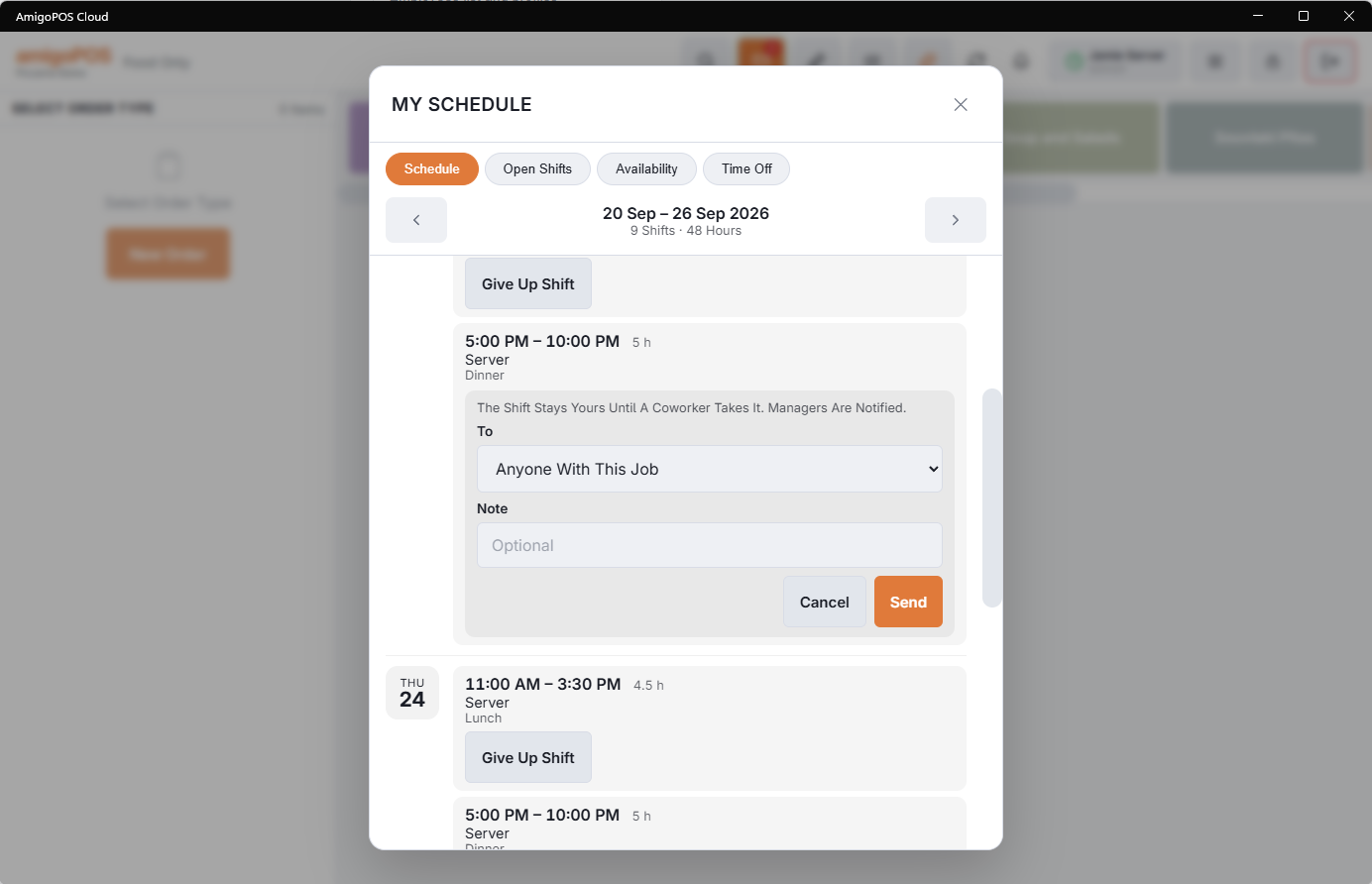
On the Schedule tab every future shift has Give Up Shift. Choose who it goes to — Anyone With This Job, or one named coworker (only coworkers holding the job are listed) — add a note if you like, and Send.
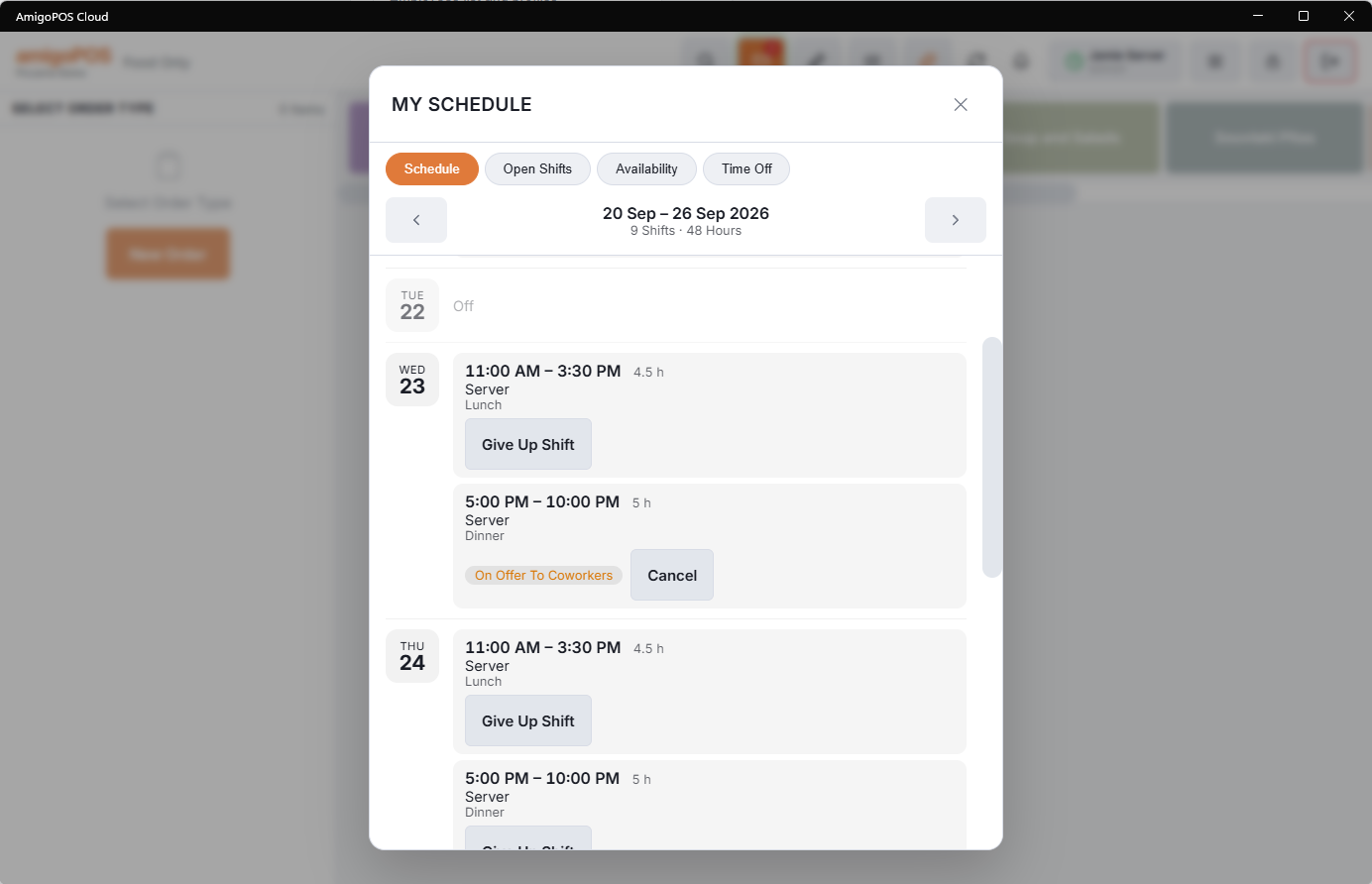
The shift stays yours until somebody takes it. It shows an “On Offer” badge with a Cancel button in the meantime; if nobody picks it up, you are still expected at work. That is deliberate: a give-up never leaves a hole in the schedule that nobody knows about.
Swapping
A swap is two offers: offer your shift to your coworker by name, they offer theirs to you, and each of you accepts the other’s.
Who is told
- Managers — everyone whose job has manager access gets an in-app message when a shift is given up, picked up or changes hands.
- The named coworker gets the offer; the previous owner is told when the shift is taken or declined.
Manager approval (optional)
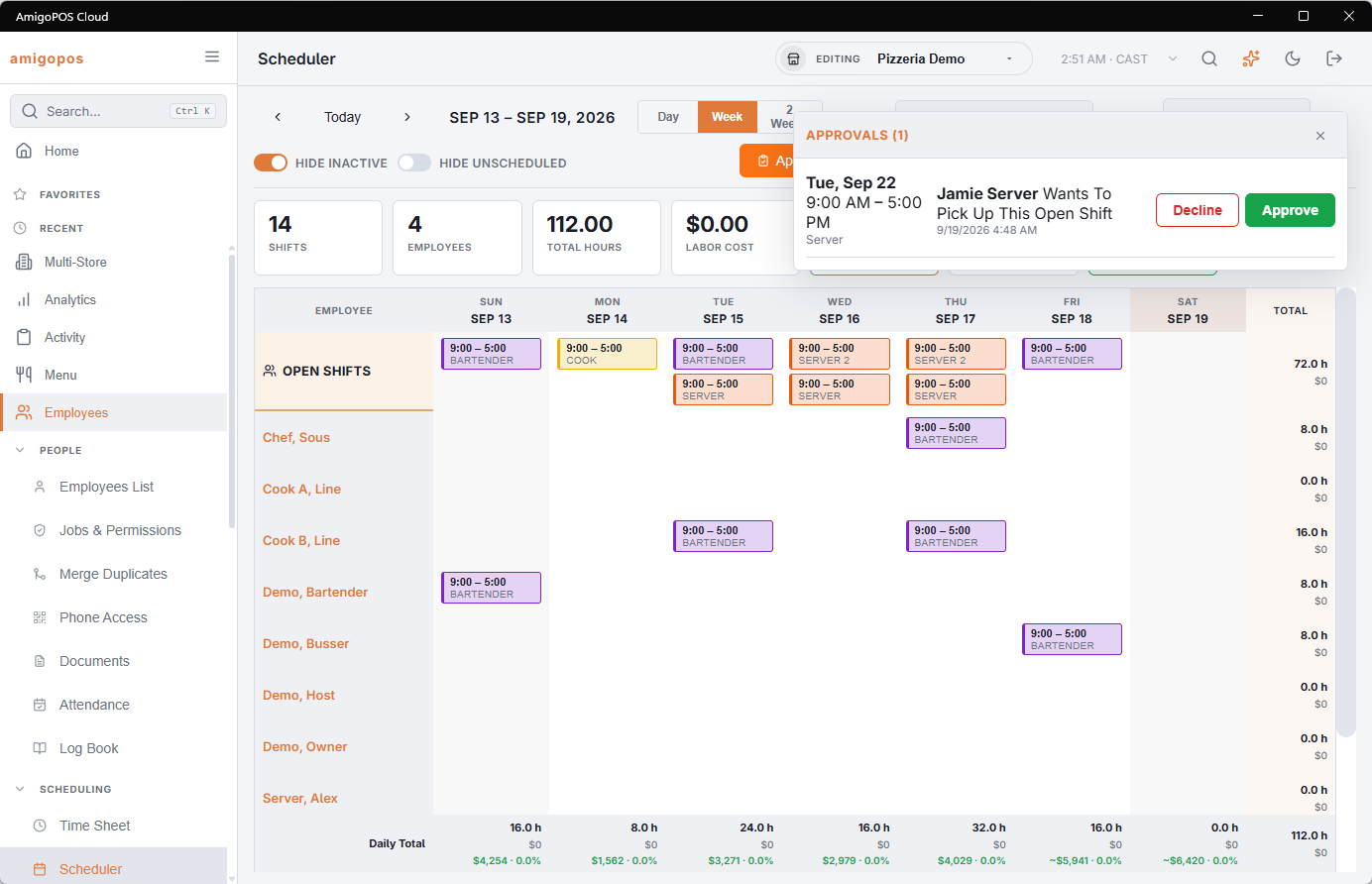
With Manager Approval For Shift Changes switched on (Back Office › Employees › Scheduling › Time Clock, Scheduling section), Pick Up and Accept become requests. The employee sees Awaiting Manager Approval with a Withdraw button, other staff stop seeing the shift, and the managers get a message.
The scheduler then shows an Approvals button with a count — only while something is waiting. Approve moves the shift, running the same checks again; Decline puts a given-up shift back on offer, or closes a request for an open shift. The employee is told either way, and the previous owner is told when a hand-over is approved.