My Calendar puts your published shifts and approved time off in the calendar app on your phone — the iPhone’s Calendar, Google Calendar, Outlook, or any app that can subscribe to a calendar by its address. Once it is set up there is nothing more to do: when your schedule changes, the calendar catches up on its own.
Setting it up
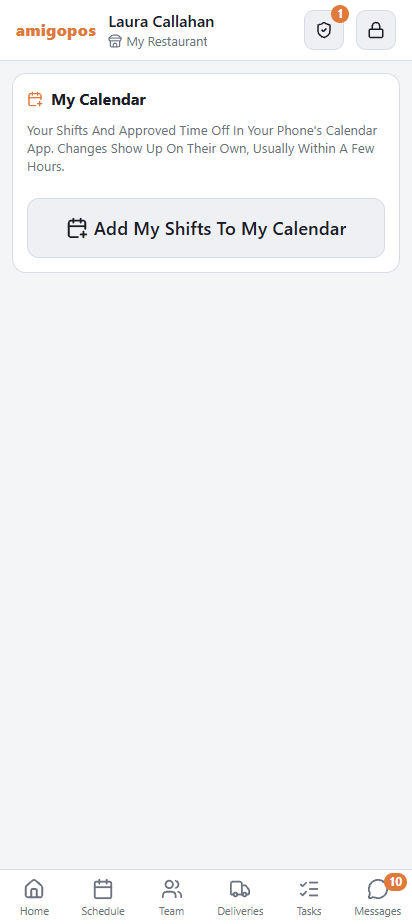
- On the staff site, open More › My Calendar.
- Tap Add My Shifts To My Calendar. A private link is made for this phone.
- Add it to your calendar app:
- iPhone — tap Subscribe On This Phone and confirm in the Calendar app.
- Android — tap Add To Google Calendar. If the phone does not offer to add it, tap Copy Link and send the link to yourself; then, on a computer, open calendar.google.com, choose Other calendars › From URL and paste it.
- Another calendar app — tap Copy Link and paste it where the app subscribes to a calendar from a URL.
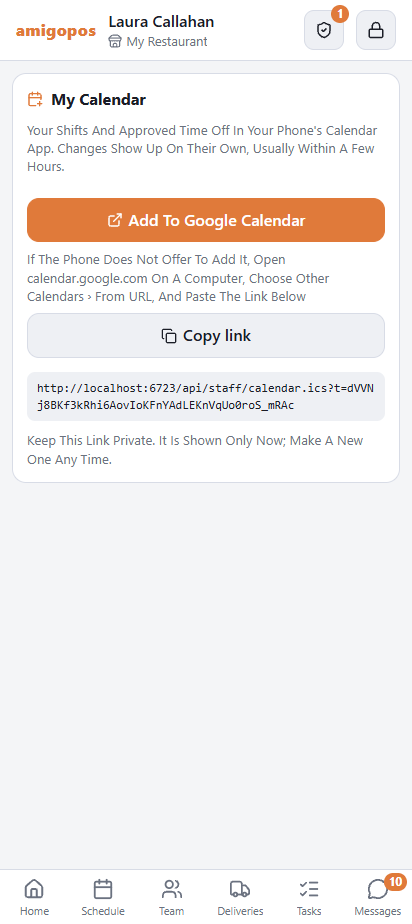
The link is shown only now, right after it is made — the store keeps nothing that could show it again. Keep it private: anyone who has it can see your shifts.
What shows in the calendar
- A calendar named My Shifts, with your store’s name.
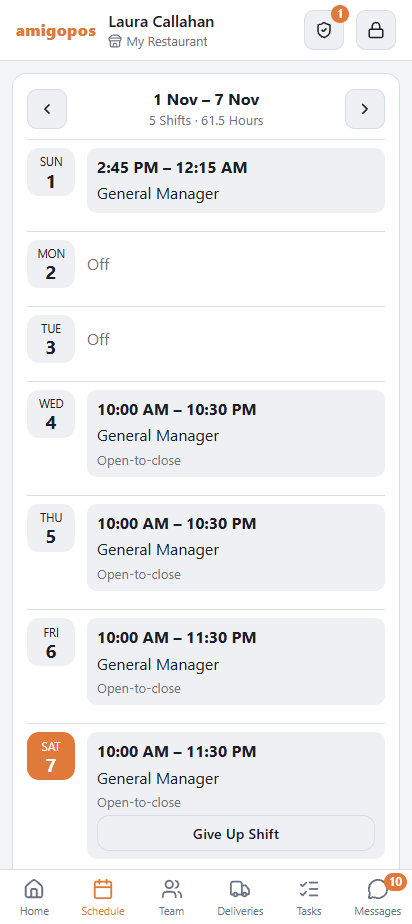
- Each published shift, titled with the job and the store, with the shift’s note if it has one — at every store you work at, from 30 days back to 90 days ahead.
- Approved time off, as Time Off: all day, or the hours of a part-day request.
- A shift that runs past midnight ends the next morning. Times show in the phone’s own time zone.
Drafts never appear; a shift shows once it is published. Each calendar app decides how often it checks for changes — usually within a few hours, and Google Calendar can take up to a day. The Schedule tab on the staff site is always current.
Later
Opening My Calendar again shows Calendar Link Is On and when a calendar app last read it; Not Read Yet means no calendar app has read it yet.
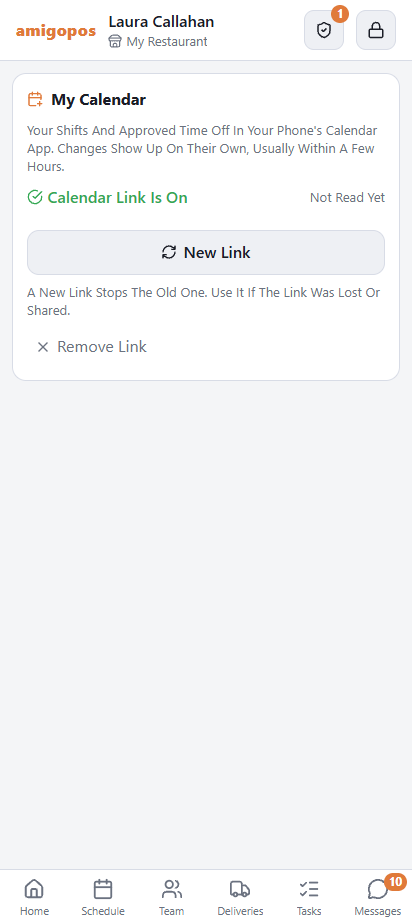
- New Link — makes a new link and stops the old one. Use it if the link was lost or shared; then subscribe with the new link and delete the old calendar from your calendar app.
- Remove Link — stops the link. Delete the calendar from your calendar app as well: the app can keep showing what it read last.
When the link stops
The link belongs to this phone’s access to the staff site. It stops when the phone is signed out (Remove This Phone, or 90 days without opening the site), when a manager revokes phone access, when the store switches phone access off, or when you no longer work there. A calendar app reading the link does not keep the phone signed in. A second phone of yours makes its own link.
If something goes wrong
- Tapping Subscribe On This Phone does nothing — copy the link and add it in the iPhone’s Settings, under the Calendar accounts: Add Account › Other › Add Subscribed Calendar.
- The calendar shows on the computer but not on the Android phone — in the Google Calendar app’s settings, open the calendar and switch on Sync.
- The calendar stopped changing — the link was replaced or removed, or this phone’s access ended. Open My Calendar, make a link again and subscribe with it; if the phone’s access ended, the phone has to be set up again first, with a new invite.