Task lists are the store’s recurring checklists: the bartender’s opening list, the closing list for the dish pit, daily prep for the cooks, the food-safety temperature log. A list is built once in Back Office and appears on the POS for the staff whose job it belongs to, every day it is due.
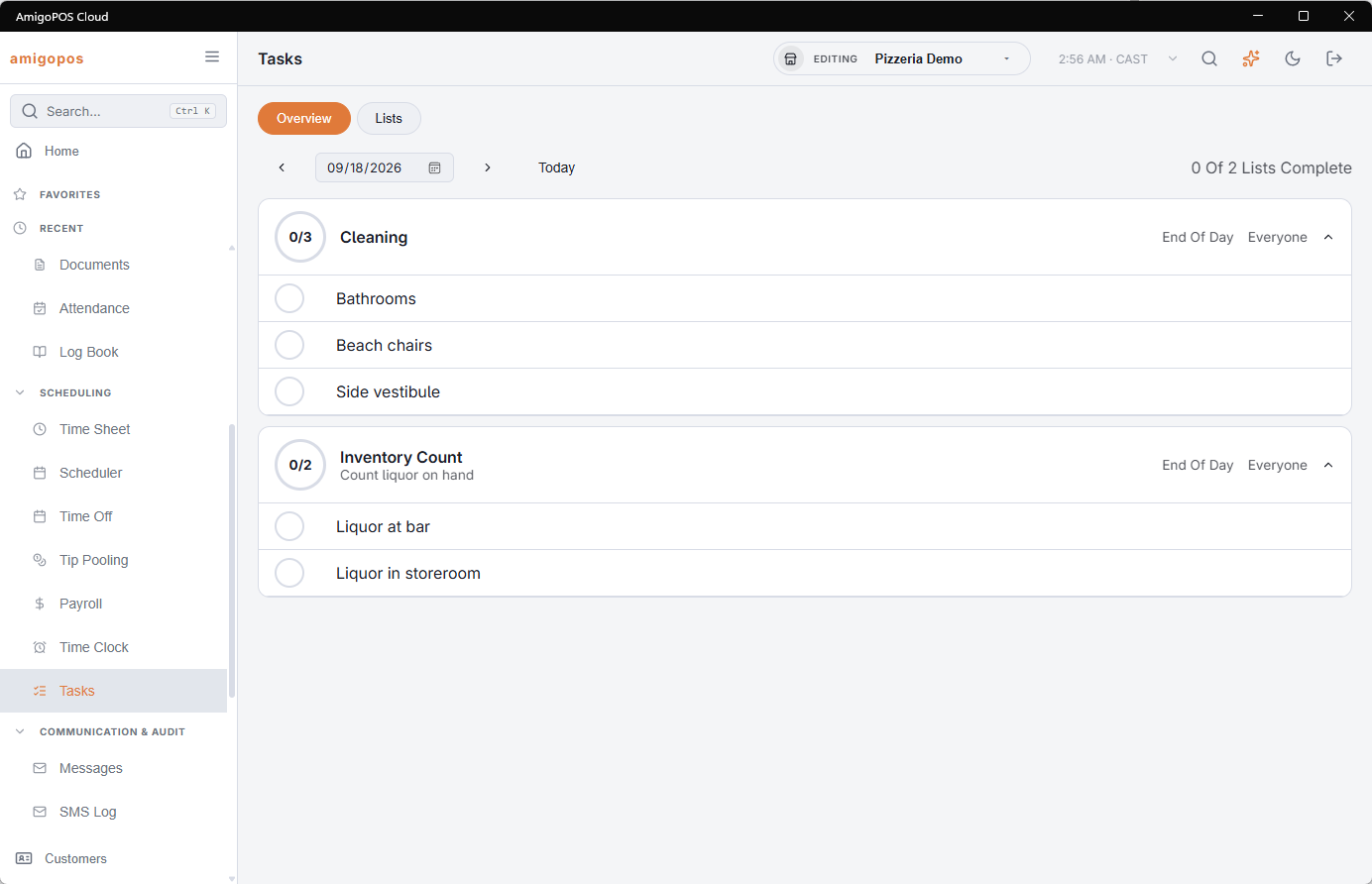
Building a list
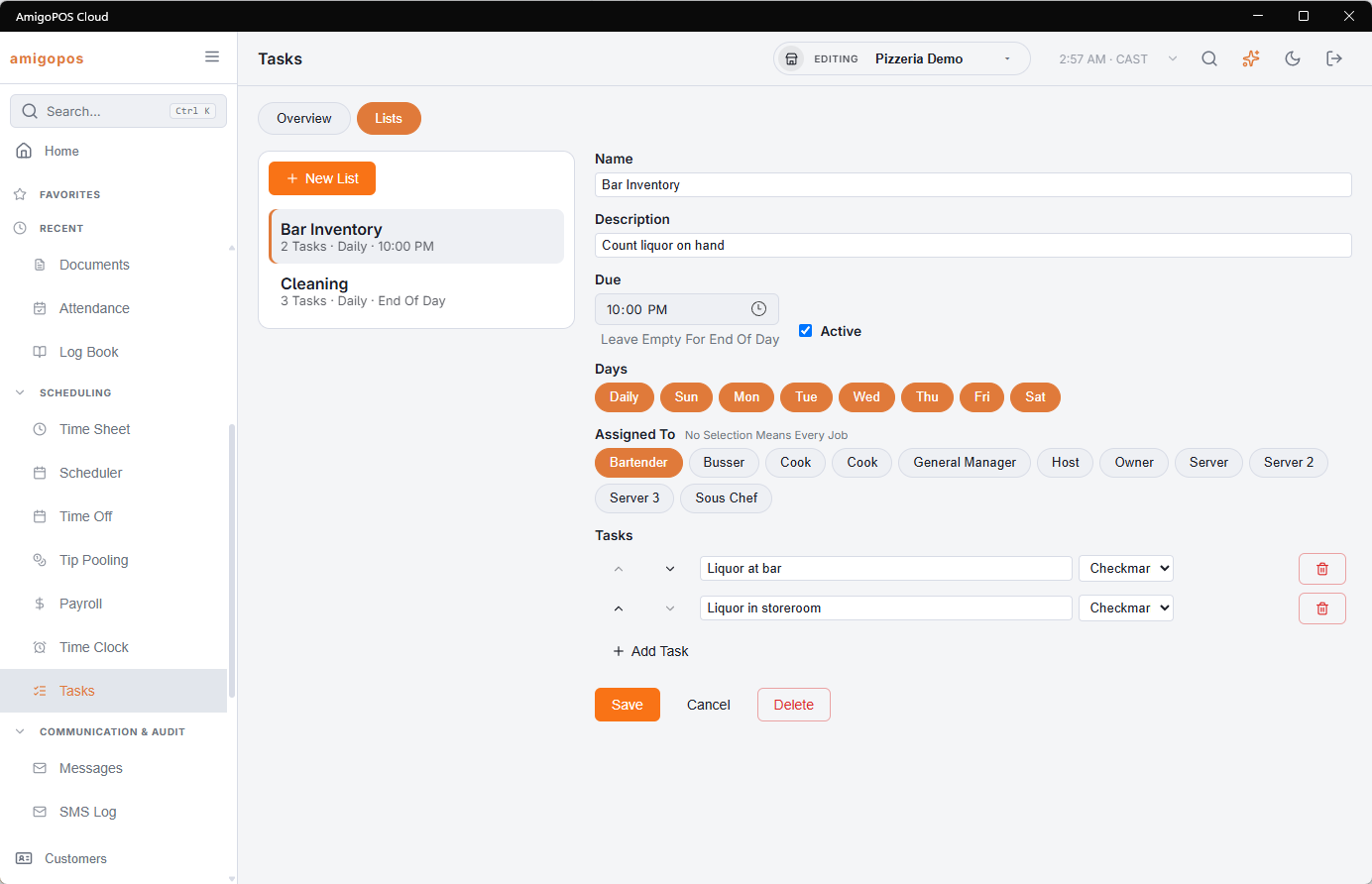
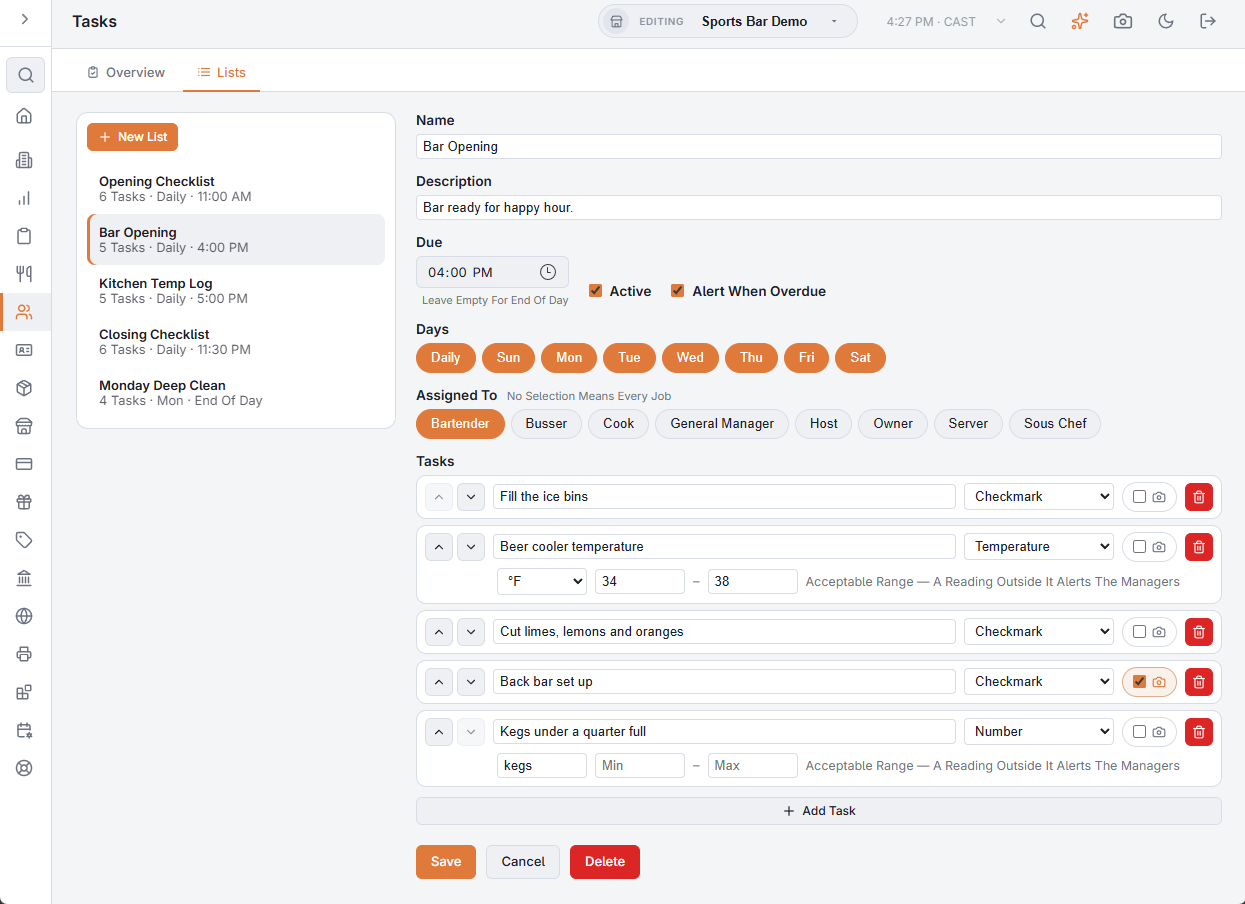
Back Office › Employees › Scheduling › Tasks › Lists. A list has a name, an optional description, the days it runs (daily, or particular weekdays), and a due time — leave the time empty and the list is simply due by the end of the business day.
Assigned to picks the jobs that see the list. Choose Bartender and only bartenders get it; choose nothing and everyone at the store does. Assignment is by job, so a list keeps working when staff change; for a single day, a list can also be given to one person (see below).
Task types
- Checkmark — tap to complete. Most tasks are this.
- Number — a figure is entered, with an optional unit (cases, bags, litres).
- Temperature — a reading in °C or °F. This is what turns a cleaning list into a food-safety log.
- Text — a short note, for anything that needs describing rather than counting.
Completing tasks on the POS
Staff open My Tasks from the user panel (tap your name in the top bar). Today’s lists appear with a progress ring; the first incomplete list opens automatically. Tap a task to complete it — value tasks open a small input first. Each completion records who did it and when.
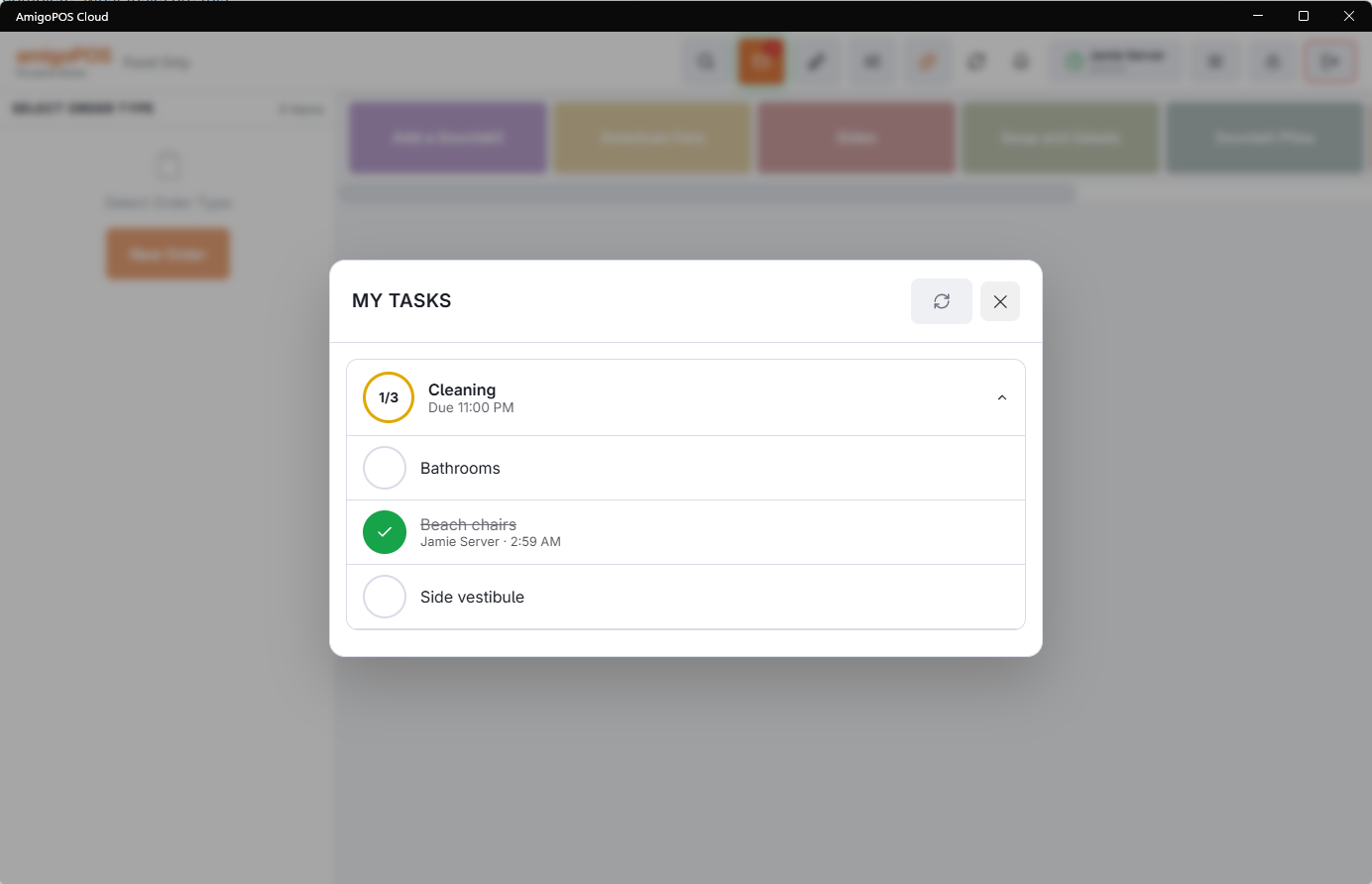
Tap a completed task again to clear it. Staff can clear their own completions; managers can clear anyone’s.
Watching the day
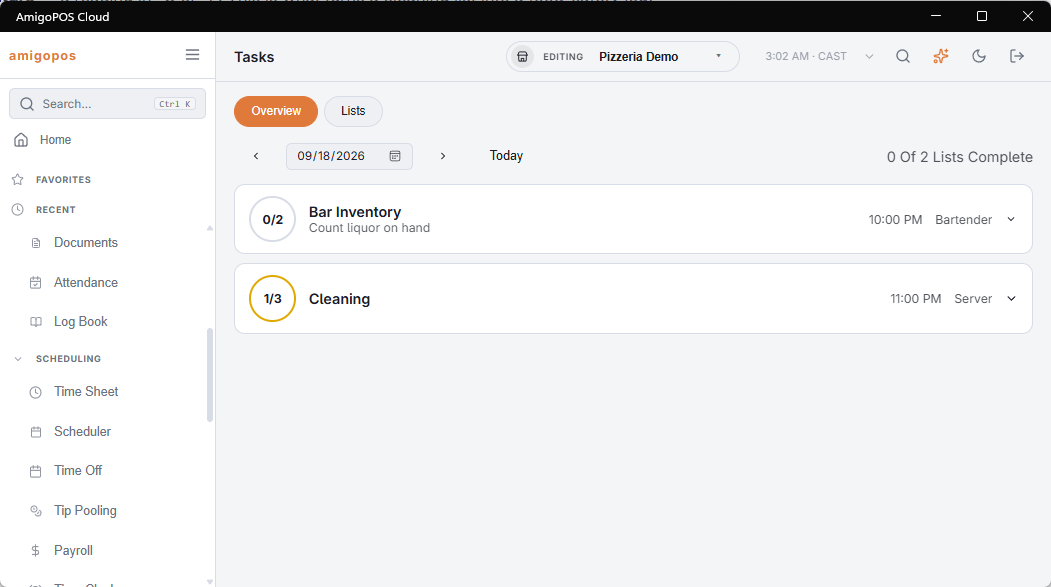
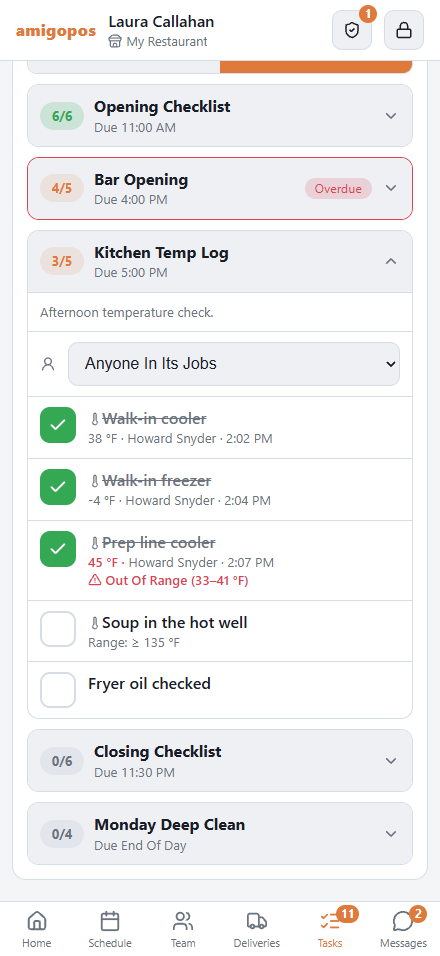
The Overview tab shows any date: every list due that day, how far it got, and — expanded — each task with the person, the time and the value recorded. A manager can tick or clear checkmark tasks from here; value tasks are completed on the POS where the value is entered.
Giving a list to one person for the day
On the Overview tab, each list has a person picker. Pick an employee and only they see the list that day in My Tasks — at the register and on the staff site — whatever their job. They get a message (for today or a later day), and the overdue message goes to them. Anyone In Its Jobs puts it back. It lasts one business day: the next day the list is back with its jobs.
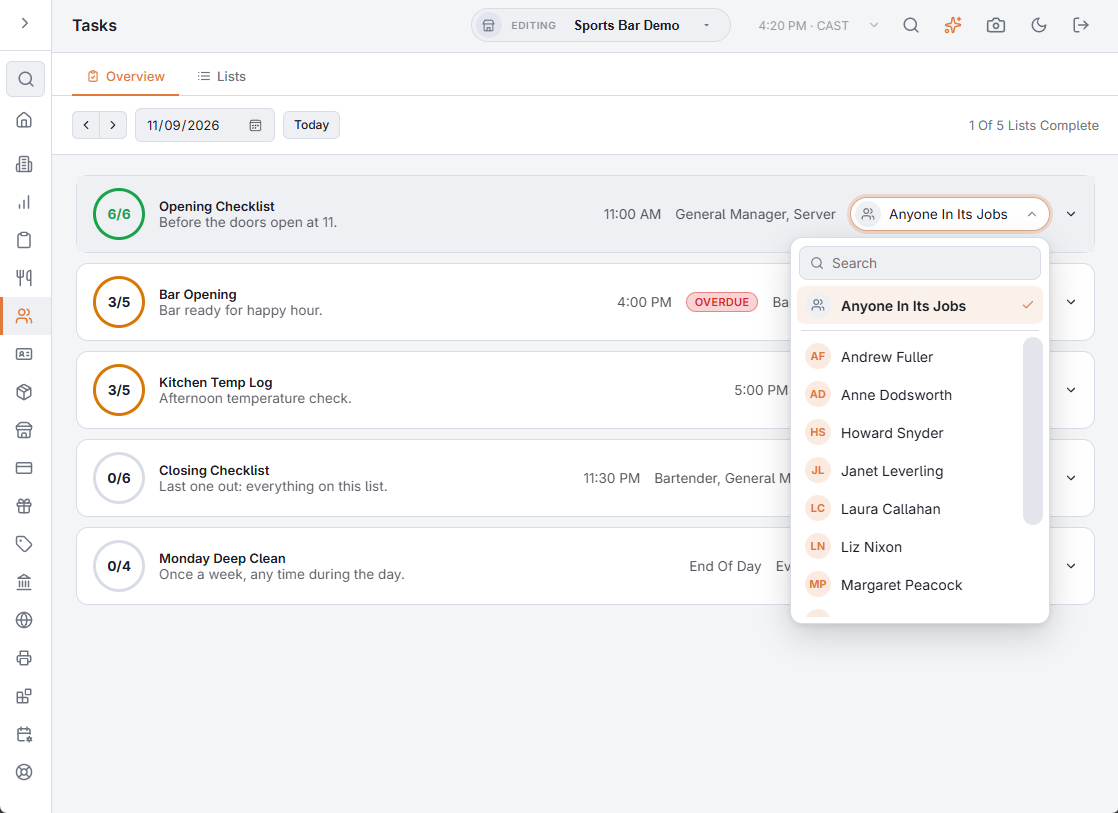
Managers can do the same from their phone, under All Lists on the Tasks tab, choosing from the day’s team.
Photo proof
Tick the camera box on a task’s row in the list editor to make the task need a photo. It is completed on the staff site: tap the task, then Take Photo to open the phone’s camera; the picture is made smaller before it is sent. A checkmark task is done as soon as the photo is taken; a number, temperature or text task needs its value as well.
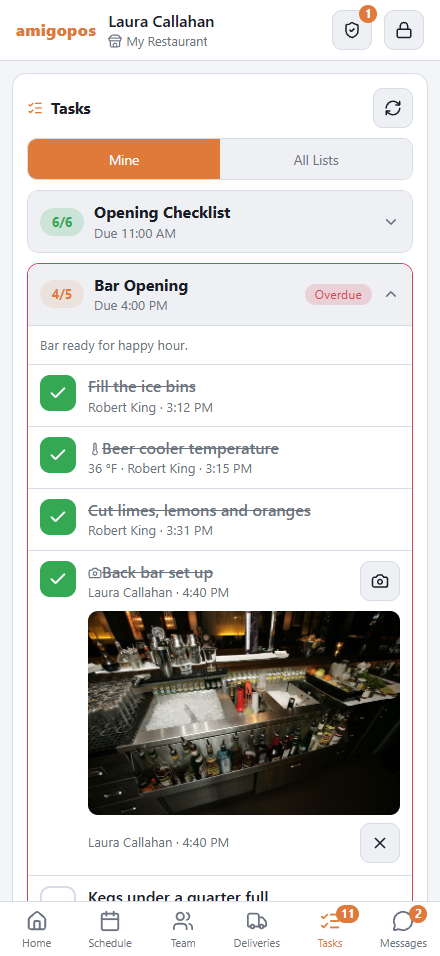
- At the register and in Back Office such a task cannot be ticked; it says to use the staff app.
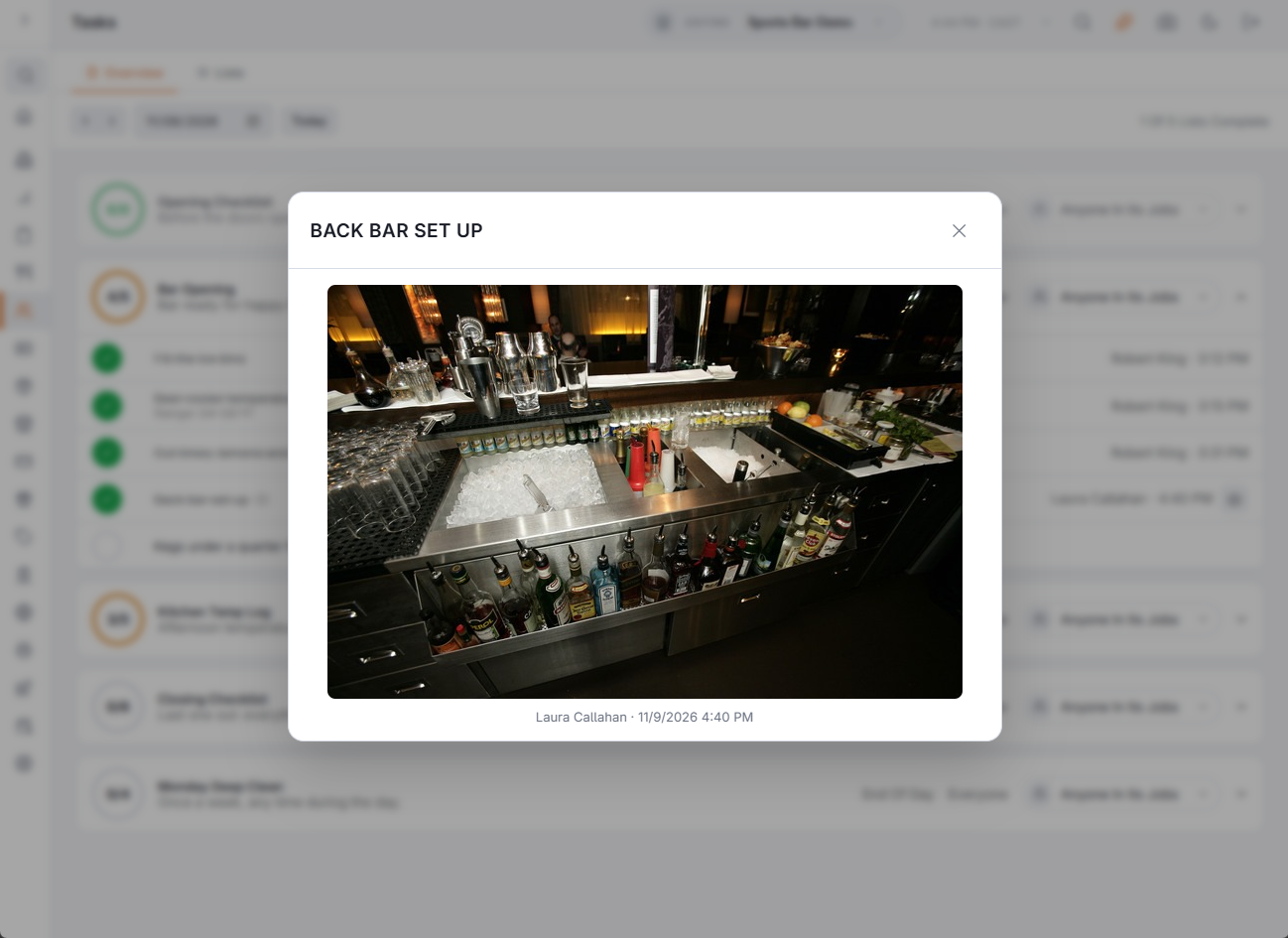
- The photo opens from the camera button on the task, in the Overview and for managers on their phones, with who took it and when.
- Photos are kept for 90 days.
Acceptable range
Number and temperature tasks can have a Min and a Max in the list editor; one alone works too. The range shows under the task. A reading outside it is still saved, is shown in red with Out Of Range, and every manager gets a message straight away, in their own language.
Overdue message
A list with a due time sends a message 10 minutes after that time if it is not finished: to the person it was given to, or to whoever is on the clock in its jobs, and to the managers on the clock. It is sent once per list and day, and a list past its due time shows Overdue. It is on for every list with a due time; untick Alert When Overdue in the list editor to stop it. A list due in the last minutes of the business day still alerts after the day has rolled over, to the managers only.