Almost every printing problem is one of two things: the printer cannot be reached, or it can and the job went somewhere else. A test print from the Print Agent tells you which one you have, so start there rather than reprinting the order.
1. Rule out the printer
- Paper, cover, power. An error light usually means the cover is open or the roll is out.
- On the Print Agent that owns the printer, press Test on it. A slip means the printer and its connection work.
- If the test fails on a network printer, check its cable and power, then its address: a printer that picked up a new address from the router looks exactly like a dead one. Reserve its address on the router so it cannot happen twice, and correct it with Edit on the agent.
- If the agent is not Connected, or its device is off or asleep, nothing it owns prints. Jobs wait and print when it is back.
2. If the test prints, check where the job went
- Open the agent’s Status screen. A job that is listed as Failed shows why; Retry it once the cause is fixed.
- A job that is not listed at all went to a different printer, or to none. Open Back Office › Hardware & Printing › Print Routing: check the slot in Store Default, then select the register that sent the order in Device and look for an Override chip on that slot. A register with an override ignores the store default, which is the usual reason one register behaves differently.
- Check the menu item is assigned to the prep number you expect.
- Mid-service, the Prep printers overlay in the manager functions points a slot at a working printer from the register. Set it back afterwards.
It printed, but it is unreadable
Strange characters, boxes or wrong accents mean the printer’s command language or codepage does not match the hardware — a Star printer in native mode set to ESC/POS, or the wrong codepage for Spanish or Arabic text. Fix it with Edit on the Print Agent, then test again. Lines that wrap early or run off the edge mean characters per line is wrong. See Printer settings explained.
Check a template on a specific printer
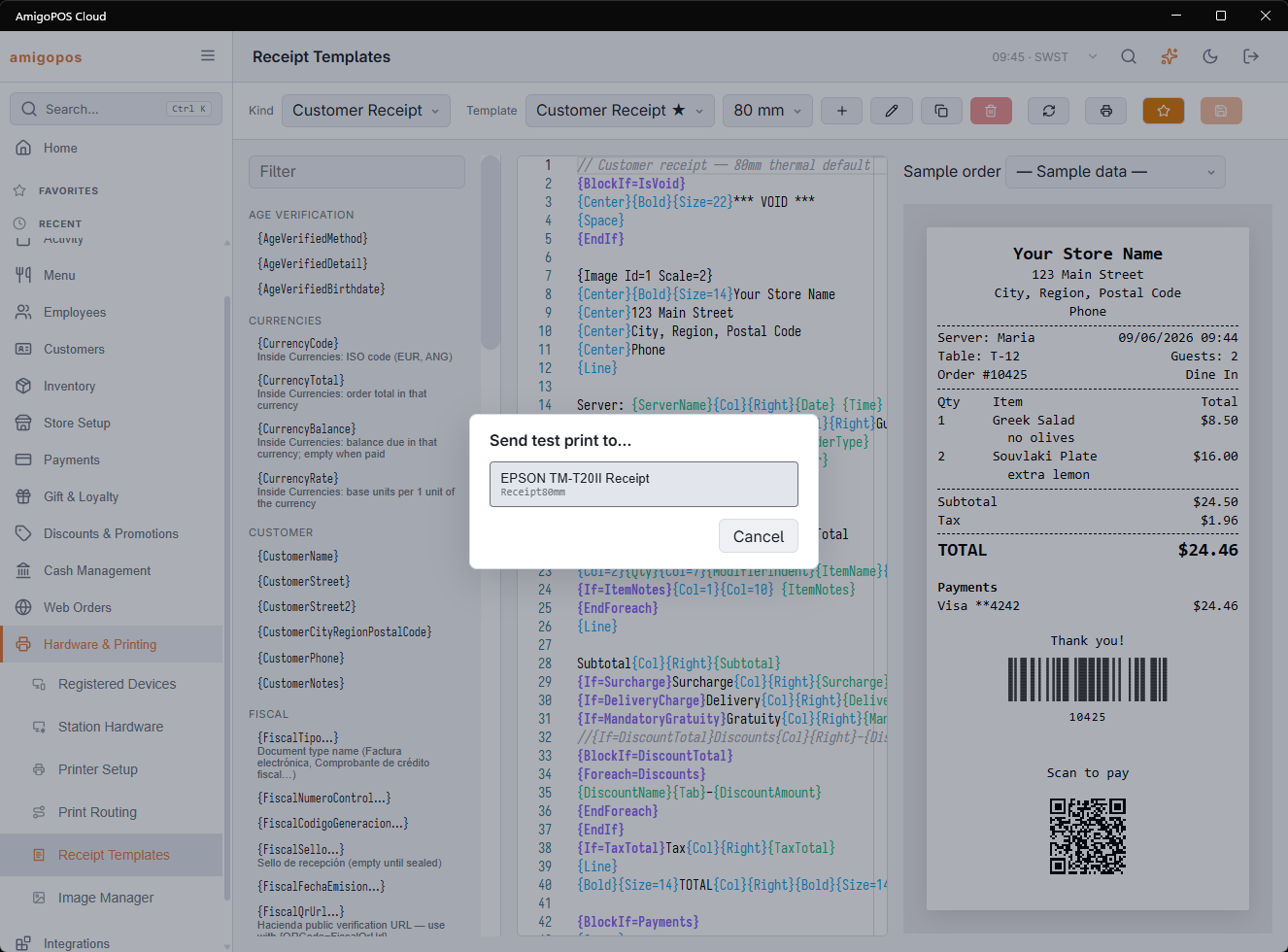
Back Office › Hardware & Printing › Receipt Templates has a test-print button that sends the template being edited to a printer you choose — useful to see a layout on the real paper.