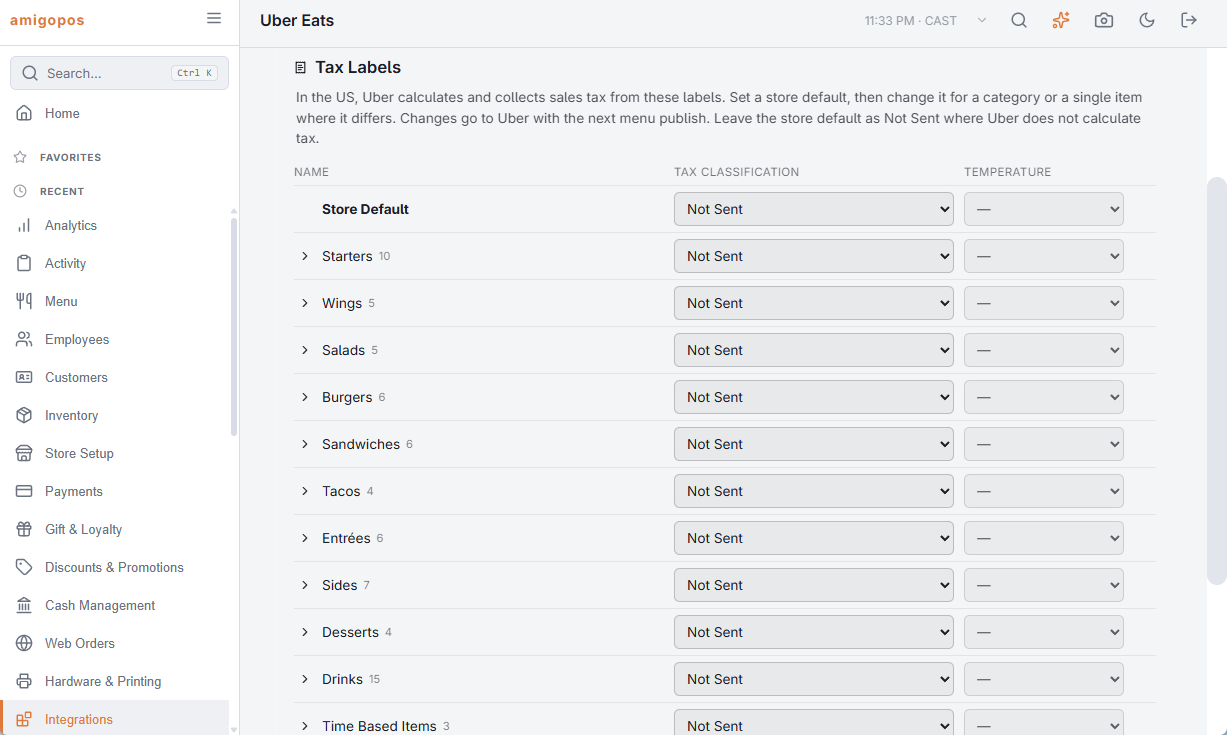
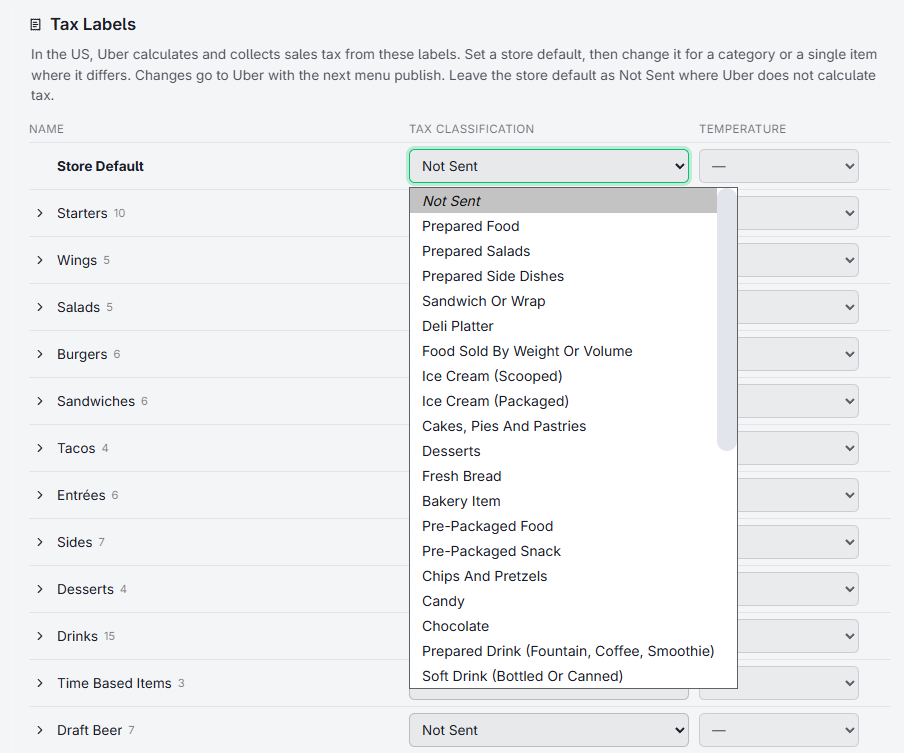
How to tell Uber which sales-tax classification each item falls under, for US stores where Uber calculates and collects the tax.
In the US, Uber calculates and collects sales tax on each Uber Eats order itself. To do that it needs to know what kind of item each dish is — prepared food, a bottled drink, alcohol, and so on — and for food, whether it is served hot or cold. That is the item’s tax label.
Outside the US, or anywhere Uber does not calculate the tax, leave the store default as Not Sent and nothing here is published.
Where to set them
Back Office › Integrations › Uber Eats › Menu, the Tax Labels card. Each row has two lists:
Tax Classification — the kind of item, from Uber’s list.
Temperature — Heated, Unheated or Cold for classifications where it changes the tax, or Not Set.
A change saves as soon as you pick it; a tick appears on the row.
Store, category and item
Set the label once at the widest level that is true, and only override where something differs. The most specific label wins:
Store Default — the first row. Most restaurants set this to their main prepared-food classification.
Category — one row per menu category. Left blank, it shows the store default it is using.
Item — open a category with its arrow to see its items. Left blank, an item shows the category’s label (or the store default) that it falls back to.
For example: store default prepared food, served hot; the Drinks category set to soft drinks; one bottled-water item in that category set to bottled water.
Getting them to Uber
Labels travel with the menu. Press Publish menu after changing them, or wait for the next automatic publish.
CloudPos does not decide which classification is right for your items; that depends on your state’s rules. If you are unsure, ask your accountant or your Uber Eats partner manager before publishing.