Once a pay period has been run and locked, its wages can be sent to Xero as one journal, so labour cost appears in the accounts for the period it belongs to. The payroll itself is still paid through your payroll service.
What the journal contains
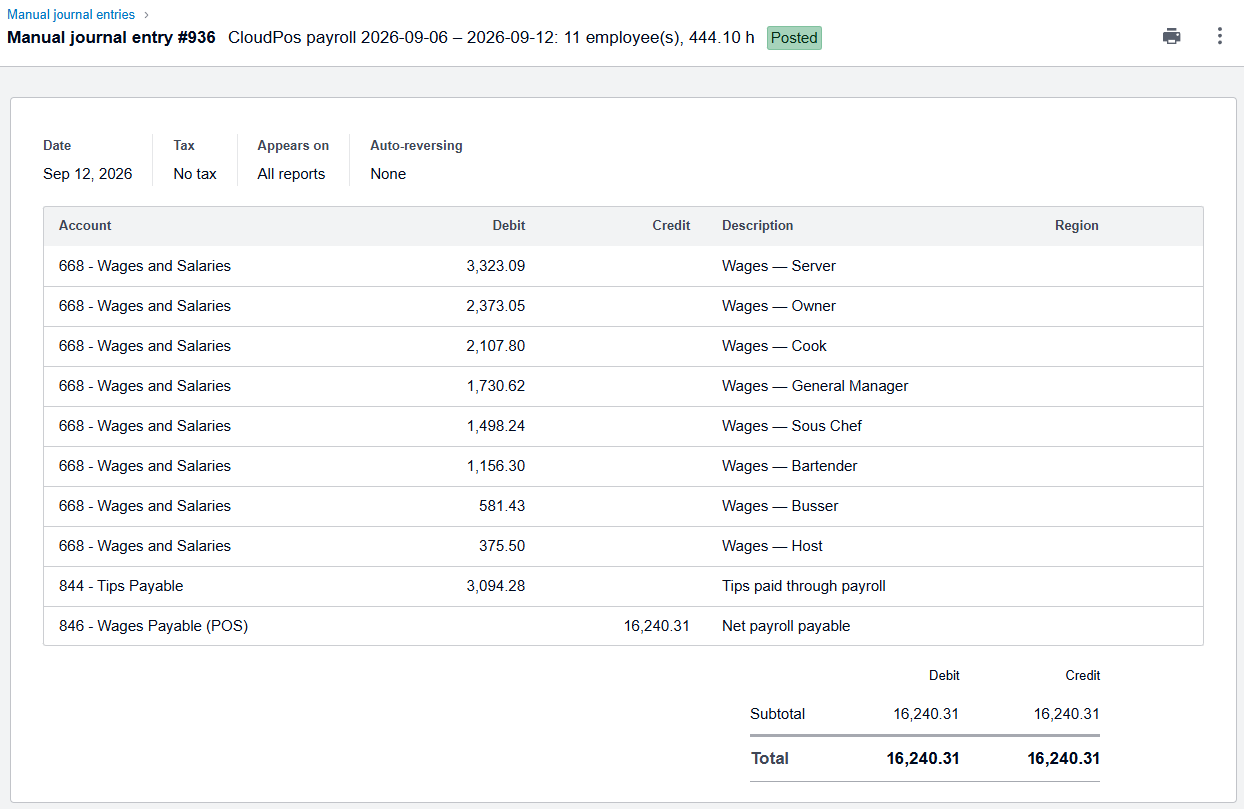
- Wages — the period's labour cost, one line per job, debited to the Wages account.
- Tips paid through payroll — card and pooled tips the pay run hands over, taken off the tips owed to staff.
- Wages Payable — the total, credited to the liability your payroll service pays out of.
The journal is dated the last day of the period. Declared cash tips are already in the staff's pockets and are not included. Employer taxes and deductions are not known to the POS and are posted by the payroll service or the bookkeeper.
Posting it
- Map Wages and Wages Payable under Special Accounts on the Xero Mappings tab, or run Auto-Map.
- Open Back Office › Employees › Scheduling › Payroll, choose the dates and press Calculate.
- Lock the period once the export has gone to your payroll service.
- In the lock panel, press Post Journal To Xero.
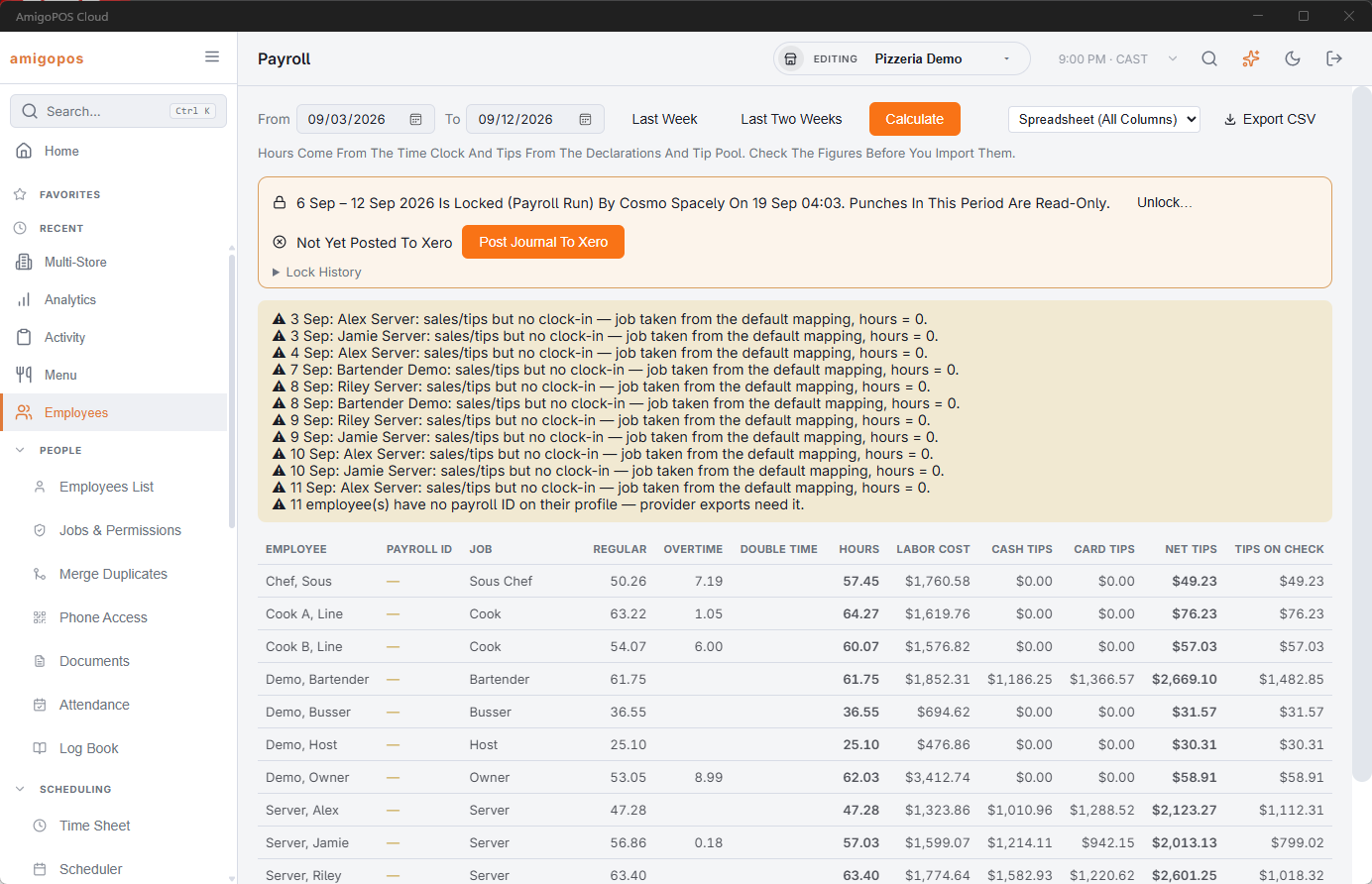
The panel then shows when it was posted, with an Open In Xero link.

The Xero row appears only when the store's Xero integration is enabled and connected, and the button is available only for a locked period, so the journal always matches what was paid.
Posting again
If a period is unlocked and corrected, lock it again and press Post Again. The previous journal is voided in Xero and replaced.
Stores connected to Xero before the payroll journal was introduced need to press Reconnect To Xero once, on the Xero Settings tab, before the first journal. Until then Xero refuses it, and the message says so.