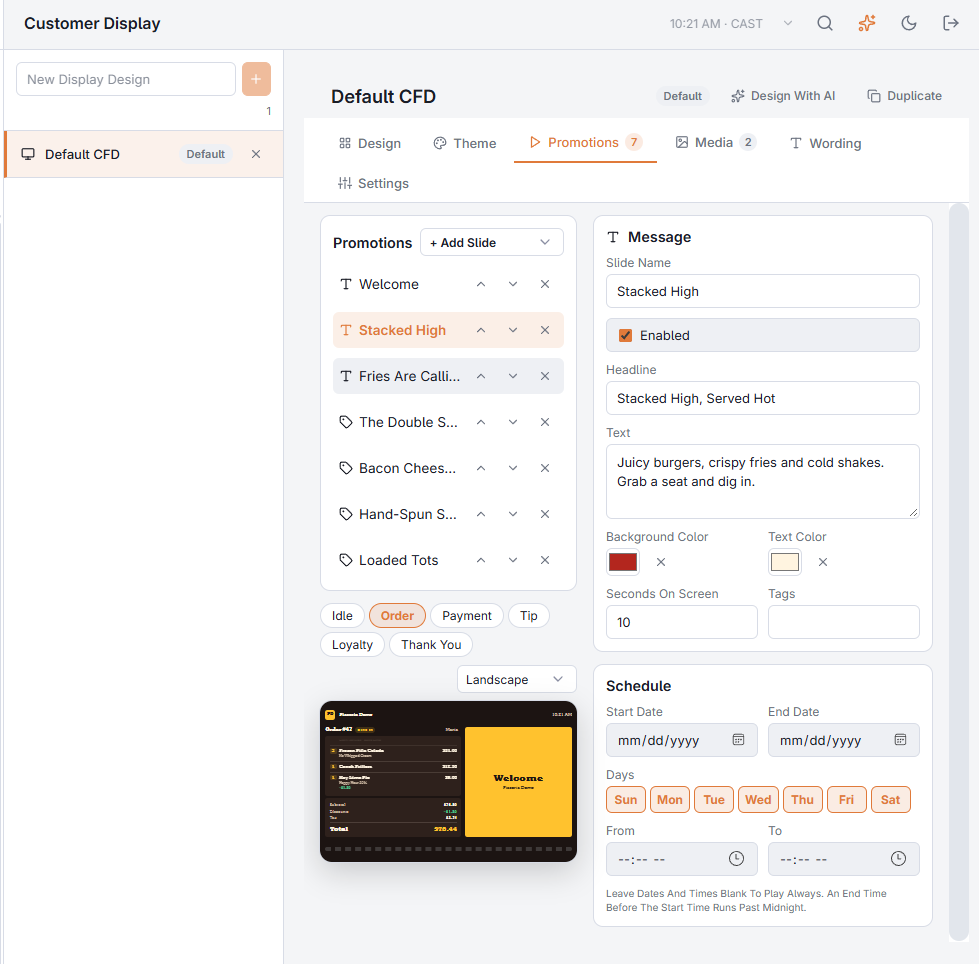
The Promotions tab holds the playlist. Every Promotions Slideshow widget plays it: on the Idle screen it usually fills the screen, and on Order it sits beside the order.
Slide types
- Picture and Video — from the Media tab. Videos play to the end, without sound.
- Message — a headline and text on a colour.
- Menu Item — the item's name, description and live price from your menu; change the price in the menu and the slide follows. Add a picture if you like.
- QR Code — a headline, a code and a line of text.
Timing and order
Seconds On Screen sets how long each slide stays (videos play to the end). The arrows change the order, and Enabled turns a slide off without deleting it.
Schedules
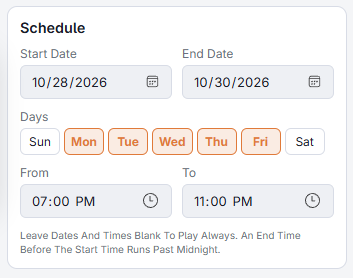
Set start and end dates, the days of the week and a From–To time. An end time earlier than the start runs past midnight (for example 22:00 to 02:00). Leave everything blank to play always. A calendar icon marks slides with a schedule.
Tags
Give slides tags (for example drinks or kids) and set a slideshow's Only These Tags to play just those — useful for one playlist on Idle and another on Order.
Quiet hours offer slide
Discounts & Promotions › Guest Offers › Quiet Hours › Apply can add a text slide for your quiet hours offer at the top of the playlist of every design (tag offers), and replaces it the next time. Edit or remove it here like any slide. See Filling your quiet hours.