The Quiet Hours tab in Back Office › Discounts & Promotions › Guest Offers helps you bring guests in when you have empty tables: it shows when you are quiet, proposes an offer for those hours, and puts it where guests will see it.
Busy and quiet hours
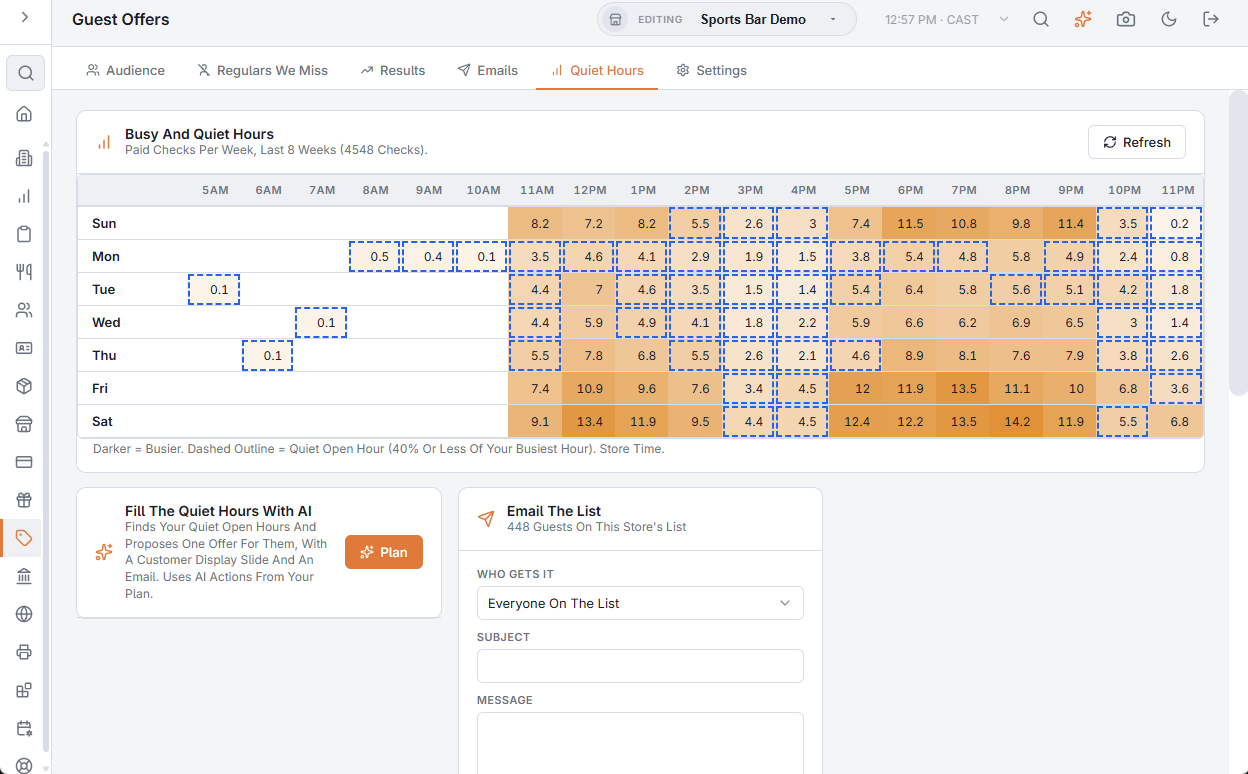
The heat map shows paid checks per week for each day and hour over the last 8 weeks, in store time. Darker cells are busier. Cells with a dashed outline are quiet open hours: you were open, but with 40% or less of your busiest hour. Tap or hover a cell for the checks and sales per week.
Fill The Quiet Hours With AI
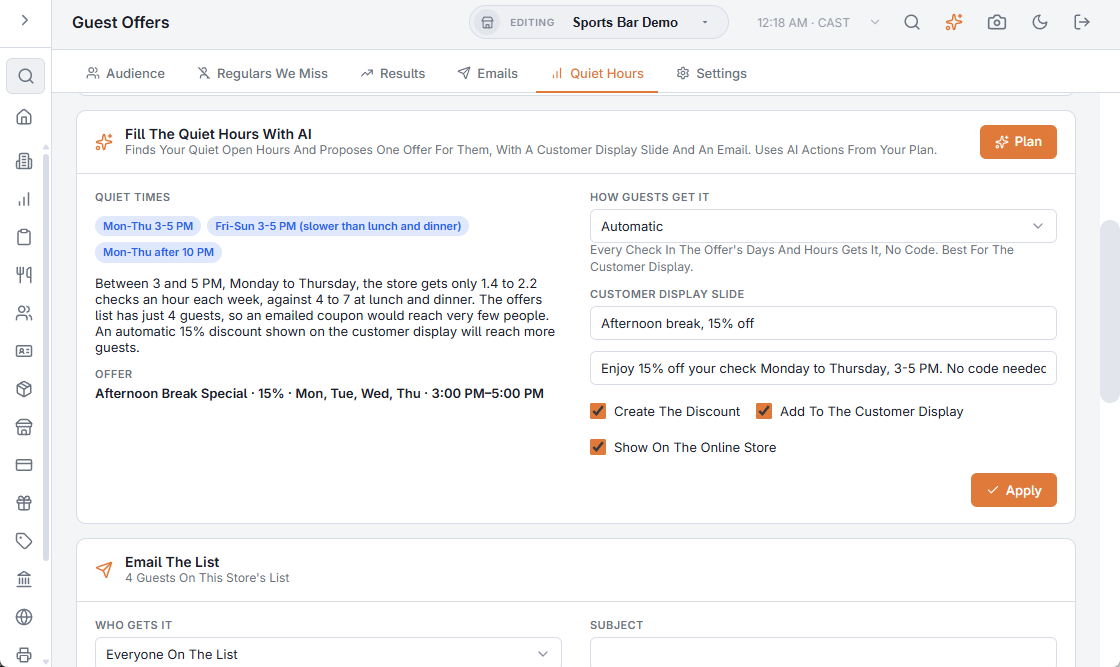
Press Plan. The AI reads the same 8 weeks, your discounts and your list, and proposes one offer for your quiet times, with the words for a customer display slide and an email.
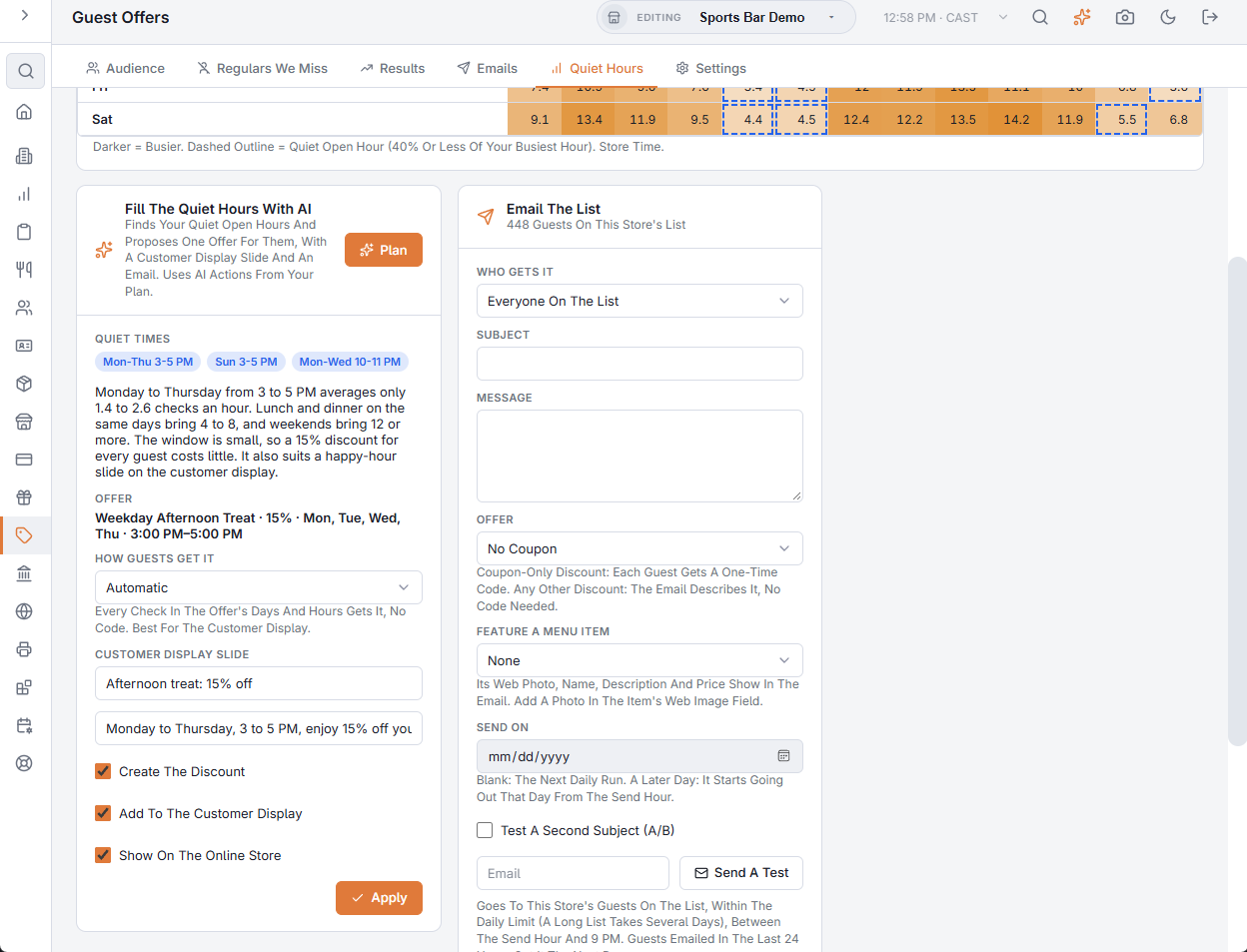
- Offer — the discount it suggests, limited to the quiet days and hours (for example 15% off, Monday to Thursday, 3–5 PM).
- How Guests Get It:
- Automatic — every check in those days and hours gets it, no code. Best for an offer you show on the customer display or online.
- Coupon Only — only guests with a code get it; each guest on your list gets one by email.
- Customer Display Slide — the slide’s title and line. Edit them before applying.
Choose what Apply does:
- Create The Discount — creates the offer as a discount limited to its days and hours.
- Add To The Customer Display — puts the slide at the top of every customer display design of the store (tag offers). Applying again replaces it. The displays reload on their own.
- Show On The Online Store — turns on the offer banner on your online store’s menu page with the slide’s words and the new discount.
After applying, the Email The List form is filled in with the AI’s email and the new discount, ready to check and send.
The online store banner
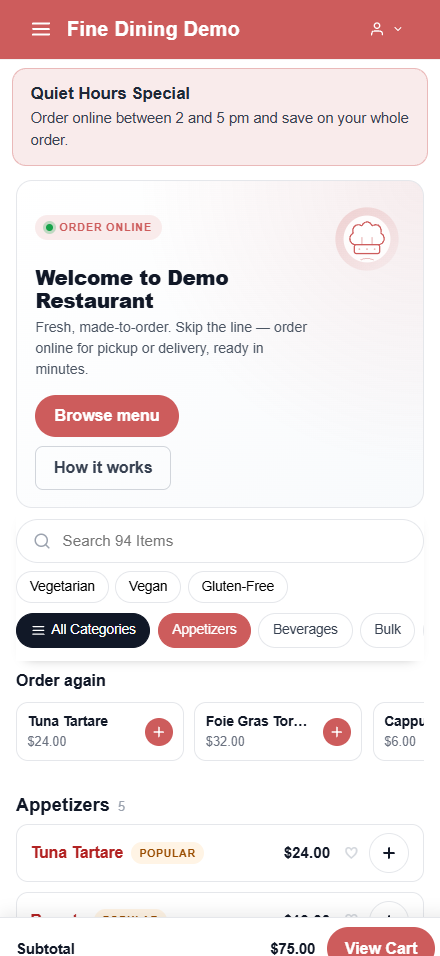
The banner sits above the top of your online store’s menu page and shows the title, the line and, with a discount, its amount, days, hours and minimum spend in the guest’s language. Change it or turn it off in Settings › Online Store Banner (Show The Banner, Banner Title, Banner Text, Offer). It hides itself once its discount is deleted, disabled or past its end date. Changes show online within 5 minutes.
Email The List
Send one email to every guest on this store’s list: an offer, news, an event.
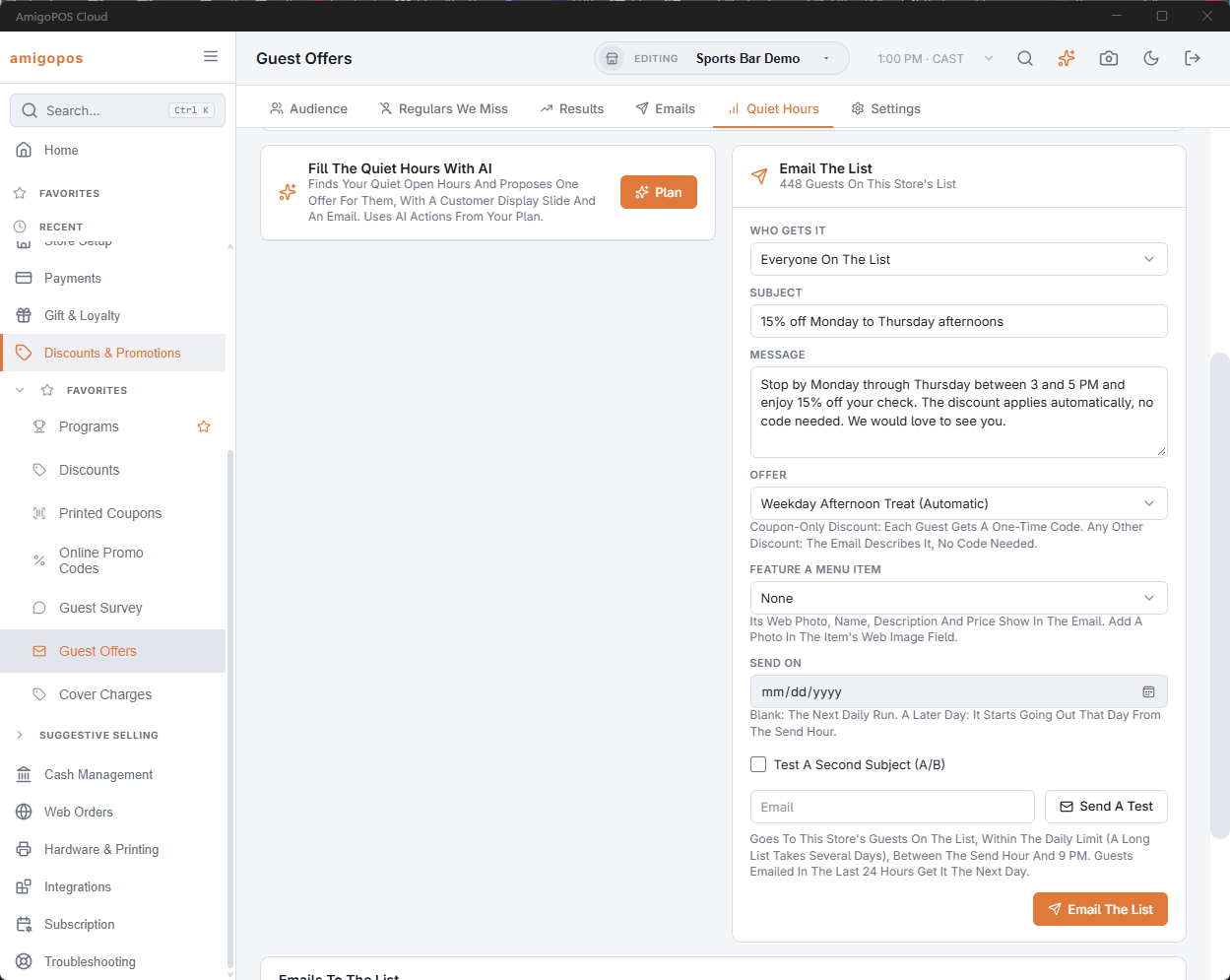
- Write the Subject and the Message.
- Choose an Offer (optional). With a Coupon Only discount, each guest gets a one-time code. With any other discount, the email describes the offer and says no code is needed.
- Type your own address and press Send A Test to see it first.
- Press Email The List and confirm.
The email goes out with the daily emails, from the send hour until 9 PM store time, within Most Emails Per Day (the win-back and birthday emails go first), so a long list takes several days. Guests emailed in the last 24 hours get it the next day. Only one can be going out at a time; press Stop to cancel one that is still sending.
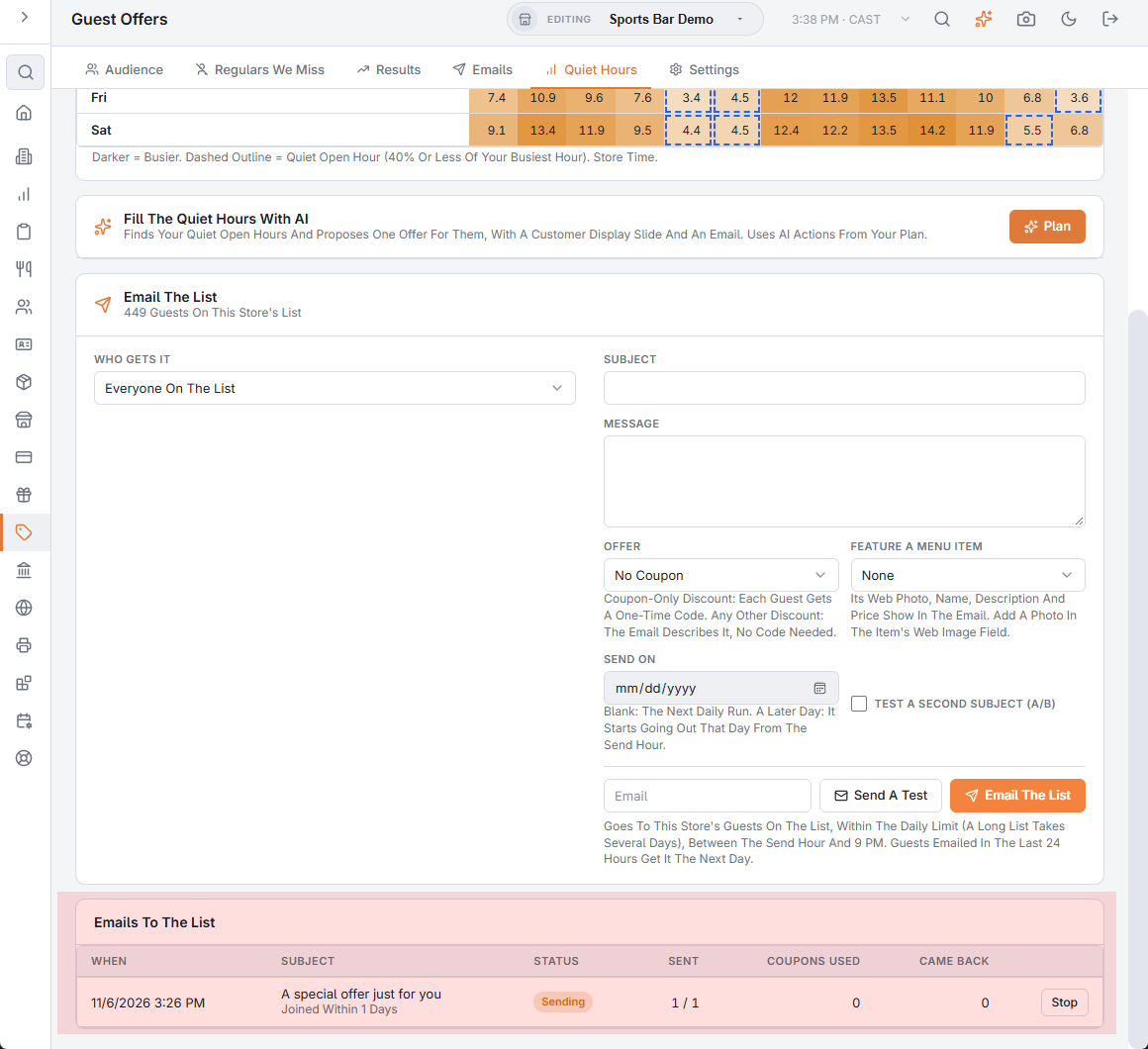
The table shows each email with how many went out, coupons used with their sales, and guests who came back afterwards.
Sending to only some guests
Email The List can go to only some of your guests — regulars, guests who haven’t been in for a while, a birthday month, what they order — set by hand or described in your own words with Find With AI. See Email the list: choosing who gets it.
Sending later and testing two subjects
Email The List can be scheduled for a later day with Send On, and can test two subject lines before sending to everyone. See Email the list: sending later and testing two subjects.
Featuring a menu item
Email The List can show a menu item’s photo, name, description and price — handy for a new dish. See Guest offers: extras in your emails.