A station can show its customer display on a screen of its own device. The display runs full screen on that screen while the POS keeps working on the main one.
Windows: a second monitor
- Connect the monitor and set Windows to Extend the displays (not Duplicate).
- On the POS, open More › Customer Display.
- If there is more than one other monitor, pick it in the list, then tap Show Customer Display.
- The display opens full screen on that monitor.
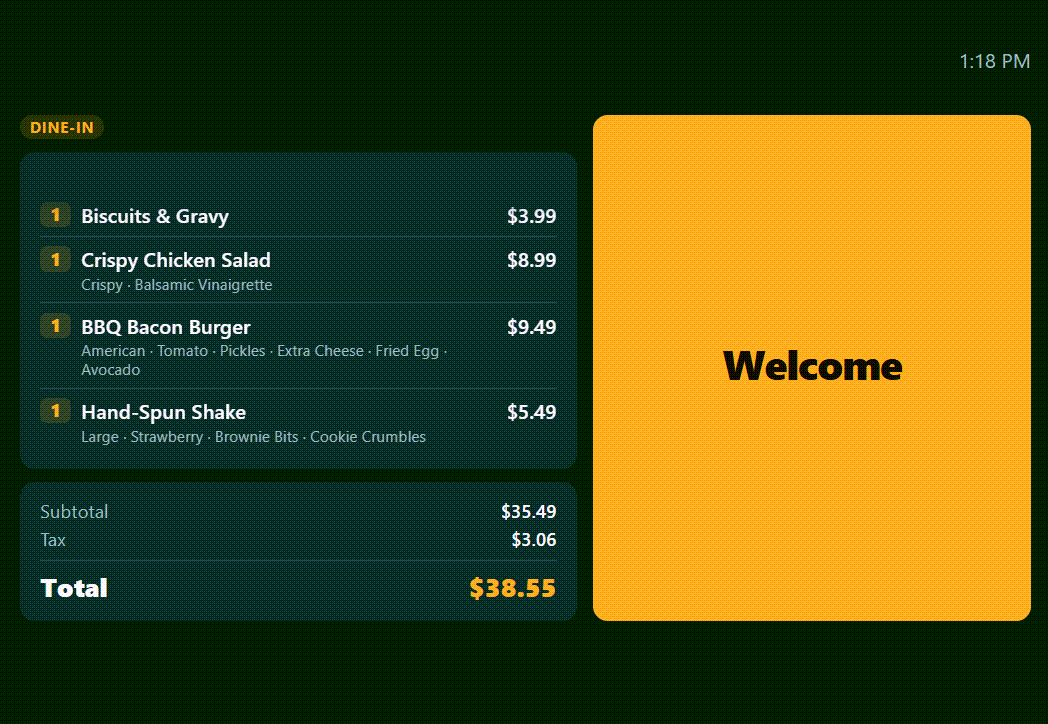
The station remembers: the display reopens by itself the next time the POS starts. Hide Customer Display closes it and turns that off.
Android: dual-screen terminals
Terminals with a built-in customer screen show it as a second screen. Open More › Customer Display, pick the screen and tap Show Customer Display. The display stays on, reopens by itself if the screen is disconnected and reconnected or the app restarts, and plays promotion videos without sound.
Touch screen or not
If the second screen does not take touch, untick Touch Screen in the design's Settings tab so tip and loyalty prompts stay on the POS. See Wording, behavior and stations.