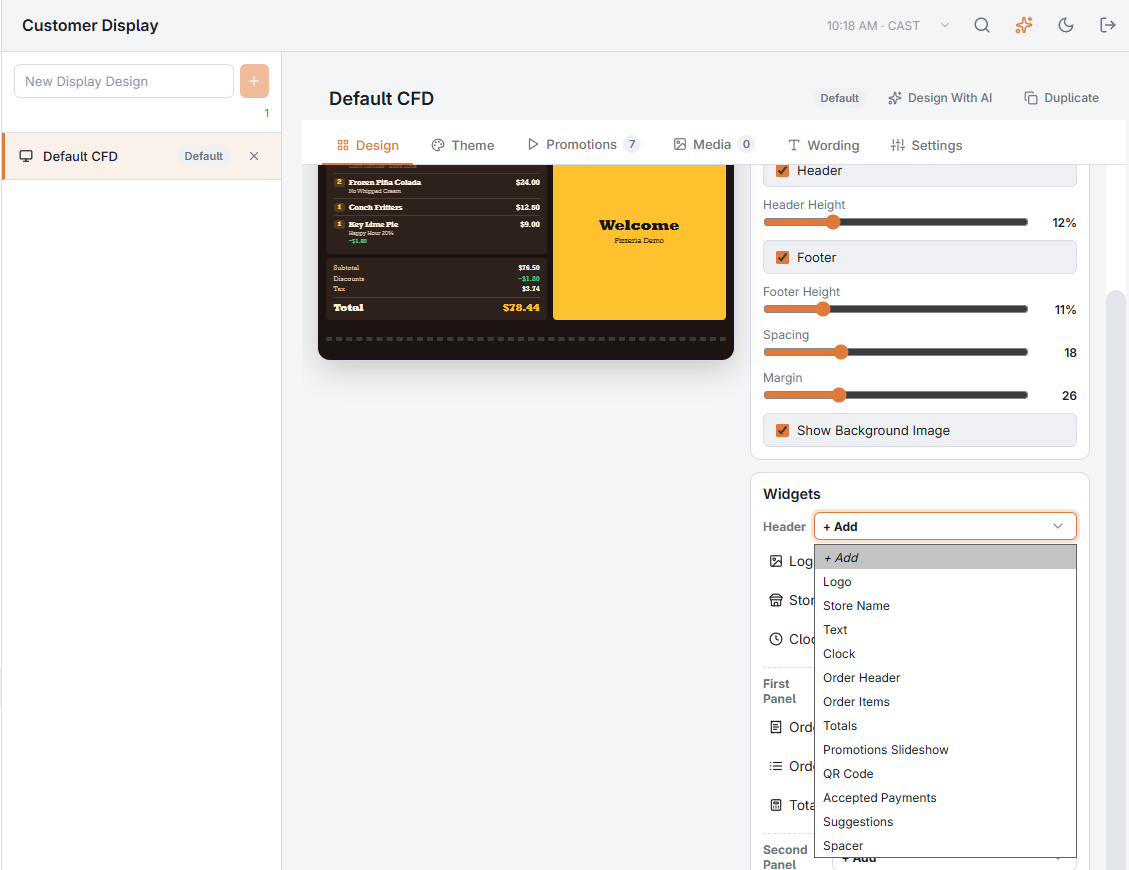
These are the widgets the designer offers. Add them with + Add in the Design tab; see Designing the display.
| Widget | What it shows | Main settings |
|---|---|---|
| Logo | The store logo or another picture | Picture, size, alignment |
| Store Name | The store's name | Size, alignment, weight |
| Text | Any message: a greeting, today's special, the Wi-Fi password | Text (line breaks kept), size, Plain or Banner, color |
| Clock | Store time and/or date | Time, Date, or Date And Time |
| Order Header | Order number, order type and guest name | Which parts to show; the name follows the Guest Name setting |
| Order Items | The items as they are rung in; the newest always in view | Modifiers, quantities, highlight new items, card or plain |
| Totals | Subtotal, discounts, service charges, tax, tip and total | Which lines to show, a You Saved line |
| Promotions Slideshow | Plays the promotions playlist | Only These Tags, transition, position dots, card or edge to edge |
| QR Code | A code guests can scan: menu, reviews, Wi-Fi… | Link, caption, size |
| Payment Status | Amount due, insert card, processing, approved, declined, change | Paid and remaining amounts |
| Tip Buttons | Tip choices for card payments (Tip screen) | Size |
| Loyalty Keypad | Phone keypad for loyalty check-in (Loyalty screen) | Message |
| Thank You Message | Thank-you, change due and the receipt QR (Thank You screen) | Message, Change Due, Receipt QR Code |
| Accepted Payments | The payment types you accept | The list, in the order shown |
| Suggestions | "You might also like" items from suggestive selling | Heading, how many |
| Spacer | Empty space | Size |
Widgets hide themselves when they have nothing to show — no suggestions, no guest name, no logo — so the rest of the screen closes up.
Guest survey QR
The Thank You widget also shows the guest survey QR when the store’s survey is on (Show Survey QR Code, on by default), next to the receipt QR. See Survey slip and customer display.