Every house account in Back Office › Customers › Customer Accounts keeps its own history. Open an account to see its Transactions, correct a line, or give the customer a Statement.
Transactions
The list shows the account’s latest 50 lines, newest first, with the date and time in store time, the type and the amount. Charges add to the balance and show as positive amounts; payments take it down and show as negative amounts. Voided lines stay in the list, marked, and count as nothing.
- Charge — an order paid with the customer account at the register.
- Payment — money taken against the balance with Account Payment at the register.
Voiding a line
Press the × on a line and confirm. What happens depends on the line:
| Voiding a… | Result |
|---|---|
| Charge | The order it paid is reopened and its balance restored, so it can be paid another way. |
| Payment | The account balance goes back up and the payment is reversed in the cash drawer. |
Statements
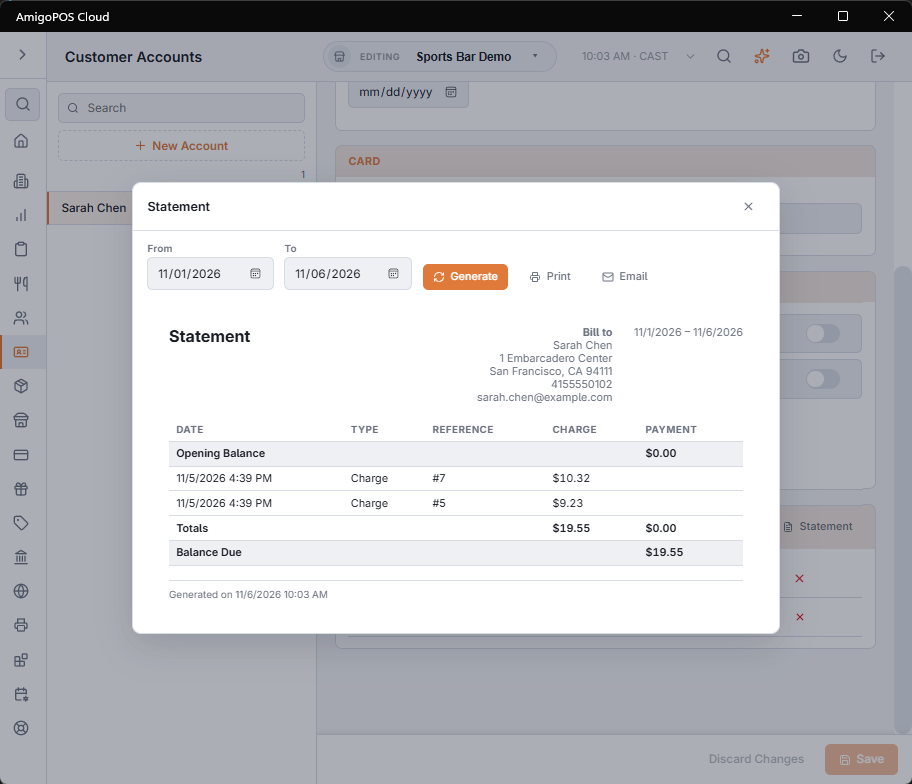
- Open the account and press Statement.
- Set From and To. The statement opens on the current month and is redrawn when you change a date; Generate draws it again.
- Press Print for a paper copy, or Email to send it to the customer’s email address.
The statement shows your store’s name, address, phone and email; Bill to with the customer’s name, address, phone and email; the account number and the period; the Opening Balance; each charge and payment in the period with its date, type and reference (usually the order number); the Totals; and the Balance Due at the end of the period. Dates and times are in the store’s time.
The emailed statement and its subject are written in the language you are using Back Office in (English, Spanish or Arabic).