Back Office › Customers › Customers is the customer list shared by all the stores of your business. Find a customer, edit their details and delivery addresses, see their orders, and block, merge or delete a record.
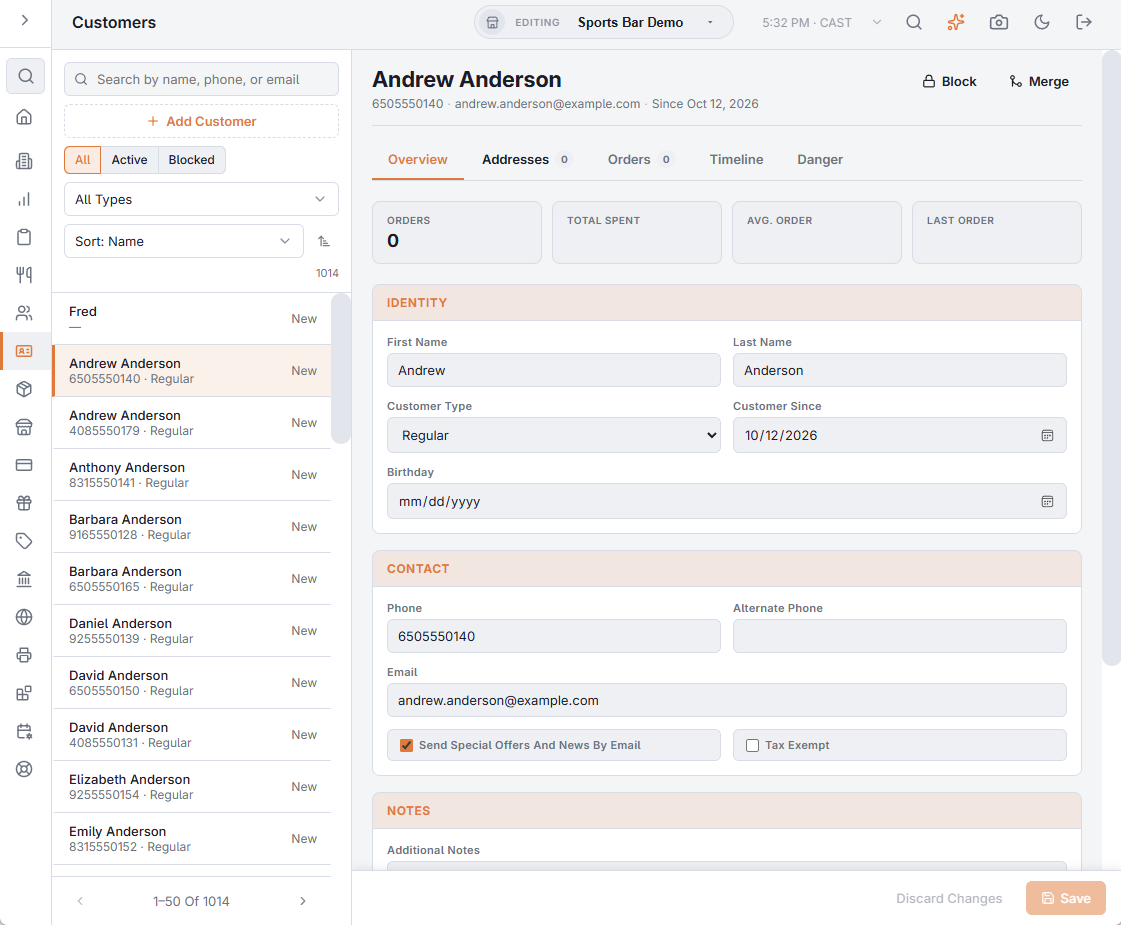
The list
- Search by name, phone, or email — the list updates as you type; Enter searches at once.
- All, Active and Blocked — which customers are listed.
- All Types or one customer type — shown under them when your business has customer types; lists only the customers of that type.
- Sort: Name, Sort: Last Order, Sort: Total Spent, Sort: Order Count or Sort: Customer Since. The arrow button next to it switches between ascending and descending.
Each row shows the name, the phone, the customer type and the total spent, or New for a customer with no orders yet. Hover a row to see the number of orders. Blocked customers carry a Blocked badge. The list shows 50 customers at a time; use the arrows under it to move between pages.
Adding a customer
Press Add Customer (+). An empty record opens with only the Overview tab; nothing is saved until you press Save. A new customer gets the first customer type in the list, so check Customer Type before saving.
The customer record
The header shows the name, phone, email and the date the customer was added, with the Block (or Unblock) and Merge buttons.
Overview
- Orders, Total Spent, Avg. Order and Last Order — the customer’s figures.
- Identity — First Name, Last Name, Customer Type, Customer Since and Birthday. The loyalty birthday reward and birthday offer emails use the Birthday.
- Contact — Phone, Alternate Phone and Email.
- Send Special Offers And News By Email — tick it when the guest asks for your offers by email; it puts them on your offers list (Guest offers: building your email list). Each change is kept in the guest’s offers consent record as made by staff.
- Tax Exempt — the customer’s orders are tax exempt when the customer is added to the order at the register.
- Notes — Additional Notes (up to 255 characters) and Custom Field 1, 2 and 3.
Overview changes are kept until you press Save or discard them. If you pick another customer first, Unsaved Changes asks whether to Keep Editing or Discard Changes.
Addresses
The customer’s delivery addresses. Add Address adds one straight away, named New Address and set to the default delivery zone. Each address has Name, Street number, Street, Apt / Suite / Line 2, City, Region, Postal Code, Delivery Zone and Notes; each field saves on its own when you leave it, and a tick confirms it. The bin icon deletes the address after you confirm.
Orders
The customer’s last 50 orders, newest first: date, order number, store, order type and total. Voided and refunded orders are marked. The eye button opens the order. See Customer order history.
Timeline
Everything that happened between your business and this guest: visits, offer emails, coupons used and more. See The guest timeline.
Danger
Delete Customer removes the customer and all their addresses after you confirm. Their orders stay in your history but are no longer linked to anyone.
A customer can’t be deleted while they have a customer account or a gift or loyalty card linked; a message says which. Delete the account in Customer Accounts first, or block the customer, or merge them into another customer.
Blocking a customer
Block asks for a reason; the customer is then listed as blocked, with the reason. At the register, a blocked customer shows in red in the phone lookup, and choosing them opens their record with a Blocked banner and the reason instead of adding them straight to the order. Blocked customers are not sent guest survey emails and are left out of Regulars We Miss. Unblock clears the block at once. It needs the Unblock Customer permission; without it, Permission Denied shows and the customer stays blocked. At the register, Unblock on the customer screen asks for a manager instead.
Merging duplicates
The same person sometimes ends up with two records, for example under two phone numbers. To combine them:
- Open the duplicate — the record you want to get rid of.
- Press Merge. Pick target customer opens with a search box that searches all your customers as you type and shows the first 50 matches by name; the duplicate itself is not in the list.
- Choose the record to keep. Each row shows the name, phone, email and order count.
- Confirm in Merge Customers. The kept record is selected when it is done.
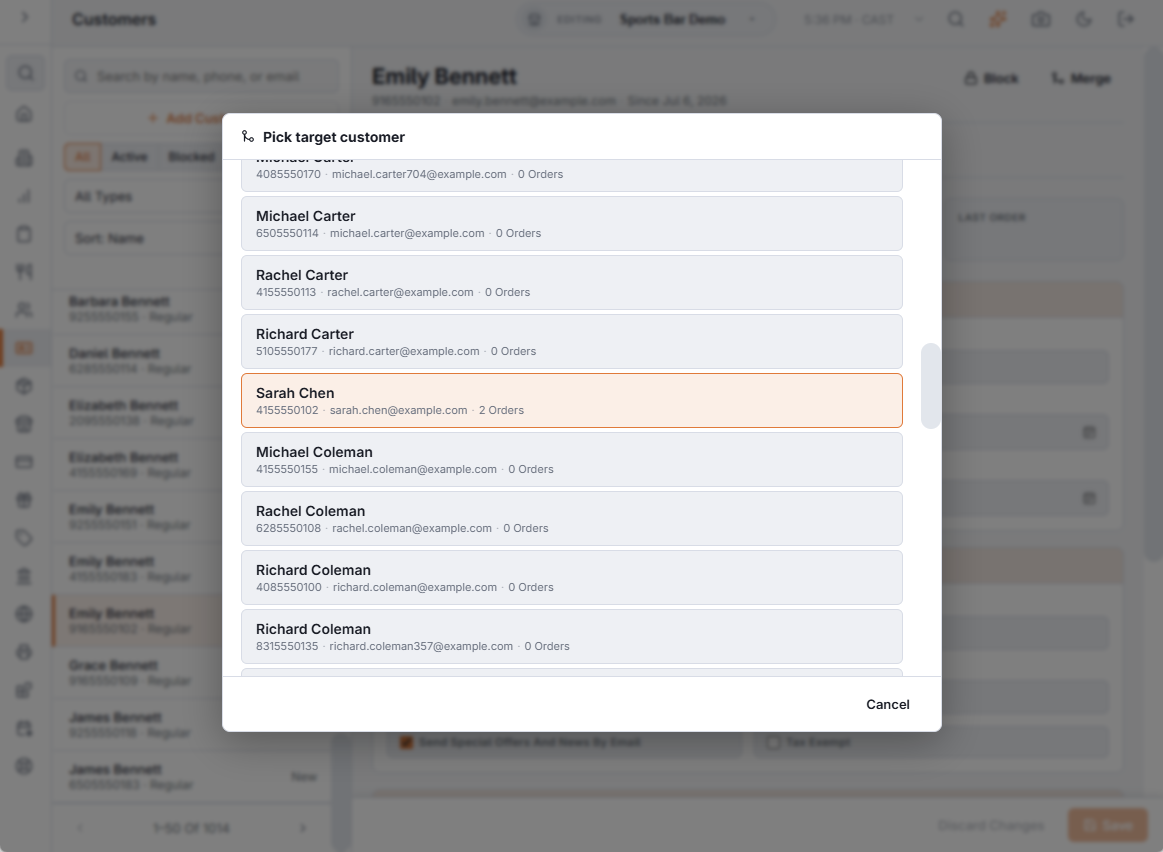
The duplicate’s addresses — and the orders placed with them —, its customer accounts with their transactions, and its loyalty cards move to the kept record, and the duplicate is deleted. Its own contact details and notes are not copied, so add anything worth keeping to the kept record first.
Customer types
The Customer Type list comes from the Customer Types page, where each type can also carry daily limits for the price rules restricted to it. See Customer types and daily limits and Price rules.