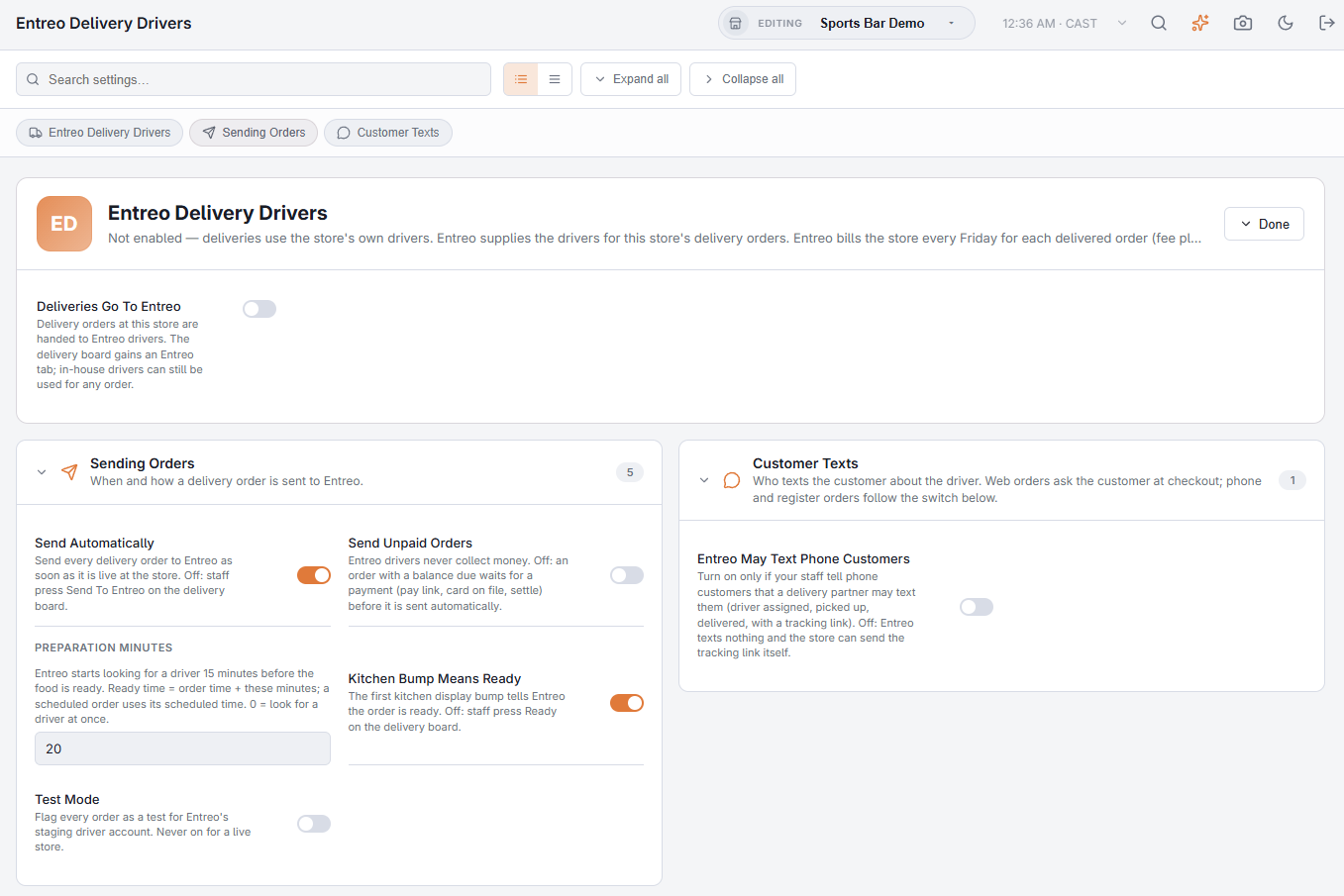
Entreo is set up in Back Office › Integrations › Entreo Delivery Drivers. The page has the store’s switches at the top and the connection details underneath.
Before you start
- Sign the store up with Entreo. Entreo sets the store up on its side: the pickup address, the delivery rate, and the card the weekly invoice is charged to.
- Give Entreo the store’s AmigoPOS Store ID. It is shown in the Connection panel of the Entreo page, with a copy button. When the store signs up with Entreo it chooses AmigoPOS as its point of sale and enters the Store ID on the next step; a store already set up with Entreo enters it on its Entreo dashboard, or emails it to Entreo. Once Entreo approves the business the store is connected automatically, and Entreo confirms.
- Check the store’s delivery order type. Only orders whose order type sends them to the delivery board are sent to Entreo. If the page says no order type is set up for delivery, see Order types and workflow.
Switching it on
Turn on Deliveries Go To Entreo (press Edit on the top card). The line under the title says whether Entreo is enabled for this store. From that moment the delivery board shows the Entreo tab and the Send To Entreo buttons.
Sending Orders
| Setting | What it does | Starts as |
|---|---|---|
| Send Automatically | Every delivery order is sent to Entreo as soon as it is live at the store. Off: nothing goes until staff press Send To Entreo on the board. | On |
| Send Unpaid Orders | Entreo drivers never collect money. Off: an order with a balance due waits for its payment (pay link, card on file, settle) and is sent as soon as it is paid. On: it is sent anyway, and the store collects the money another way. | Off |
| Preparation Minutes | The ready time Entreo is given: order time plus these minutes. A scheduled order uses its scheduled time instead. Entreo starts looking for a driver 15 minutes before the ready time. 0 sends no ready time, so Entreo looks for a driver at once. | 20 |
| Kitchen Bump Means Ready | The first bump on the kitchen display tells Entreo the order is ready, and Entreo starts looking for a driver right away. Off: staff press Ready on the delivery board. | On |
| Test Mode | Marks every order as a test. A test order is never billed to the store and the customer is never texted. In production Entreo checks, stores and answers it but sends no driver, and no updates follow — a store that leaves Test Mode on gets no deliveries. The Entreo page shows a reminder while it is on. | Off |
Customer Texts
Entreo May Text Phone Customers decides whether Entreo may text customers whose order was taken by phone or at the register. Turn it on only if staff tell those customers that a delivery partner may text them. Web customers answer the question themselves at checkout. See Customer texts and tracking.
The Connection panel
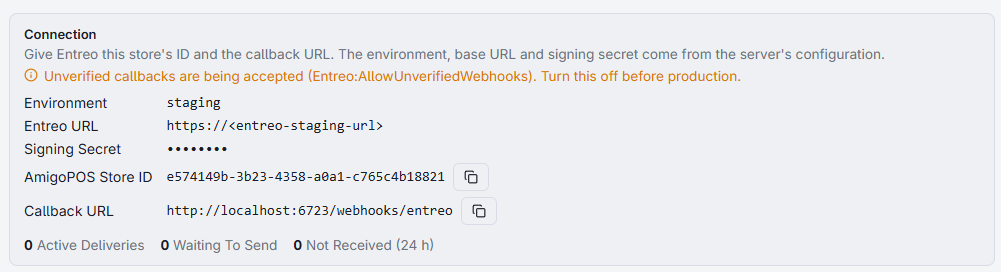
- Environment, Entreo URL and Signing Secret come from the server and are set by AmigoPOS. If the panel says Entreo is not configured on this server, nothing is sent: contact support.
- AmigoPOS Store ID — what Entreo needs to connect this store.
- Callback URL — where Entreo sends its delivery updates. It is the same for every store and is given to Entreo by AmigoPOS; stores do not need to send it.
- Active Deliveries, Waiting To Send and Not Received (24 h) — a quick health check. Anything in the last count means Entreo did not get an order; see Entreo activity.
Test Mode orders are never billed and never text your customer. In production they are not sent to a driver. For your first live orders, send real orders and watch them with the Entreo team.
Training registers never send orders to Entreo.