Many guests read WhatsApp before email. If your store’s WhatsApp is connected, guests can ask for your offers there too.
Set it up
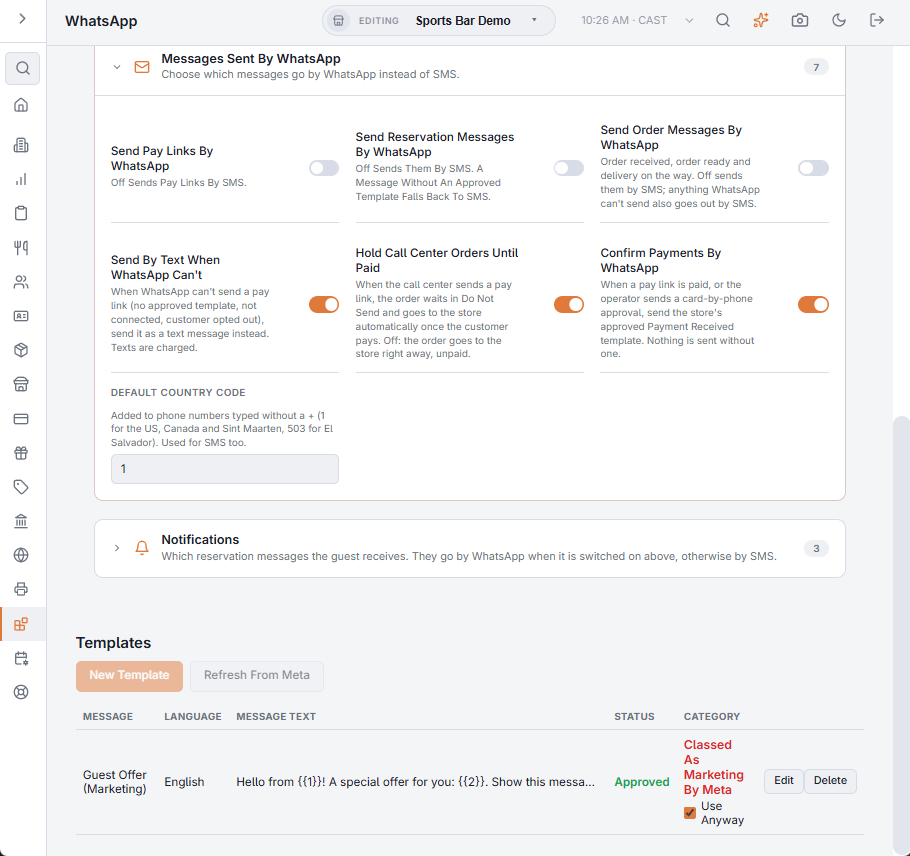
- In Back Office › Integrations › WhatsApp, write the Guest Offer (Marketing) template ({{1}} your business, {{2}} the offer) and submit it. Meta classes it as marketing: once it is approved, tick Use Anyway, or nothing is sent.
- In Discounts & Promotions › Guest Offers › Settings › Email Sign-Up, switch on Offers By WhatsApp.
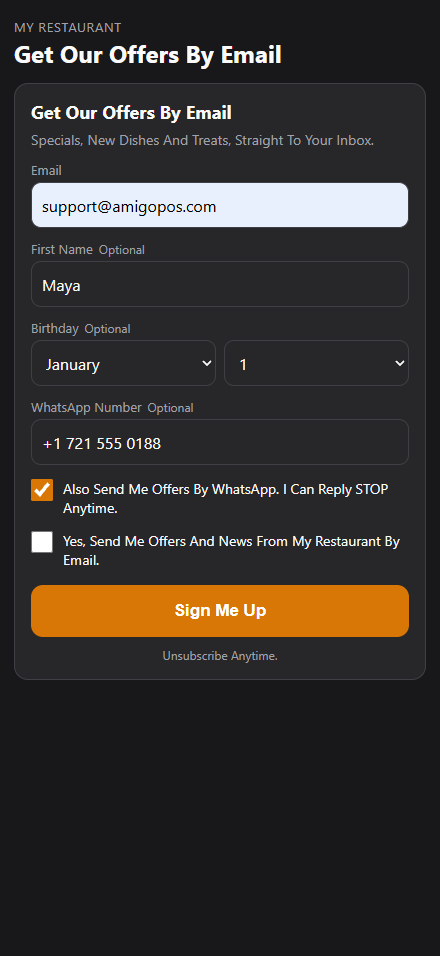
Guests opt in
The survey’s sign-up card and the Join Our List page then show an optional WhatsApp Number with its own box: “Also send me offers by WhatsApp”. It is confirmed together with the email.
Send an offer
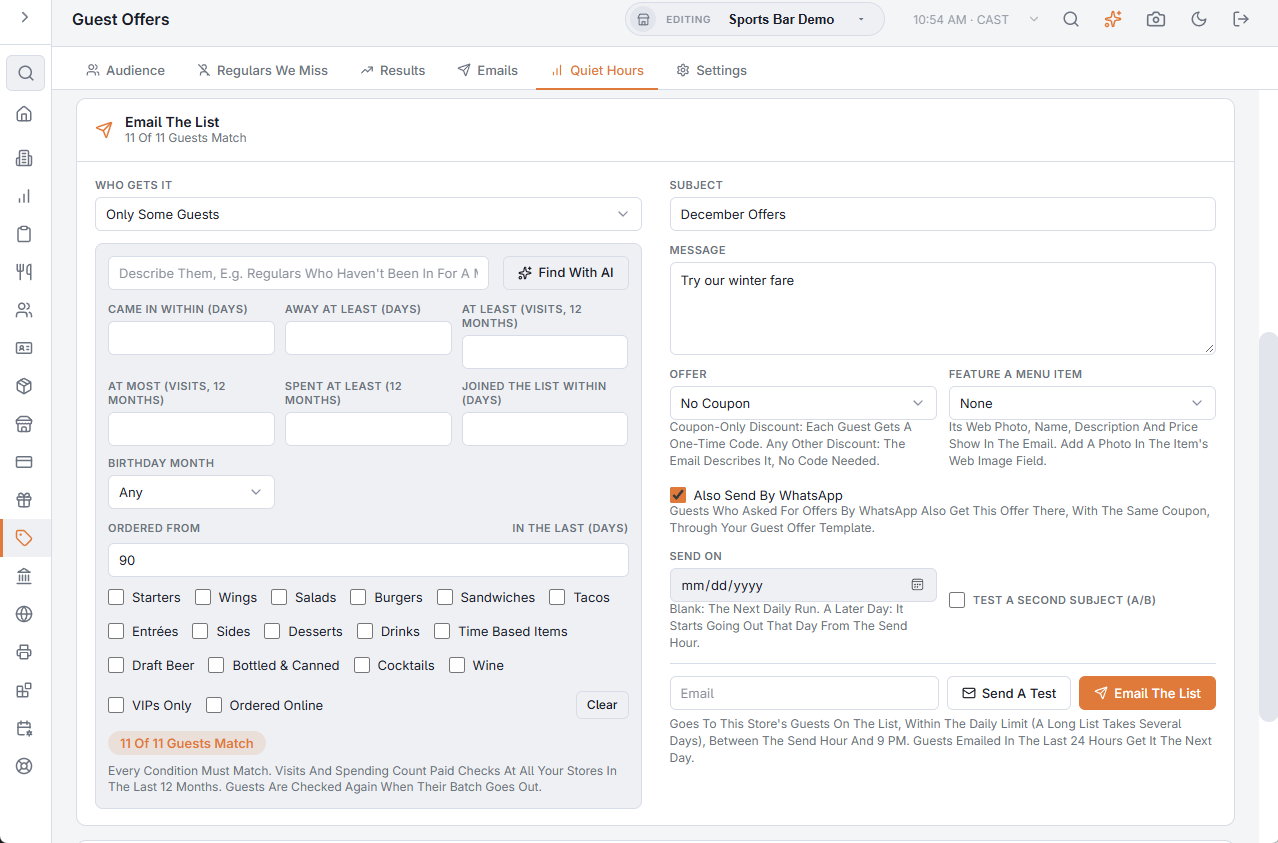
In Email The List, tick Also Send By WhatsApp. Each guest on the list who opted in also gets the offer on WhatsApp, with the same coupon, right after their email.
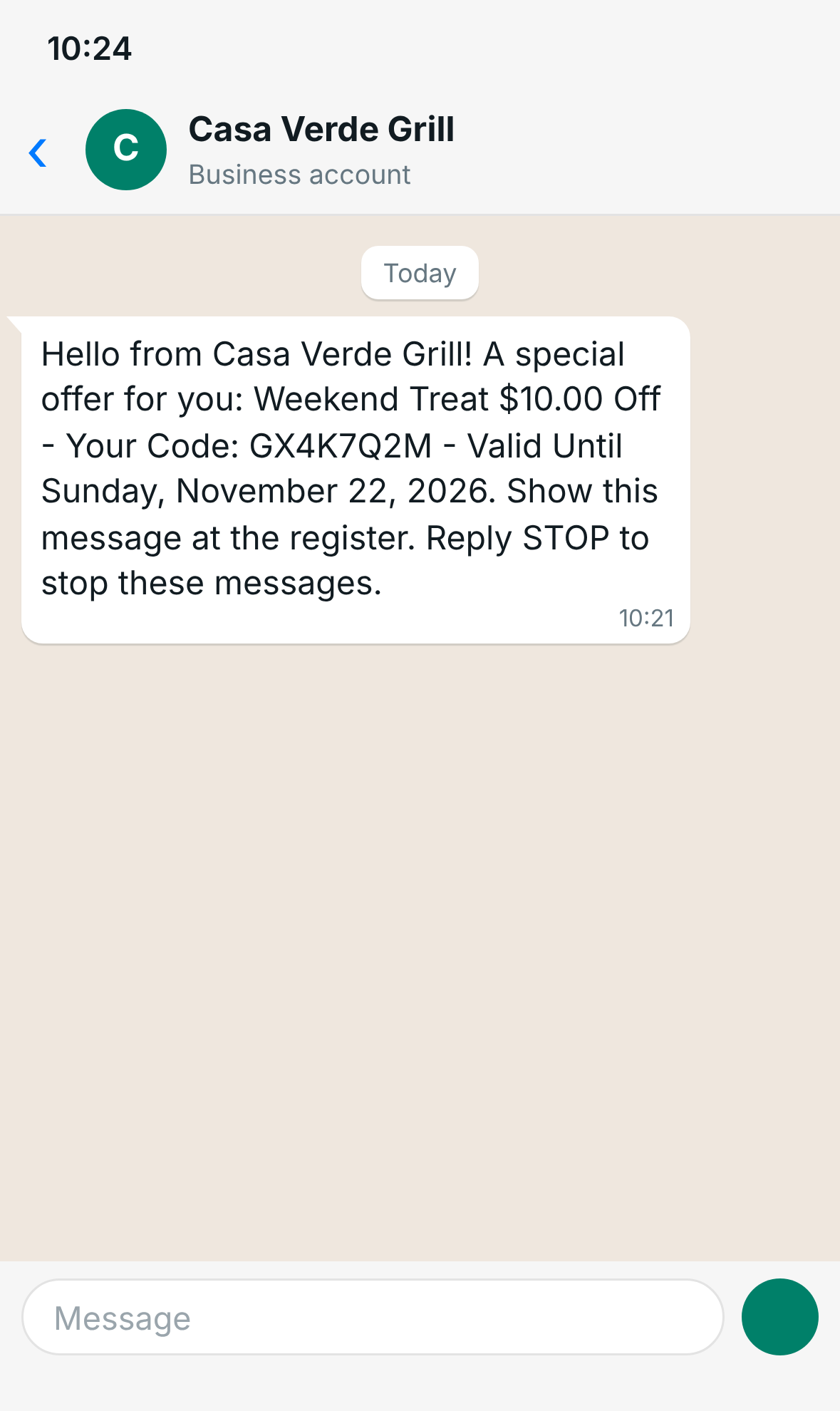
- Offers never go by text message.
- Guests who unsubscribe from the offer emails get no WhatsApp offers either; a guest who replies STOP on WhatsApp gets no more WhatsApp messages from the store.
- Each message shows in the SMS Log.
Meta charges marketing messages to your WhatsApp account at its marketing rate, and doesn’t deliver marketing messages to US phone numbers.
Related: Quiet hours and Email The List