A KDS display can print without a printer of its own: it sends the job to the store’s printers through the Print Agent, like the POS does. Use it to print the receipt that goes in the bag when an order is bumped, labels for takeout, or a copy of the ticket at the pass.
Settings
On the display, open ⚙:
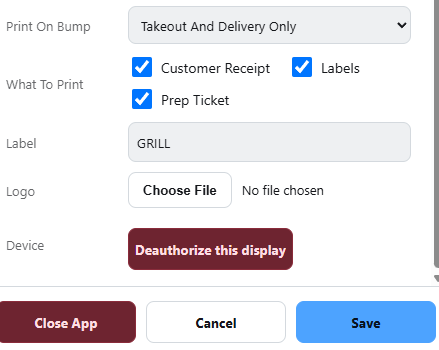
- Print On Bump — Off (default), All Orders, or Takeout And Delivery Only.
- What To Print — any of Customer Receipt (checked by default), Labels and Prep Ticket.
How it behaves
- On bump the display prints what is checked, for the orders Print On Bump covers. Bumps sent after the display was offline print nothing, so the printer does not burst out old tickets on reconnect.
- The Print button (toolbar, or the P key) prints the checked documents for the selected ticket, or the customer receipt when nothing is checked.
- Labels on bump print only the labels not printed yet — if the order printed its labels when it was placed, nothing prints. The Print button reprints them all.
- Prep Ticket prints a full copy with the usual REPRINT banner.
Which printer
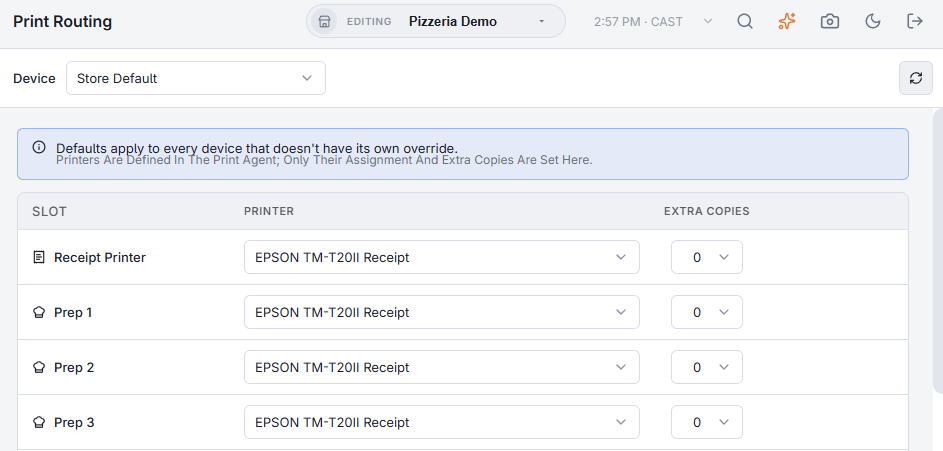
The receipt goes to the Receipt printer, labels to the label printers and prep tickets to the prep printers set on Print routing. KDS displays appear in that page’s device list: select the display and set its own Receipt printer to send its receipts to, say, a printer at the pass. Otherwise the store’s default printer for each slot is used.