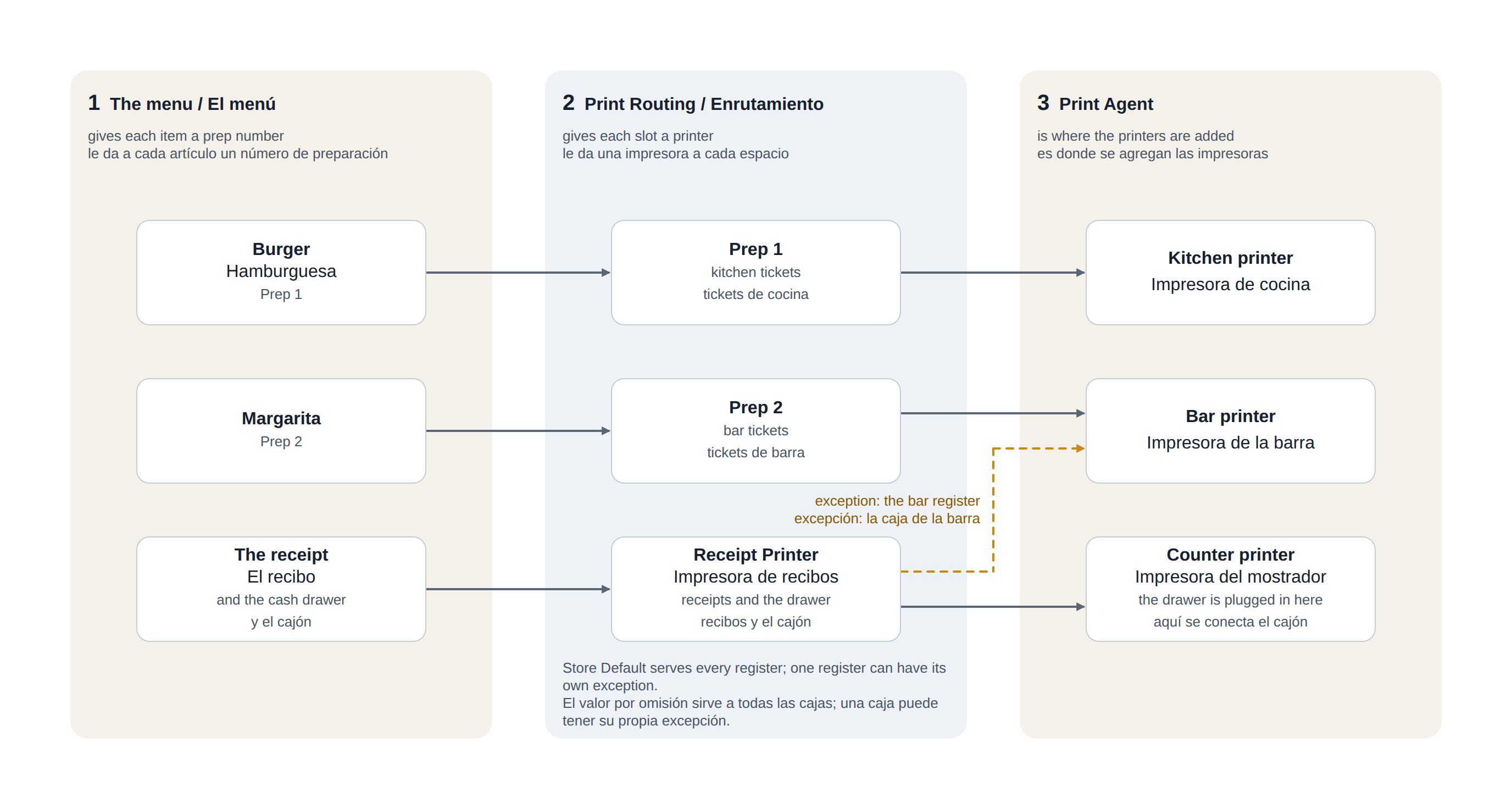
Back Office › Hardware & Printing › Print Routing decides where everything the registers print goes. It does not create printers — those come from the Print Agent — it only connects each kind of output to one of them.
In one picture: the menu gives each item a prep number, Print Routing gives each slot a printer, and the printers themselves are added in the Print Agent.
Slots
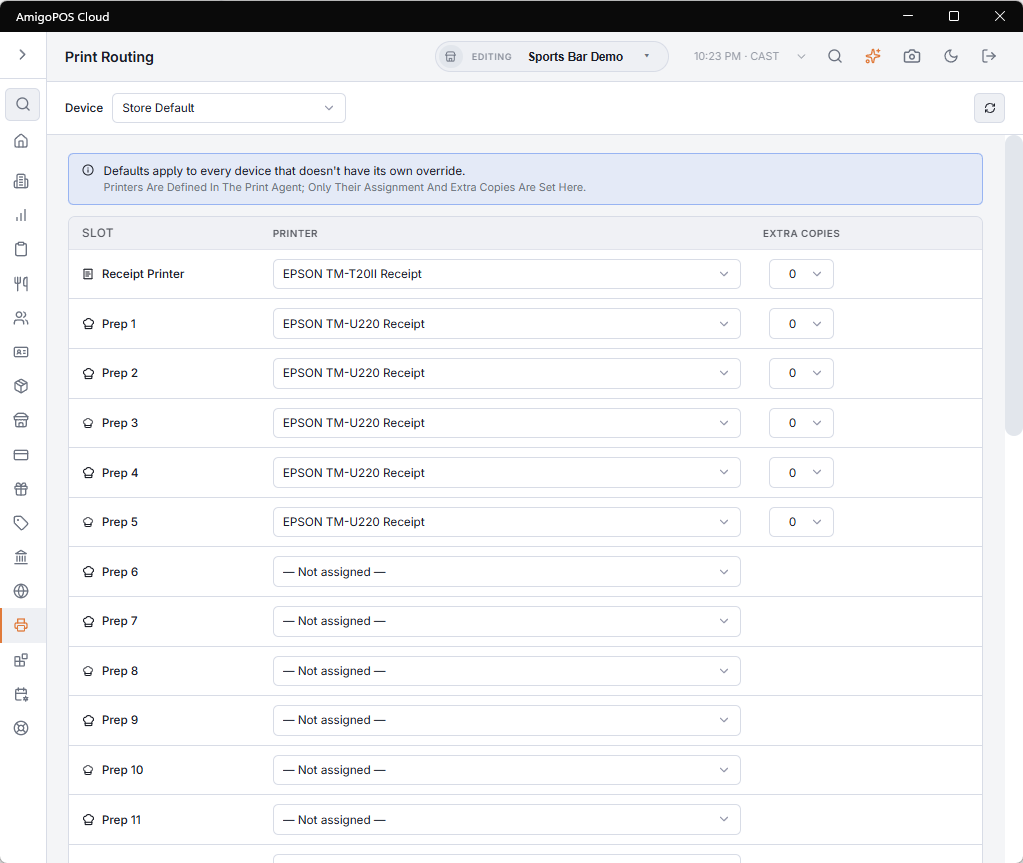
The page lists slots, one per row. Each slot is a destination; the printer chosen in the row is where that destination prints.
- Receipt Printer — customer receipts and reprints, and everything else that is not a kitchen ticket or a label: gift card and loyalty slips, coupons, delivery trip tickets, guest Wi-Fi slips. The cash drawer kick is sent through this printer too, so it must be the printer the drawer is plugged into.
- Prep 1 to Prep 12 — kitchen, bar and expo tickets. Menu items and categories are assigned to prep numbers in the menu; when an order is sent, each item goes to its prep number’s printer. One order can print on several printers at once.
- Label 1 to Label 5 — label printers, for items set to print labels.
A slot left on — Not assigned — prints nothing. That is fine for prep numbers the menu does not use.
Store Default and per-register exceptions
The Device dropdown at the top chooses which routing you are looking at.
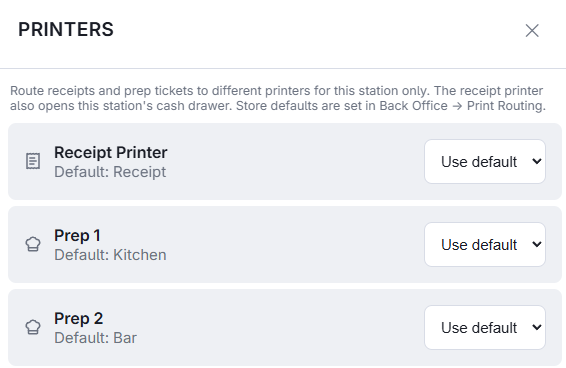
- Store Default applies to every register that has no exception of its own. Set this first; a store where every register uses the same printers never needs anything else.
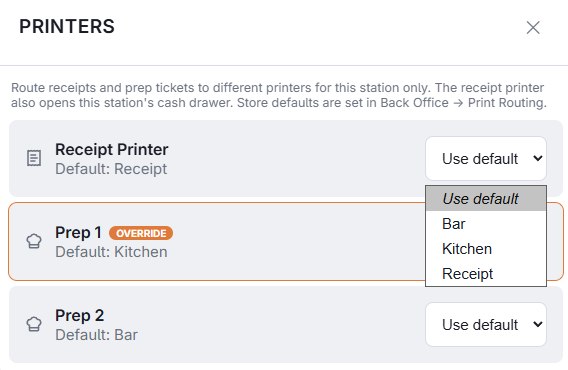
- A register (listed as name — Station N) shows what that register actually uses. Rows it inherits carry a grey From default chip. Choosing a different printer in a row creates an exception for that register only, marked Override.
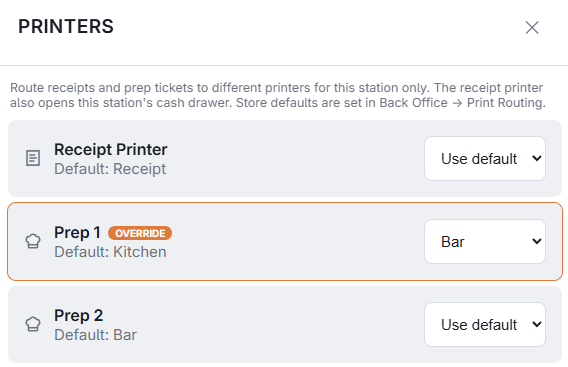
To remove an exception, choose Use store default at the top of that row’s list. The row goes back to From default.
Extra copies
The Extra Copies column prints the slip more than once: 0 prints one copy, 1 two copies, up to 5. It belongs to the row, so it can differ per slot and per register — two receipts on the bar register, one everywhere else; two copies of Prep 1 for a busy grill, one of everything else.
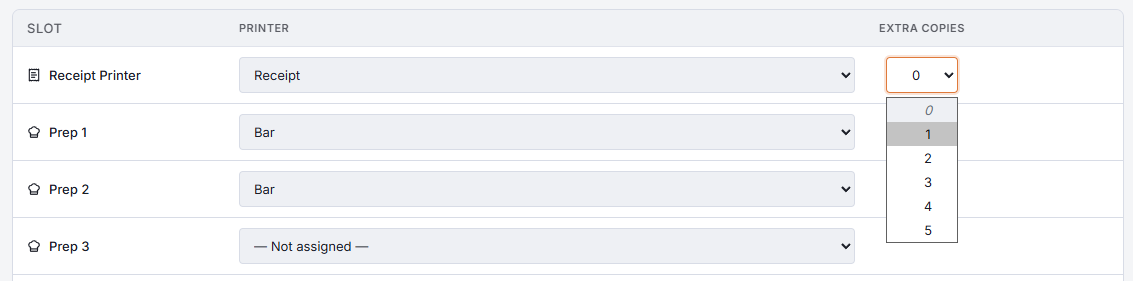
- You can change it where the row lives: in Store Default, or on a register’s Override row. On an inherited row the number is shown greyed; change it in Store Default, or override the row first.
- Each copy is a complete slip, cut included. A cash drawer only opens once, whatever the copies.
Saving
There is no Save button. Every change is saved the moment it is made and a green Saved tick flashes beside the row. Registers pick up the change on their next print.

Where the printers in the lists come from
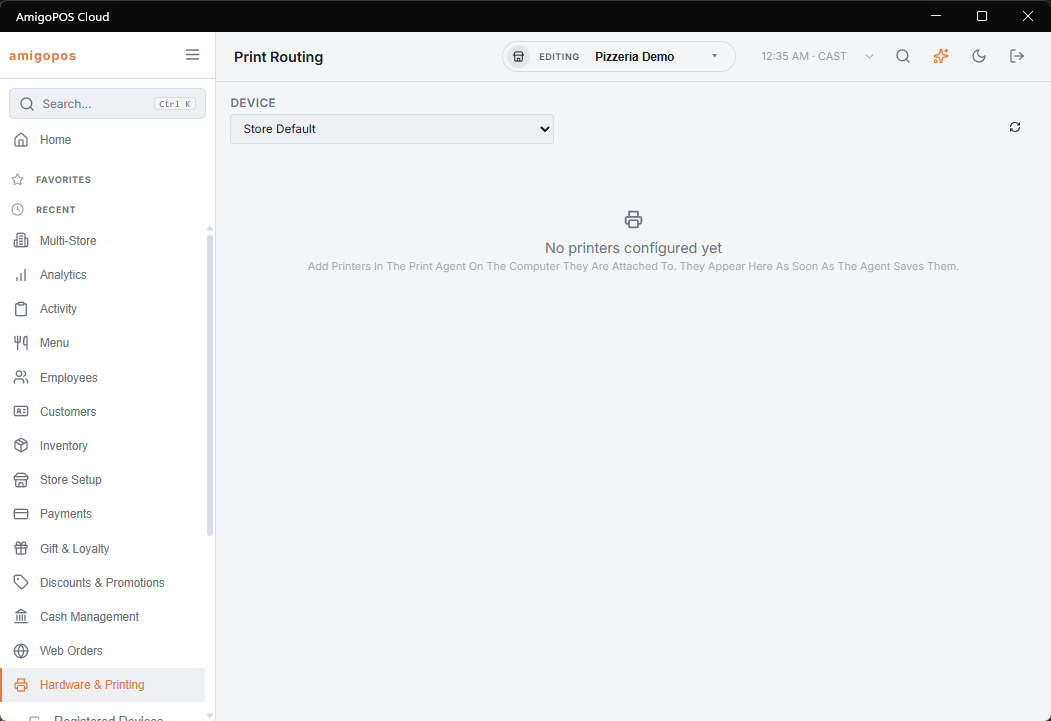
The lists show every printer added in a Print Agent that is connected to this store, by the name given in the agent. If the page says No printers configured yet, no agent for this store has added a printer; a printer added in an agent connected to a different store never appears here.
Common questions
- A new printer is not in the list — press the refresh button at the top right. Still missing: check, on the agent, that its header shows this store.
- A ticket printed at the wrong station — check, in order: the item’s prep number in the menu, the sending register’s override for that prep slot, then the store default.
- One register prints differently from the others — select it in Device and look for Override chips.
- A printer died mid-service — the Prep printers overlay in the manager functions points a slot at another printer from the register, without opening Back Office.
- Deleting a printer in the agent clears every row that used it. Rename or re-address a printer with Edit instead, and the routing stays.
Offline Backup Printers
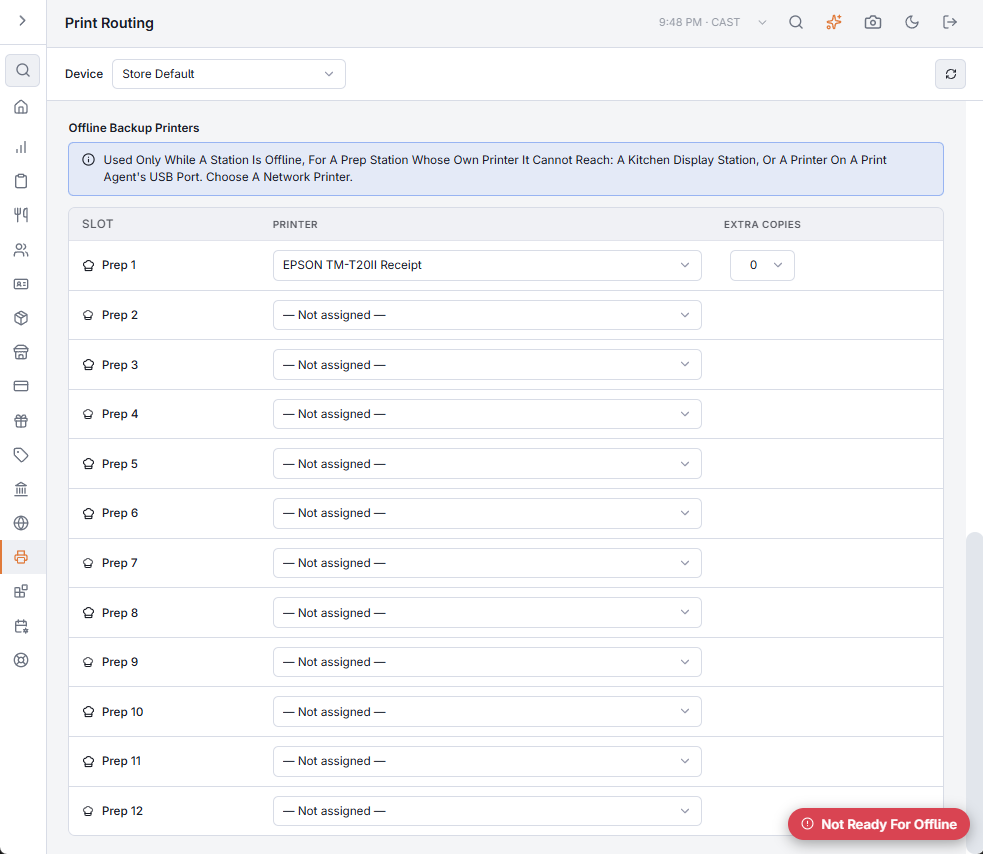
Below the slots there is a second table, Offline Backup Printers, with one row per prep number. A printer chosen there is used only while a register is offline, for a prep station whose own printer the register cannot reach: a station that only has a kitchen display, or a printer on another computer's USB port. Choose a network printer. See Kitchen tickets during an outage.
A modifier group at another station
Modifiers print with their item, at the item’s prep stations. A food modifier group can have its own stations instead — the drink included with a breakfast printed at the bar, say. The bar ticket then shows the item’s name with the drink under it, and the kitchen ticket leaves the drink off. See Sending a modifier group to its own prep station.