Linking the light
- Add the light in Back Office › Hardware & Printing › Lighting (see Adding lights and zones).
- Open the seating designer, select the pool table (or lane, room…), and choose the lamp in Light — lights are listed as Zone · Name.
- Save the room.
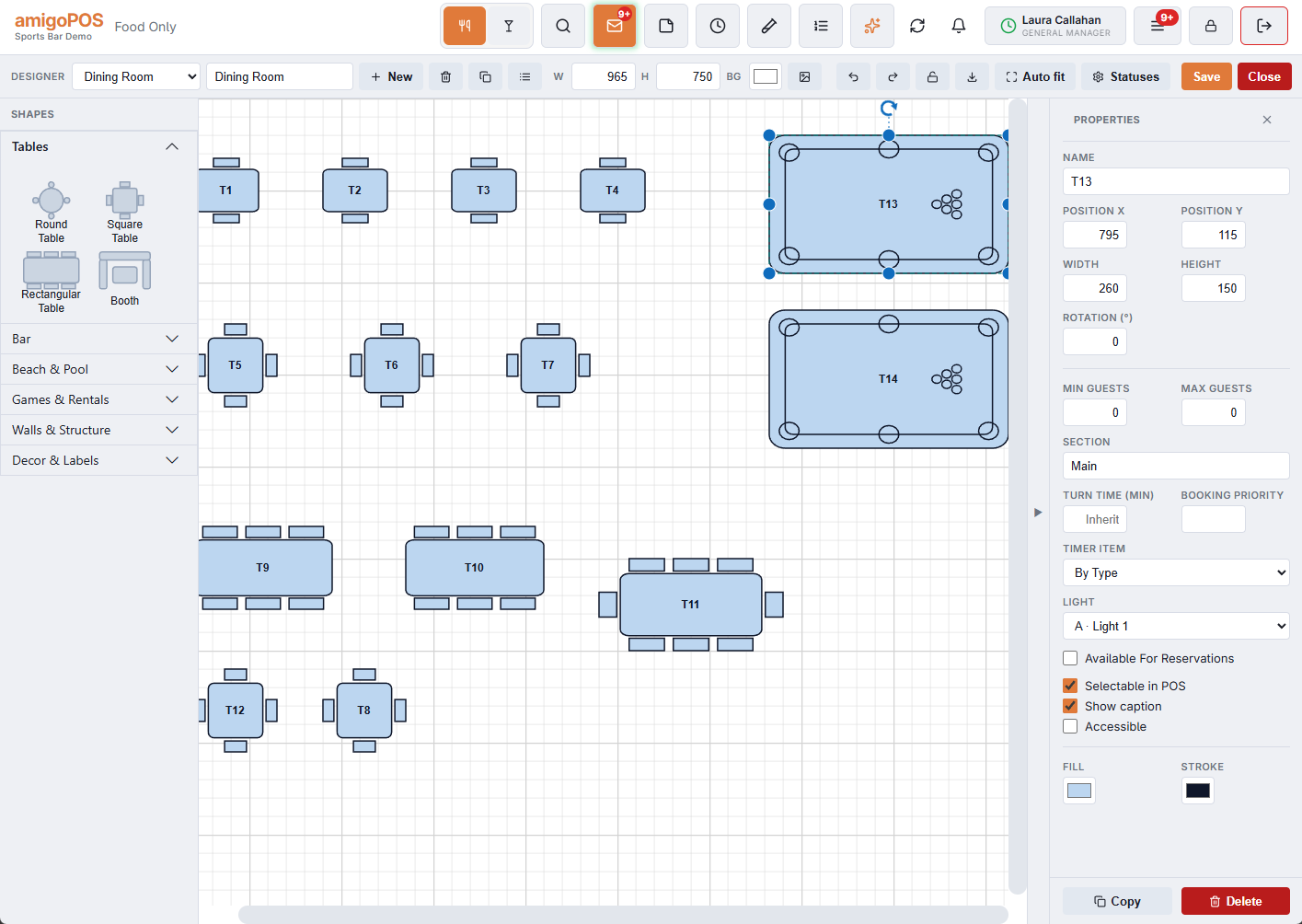
Light appears with Timer Item, on timed shapes. Copying a table does not copy its light, so two tables never share a lamp by accident.
What happens
- On when a timer starts at that table — from Start Timer, from the time-based menu, or when a reservation is seated.
- Off when the last running timer on the order stops — with Stop Timer, or when the POS stops the timers to settle.
- Pause leaves the light on.
- Nothing happens for an order with no table, or a table with no light.
Keeping the light on a little longer
Table Light Off Delay (Sec) in the Lighting Settings card keeps the light on for that long after the last timer stops (0 to 1800 seconds; 0 turns it off at once). It gives players time to gather their things.
- A new game at the same table during the wait cancels the pending off, so the light never goes out mid-game.
- The wait happens on the Print Agent and does not hold up other light commands.
- If the Print Agent restarts during the wait, the light simply stays on.
A lit table also tells staff across the room which tables are in play — and a table that is lit with no timer running is worth a look.