Under Lights, tap Add Light (available once there is a device).
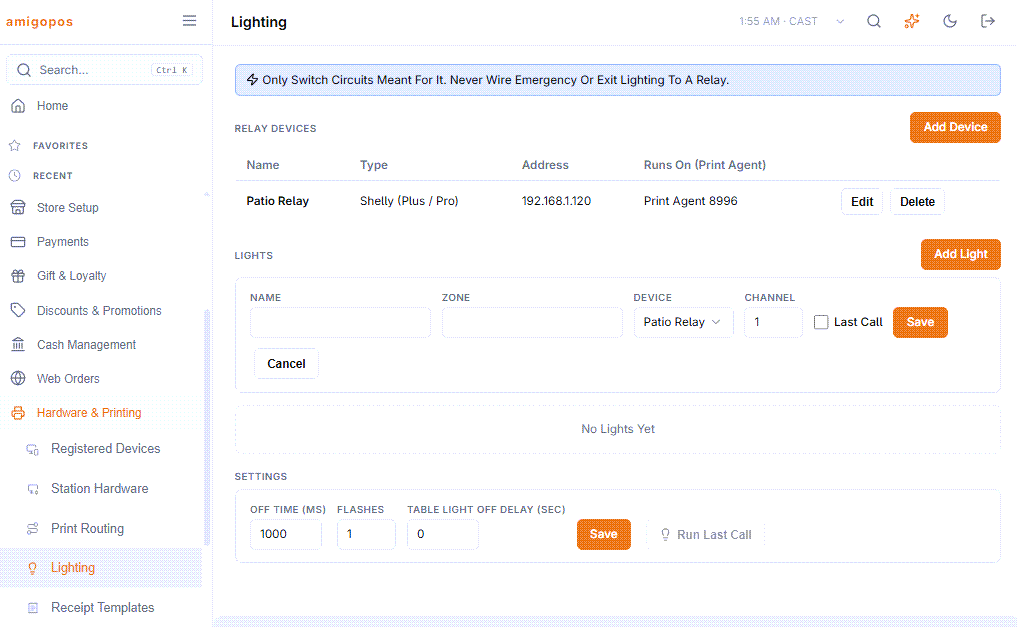
The fields
| Field | What to enter |
|---|---|
| Name | What staff see on the POS: Pool Table 3, Patio string lights. |
| Zone | A group name — Main Room, Patio, Pool Hall. Lights with the same zone can be switched together. Existing zones are suggested as you type. Leave blank for none. |
| Device | Which relay device the light is on. |
| Channel | Which relay on that device, starting at 1. A new light takes the next free channel. |
| On URL / Off URL | Custom devices only, instead of Channel: the full addresses that switch this light on and off. |
| Last Call | Tick for lights that should flash at Last Call. |
Testing
Every light in the list has On, Off and Flash buttons. Use them after adding each light: the status line above says how many lights the command went to.
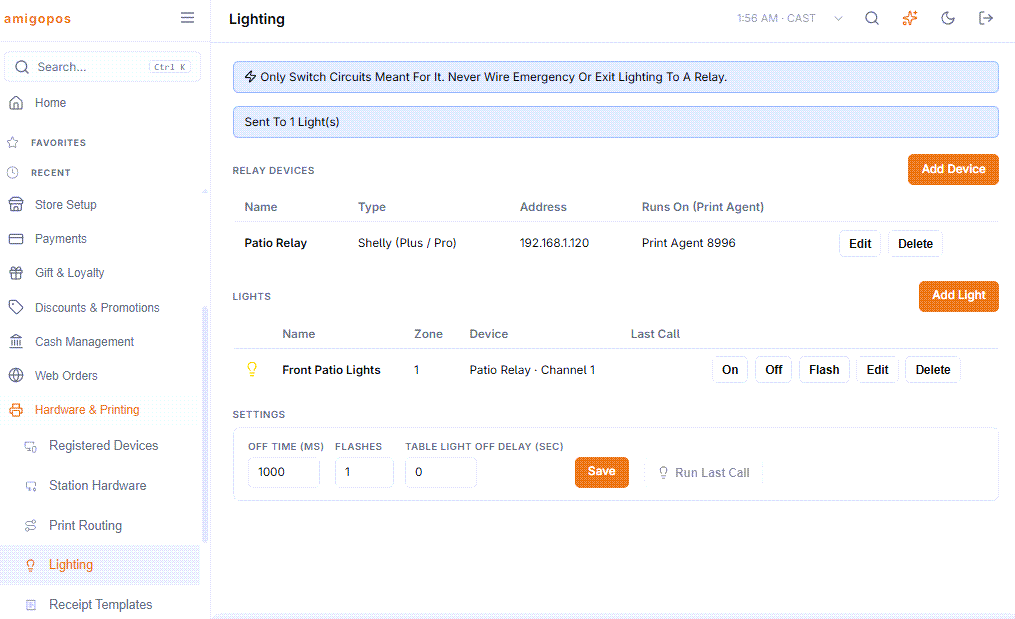
- Sent To 1 Light(s) — the command reached the Print Agent. If the light did nothing, see Lighting troubleshooting.
- 1 Light(s) Skipped: Their Device Has No Print Agent — choose a Print Agent on the device.
- You Don’t Have Permission To Control The Lights — see The Lights panel at the POS.
The bulb icon
The bulb beside each light is yellow when it was last switched on, dim when last switched off, and faint when CloudPos has never switched it. It shows what CloudPos last sent, not a reading from the light: a wall switch or a power cut is not seen.
Zones
A zone is just the shared name. There is nothing else to set up: type the same zone on each light. On the POS, a zone with more than one light gets All On and All Off.