The pre-EOD summary answers one question: is this day ready to close? Run it before you open end of day, while there is still time to fix what it finds.
Readiness
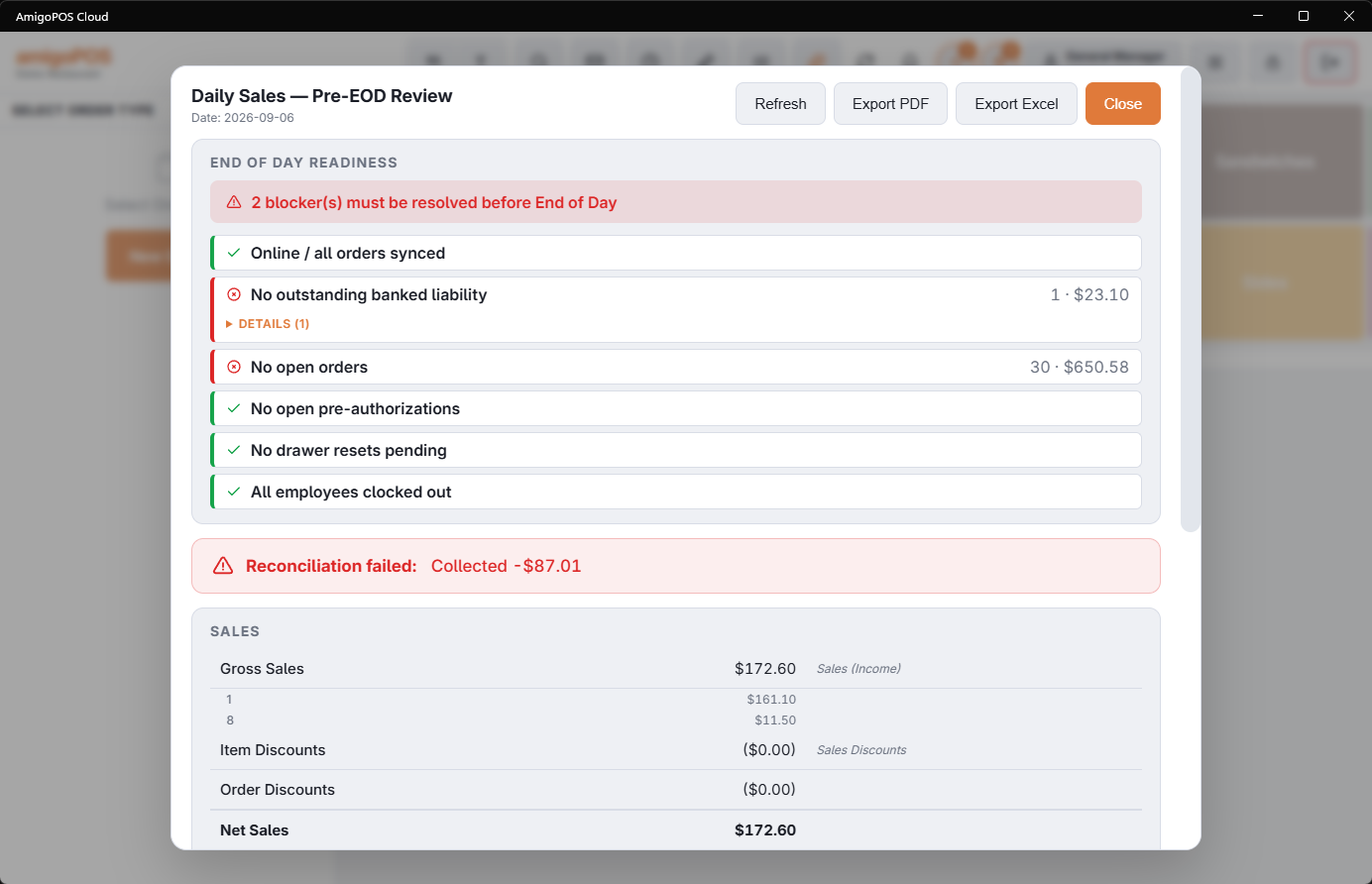
It runs the closing checks and shows either ready, with a shortcut straight into end of day, or not ready with what is outstanding. These are the same conditions that block the end-of-day button, surfaced early rather than at the moment you wanted to close.
The day in sections
- Sales — the same waterfall the end-of-day report prints: gross sales by item type, item and order discounts, net sales, gift cards sold as a liability line, tax, gratuities, amount due, tips collected. Comped lines are shown but kept out of gross.
- Payments — the mix, with a breakdown per card terminal including batch, amount, tips and count. This is what you reconcile against the processor’s batch report.
- Cash reconciliation — float, cash sales, payouts and drops, giving expected against counted and the variance. Payouts and house-account activity are itemised, so a variance usually explains itself here.
- Notes from the day.
The banner above the sections is the end-of-day report’s own verdict on the day so far — every check ties, or the checks that fail with the order numbers behind them — so a line-versus-total problem on one order shows up here, an hour before the close, with the order to look at.
Taking it away
Export to PDF or Excel — the PDF for the folder or the owner, the spreadsheet when someone wants to check the arithmetic. Refresh re-runs it against the current moment.
Same numbers as the close
The sales, payments and cash sections are built from the end-of-day report model for the day still open, so gross, net and the drawer’s expected figure mean exactly what they will mean on the slip and in the stored report after the close. Refresh rebuilds them from the orders as they stand. The PDF and Excel exports on this screen come from the accounting view of the day — the one the QuickBooks transfer posts — whose gross includes gift cards sold and treats comps as discounts; the net agrees, the gross can differ by exactly those two items. See The end-of-day report for the definitions.
Reading the readiness rows
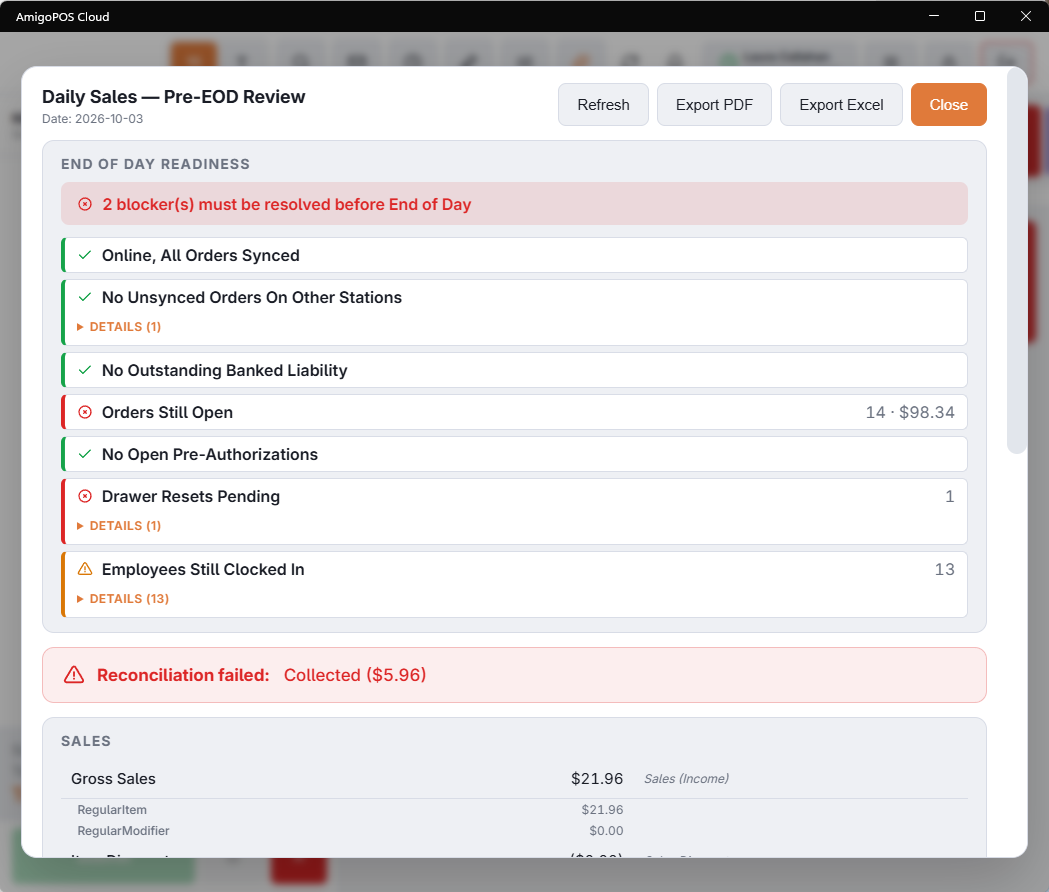
Each readiness row says what is true right now. When a check passes it shows the all-clear, with a green tick — No Drawer Resets Pending. When it doesn’t, the row names the problem itself — Drawer Resets Pending — so the row never reads like good news while showing a problem.
- A red circled X blocks end of day. The banner above uses the same icon and says how many blockers there are.
- An amber triangle is worth checking but doesn’t block — Employees Still Clocked In, for example.
- A station that is offline shows This Station Is Offline; orders it hasn’t sent yet show Unsynced Orders On This Station.
Resetting a drawer from here
When Drawer Resets Pending shows, each drawer that is waiting is listed under it on a row of its own, with a Reset Here button. It closes the summary, opens Cash Drawers on exactly that drawer — also when the drawer belongs to another station — and brings you back to the summary afterwards, read again, so a drawer you have just reset is gone from the list.
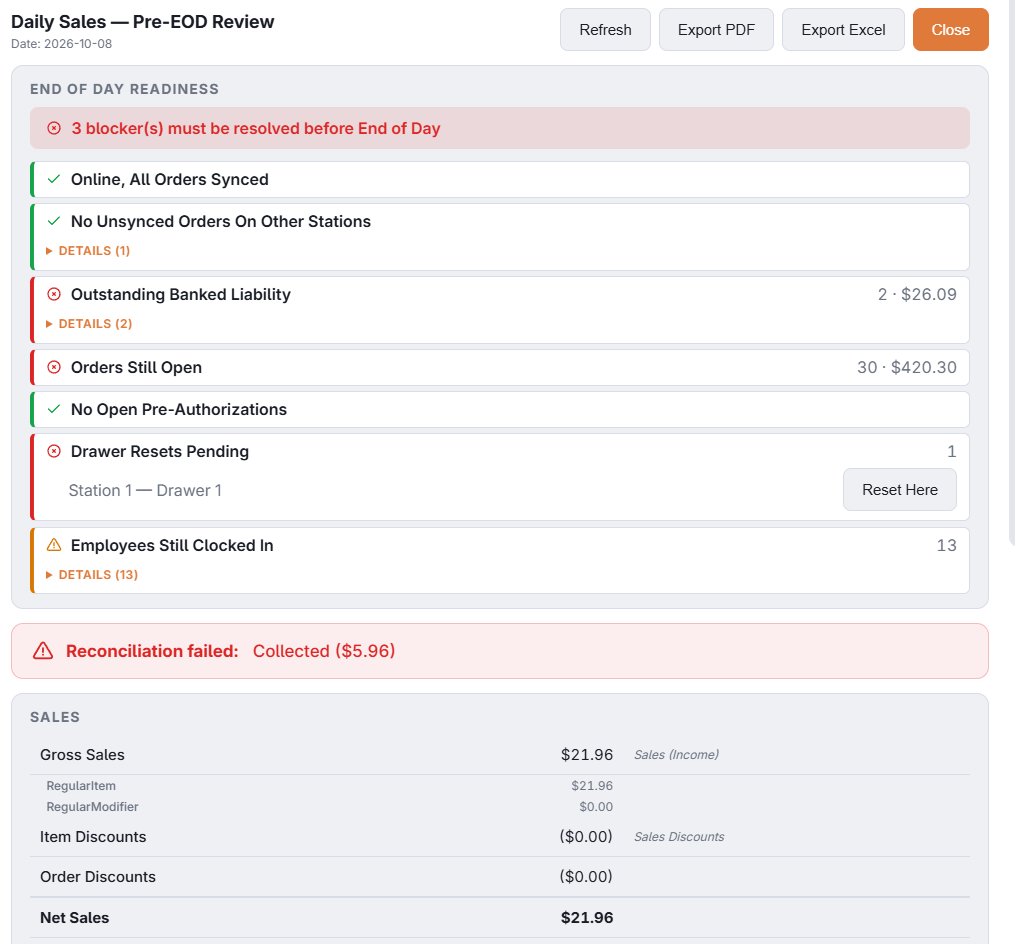
This is how to clear a drawer whose own station is broken, switched off or gone. Count the cash that is in that drawer; only the screen you do it on is different.