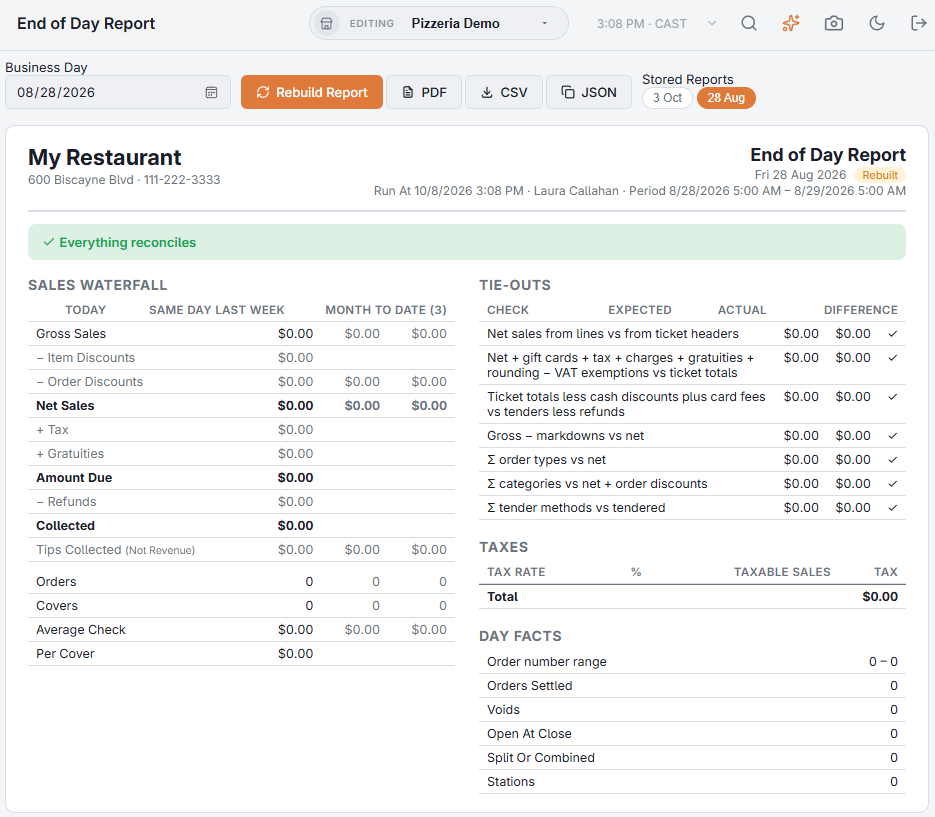
Back Office › Activity › Shifts & End of Day › End of Day Report shows the full closing document for any business day, stored when the day was closed and shown from that stored copy every time it is opened. The Z summary on the receipt printer and the PDF in the end-of-day email are made from the same stored report — one set of numbers, three ways of reading it.
Choosing a day
- Business Day — the day to show. The page opens on yesterday.
- Stored Reports — when more than one day is stored in the last 45 days, the most recent ones show as chips. Tap a chip to open that day; hold the pointer over it to see the day’s net sales and order count.
- When nothing is stored for the day, the page says No Report Is Stored For This Day Yet. and offers Build Report.
It checks itself
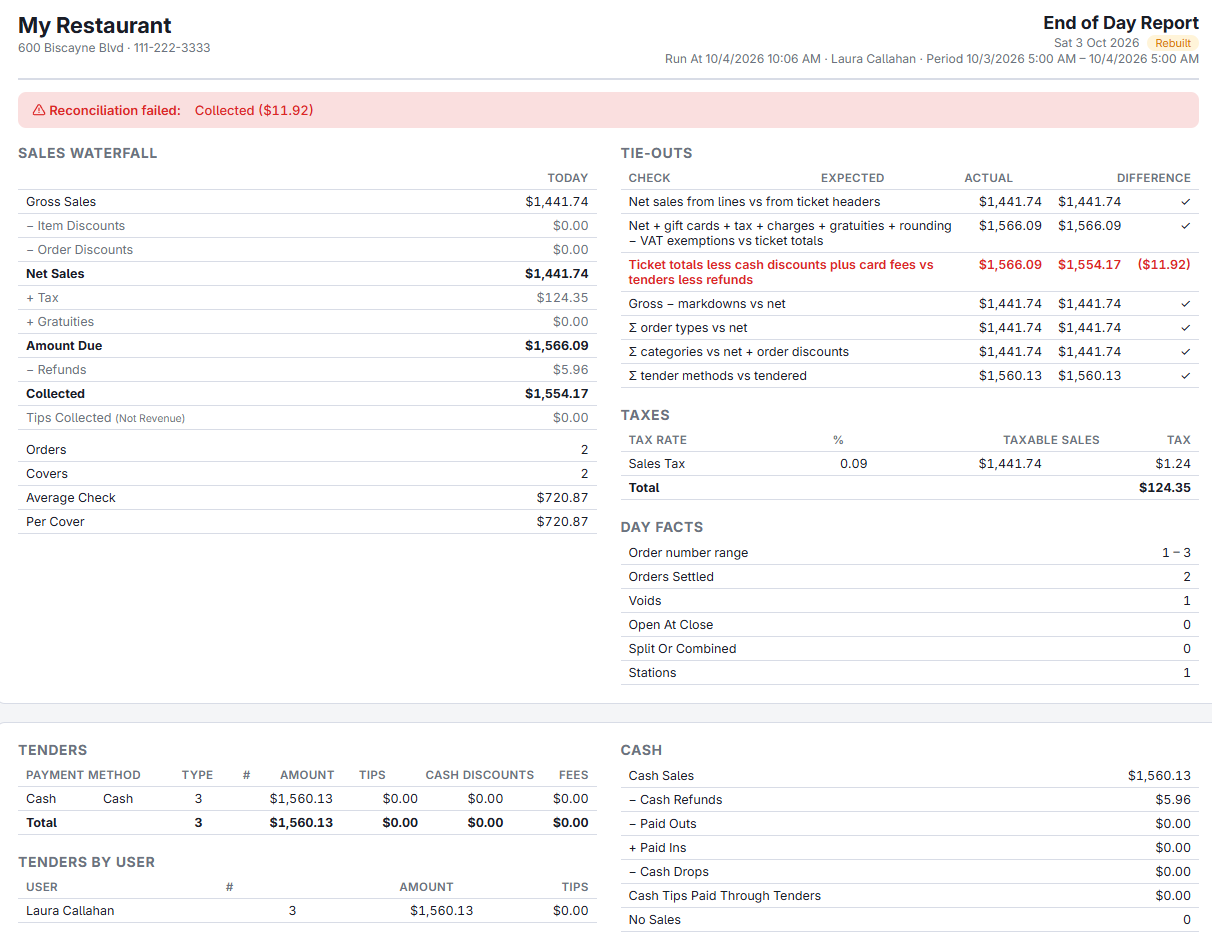
Every figure has one definition, printed in the definitions at the end, and the report tests its own arithmetic before you read a line of it. The banner under the header is the verdict: green Everything reconciles, or red Reconciliation failed with the checks that failed. The Tie-Outs table beside the waterfall shows each check — net sales from the order lines against the order totals, net plus tax and charges against ticket totals, ticket totals against tenders, gross minus markdowns against net, and the section sums against the whole — and, for the line-versus-total check, lists the exact orders that disagree with the amount on each.
The waterfall
Gross sales are price × quantity on every live line of every settled order — before any discount, with removed, voided and comped lines out. Item discounts and order discounts come off to give Net Sales, the figure every percentage in the report is taken against. Gift cards sold are shown as their own line below net, marked (Liability), because money taken for a card is a liability, not a sale. Tax, charges and gratuities take it to amount due; refunds, cash discounts and card fees to collected, which has to equal what was tendered. Tips collected sit underneath, labelled as not revenue. Comparison columns beside the day — the previous day, the same weekday last week, month to date — fill in as days are stored.
What the pages hold
- Tenders and cash — every payment method with count, amount, tips, cash discounts and fees; foreign-currency tenders at face and in base currency with the average rate; tenders by user; the cash summary and each drawer’s opening float, expected, declared and over/short with its audits, with an ± Employee Deposits line when it is not zero — plus the employee deposits the drawer took that day, minus the deposits an End Shift at the drawer applied that day, counted in expected; a drawer that only took deposits gets its own entry; paid-outs and drops by line, leaving out any voided in Back Office; no-sales by user.
- Markdowns — every discount by name with level (item or order), type and amount, so gross minus the total equals net; price rules such as happy hour with what they gave away against regular price; comps by user; voids and removed items by order with reason, who did it, and whether it was after the ticket had been sent.
- Sales — by order type with covers and average check, by revenue center, category, item type, channel and station, sales by hour, server performance with tips and tip percentage alongside each server’s discounts, voids, comps and removed items, and the top items.
- Labor, liabilities, exceptions — shifts and labor cost as a percentage of net; gift cards sold and redeemed, house-account charges, reservations seated, no-shows and cancellations, deposits taken and refunded, orders still open at close; then the exceptions: orders whose lines and totals disagree, refunds, hand-entered price changes, large discounts, orders settled with a balance, manager overrides, card payments without a tip.
- Appendix — every item sold with quantity, gross, discounts and net; every modifier; the definitions.
Stored, not recalculated
Opening a day shows what was stored when it closed; nothing is recomputed, so what a manager read on Tuesday still reads the same on Friday. Rebuild Report regenerates the report from the orders as they are now and replaces the stored copy, keeping the previous version; the header marks a rebuilt day Rebuilt and shows who ran it. A message then says whether everything reconciles. Use it after correcting an order. For a day closed before this report existed, the same button reads Build Report.
PDF, CSV and JSON
PDF opens the landscape document in a preview with Download and Email. CSV exports every table in the report as one file for a spreadsheet. JSON copies the report’s raw data to the clipboard, for a support ticket. The same PDF is attached to the email the close sends automatically.
Today at a glance in the close email
The end-of-day close email starts with a short section above the report text (the PDF is unchanged):
- Summary — three to five sentences written by AI from the day’s numbers: sales against the same day last week, labor percentage and anything that needs a look. Left out when AI is off for the store or its limit was reached.
- Checks — tie-outs that did not balance (with the amount off), orders still open at close, staff still clocked in, and drawers over or short by a dollar or more. When all is well it says everything balances.
- Unusual activity — employees whose voids, refunds, discounts, removed items or no-sales were at least twice their usual for a day like this (and worth at least $25, or three or more no-sales). “Usual” is the employee’s own last 28 days scaled to the day’s sales.
Cover charges, kitchen notes and gift cards on the report
- A line the register makes rather than a menu item — a Cover charges, a surcharge, a delivery or takeout charge, a bottle deposit, a misc item — has no category or revenue center of its own, so category sales and revenue-center sales list it under its kind (Cover Charges, Surcharges…) instead of as Uncategorised, and item-type sales name it.
- Allergen flags and item instructions are kitchen notes, not sales: they do not count as items anywhere on the report.
- The receipt-printer slip gets a Gift cards block when anything moved — sold, loaded outside orders, redeemed on orders, cashed out — and a paid-out with no recipient or reason prints its note, so a Cashing out a gift card reads Gift Card Cash Out •1234 rather than a blank line. A cash out is not a redemption: it is in the paid-outs and the gift-card ledger, never in Gift cards redeemed.
Taxes by rate
The taxes section breaks the day down by rate and component from the tax each line was saved with; rates show as percents. A row marked * includes tickets saved before lines carried their own tax (October 2026) — their share is estimated as taxable × rate. For a filing period use Filing your sales tax return rather than adding up daily reports.
Related: End-of-shift and end-of-day logs, Running end of day.
The log book in the close e-mail
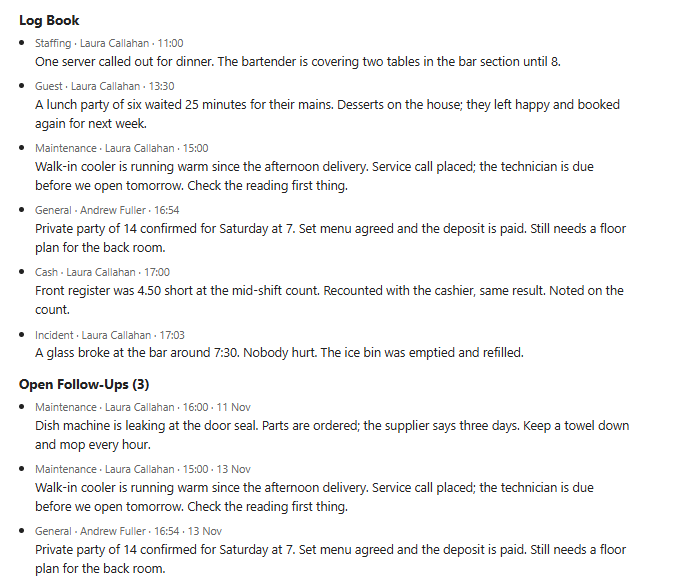
The end-of-day close e-mail ends with the manager log book:
- the entries written for the day that was closed, each with its category, its author and the time;
- every follow-up that is still open, whatever day it was written, with that day shown.
With no entries and no open follow-ups, the section is left out. See Manager log book.
Closes, days and the safe
- One close, more than one day — a close reports everything since the one before it. After a day that was skipped, the report holds both days’ orders and is filed under the business day most of them carry.
- One day, more than one close — the day’s stored report is made from all of that day’s closes.
- Rebuild Report reads the orders each close archived rather than a time window, so orders taken after midnight stay with their close. A day closed before orders carried their close is rebuilt by date.
- Paid ins — cash added to a drawer with Paid In is listed with the paid-outs as Paid In and counts in each drawer’s expected cash. The slip shows a Paid ins line.
- Safe — once the safe has been used, the cash pages and the slip carry a Safe block: In The Safe, with the number of drops waiting, and Bank Deposits, what went to the bank since the last close, per currency. See The Safe and bank deposits.
- Building a report — Build Report and Rebuild Report need the Back Office Reports permission or Manager Screen.
From the report to an order’s history
Order numbers on the report are underlined: in the tie-out details, the discount, void and removed-item lists, the open orders and the exceptions. Select one to open that order’s history, without leaving the report. See Order history: everything that happened to a check.