Working across stores is a job permission, not a separate login. Give it to the people who manage more than one store; everyone else keeps working in their own store as before. It is set at Back Office › Employees › People › Jobs & Permissions.
Turning it on
- Open Employees › People › Jobs & Permissions and select the job — owner, area manager, whichever fits.
- In the Admin group, turn on Allow All Stores.
- Keep Reports on in the Back Office group: the Multi-Store section needs it.
- Save. The store picker and the Multi-Store section appear the next time that person opens Back Office.
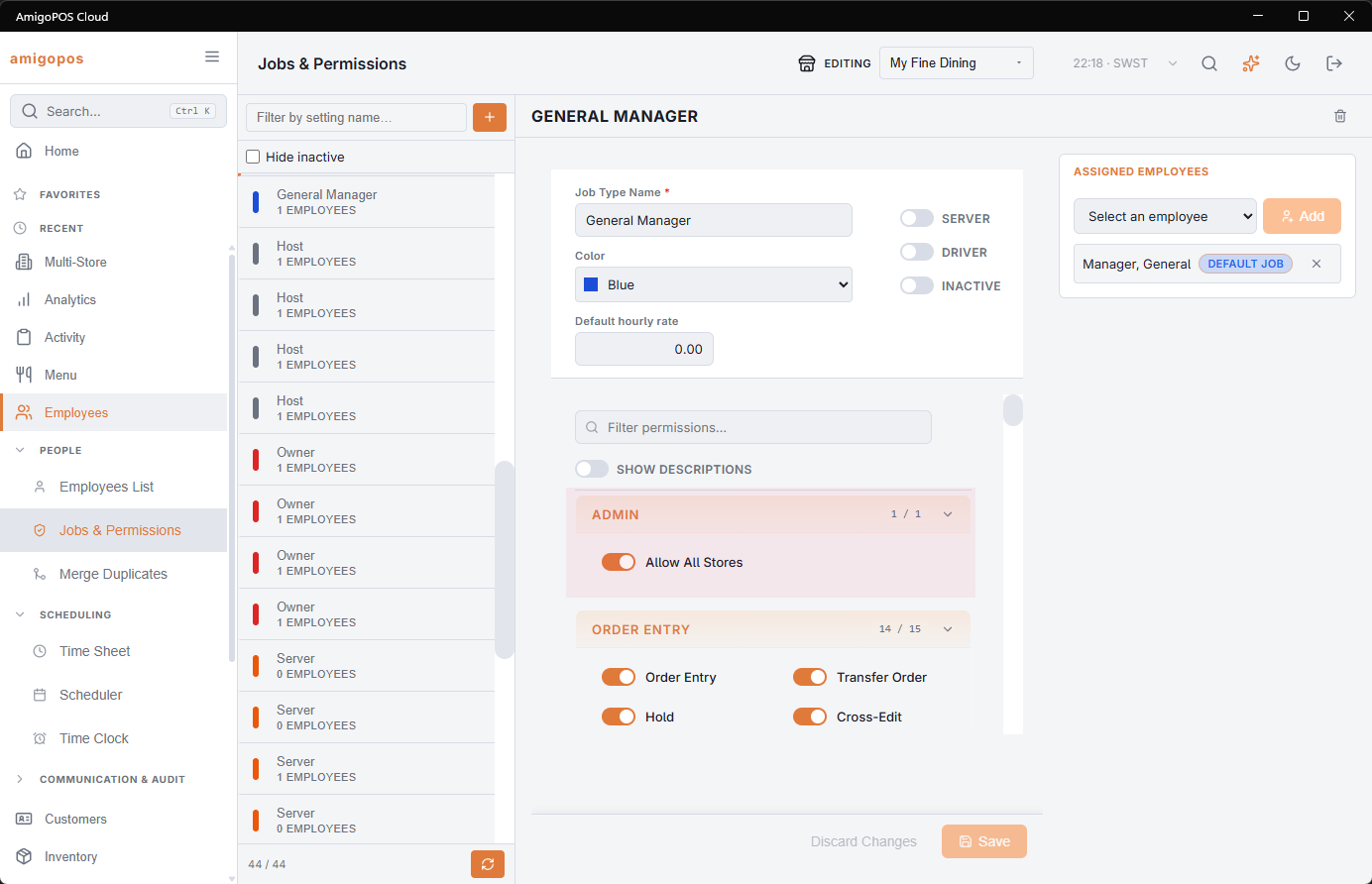
Jobs and permissions are shared by the whole account, so a job edited once applies in every store.
What it does not grant
Allow All Stores decides which stores you can look at and pick. It does not grant menu editing, voids, refunds or anything else — those are separate permissions, and they apply in whichever store you are pointed at.
Call center devices
A device registered as a call center seat gets a reduced Back Office: Analytics, Activity, Customers, Multi-Store and Troubleshooting, plus its own location’s Registered Devices, Print Routing and Caller ID. Menu, inventory, drawers, employees and store setup are hidden, because a call center is often not a store at all. See POS station or call center seat.