Offline mode needs no switching on — a register falls back to it automatically. But it runs entirely on data and hardware already present on the device, so a station that has never been prepared will discover its gaps during the outage itself, which is the worst possible moment.
This topic covers preparing a station. For using the register during an outage, see Working offline.
Check a station with Offline Readiness
Every register can tell you whether it would survive an outage right now.
- Open the menu (☰) and tap the gear icon to open station settings.
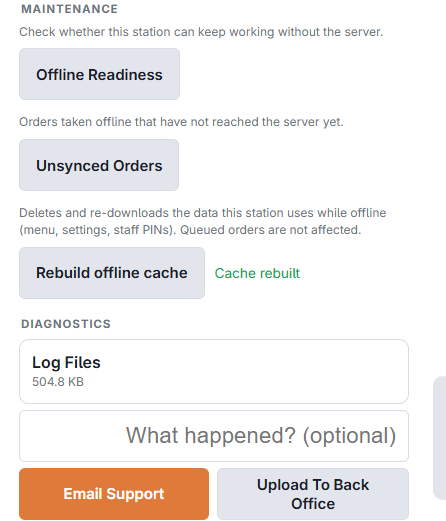
- Under Maintenance, tap Offline Readiness.
Five checks are shown, each green, amber or red:
- Backup printer — whether one is set up, and whether a test print has ever proved it works.
- Menu cache — how many items and categories are stored on the device.
- Pricing and taxes — order types and tax rates. Without these, offline orders can't be priced correctly.
- Offline login — how many staff can sign in by PIN during an outage, and how many days that remains valid.
- Unsynced orders — anything still waiting to reach the server.
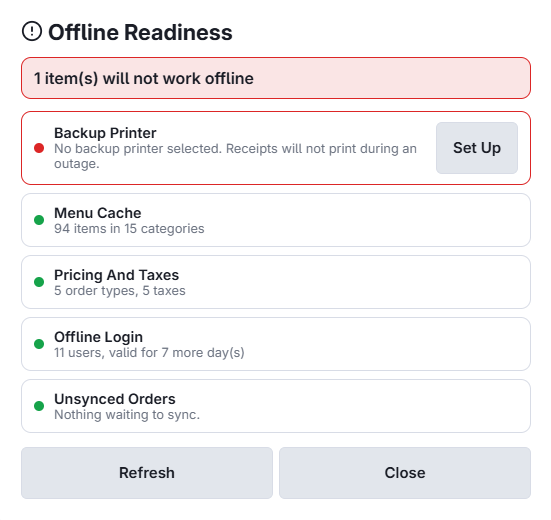
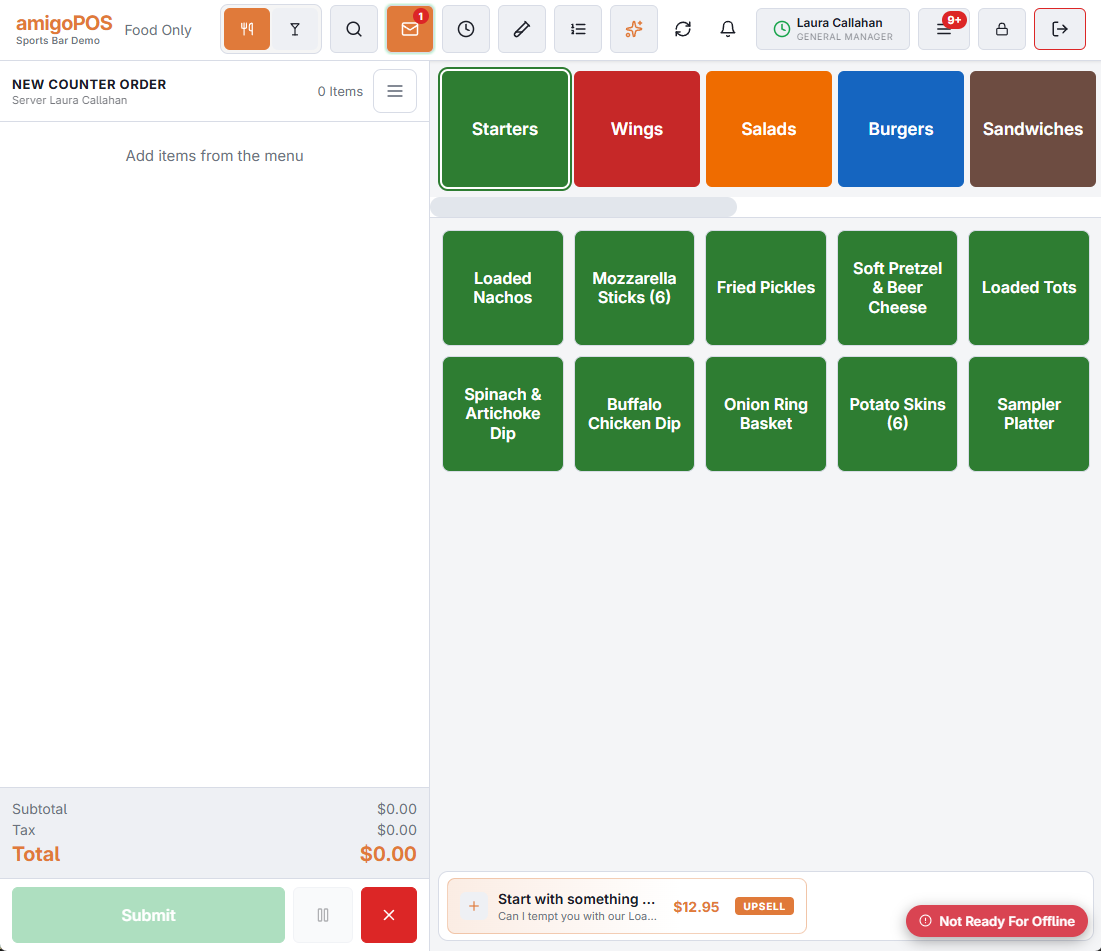
Anything not green also raises a small Not ready for offline badge in the corner of the register screen. It is shown only to staff with hardware configuration permission, only while the station is online, and it disappears once everything is green — so it should never become part of the scenery.
The offline backup printer
During an outage the station can't reach the print agent, so it prints on its own backup printer instead. There are three ways to connect one, and the difference matters.
- Attached printer (Windows registers) — a printer installed in Windows, normally USB. Keeps working no matter what the network is doing.
- Bluetooth printer (Android tablets and handhelds) — paired in Android settings. Also independent of the network.
- Network printer — an existing Ethernet or Wi-Fi receipt printer, addressed by IP. Any station can use it, so several devices can share one printer.
Setting it up
- Connect the printer: plug it in via USB (Windows), pair it in Bluetooth settings (Android), or note its IP address (network).
- On the register, open the menu (☰) and tap the gear icon to open station settings.
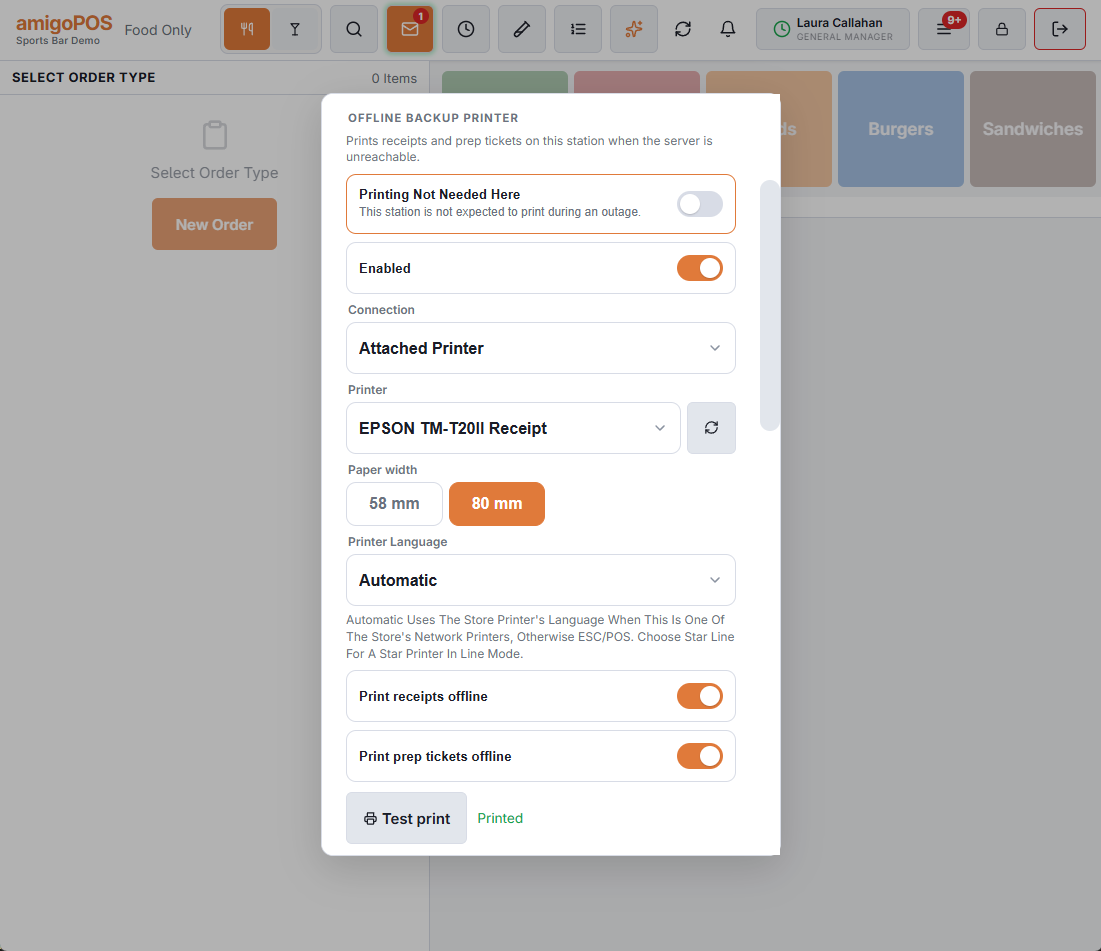
- Under Offline backup printer, switch Enabled on.
- If the station offers more than one, choose the Connection type.
- Pick the printer from the list, or for a network printer type its address — for example
192.168.1.50. Port 9100 is used unless you add a different one. - Choose the paper width — 58 mm or 80 mm.
- Choose whether to print receipts, prep tickets, or both while offline.
- Tap Test print. You should see Printed and get a test slip with two sample lines on it.
If the station is offered a printer automatically
When nothing is configured yet, Offline Readiness may offer one for you. It prefers a network printer already set up in Back Office ▸ Hardware & Printing, since that is the printer the store actually meant to use; otherwise it offers a directly connected printer if the station finds exactly one. Tap Use and test and it saves the printer, carries the paper width across, and prints a test immediately. If the test fails, nothing is saved — a printer that failed its first print is never left behind looking configured.
Stations that don't need to print
Some stations aren't expected to print during an outage — a roaming phone whose staff walk to the till, or an expo terminal. Switch Printing Not Needed Here on and the readiness check stops reporting a missing printer for that station.
Seeing every station at once
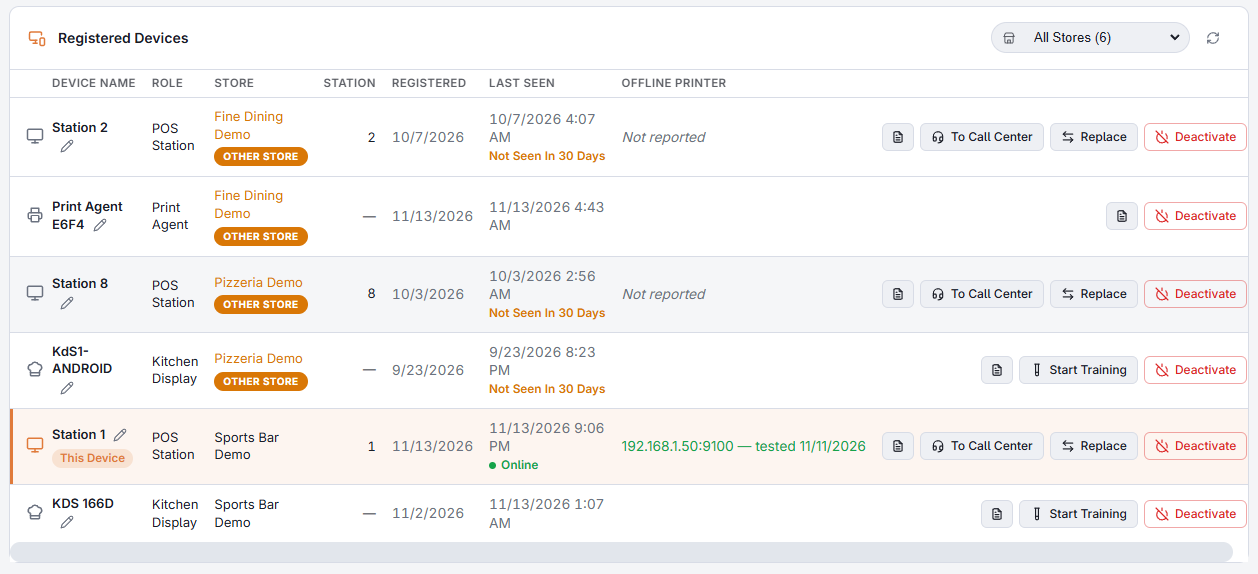
Walking to each register doesn't scale. Back Office ▸ Hardware & Printing ▸ Registered Devices has an Offline printer column showing what each station last reported:
- An address and a test date — set up and proved.
- An address, never tested (amber) — configured, but nobody has confirmed a slip comes out.
- Not set up (red) — this station will print nothing during an outage.
- Not needed — the station has been marked as not printing.
- Not reported (gray) — the station hasn't sent its configuration yet, usually because it hasn't been online since this feature was installed. This is not the same as unconfigured.
Rebuilding the offline cache
The data a station uses while offline — menu, prices, settings, order types, and staff PINs — refreshes automatically whenever the station is online. If a station ever shows outdated data while offline, or Offline Readiness reports an empty menu or missing pricing, force a fresh copy:
- Make sure the station is online — the button is disabled while offline, since rebuilding needs the server.
- Open the menu (☰) and tap the gear icon to open station settings.
- Under Maintenance, tap Rebuild offline cache and wait for Cache rebuilt.
- Reopen Offline Readiness to confirm the counts are no longer zero.
A short opening routine
- Confirm no station shows the Not ready for offline badge.
- Run a test print on each till's backup printer.
- Glance at Registered Devices for any station that hasn't reported recently.
Printer language
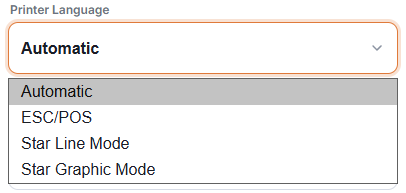
Under Offline backup printer there is a Printer Language setting. Leave it on Automatic unless the test print comes out as a run of odd characters.
- Automatic — when the backup printer is also one of the store's printers (a network printer, or a printer on this computer that the Print Agent uses), the register uses the language set for it in Back Office. Otherwise it uses ESC/POS.
- ESC/POS — Epson printers and most others.
- Star Line Mode — Star printers in line mode. Logos are not printed in this mode.
- Star Graphic Mode — Star printers that print graphics only, such as the TSP100 family.
The same choice decides how the cash drawer is opened. Changing it clears the test result, so run Test print again.
Kitchen printers and the cash drawer
- Kitchen printers. During an outage each register sends kitchen tickets to the kitchen's printers itself. Sign in once on every register after installing or changing printers, and give a prep station that only has a kitchen display an offline backup printer. See Kitchen tickets during an outage.
- Readiness. A register with no backup printer of its own that can reach the kitchen's printers is shown as ready, in amber, in Offline Readiness.
- Cash drawer. The drawer is opened by the printer it is plugged into. Plug it into this station's offline backup printer, or into the receipt printer if that is a network printer or installed on this computer. A drawer on any other printer has to be opened with its key during an outage.