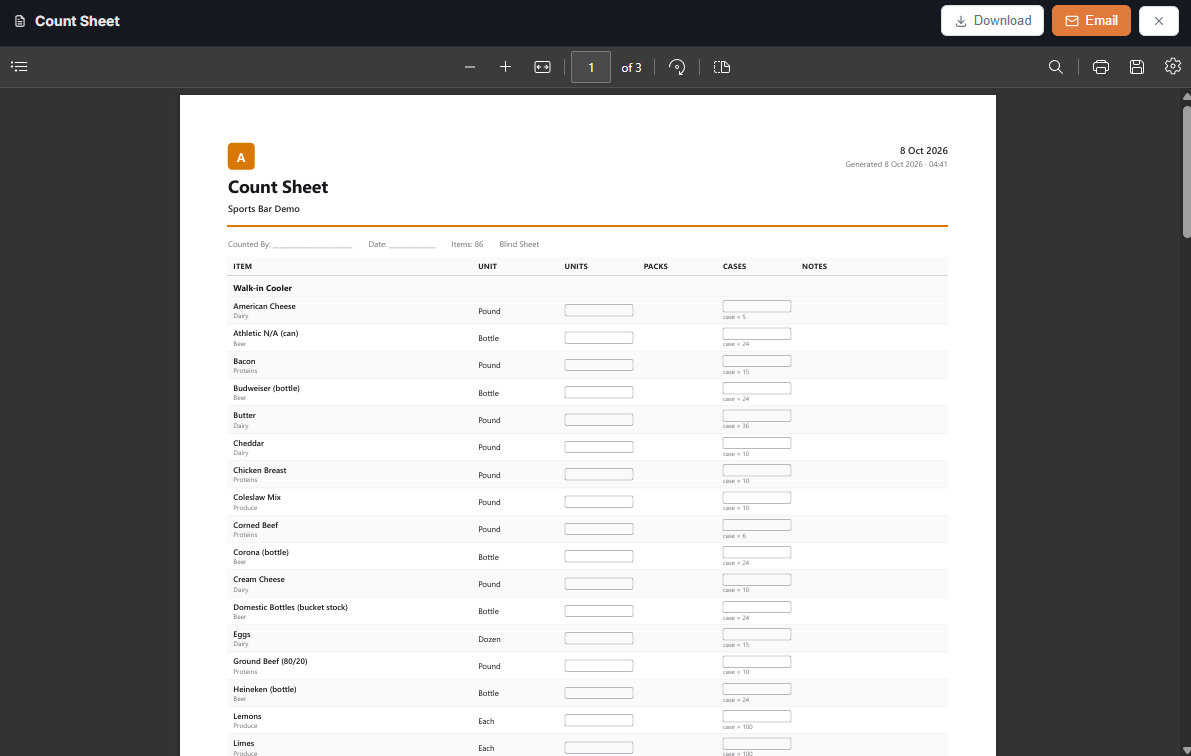
Some stores count on paper and key the numbers in afterwards. The Count Sheet button on Back Office › Inventory › Operations › Inventory Count prints the items the page shows — the same filters, the same walk order (aisles in their sort order, then item) — with a blank box per item for units, packs and cases and a notes column. Hidden items are left off.
- Set the filters as for an on-screen count: category, aisle, count frequency, or the Low stock view.
- Tick Blind Sheet if the counter should not see the on-hand figure; otherwise it prints next to the item, in red when the item is at or below its reorder level.
- Tap Count Sheet. The PDF preview opens with Download and Email buttons.

Each row names the item and its count unit, and prints the pack and case sizes under the boxes (“Pack × 6”, “Case × 24”, using the unit’s pack and case descriptions) so the counter knows what a pack is. The header shows the filters used, the header row repeats on every page, and a counted-by / date line sits at the top.
Entering the sheet
Back on the Inventory Count page with the same filters, type each line as counted. Leave a line blank when the item was not counted and write 0 only for an item that is really out — the same rule as the on-screen grid. The sheet’s footer repeats it for the counter. See Inventory counts for how counts are posted.