Back Office › Inventory › Operations › Inventory Count reconciles the system’s stock with what is on the shelf. Enter what you counted, save, and the difference is posted as an adjustment.
Choosing what to count
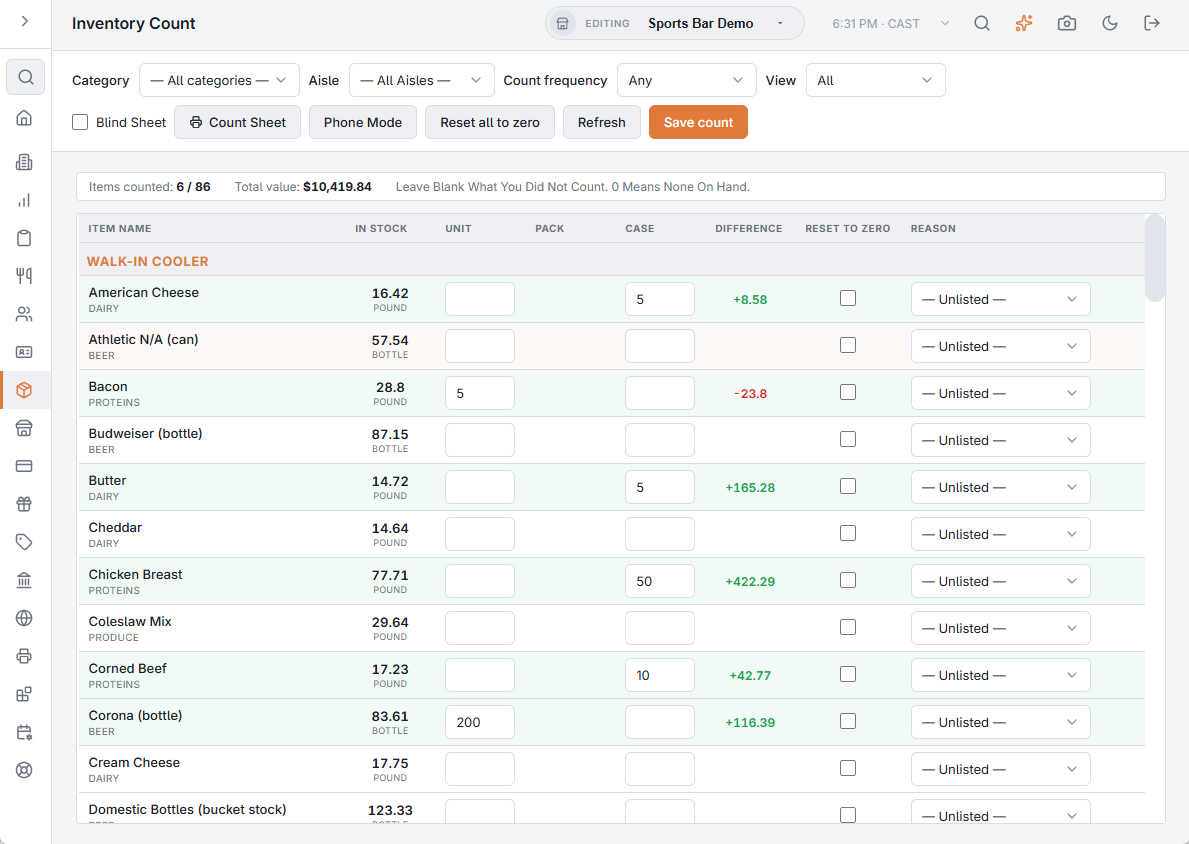
- Hidden items are not listed. Category, Aisle (All Aisles for every aisle) and Count frequency (Daily, Weekly, Bi-weekly or Monthly, as set on each item) narrow the sheet. View switches between All and Low stock (at or below the reorder level).
- The sheet follows the stock aisles in their sort order, then item name, so you can walk the shelves in order; items without an aisle are grouped under No Aisle.
- The banner shows Items counted out of the items shown and the Total value of their stock.
Counting on the sheet
- Enter what’s on the shelf in the Unit box. Items with packaging also get Pack and Case boxes, which add up into units. Leave blank what you did not count — 0 means none on hand.
- The Difference column shows counted minus In stock as you type, so a typo stands out before it’s saved.
- Pick a Reason for a line if you want the adjustment to carry one; otherwise it is Unlisted. Reasons come from Inventory settings.
- Reset to zero on a line sets the item to zero whatever is on hand. Reset all to zero marks every line shown.
- What you enter stays when you change filters, so you can count one area, switch to the next and save once. Refresh reloads the sheet and discards what you entered.
Saving
Save count lists every counted line — Reduce quantity to, Increase quantity to, No change or Reset to zero — for you to Confirm. Then the page reports how many items were updated; if any failed, they are listed with the reason. Only the lines you counted are posted.
What saving a count does
- A count posts the difference between what you counted and the in-stock figure the sheet showed. Sales and deliveries that happen while the sheet is open stay on the books — nothing is erased.
- Found less: the missing stock comes off oldest first, at its real cost, and is logged as a shortage. Found more: it is added back at the last purchase cost, and is not treated as a purchase.
- Sales still waiting to come off stock are applied first, so they are never mistaken for shrinkage.
- Each item’s last count date is updated.
Counting on phones, as a team
Counting at the shelves is done on the staff site: its Inventory Count screen lets several people count at once, and each item saves as it is typed. While a team count is open, this page shows a Team Count In Progress bar with the progress, who started it and who is counting; managers review the differences and post the count from the bar’s Review & Post. See Counting inventory as a team on your phones.
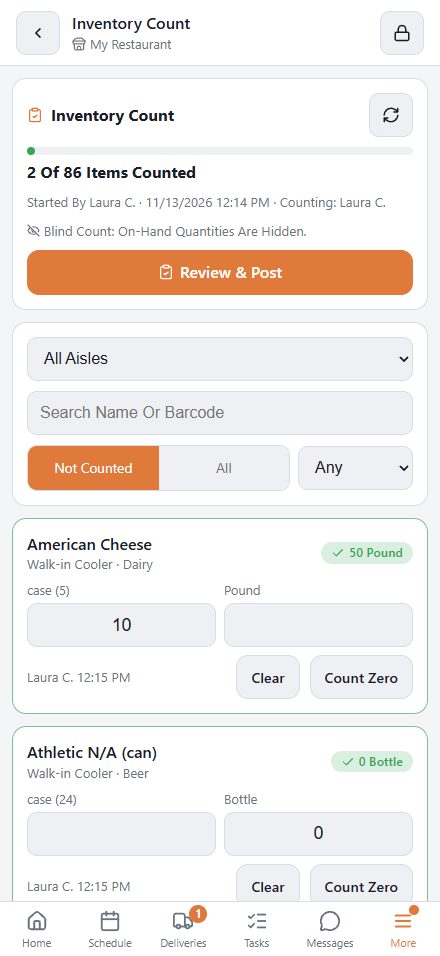
A team count is separate from the grid on this page: its counts don’t appear in the grid, and Save count doesn’t post them.
After saving a count with differences, Explain Differences shows the likely cause of each big one — see Explaining count differences.
Counting on paper
The Count Sheet button prints the items shown as a PDF in the same walk order, with boxes for units, packs and cases; tick Blind Sheet to leave the on-hand column off. See Printing a count sheet.