An open order belongs to the server who started it. When a shift ends, sections change, or someone covers a break, the order can be transferred to another server so it appears under their name, on their sales, and in their section from that point on.
Where to transfer from
- Seating chart — tap the table, and in the table action panel tap Transfer on the order.
- Orders list — select the order and use its Transfer action.
Transferring requires the ticket transfer permission. If the signed-in user doesn’t have it, the manager-override prompt appears and a manager can approve the transfer on the spot; either way the action is recorded under the person who performed it.
Picking the new owner
The transfer panel lists eligible servers with their job title; the current owner isn’t listed. A green dot marks servers who are currently clocked in. Select the new owner and tap Transfer order — a confirmation toast names the new owner, and you’re returned to the screen you came from (the seating chart re-tints the table to the new server; the orders list refreshes).
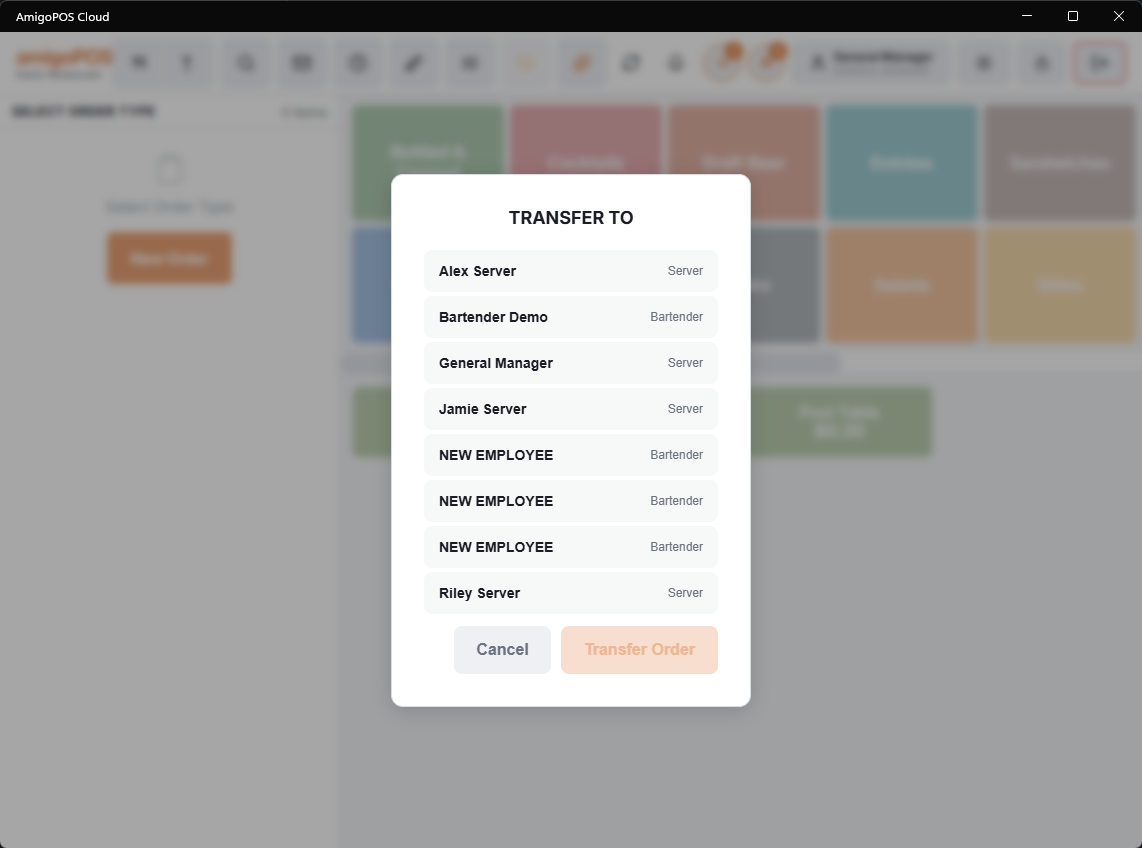
By default the list can include servers who aren’t clocked in. To restrict it to clocked-in staff only, enable the display only clocked-in servers setting — most full-service stores want this on so orders can’t be handed to someone who has gone home.
What a transfer changes — and what it doesn’t
- The order’s owner, and everything that follows from ownership: whose open-orders list it appears in, whose name prints, whose sales and tips it counts toward from settlement, and the table’s color on the seating chart.
- It does not change the order’s contents, its table, or anything already sent to the kitchen — nothing reprints, and the guests notice nothing.
- Items rung before the transfer stay on the order; the sale credits whoever owns the order when it settles. For server-banking stores, settle-side accountability follows the new owner.
Common questions
- The list is empty. With the clocked-in-only setting enabled, nobody else with an eligible job is clocked in right now.
- I need to move the order to a different table, not a different server. That’s a table change, not a transfer — use the table actions on the seating chart.
- Can I transfer several orders at once at shift change? Transfers are per order — transfer each open order individually before clocking out.
Who is offered
- Only employees whose job has the Server switch on (“Employees with this job appear on the order transfer list”) — see Jobs, roles, and permissions. Disabled employees and jobs are left out, and so is the order’s current owner.
- With Display only clocked-in servers on, the job an employee clocked in under is what counts: someone clocked in as a host is not offered, even if they also hold a server job.
- Employees from every store of the business are offered, not only those whose profile names this store.
Other servers’ orders on the table panel
Transfer shows on every order at the table. Recall, Settle, Split and Void Order show only on your own orders, unless your job has Cross-Edit — the same rule the orders list follows.