Back Office › Employees › People › Jobs & Permissions defines the jobs staff clock in under. Each job type has a name, a color, a department, a default pay rate and its own set of permissions. The page appears for jobs that have the Edit Permissions permission.
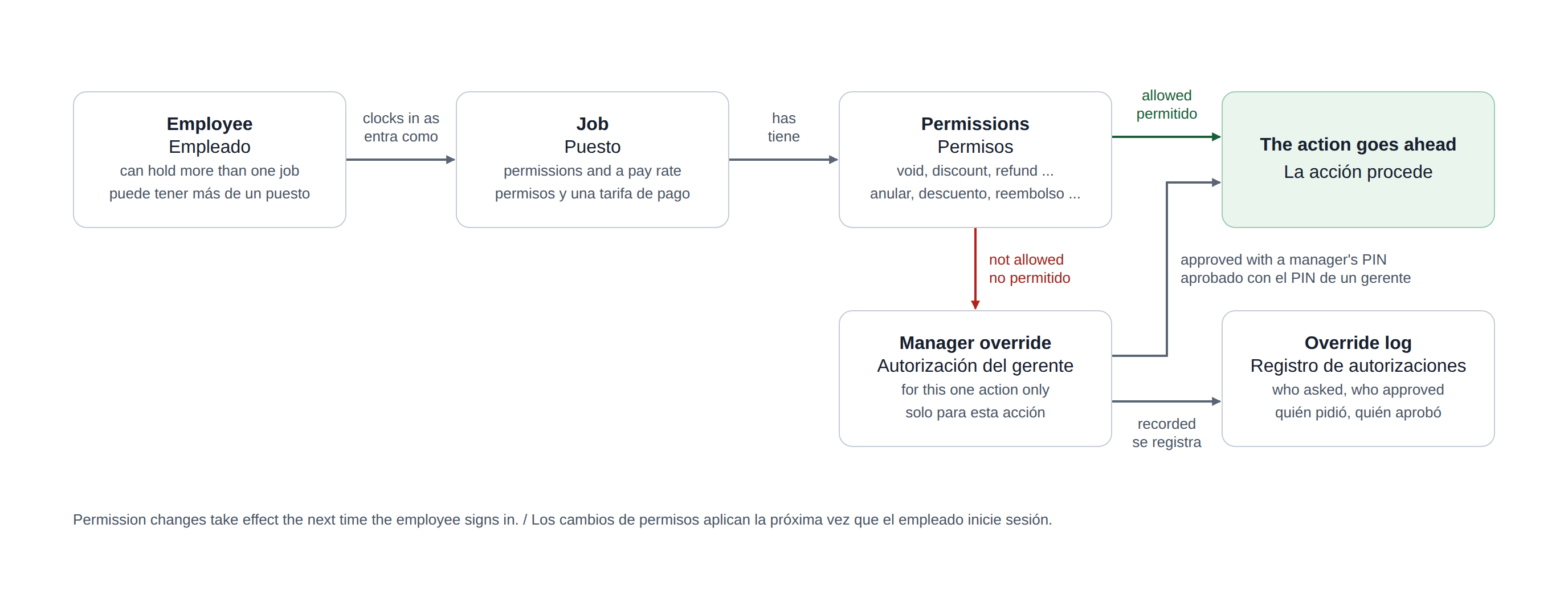
In one picture: an employee clocks in under a job, the job carries the permissions, and a manager can approve a single action the job does not allow.
The job list
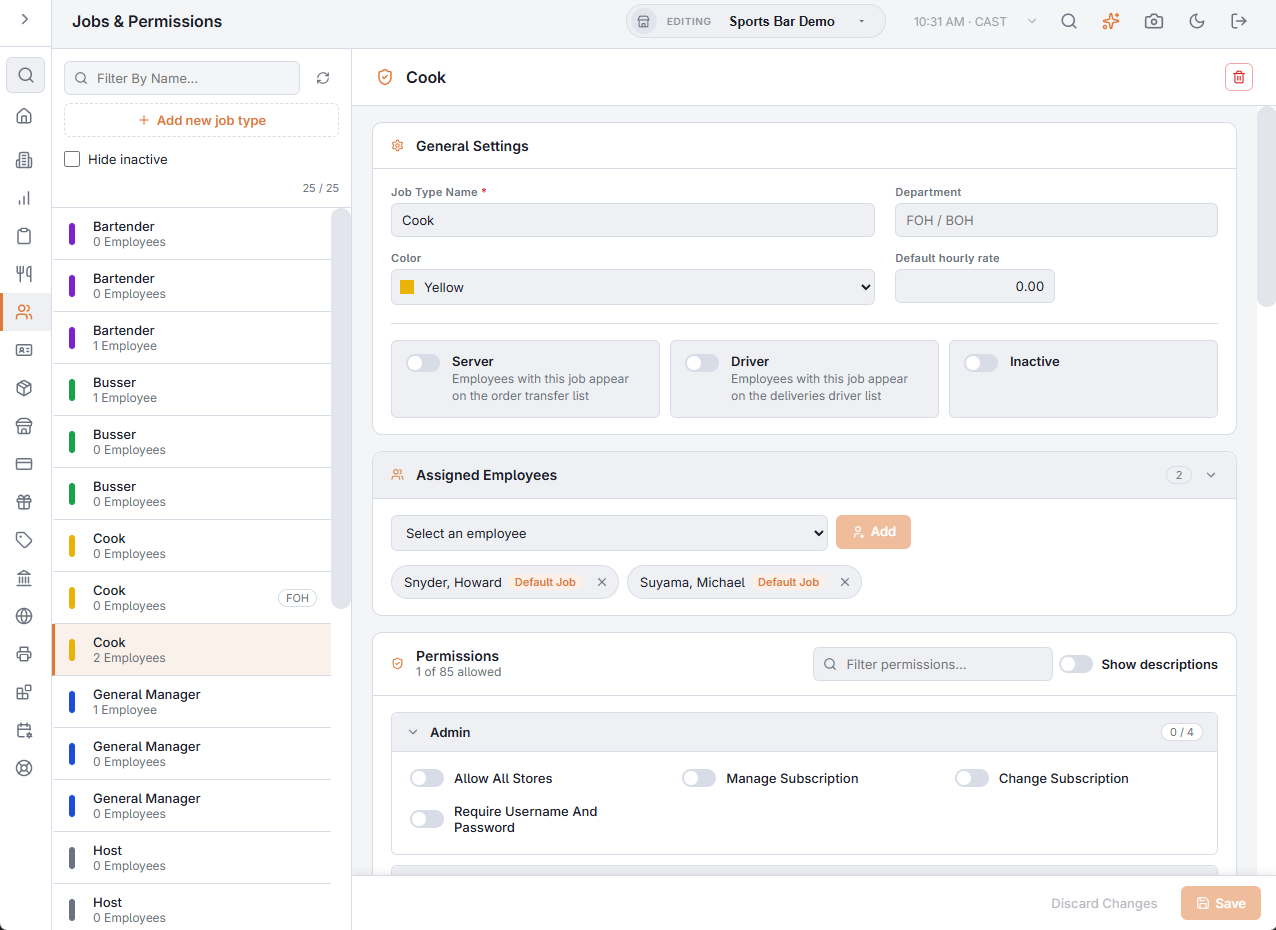
- Each job shows its color, its name, how many employees hold it and its department.
- Filter By Name... searches the job names; Hide inactive leaves out jobs marked inactive.
- Add new job type adds a job named New Job Type with every permission off, and opens it; rename it and turn on the permissions it needs. Refresh reloads the list.
- The bin button above the job is Delete job type. When employees hold the job, the question says how many. Deleting a job also takes it off those employees.
Create one job per real role: Server, Bartender, Cashier, Cook, Shift Manager. Mark a job you no longer use Inactive rather than deleting it.
Editing a job
Changes to the job are kept on screen until you press Save; Discard puts the job back as it was. If you pick another job with unsaved changes, the page asks first.
General Settings
- Job Type Name — required.
- Department — for example FOH or BOH; the list suggests these and every department already in use. Jobs with the same department are shown together on the scheduler, with their own subtotals.
- Color — the job’s color on the scheduler, the time sheet and the employee’s jobs.
- Default hourly rate — paid to anyone in the job whose own rate for it is 0.
- Server — employees with this job appear on the order transfer list.
- Driver — employees with this job appear on the deliveries driver list.
- Inactive — the job is set aside.
Assigned Employees
Who holds the job. Pick an employee in the list and press Add, or press × on a name to remove them, after confirming. These changes save at once, not with Save. An employee added here is paid the job’s default hourly rate, and it becomes their Default Job if they had no job yet. The card folds away with its header.
Pay rates per employee are set on the employee’s Jobs & Pay tab; see Employees list and profiles.
Permissions
The heading shows how many of the permissions the job allows. Filter permissions… finds a permission by name or description, and Show descriptions adds a line under each switch. The editor shows only switches that something checks. They are grouped, and each group folds away and shows how many of its switches are on:
| Group | Switches |
|---|---|
| Admin | Allow All Stores, Manage Subscription, Change Subscription, Require Username And Password |
| Order Entry | Transfer Order, Hold, Cross-Edit, Split Order, Combine Orders, Remove Items, Miscellaneous Items, Manual Weight Entry, Change Order Type, Time Clock Only |
| Settlement & Payments | Settle Orders, Cash Sale, Void Transactions, Refund, Comp Items, Change Drawer Start Amount, Declare Gratuities, No Sale |
| Credit Card | Adjust Credit Card Tip, Credit Card Batch, Other Users’ Credit Cards |
| Gift Cards | Gift Cards, Activate Gift Card, Add Gift Card Value, Cash Out Gift Card, Deactivate Gift Card, Adjust And Transfer Gift Card Balances |
| Discounts & Pricing | Discounts, Manual Discounts, Line Item Discount, Tax Exempt Orders, Price Change, Override, Void Order |
| Printing | Reprint, Prep Reprint, Manage Coupons, Print Own Shift Report, View My Shift |
| Cash Handling | Payouts, Reset Drawer, Drawer Count, Cash Drops, Banking |
| Manager Screen | Manager Screen, End of Day, Reports, View Totals, Light Control, Training Mode |
| Back Office | Back Office, Summary, Reports, Menus, Employees, Customers, Inventory, Configuration, Delete Records, Void Records, Edit Employees, Edit Permissions, Register Devices, Settled Orders, Archived Orders, Task Lists |
| Inventory | Inventory Settings, Receive Inventory, Inventory Transfers, Inventory Count, Inventory Shrinkage |
| Seating | Seating Chart Designer, Seating Chart Statistics |
| Employee | Messages, Compose messages, Message All Employees, Message Log, Quick Alerts |
| Customers | Unblock Customer |
When a switch is off
At the register, a switch that is off does not hide the action. The register shows Manager Override Required, and a manager whose job has the same switch and Override approves that one action with their PIN. The approval is recorded under the switch’s name in the override log; see Permission overrides and override log. These switches work this way:
| Switch | When the register asks |
|---|---|
| Hold | More › Hold All, and Hold on an item. Taking the hold off an item is not asked. |
| Miscellaneous Items | More › Misc Item, before the item is typed. |
| Change Order Type | More › Change Order Type on an order already started. Choosing the type of a new order is not asked. |
| Manual Weight Entry | Key In Weight on the weighing screen, when a scale is connected. While the manager is asked, the scale reading stops. Without a scale the weight is always typed and nothing is asked. |
| No Sale | After the No Sale reason is picked. If the approval is refused, or the No Sale cannot be recorded, the drawer stays shut and No Sale could not be completed. shows. |
| Change Drawer Start Amount | Changing the start amount on More › Cash Drawers, and the start-amount prompt after a reset. Skip leaves the amount as it is and asks nothing. |
| Reset Drawer | The reset on Cash Drawers, also when it is opened with Reset Here from End Of Day. It is asked just before the reset is saved, after the count. |
| Cash Drops | Adding or deleting a drop on More › Cash Drops. |
| Adjust Credit Card Tip | Adjust Tip and Enter Tips on More › Credit Cards (once for the whole Enter Tips list), and saving on Tip Adjust (once for Save All). Capturing an authorization with its tip counts as a tip adjustment. |
| Credit Card Batch | Settle Batch on More › Credit Cards. Batch Inquiry is not asked. |
| Other Users’ Credit Cards | Voiding, or changing the tip on, a card payment another employee took, on More › Credit Cards. Seeing the list is not asked. |
| Gift Cards | Opening More › Gift Cards, also from a shortcut or the assistant. |
| Add Gift Card Value | Add Value on the Gift Cards screen. |
| Reprint | Print in the orders list, Reprint on the deliveries screen, and the assistant’s print receipt for an order picked in the orders list. |
| Prep Reprint | Reprint Prep in the orders list. |
| End of Day | Run End of Day. Opening End Of Day and reading its totals is not asked. |
| Reports | Opening More › Reports. |
| Seating Chart Statistics | Stats on a table’s panel. |
| Unblock Customer | Unblock on the register’s customer screen. |
- No Sale, Change Drawer Start Amount, Reset Drawer, Cash Drops, Adjust Credit Card Tip and Credit Card Batch are checked again when the register saves, so another device cannot skip them.
- A manager’s approval needs the connection. While the register is offline, Hold, Misc Item, Change Order Type and Key In Weight are not asked: the action goes ahead.
- One approval lasts 5 minutes. On a long Enter Tips list, rows sent after that fail with Permission required and can be applied again.
- A job with Manager Screen is still asked when one of these switches is off on it.
Two switches act in Back Office, without a manager prompt:
- Manage Coupons switched off hides Discounts & Promotions › Printed Coupons from the menu.
- Unblock Customer switched off makes Unblock on a customer show Permission Denied; the block stays.
Designing jobs
- Give permissions to the role, not the person. When one bartender needs an extra right, ask whether all bartenders do — if only one does, they may hold a second job, such as Bar Lead.
- Grant what the shift needs without a manager present. Everything else stays behind the manager override prompt, which is one PIN away and logged. See Permission overrides and override log.
- Check Assigned Employees before loosening a job: it shows who the change reaches.
Permissions worth knowing
- Require Username And Password (Admin) — turns off PIN sign-in for the job; see Requiring username and password for a role.
- View My Shift and Print Own Shift Report (Printing) — let the employee open My Shift from My Status and print their own banking slip, without manager access. It shows nobody else’s figures and cannot end a shift.
- Task Lists (Back Office) — edit task lists and tick or clear tasks from the Back Office overview.
- Tax Exempt Orders (Discounts & Pricing) — who may mark an order tax exempt at the register and enter the customer’s certificate or tax id.
- Light Control (Manager Screen) — opens More › Lights on the POS to switch lights and zones and run Last Call. Managers can always. See The Lights panel at the POS.
- Training Mode (Manager Screen) — lets the job put a register into training, a practice copy of the store, and reset or refresh it. Managers do not get it automatically; ending a session needs no permission. See Training mode: a practice register.
What manager access carries
Manager Screen governs overrides at the register. It also decides what that person sees on their own phone: the day’s roster, approvals for shift changes, time off and availability, announcements and the log book (see Manager tools on the staff site). It follows the job, not the shift: a manager off the clock still approves and still gets the late alerts.
Two things need Edit Employees on top of manager access: editing or deleting another manager’s log book entry, and unlocking a paid pay period.
Jobs beyond pay and permissions
- Open shifts are offered to, and can be picked up by, people who hold the shift’s job. Keep job assignments current and the scheduler’s employee lists and the staff Open Shifts tab stay right. See Open shifts.
- Tip pool employee points are set per job assignment, on Back Office › Employees › Scheduling › Tip Pooling › Employee Points. See Tip pooling and tip-outs.
Insight
The Insight group holds Insight (Costs And Margins), which opens Table and Order Insight, and Insight Suggestions, which shows suggestions without costs or margins. See Setting up Insight and Suggestions.
Inventory Count on the staff site
Inventory Count (Inventory group) also opens the staff site’s count screen, so people without Back Office access can count at the shelves on their phones. Tick it on the job of everyone who counts. Posting or discarding a team count needs Manager Screen. See Counting inventory as a team on your phones.
Combine Orders also covers combining tables
The Combine Orders switch also decides who can give one check several tables: Multiple Tables on the register’s floor plan and Combine Tables in the table panel. Without it, a manager can approve on the spot. Assigning a booking to several tables in the reservation book does not ask for it. See Combining tables for a large party.