Stores near borders, in tourist areas, or in multi-currency territories can accept cash in more than one currency. CloudPos tracks each physical currency separately from the moment it enters the drawer to the moment the drawer is counted, so the person counting always knows how much of each currency should be in the till.
Setting up a foreign currency
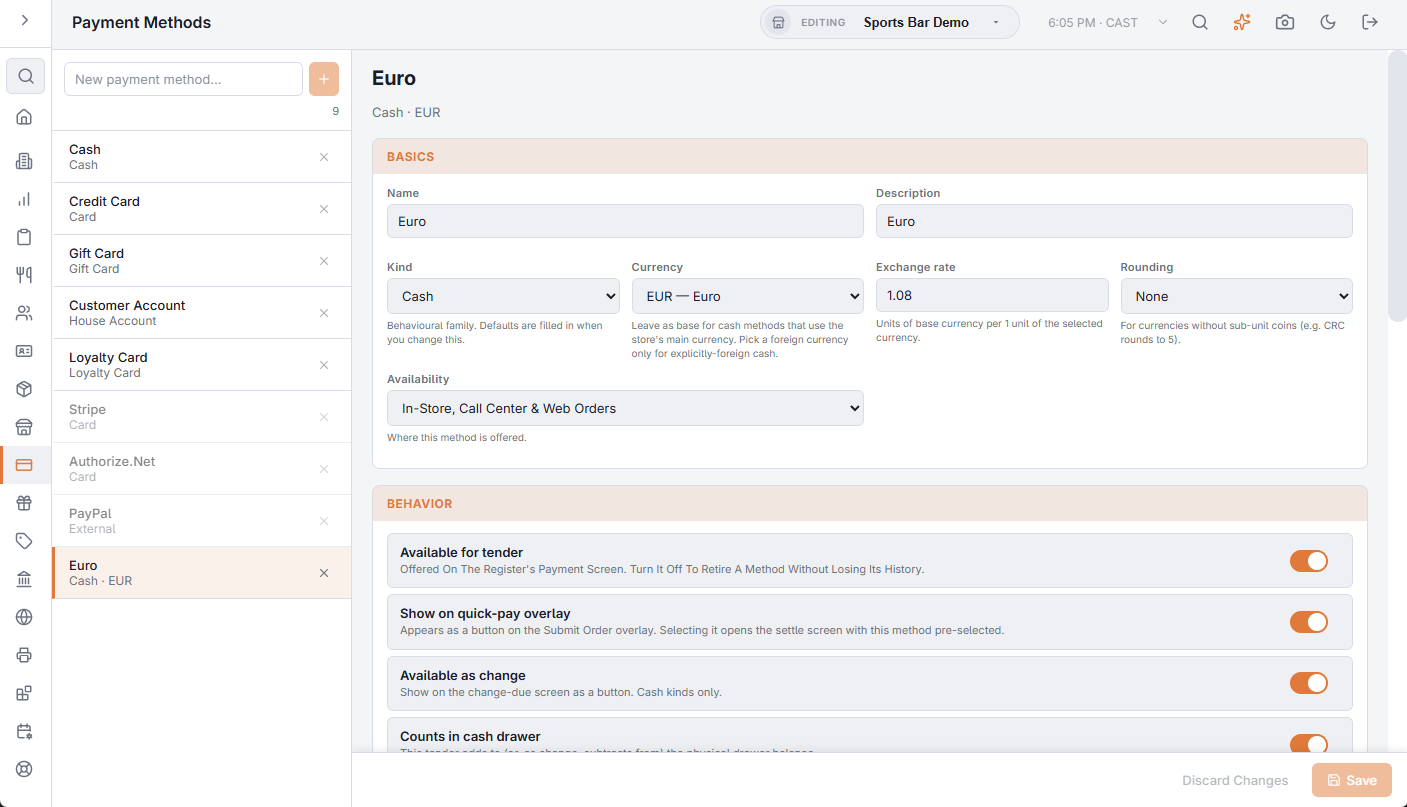
- Open Back Office › Payments › Payment Methods and create a new method (for example “Cash €”).
- Set Kind to Cash.
- Pick the Currency (for example EUR — Euro). Leave this blank on your normal cash method — blank means the store's base currency.
- Enter the Exchange rate — the number of base-currency units per 1 unit of the foreign currency. At a US-dollar store accepting euros,
1.08means 1 EUR = $1.08. - Optionally pick a Rounding mode for currencies without small coins (for example rounding change to the nearest 0.05).
- In Behavior, enable Available for tender, Available as change, and Counts in cash drawer.
Taking a foreign-currency payment
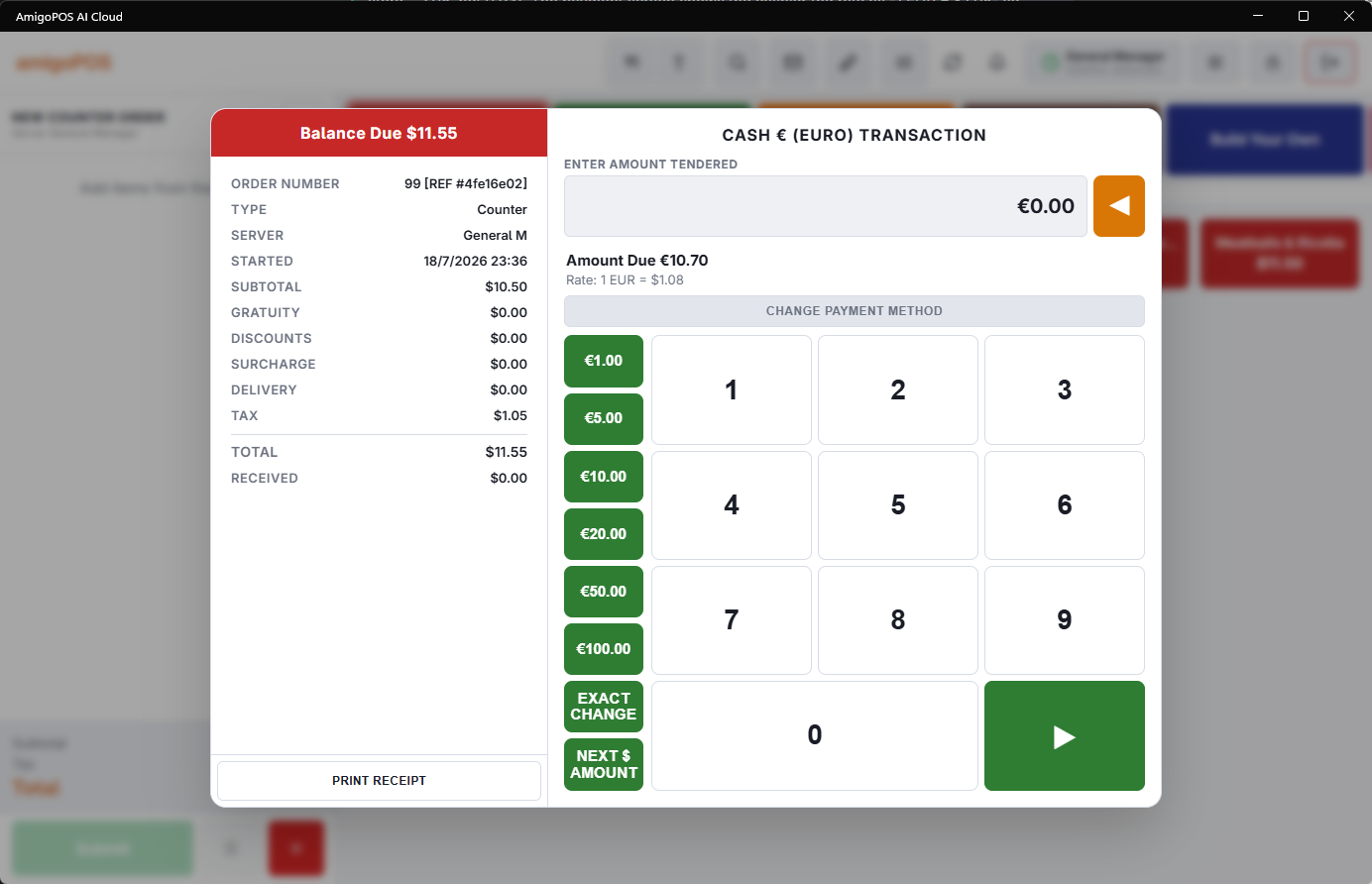
When the cashier selects the foreign cash method on the settle screen, the keypad is denominated in the foreign currency — the cashier keys exactly what the customer hands over. The screen shows the amount due converted into the foreign currency, the base-currency equivalent of the entry, and the exchange rate. The quick-cash buttons and the Exact button are also denominated in the foreign currency.
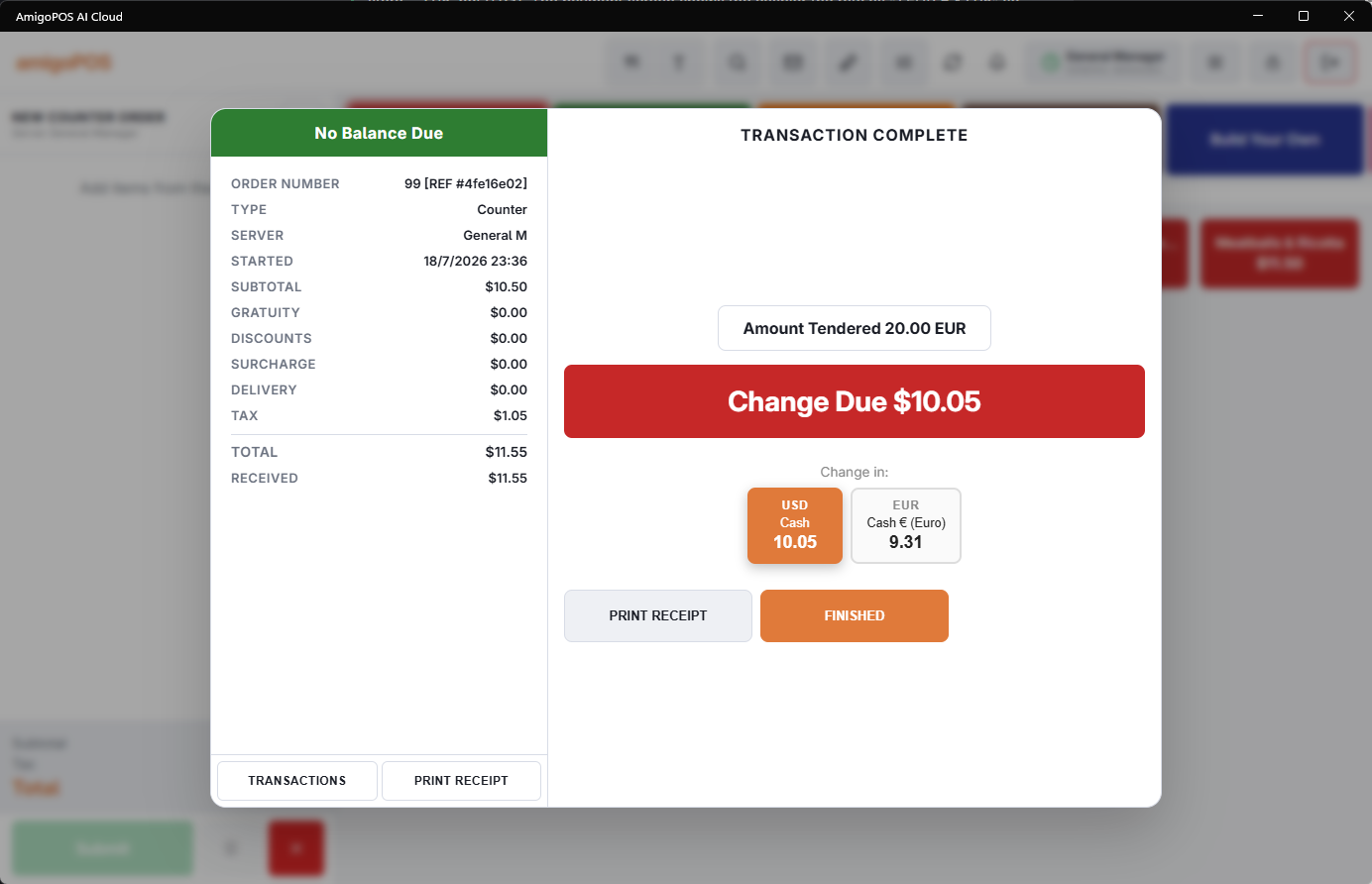
Change is due in the base currency by default. The result screen shows the change amount with a row of currency buttons; tapping one re-denominates the change into that currency at its rate, with rounding applied if configured. Example: a $9.35 bill paid with €10.00 at rate 1.08 is $10.80 tendered, so $1.45 change — or €1.34 if the cashier taps the EUR button.
Opening floats — counting the drawer at clock-in
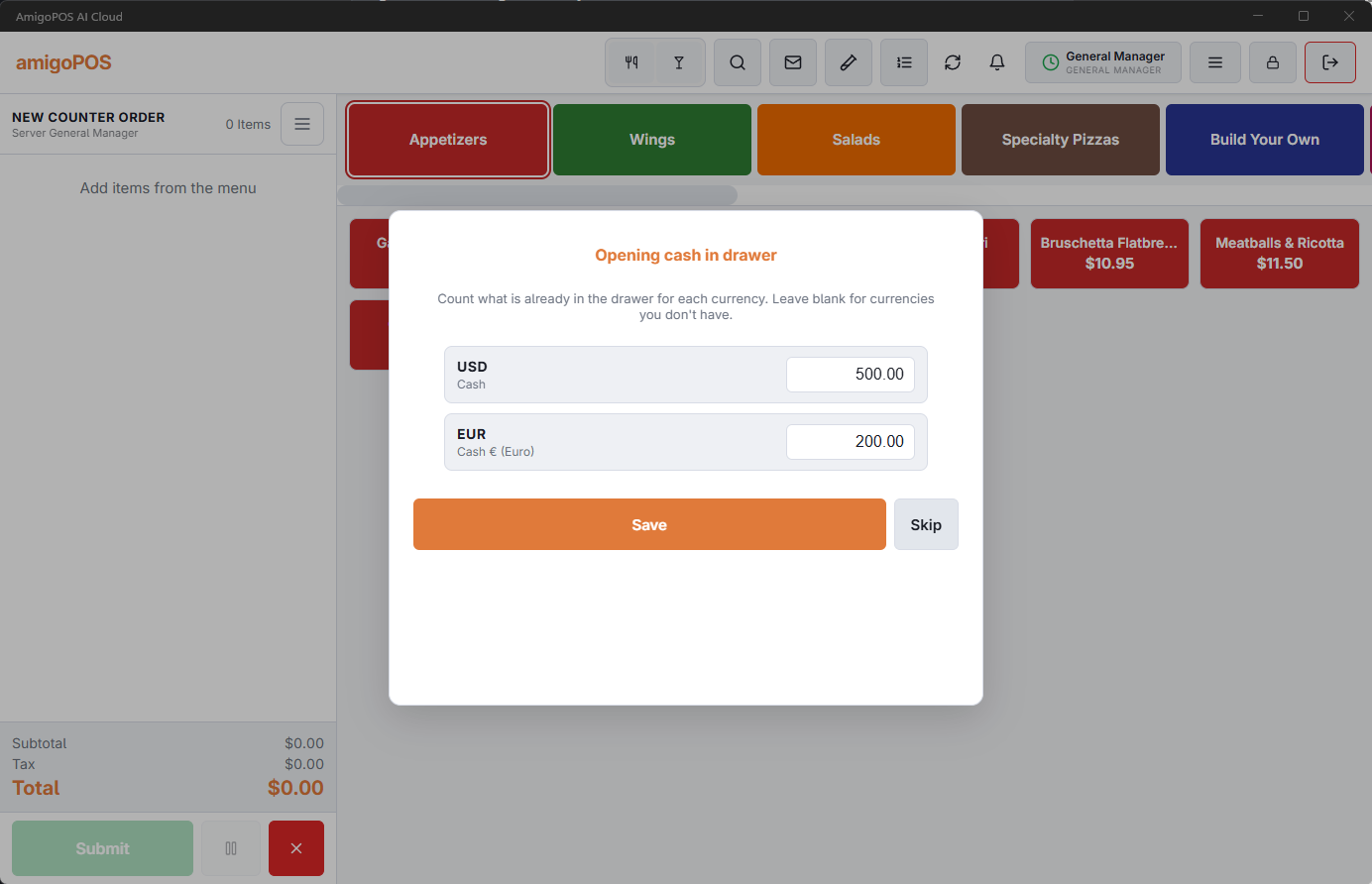
When a cashier clocks in and claims a drawer, the Opening cash in drawer prompt lists one line per currency. Enter what is physically in the drawer for each currency and leave blank any currency you don't stock. These declared floats are the starting point for all expected-cash calculations during the shift.
Who gets prompted: the drawer picker appears at clock-in only when the Assign Cash Drawers setting is enabled and the permission the employee clocked in under allows cash settling (both Allow Cash Sale and Allow Settle). Kitchen and other non-cash roles skip it. An eligible employee who skipped the picker, or needs to switch drawers mid-shift, can open it any time from the Cash Drawers button on the time clock screen. When a second cashier joins a drawer that is already open, the opening count is skipped automatically - the till was declared once, and re-declaring it would double the expected amounts.
Spot counts
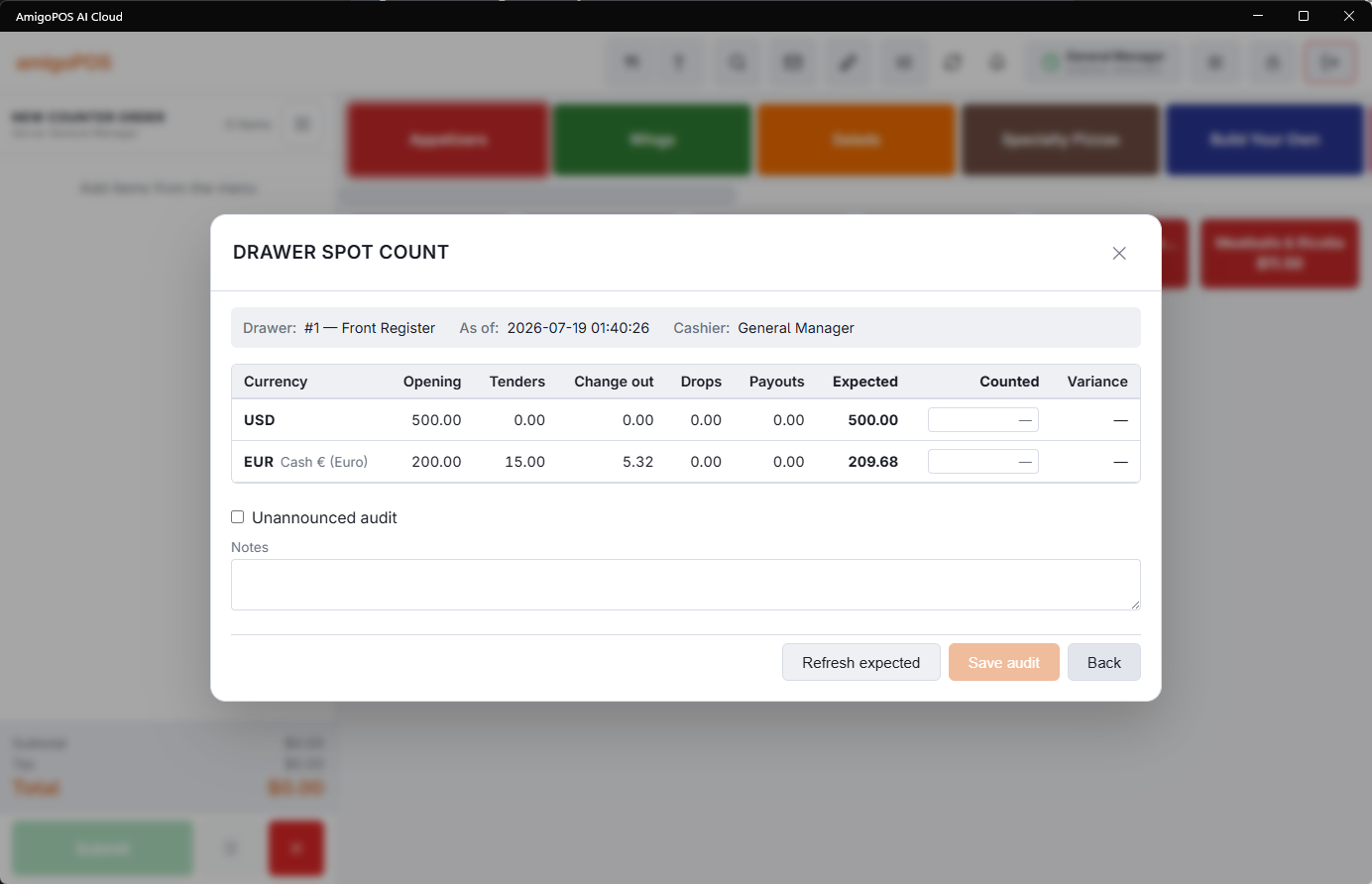
A spot count shows one line per currency: opening float, tenders in, change out, drops, payouts, employee deposits and deposits applied at End Shift (in the base currency, when there are any), and the resulting expected amount — all in physical units of that currency. The counter enters the counted amount per line; variance is computed per currency, and per-currency warning and maximum thresholds on the drawer can require a manager override for large discrepancies. Clock-out counts and clock-in verification use the same per-currency screen.
Drawer reset
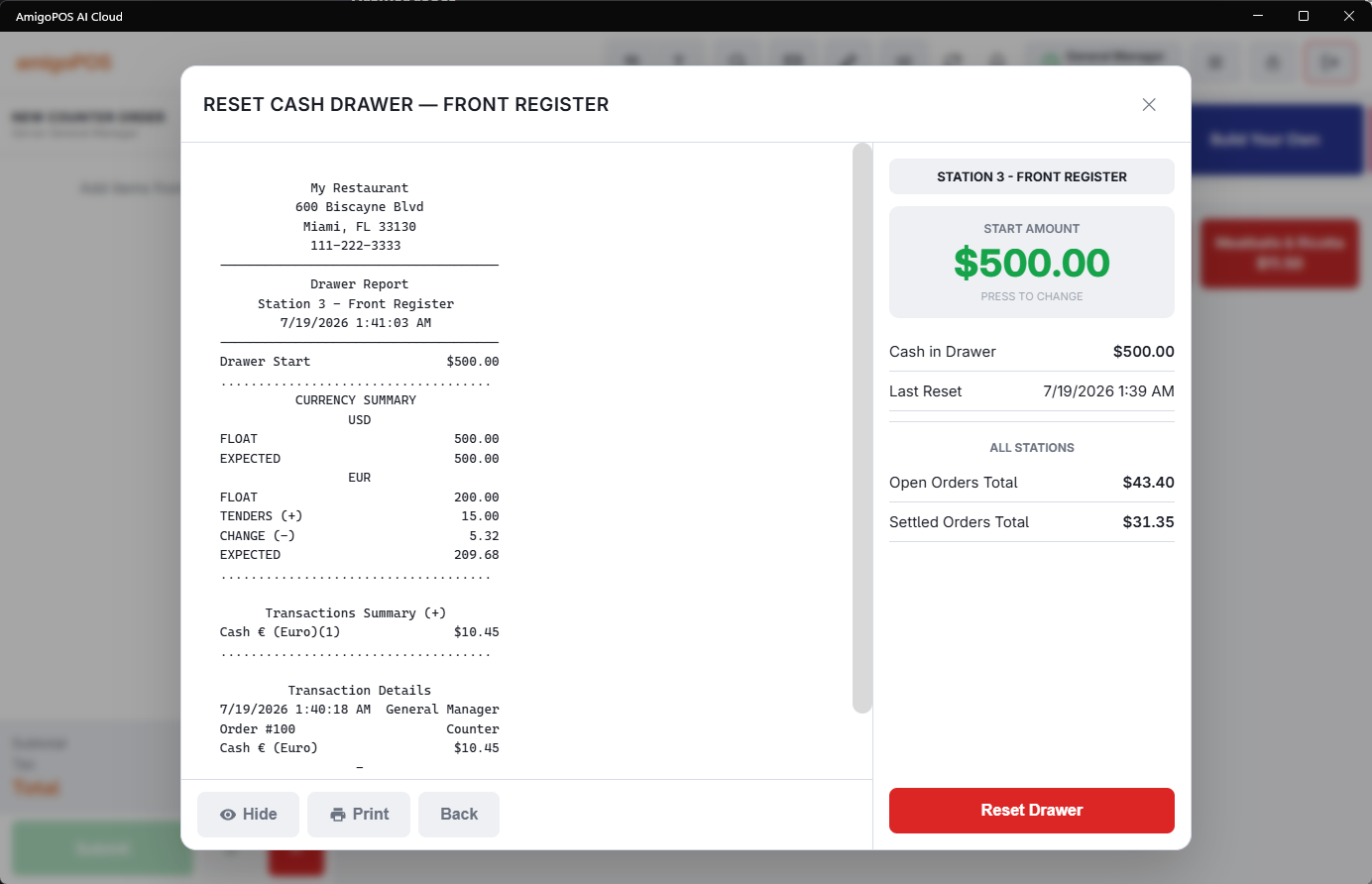
The reset report includes a Currency Summary — float, tenders, change, drops, payouts, the employee deposits the drawer took, the deposits an End Shift at the drawer applied, and expected for every currency with activity — so the person emptying the drawer knows exactly what to pull, per currency, before touching a bill.
- With drawer counts enabled, the Count Drawer button opens the same per-currency count as a spot count. Every currency listed needs a figure, 0 if there is none. After saving, the reset runs automatically and the printed report (and the stored copy in the reset log) gains a Currency Count section with expected / counted / over-short per currency.
- Resetting also closes the shift's opening floats and re-baselines the drawer's running ledger to zero in every currency, so a fresh spot count immediately after a reset shows 0.00 expected across the board.
- The Cash In Drawer figure on the reset screen is the base-currency expected amount — the same number a spot count shows — while foreign currencies appear in the currency sections.
- Any employee with manager functions can count any drawer - no drawer claim of their own is needed - and reset it with the Reset Drawer permission or a manager’s approval; the count and reset are recorded under their name. Cashiers may clock out before a reset: the clock-out count and the next cashier's verification count reconcile each hand-off, and the drawer can span multiple shifts between resets.
Worked example: pay in euros, change in dollars
A US store (base USD) with a EUR method at rate 1.08 and opening floats of $500 and €200:
- A $9.35 order is paid with €10.00 → recorded as $10.80 tendered, $1.45 change in USD.
- A spot count now expects $498.55 (500 − 1.45 change) and €210.00 (200 + 10 tendered).
- At reset, the Currency Summary shows both lines; the counter pulls $498.55 and €210.00, and any difference prints as per-currency over/short.
Current limitations
- Cash drops and payouts can be in any cash currency the store takes, and lower that currency’s expected cash. On the reset report, base-currency payouts are under Cash Payouts (-), and each other currency’s payouts get their own section, such as Cash Payouts EUR (-), with plain amounts that are not in the base currency.
- Employee deposits are recorded in the base currency only.
- Checks and gift certificates are counted in base currency.
- When foreign change is rounded, the small rounding difference appears as drawer variance rather than a separate ledger line.
Troubleshooting
- Converted amounts look wrong at the settle screen — the exchange rate is entered in the wrong direction; it must be base units per 1 foreign unit.
- A foreign line is missing from the spot count — no activity and no float was declared for that currency; declare it at clock-in or record a payment.
- Expected cash looks too high after upgrading — transactions recorded before the multi-currency upgrade carry no currency information; perform a drawer reset to start clean.
The total in other currencies on the receipt
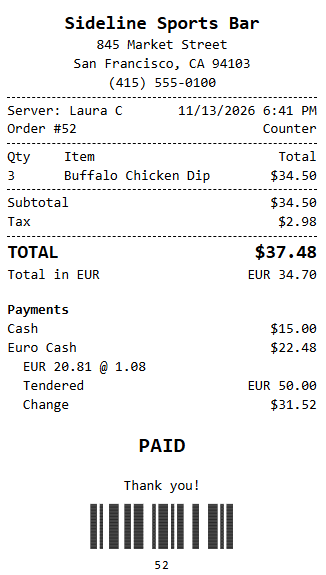
Once a foreign-currency payment method is available for tender, the customer receipt restates the total under TOTAL in that currency, one line per currency, at the method’s exchange rate: Total in EUR EUR 23.15. The amount is written with the ISO code rather than a symbol, because € and ƒ are not in every printer’s character set.
Nothing to switch on: add or remove a currency method and the receipt follows. To hide the lines at a store that does not want them, delete the {BlockIf=Currencies} block from the receipt template. A store with only base-currency methods prints nothing extra.
The foreign-currency payment on the receipt
A payment taken in a foreign currency prints at its value in the store’s currency on the payment line, so the payments add up to the total. The line under it shows what was actually handed over, with the rate — EUR 20.00 @ 1.08 — followed by Tendered and Change when cash was handed over above the amount, change shown in the currency it was given in.
- A payment counts as foreign when its currency is not the store’s Base Currency (Store Setup › General Settings › Store Information) — even at a rate of exactly 1. If that setting is wrong, payments in your own currency print as foreign: check it first.
- Amounts print with the currency code, not a symbol, and at the rate stored on the payment.
- A receipt template saved earlier needs the new lines pasted in — see Receipt and prep-ticket templates.