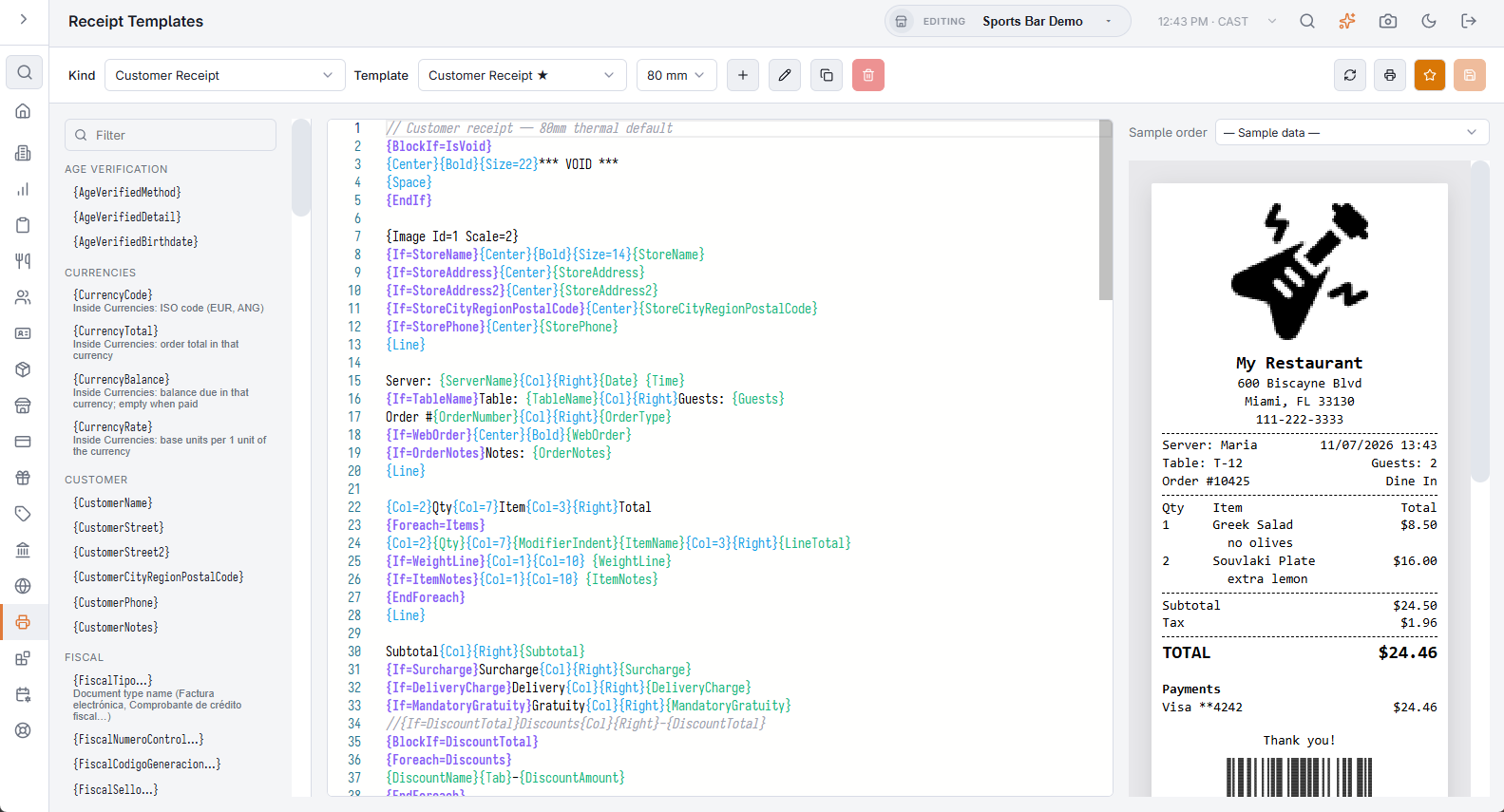
Back Office › Hardware & Printing › Receipt Templates is where you edit what the printers produce: customer receipts, prep tickets, labels and slips. A template is plain text with tokens in braces where the data belongs. The page shows the token list on the left, the editor in the middle and a live preview on the right.
Choosing what to edit
- Kind — what the template is for: Customer Receipt, Discount Coupon, Gift Card Slip, Guest Survey Slip, Guest Wi-Fi Slip, Label, Loyalty Card Slip, Prep Ticket or Trip Ticket. Each kind has its own tokens.
- Template — — Default — is the built-in template; below it are the store’s saved templates of that kind. A star (★) marks the one that prints.
- 58 mm or 80 mm — the paper width of the template. It changes the preview and is saved with the template; changing it enables Save.
The buttons
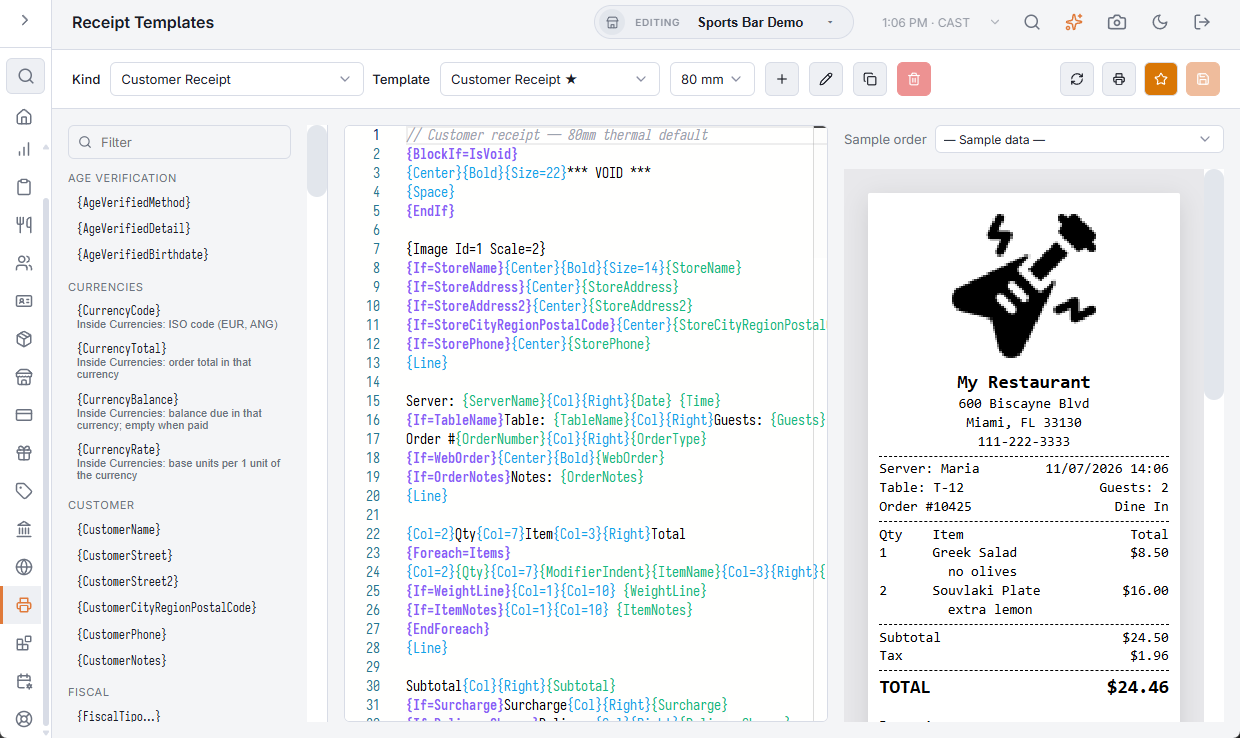
- New (+) — asks for a name and saves a new template of this kind, starting from the built-in one.
- Rename (pencil) — renames the selected saved template, and saves any changes in the editor with it.
- Copy — saves a copy under a new name, including any changes not saved yet.
- Delete (bin) — deletes the selected template after a confirmation. It is available only while the kind has more than one saved template.
- Refresh — redraws the preview and reloads the lists above it, so an order or prep ticket just sent appears.
- Test print (printer) — opens Send test print to… with the store’s printers and their paper size. The template in the editor, saved or not, prints with sample data at that printer’s width.
- Set as default for this kind (star) — makes the selected template the one that prints, and the star moves to it in Template. Save your changes first.
- Save — saves the template. It is enabled while there are unsaved changes, which the preview marks with Unsaved Changes.
Which template prints
For each kind, the template marked with the star prints. A new or copied template does not print until you press Set as default for this kind. While no saved template of a kind is the default, the built-in one prints.
The preview
The preview shows the template filled with sample data, as it changes. For a Customer Receipt, Sample order above the preview can show one of the last 20 orders instead of — Sample data —.
For a Prep Ticket, Prep ticket above the preview lists the last 30 prep tickets the store sent, newest first, each with its order number, the time it was sent and its printer. Pick one to see that ticket in the template you are editing: the station it went to and only the items that round sent, so a later round shows just what was added. The list holds tickets sent to a prep printer that has a Print Agent, whether or not they printed. The preview is built from the order as it is now, so a line deleted since then is not shown.
Tokens
A token is replaced with its value when the ticket prints — {OrderNumber}, {ServerName}, {TotalAmount}. The list on the left shows every token of the kind you are editing, grouped by what it belongs to, such as header, customer, items, totals, payments, validation and media. Type in Filter to narrow it, and click a token to insert it where the cursor is. The Image token opens Pick an image with the pictures from the Image manager.
Store tokens
A customer receipt can print the store’s own details. The Store group of tokens is filled from the Store Information section of Back Office › Store Setup › General Settings; see General settings.
| Token | Prints |
|---|---|
{StoreName} | Business Name. |
{StoreAddress} | Street Address. |
{StoreAddress2} | Address line 2; empty when it is not set. |
{StoreCityRegionPostalCode} | City, Region and Postal Code on one line. |
{StorePhone} | Phone. |
The built-in customer receipt prints them at the top, after the picture {Image Id=1 Scale=2}. Each line starts with {If=…}, so a setting left empty prints nothing:
{If=StoreName}{Center}{Bold}{Size=14}{StoreName}
{If=StoreAddress}{Center}{StoreAddress}
{If=StoreAddress2}{Center}{StoreAddress2}
{If=StoreCityRegionPostalCode}{Center}{StoreCityRegionPostalCode}
{If=StorePhone}{Center}{StorePhone}
The preview and Test print fill them with the store’s own values. A customer receipt template saved earlier, including one copied from the old built-in template, can still have typed lines such as Your Store Name and 123 Main Street, and keeps printing them as typed. Replace those lines with the ones above, or make the template again from the built-in one.
Layout
{Center},{Right},{Bold}and{Size=14}affect the line they appear on.{Line}draws a rule;{Space}leaves a blank line.{Col}splits a line into columns.{Col=N}weights them, so{Col=1}{Qty}{Col=8}{ItemName}{Col=3}{LineTotal}gives a narrow quantity, a wide name and a right-hand total that line up down the ticket.
Blocks that only print when they apply
{If=Token} drops a single line when its token is empty or zero. {BlockIf=Token} … {EndIf} drops a whole section. That is how a receipt shows a discount line only when there was a discount, or customer details only when there is a customer, without printing empty headings.
Formatting and defaults
A token can carry Format= to control how a number or date is rendered, and Default="…" to print something when the value is missing.
Currencies repeater
The customer receipt has a {Foreach=Currencies} repeater, one row per foreign-currency payment method the store can tender. Inside it: {CurrencyCode}, {CurrencyTotal} (the order total in that currency), {CurrencyBalance} (the balance due, empty once paid) and {CurrencyRate}. Wrap it in {BlockIf=Currencies} so stores without such methods print nothing. The built-in template carries the block just under TOTAL; a store with its own saved template must paste it in. See Accepting Foreign Currency.
Payment tokens
Inside {Foreach=Payments}, each payment can print these tokens:
| Token | Prints |
|---|---|
{PaymentAmount} | The amount applied to the bill, in the store’s currency — also for a foreign-currency payment. |
{PaymentCurrency} | The payment’s currency code (EUR); empty for the store’s own currency. |
{PaymentForeignAmount} | The amount in that currency, e.g. EUR 20.00; empty if not foreign. |
{PaymentRate} | Store-currency units per 1 unit of that currency; empty if not foreign. |
{PaymentTendered} | Cash handed over, when more than the amount applied, in the currency it was handed over in. |
{PaymentChange} | Change given, in the currency it was given in; empty when there was none. |
{PaymentChangeCurrency} | The code of change given in a foreign currency; empty otherwise. |
The built-in customer receipt prints them on the lines after {PaymentType}{Col}{Right}{PaymentAmount}:
{If=PaymentForeignAmount}  {PaymentForeignAmount} @ {PaymentRate}
{If=PaymentTendered}  Tendered{Col}{Right}{PaymentTendered}
{If=PaymentChange}  Change{Col}{Right}{PaymentChange}
A customer receipt template saved before these tokens existed, including one copied from the built-in template, does not have these lines: paste them under the payment line inside {Foreach=Payments}. Tendered and Change are plain words you can translate.