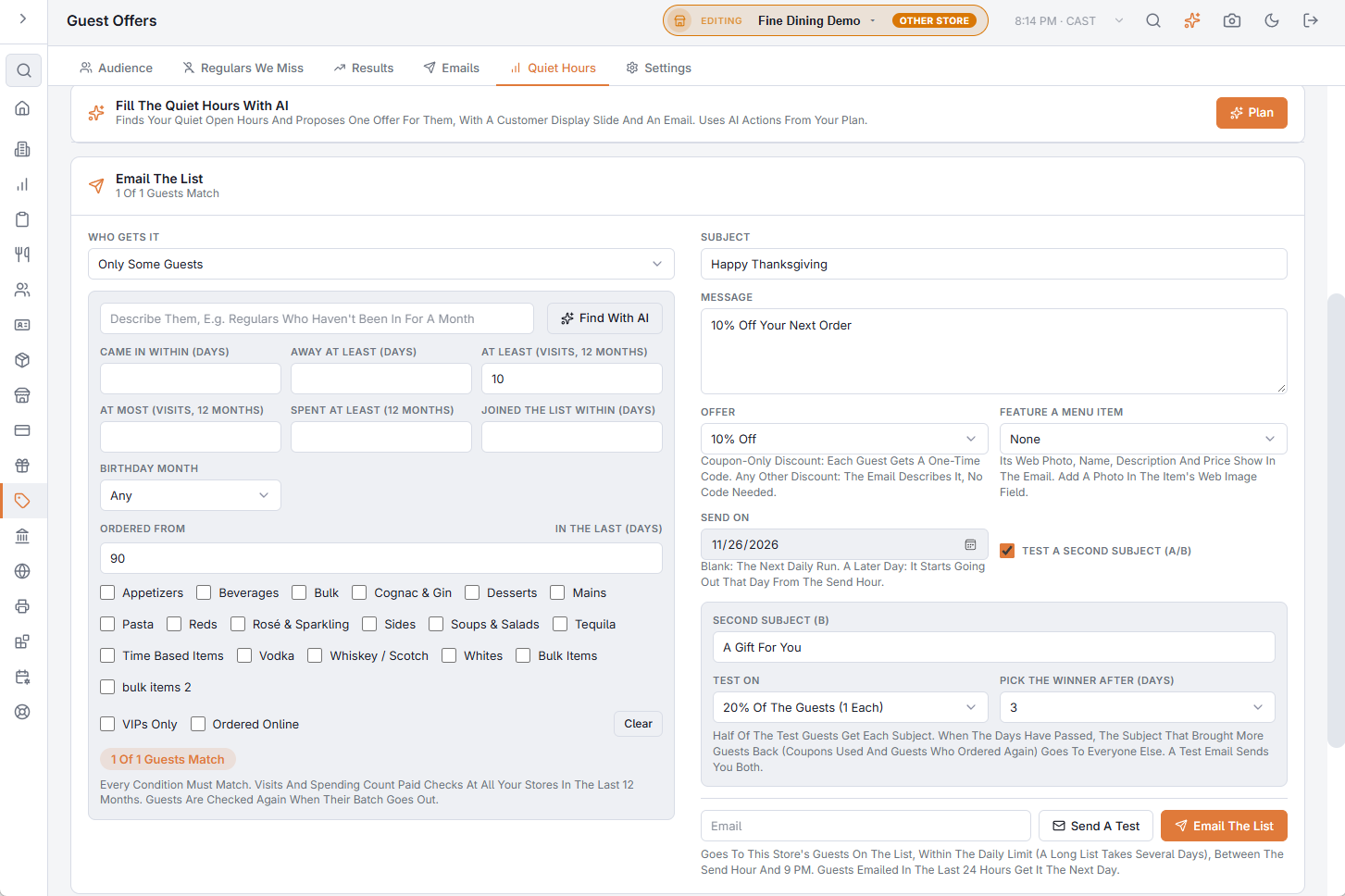
Two options in the Email The List card (Back Office › Discounts & Promotions › Guest Offers › Quiet Hours) help you send at the right moment and with the right words.
Send on a later day
- Pick a day in Send On, up to a year ahead. The email starts going out that day from your Send Hour (Settings › Sending). Leave it blank to send from the next daily run, as before.
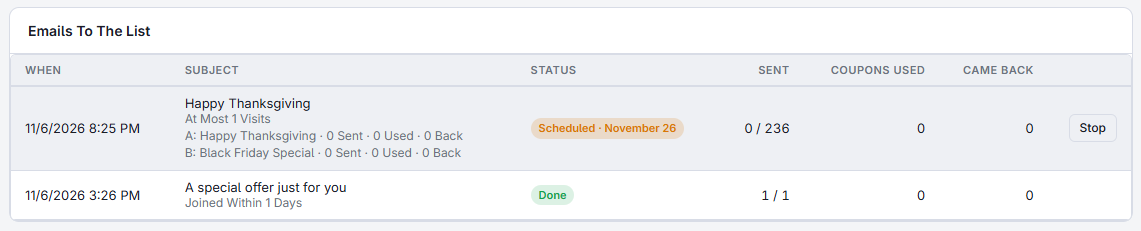
- When you press Send you’re asked to confirm the number of guests and the day; the email then shows Scheduled with its date in the Emails To The List table.
- One email can be scheduled per day. A scheduled email doesn’t stop you sending another one to the list in the meantime.
- The guests are chosen on the day it goes out, so guests who join or leave before then are counted correctly.
Test a second subject (A/B)
The subject line decides whether an email gets opened. Switch on Test A Second Subject (A/B) to let your guests choose:
- Write the Second Subject (B). The first subject is A; everything else in the email is the same.
- Choose Test On: 10 to 50% of the guests. Half of them get A and half get B.
- Choose Pick The Winner After: 1 to 7 days.
The test guests get their email first. When the days have passed, the subject that brought more guests back — coupons used plus guests who ordered again, for each email sent — goes to everyone else. If both did equally well, A goes out.
- An A/B test needs at least 40 guests.
- Send A Test sends you both versions, marked (A) and (B).
- While it runs the email shows Testing; each subject then has its own line (sent, used, back) and the one that won is marked Winner.
Give the test enough days for guests to come in. A short test on a small list often ends in a tie; the bigger the list, the clearer the winner.
Related: Quiet hours · Email the list: choosing who gets it